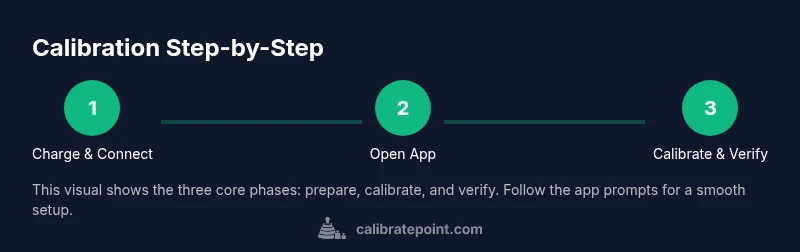
Halo Collar Calibration Mode Guide: Step-by-Step
Learn how to put the Halo Collar into calibration mode to ensure GPS accuracy and safe stimulation. This practical Calibrate Point guide covers prerequisites, steps, safety tips, and troubleshooting for reliable dog training data.


Goal: Put your Halo Collar into calibration mode to ensure accurate GPS data, beacon readings, and stimulation levels. You’ll need a charged Halo Collar, the Halo app on a smartphone, and a stable internet connection. This calibration minimizes misreads and keeps training data aligned with current settings. Calibrate Point recommends calibrating when the collar is charged and the app shows a strong connection.
Why calibration matters for Halo Collar
Calibration is the process that aligns the Halo Collar’s sensors with the environment, ensuring GPS data, beacon accuracy, and stimulation levels reflect real conditions. When calibration is current, the collar’s geofence alerts, distance estimations, and stimulation thresholds match what you expect during training. This is especially important for outdoor or multi-floor environments where signal conditions can change. A well-calibrated collar reduces misreads, minimizes unnecessary stimulations, and makes your training data more reliable for progress tracking. In short, calibration helps you train more effectively and keeps your dog safe by avoiding situations where the collar misbehaves due to outdated sensor baselines.
Calibrate Point emphasizes a mindful calibration routine as part of ongoing canine training management. Regular checks help catch drift caused by battery cycles, app updates, or environmental changes, ensuring the device remains a dependable training partner.
Safety considerations before calibration
Safety is foundational. Calibrate Point recommends conducting calibration in a calm, controlled environment where the dog cannot dash into traffic or hazardous areas. Ensure the halo collar is fully charged, the smartphone is charged, and you have a stable internet connection. Use a leash or tether if your dog tends to pull, and keep the dog within a manageable area during the process. Avoid calibrating near obvious EMI sources (large metal structures, strong power lines, or heavy RF transmitters) as these can skew GPS and sensor readings. If your dog is anxious or reactive, pause and revisit calibration after a short, positive training session to reduce stress and improve data quality.
Prerequisites and setup
Before you begin, verify that the Halo Collar is registered to your Halo account and that the Halo app is up to date. The collar should be attached to your dog and comfortably fitted with a snug, but not tight, strap. Have the charger handy and ensure the device has a respectable battery level (ideally above 50%). You will also need a reliable Wi‑Fi connection for the app to communicate with Halo servers during calibration. Prepare a quiet, distraction-free space to minimize variables during sensor adjustment and GPS alignment. Having a plan and space reduces the likelihood of mid-process interruptions and improves calibration outcomes.
Accessing calibration mode in the Halo app
Open the Halo app and sign in to the correct account associated with the dog’s Halo Collar. Navigate to the device screen for your collar and look for the Calibration option in the settings or tools menu. Tap Calibration to enter the mode where GPS offsets, beacon data, and stimulation baselines can be tuned. The app may present a warning about temporary data changes; confirm you want to proceed. If you do not see Calibration, ensure the app is connected to the internet and that the collar appears as connected in Bluetooth and cloud status.
Initiating calibration on the collar itself
With the collar on your dog, initiate the calibration sequence from the Halo app, which will communicate with the device to place it into calibration mode. The device may momentarily adjust LEDs or vibrate to indicate it is in calibration. Do not remove the collar or disturb the dog during this step. The goal is to synchronize the collar’s sensor baselines with the live environment. If you encounter a timeout, reinitiate from the app after ensuring the collar remains within Bluetooth range and the phone has a stable connection.
Running GPS calibration
GPS calibration involves allowing the Halo Collar to gather location data relative to your environment. Walk your dog in a safe, open area for a few minutes, following on-screen prompts from the Halo app. The app may ask you to mark geofence corners or confirm detected positions. This is the most critical phase for improving location accuracy, so stay steady and avoid sudden changes in pace or route. Depending on your device and environment, the calibration may require a short pause for sensor stabilization.
Verifying calibration results and adjustments
After the calibration cycle completes, review the app’s indicators for GPS accuracy, beacon reliability, and stimulation baseline alignment. The app may provide a summary score or a pass/fail indicator. If readings show drift or low confidence, repeat the calibration in the same session or schedule a follow-up session after some time. Compare the new baseline to prior values to ensure the adjustments address the observed issues. Save the changes and perform a brief training exercise to confirm the improvements.
Common pitfalls and how to fix them
Common issues include poor app connectivity, mid-session interruptions, and environmental interference. If the collar disconnects, re-establish the Bluetooth link and retry calibration. If GPS remains unreliable, consider performing calibration in an outdoor space with fewer buildings, or after updating the app or collar firmware. Do not force calibration through if the dog becomes distressed; pause and resume later. Document any recurring problems for future reference.
Maintenance and best practices after calibration
Keep calibration data fresh by scheduling periodic checks, especially after firmware updates or changes to the dog’s environment. Recalibrate if you notice a change in training outcomes or GPS drift. Store the collar and charger in a protective area away from extreme temperatures. Periodically review app permissions and ensure the device’s firmware is up to date. A well-maintained calibration routine supports consistent training results over time.
Tools & Materials
- Halo Collar device(Fully charged (≥ 50%) before starting calibration)
- Halo app on smartphone(Bluetooth enabled; account synced to the dog’s device)
- Stable internet connection(Needed for app updates and cloud sync during calibration)
- Charger/USB cable(Keep a power source available to prevent mid-session shutdown)
- Leash or tether(Maintains dog safety and control during calibration)
- Calm, distraction-free space(Optional but helpful to reduce external variables)
Steps
Estimated time: 15-25 minutes
- 1
Charge and power on
Ensure the Halo Collar battery is sufficiently charged and the collar is mounted securely on your dog. Power on the device and confirm it appears connected in the Halo app. A solid initial battery reduces mid-process drops that could invalidate calibration data.
Tip: Check battery level in the app before starting; a low battery can derail calibration. - 2
Open the Halo app and connect
Launch the Halo app and select the dog’s collar from the device list. Verify Bluetooth and cloud connectivity, and ensure the collar status shows as connected. This establishes a reliable link so calibration commands reach the device.
Tip: If the device doesn’t appear, toggle Bluetooth off and on or restart the app. - 3
Navigate to Calibration in the app
In the device screen, locate Calibration under Tools or Settings. Tap Calibration to enter the dedicated mode where GPS, beacon, and stimulation baselines can be adjusted. Confirm any on-screen warnings to proceed.
Tip: Read prompts carefully; calibration affects training data and safety settings. - 4
Start calibration mode on the collar
Initiate the calibration sequence from the app; the collar may indicate entry via LED changes or a short vibration. Do not remove or disturb the collar during this phase. Stay nearby to observe behavior and ensure the process completes.
Tip: Keep the phone within arm’s reach to maintain a stable connection. - 5
Run GPS calibration in open space
Follow on-screen prompts to walk your dog in a safe, open area. The app will guide you to collect location data and verify detected positions. Complete the guided route to anchor GPS baselines.
Tip: Choose a location with minimal tall obstructions for best results. - 6
Complete and save calibration
Finish by saving the new calibration values. The app should display a success message and confirm updated baselines. If a reboot is required, follow the prompts and recheck connectivity.
Tip: Always test briefly with a quick training drill to confirm behavior aligns with expectations. - 7
Verify results and plan next check
Review accuracy metrics in the app; compare to prior calibration data. Schedule a follow-up calibration after firmware updates or environmental changes. Document the calibration date for future reference.
Tip: Keep a simple log of calibration dates and results for trend tracking.
Questions & Answers
What is the Halo Collar calibration mode used for?
Calibration mode adjusts GPS, beacon, and stimulation baselines so sensor readings reflect the real environment. It improves accuracy for training and safety features.
Calibration mode fine-tunes the collar's sensors to your environment, improving GPS and stimulation accuracy for safer training.
How often should I calibrate the Halo Collar?
Calibrate when you notice GPS drift, after firmware updates, or after significant environmental changes. Regular checks help maintain data reliability.
Calibrate when you see GPS drift, after updates, or when the environment changes; regular checks keep data reliable.
Can calibration harm my dog?
Calibration is a data alignment process; when done as directed and with the dog calm, there is no harm. If the dog becomes distressed, pause and resume later.
Calibration itself is safe when performed calmly and correctly; stop if your dog shows distress and resume later.
What if the app cannot connect during calibration?
Check Bluetooth, restart the app, ensure internet access, and confirm the collar appears in the device list. Reattempt calibration once the connection is stable.
If the app won’t connect, reset Bluetooth, reopen the app, check internet, and try again when the connection is solid.
Is there a risk of over-calibrating the collar?
Over-calibration is unlikely if you follow the on-screen prompts and avoid repeated cycles in one session. Use the saved baseline and recheck after changes.
There’s little risk of over-calibrating if you follow the prompts and save a baseline; recheck after any changes.
Should I calibrate indoors or outdoors?
Outdoor calibration often yields better GPS data due to open sky visibility, but ensure a safe, controlled space if you calibrate indoors.
Outdoor calibration tends to be better for GPS, but you can calibrate indoors in a controlled space if needed.
Watch Video
Key Takeaways
- Calibrate regularly to maintain GPS accuracy and stimulation reliability
- Prepare a calm environment and ensure full battery charge
- Follow app prompts precisely for reproducible results
- Verify results with a short training test
- Document calibration dates for trend tracking