What to Reset on Your Phone: A Practical Guide
Learn safe phone reset strategies—from soft restarts to factory resets. This Calibrate Point guide covers when to reset, backups, risks, and clear steps for Android and iPhone.


Goal: Learn how to safely reset your phone. This quick guide covers when to reset, the different reset types (soft restart, network reset, app data reset, factory reset), and how to back up data and protect sensitive information before proceeding. You will also see platform-specific notes for Android and iOS, along with best practices to minimize data loss.
Why Reset a Phone and When
The phrase what to reset phone often arises when a device slows down, apps misbehave, or you notice odd network behavior. A reset can help restore performance and clear stubborn glitches, but it should be chosen carefully and executed with data protection in mind. In this guide, we explain why you might reset, the risks, and how to prepare for a reset that protects your information. The Calibrate Point team emphasizes that starting with a backup and a clear goal will reduce stress and data loss while enabling a clean, targeted fix.
First, identify symptoms: lag, crashes, poor battery life, or unusual connectivity drops. Then evaluate whether a simple restart would fix the issue, or if a more thorough reset is warranted. By understanding the difference between soft resets, network resets, and factory resets, you can choose the smallest change needed to recover usability without erasing personal data. The What to reset phone decision should align with your risk tolerance and the importance of preserving app data, photos, and messages.
Types of Resets You Can Do
Reset types range from quick, non-destructive options to a full factory reset. Understanding each option helps you avoid data loss and unnecessary steps. The most common options are soft resets (restarts), network resets (to fix connectivity), and app data resets (to clear cache or local data for specific apps). The most drastic is a factory reset, which wipes all content and restores the device to its original state.
- Soft reset / Restart: A simple reboot that often resolves minor glitches without touching personal data.
- Network settings reset: Clears saved Wi‑Fi, Bluetooth, and cellular settings, which can fix connectivity issues.
- App data reset: Clears cached data for one or more apps while leaving your device intact.
- Factory reset: Erases all data, removes settings, and reinstalls the OS—use only if problems persist after other resets.
Backups and Precautions
Backing up before any reset is non-negotiable if you want to preserve essential information. A backup captures contacts, photos, messages, app data, and device settings, making recovery quick after the reset. Choose a backup method you trust: cloud-based backups (Google Drive for Android, iCloud for iPhone) or a local copy to a computer. Verify that backup appears complete by spot-checking a few items. Also, sign out of accounts and disable any security locks that could interfere with restoration. Finally, ensure the device is charged or plugged in to avoid an in-progress reset failing due to low battery.
Observe that some content, like app data and some license keys, may not transfer perfectly between devices or platforms. Plan for re-downloading apps and re-activating services after a factory reset. Calibrate Point recommends keeping a current backup version accessible for at least a few days after restoration, so you have restore options if something goes wrong.
Soft Reset, Restart, and Basic Troubleshooting
A soft reset (reboot) is the first line of defense for many issues. It clears temporary memory and stops errant processes without touching data. If you’re dealing with freezing, slow responses, or apps crashing, perform a soft reset first. If the problem persists, you can proceed to more targeted resets. Avoid performing a factory reset unless the device continues to malfunction after all non-destructive options.
- How to do a soft reset: Press and hold the power button until the device powers off, wait a few seconds, then power it back on. For some devices, you may need to confirm a restart.
- When to move beyond soft reset: persistent lag, frequent app crashes, network issues that won’t resolve with a restart, or after a major OS update that behaves inconsistently.
Platform-Specific Paths: Android vs iPhone
Reset paths differ between Android and iPhone. Knowing the exact route helps you avoid unintended data loss. On Android, you’ll often find reset options under Settings > System > Reset options, with sub-choices for network, app data, and factory reset. On iPhone, reset options live under Settings > General > Transfer or Reset iPhone, with similar choices for resetting networks, settings, or all content and settings.
- Android example path (varies by vendor): Settings > System > Reset options > Reset Wi‑Fi, mobile & Bluetooth (or factory data reset).
- iPhone example path: Settings > General > Transfer or Reset iPhone > Erase All Content and Settings.
Before performing a factory reset on either platform, ensure Find My iPhone or Find My Device is disabled and that you will be able to restore from a backup afterward. This reduces Activation Lock risk and speeds up reconfiguration.
Aftercare: Verification, Updates, and Data Restoration
After a reset, you’ll want to verify core functions before restoring everything. Check that Wi‑Fi and cellular connectivity work, apps install and launch properly, and the OS is up to date. If you performed a factory reset, begin by restoring from your backup and then reinstall essential apps. Monitor for anomalies over the next several days, and keep a secondary backup until you’re confident the device is stable. If issues reappear, you can trace them back to specific apps or settings and address them without repeating a full reset.
Authoritative Sources
- Official Android Help: https://support.google.com/android
- Apple Support: https://support.apple.com
- Consumer Information: https://www.consumer.ftc.gov
Tools & Materials
- Phone(Ensure battery is at least 50% or keep charger handy during resets)
- Backup method (cloud or PC)(Google Drive/iCloud or local PC backup; verify accessibility)
- Accounts credentials(Have Google/Apple IDs and passwords ready for sign-in after reset)
- Charger and cable(Keep powered during long or multiple resets)
- SIM card (optional)(Remove only if advised by the reset path to avoid interruptions)
- Stable internet connection(Needed for backups and re-downloads during restoration)
Steps
Estimated time: 60-90 minutes
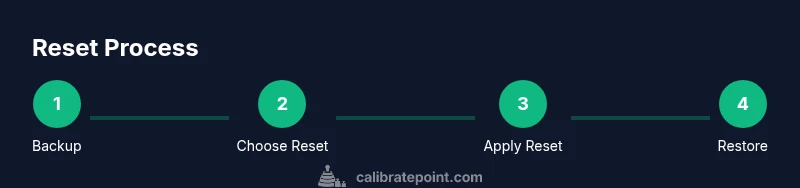
- 1
Back up your data
Begin with a complete backup of contacts, photos, messages, and app data. Choose cloud or local backup and verify that essential files are accessible after the backup completes. This step protects against unintended data loss during any reset.
Tip: Use at least two backup copies if possible (cloud + local). - 2
Choose the reset type
Decide on the minimum reset needed to address the issue: soft reset, network settings reset, app data reset, or factory reset. Avoid factory reset unless non-destructive options fail to resolve the problem.
Tip: Document symptoms to justify the chosen reset type. - 3
Perform a soft reset
Power off the device, wait 10–20 seconds, and power it back on. This clears temporary caches and can fix minor glitches without data loss.
Tip: Close unnecessary apps before reboot to free resources. - 4
Reset network settings
If connectivity is the issue, reset network settings. On Android, go to Settings > System > Reset options > Reset Wi‑Fi, mobile & Bluetooth. On iPhone, Settings > General > Transfer or Reset iPhone > Reset Network Settings.
Tip: Note the Wi‑Fi passwords you will need to reconnect. - 5
Reset specific app data/cache
Clear cached data for problematic apps or use Offload App (iOS) and Clear Cache (Android). This helps fix app-specific issues without touching other data.
Tip: Test the app after clearing data to see if the issue recurs. - 6
Factory reset (last resort)
If issues persist, perform a factory reset. This erases all data and resets settings. Sign out of accounts, disable Find My iPhone/Find My Device, and be prepared to restore from backup afterward.
Tip: Only proceed if you have a verified backup and you understand activation requirements. - 7
Restore from backup
After a factory reset, restore from your backup and reinstall essential apps. Verify device stability before restoring everything at once.
Tip: Install a small set of core apps first to confirm stability. - 8
Verify device health
Check for OS updates, run a few basic functions (calls, messaging, Wi‑Fi, camera), and monitor battery life. If problems recur, document symptoms and consult platform-specific support.
Tip: Keep a fresh backup after successful restoration in case you need to revert.
Questions & Answers
What happens when you reset your phone?
A reset can restore device performance, but the impact depends on the reset type. Soft resets preserve data, while factory resets erase all data. Understanding the differences helps you choose the right action.
A reset can fix issues, but the effect depends on the type. Soft resets keep your data; factory resets erase everything.
Should I back up before resetting?
Yes. Backing up before resetting protects contacts, photos, apps, and messages. Use cloud or local backups and verify accessibility after the backup.
Yes, back up before resetting to protect your data.
What's the difference between a soft reset and a factory reset?
A soft reset restarts the device without deleting data, fixing minor glitches. A factory reset wipes all data and returns the device to factory settings.
Soft reset restarts; factory reset erases all data.
Will resetting my phone remove malware?
A factory reset can remove most malware, but some infections may persist if they are reintroduced from a compromised backup. Always ensure backups are clean before restoring.
Factory reset can remove most malware; use clean backups when restoring.
How do I reset network settings on Android or iPhone?
On Android: Settings > System > Reset options > Reset Wi‑Fi, mobile & Bluetooth. On iPhone: Settings > General > Transfer or Reset iPhone > Reset Network Settings.
Reset network settings via Settings, then connect to networks again.
What if I can’t remember my account credentials after a reset?
You may face Activation Lock or sign-in issues. Use account recovery options provided by Google or Apple to regain access after the reset.
You may need account recovery to regain access after the reset.
Is a factory reset the same as wiping data?
A factory reset is a data wipe that returns the device to its original state; wiping data often refers to removing user content during the reset process.
Factory reset wipes data; it's the official reset that returns the device to out-of-box state.
How long does a reset take?
Reset durations vary by device and reset type. Small resets can take minutes, while a factory reset may require 20–60 minutes plus reconfiguration.
Timing depends on the reset type; factory resets take longer.
Watch Video
Key Takeaways
- Back up before any reset.
- Choose the minimal reset needed to fix the issue.
- Factory reset is a last resort.
- Verify device health after resets.