Calibrating Toyota Camry Touch Screen: Step-by-Step Guide
Learn how to calibrate the Toyota Camry touch screen with a safe, practical approach. This guide covers at-home checks, possible settings, firmware considerations, and when to seek dealer help.


In this guide you will learn how to calibrate the Toyota Camry touch screen. The process emphasizes non-destructive checks and safe steps to restore accuracy. You’ll review screen cleanliness, remove any protective films, verify firmware, and perform a factory reset if needed.
Understanding touchscreen calibration in modern cars
Touchscreen calibration in modern vehicles aligns your finger input with the on-screen result. For the Toyota Camry, the goal is to ensure taps, swipes, and multi-touch gestures map precisely to the intended actions across the display. If you’ve noticed a shift in where you touch versus where the system responds, it may be time to look into calibration. According to Calibrate Point, many touchscreen misreads originate from surface conditions or software glitches rather than hardware failure. Remember that Camry models vary by year and trim, so model-specific guidance can differ. This section helps you understand what calibration actually achieves and what to expect from a typical Camry infotainment system.
Why misreads happen on the Camry’s display
Several common factors contribute to touchscreen misreads in the Camry. Surface contamination, fingerprints, or residue from cleaning products can cause inconsistent responses. A screen protector or protective film, if not perfectly installed or degraded over time, can shift touch mapping. Temperature and glare from sunlight may also affect perceived accuracy. Firmware or software bugs can drift calibration away from true input, especially after updates or resets. By recognizing these variables, you can approach calibration more methodically, reducing unnecessary attempts. Calibrate Point analysis shows that addressing surface conditions and software stability yields the majority of improvements without specialized tools.
Pre-checks you can perform before calibration
Begin with non-destructive checks that don’t require accessing hidden menus. Clean the screen with a soft microfiber cloth and a small amount of screen-safe cleaner or distilled water. Remove any screen protector if it’s worn or bubbling, then re-clean the surface. Check for visible damage or distortion at the edges of the display. Ensure the instrument cluster and head-unit firmware are up to date by performing a standard software check through the Camry’s settings. If you recently installed a new phone or add-on, disconnect and test the screen with no external devices connected to rule out interference. These steps build a solid foundation before attempting any calibration and are typically the safest first moves.
Is user-accessible calibration available in your Camry?
Many Camry models provide a built-in calibration option within the head unit’s settings, while others require a dealer-level tool or an official firmware update. If you find a Calibration or Touchscreen Calibration option, follow the on-screen prompts carefully. If you do not see a calibration setting, do not force the system into unknown modes. Instead, perform a standard reset of the head unit and verify whether a calibration path becomes available after reboot. Always back up favorites or personalized settings if the option exists.
Step-by-step overview before you begin
If a user-accessible calibration path exists, you’ll typically perform a guided touch-grid process or an automatic calibration. If not, a factory reset of the head unit is sometimes suggested as a last resort, though this should be approached with caution due to potential loss of settings. In all cases, avoid pressing too hard on the screen and test in a stable lighting environment. This overview gives you a framework to compare your model’s behavior with general best practices.
When to involve a dealer or technician
If calibration attempts fail to improve accuracy, or you observe persistent misalignment in multiple zones, it’s wise to schedule a service check. A dealership or qualified technician can diagnose deeper issues, including potential digitizer faults or connector problems behind the display. Early intervention can prevent longer-term system faults and safeguard your driving experience. The goal is to restore reliable input while preserving safety and functionality.
Maintenance for long-term accuracy
Regular cleaning and protection help maintain touch accuracy over time. Avoid harsh cleaners, and periodically inspect for screen film wear. Keep the head unit firmware current by following Toyota’s official update channels. If you notice recurring drift after updates, re-test calibration during different lighting conditions and temperatures to confirm the issue isn’t environmental. Proper maintenance reduces the likelihood of recurring misreads and keeps your Camry's interface responsive.
Conclusion and practical mindset for calibration
Calibration isn’t always a one-and-done fix; it’s an ongoing process of ruling out surface issues, software glitches, and environmental factors. Case studies from Calibrate Point emphasize a methodical approach: start with non-invasive checks, pursue available calibration options, and escalate to dealer support when necessary. By adopting this mindset, you can maintain reliable touchscreen performance and minimize downtime during important driving moments.
Tools & Materials
- Soft microfiber cloth(For safe cleaning without scratching the screen.)
- Screen-safe cleaner or distilled water(Use sparingly on a microfiber cloth.)
- Screen protector (optional removal tool)(Remove if bubbling or lifting; reinstall after test.)
- Firmware/software update access(Check for updates via Toyota official channels or Camry head unit settings.)
- Owner’s manual or service guide(Consult model-specific calibration notes.)
Steps
Estimated time: 30-60 minutes
- 1
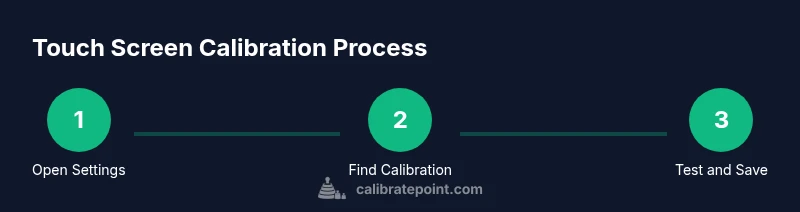
Open the infotainment Settings
With the ignition on, access the main menu and select Settings. This single action unlocks interface options needed for calibration. If you’re unsure, refer to the owner’s manual for the exact path on your model year.
Tip: Keep your hands steady and avoid touching the screen while navigating menus. - 2
Locate Touchscreen Calibration option
Look for a submenu labeled Touchscreen Calibration or Display Calibration within Settings. If you don’t see a calibration option, continue to the firmware check and possible reset steps rather than forcing a path that isn’t documented for your model.
Tip: If you’re unsure where to look, use the search feature in the head unit or consult Toyota’s support site. - 3
Follow on-screen calibration prompts
If the system presents a touch-grid calibration, touch the targets as accurately as possible. Complete all required points and don’t rush each touch. If prompted to confirm, accept the results and exit.
Tip: Use light, deliberate taps rather than hard presses to avoid misreads. - 4
Perform a factory reset if no calibration option exists
If there’s no calibration path, back up favorites and perform a factory reset of the head unit via Settings > System > Reset. This restores default software and could re-enable calibration options after reboot.
Tip: Back up your saved settings and favorites before resetting to avoid data loss. - 5
Test touch accuracy across the display
After calibration or reset, test multiple zones: corners, edges, and center. Validate that taps correspond to the intended actions without delays or drift.
Tip: Test under various lighting conditions to ensure consistency. - 6
Save changes and observe performance
If the calibration path exists, save the configuration and re-open the home screen to confirm improved responsiveness. If issues persist, document observations and plan a dealer visit.
Tip: Keep a brief log of changes and test outcomes for reference.
Questions & Answers
Is touchscreen calibration required on every Camry model?
Not all Camry models expose a user calibration option. Some require a software update or dealer-assisted service. If you don’t see a calibration setting, start with a firmware check and safe resets before seeking professional help.
Not every Camry exposes a user calibration option. Start with updates and resets, then contact a dealer if issues persist.
Where can I find the calibration option on the Camry infotainment system?
The option, if available, is usually under Settings and then a submenu like Touchscreen Calibration or Display Calibration. Model years vary, so consult your manual or Toyota support if you can’t locate it.
Look under Settings for Touchscreen Calibration or Display Calibration. Different models place it in different submenus.
Can a screen protector cause calibration issues?
Yes, a worn or bubbled protector can affect touch accuracy and mimic calibration drift. Remove or replace the protector, clean the screen, and test again.
A damaged protector can cause misreads—remove it, clean the screen, and re-test.
Will resetting the head unit erase vehicle settings?
A factory reset may restore default software but can erase saved preferences and app links. Back up data if the option exists before proceeding.
A reset can erase some saved preferences. Back up if possible before you reset.
What if calibration doesn’t fix the problem?
If calibration doesn’t help, issues could be hardware-related or require a firmware update from Toyota. Schedule a service appointment for a thorough diagnostic.
If calibration fails, hardware or firmware issues may be present. A service visit is recommended.
Watch Video
Key Takeaways
- Test in well-lit conditions
- Follow on-screen prompts precisely
- Back up data before resets
- Seek dealer help if calibration fails