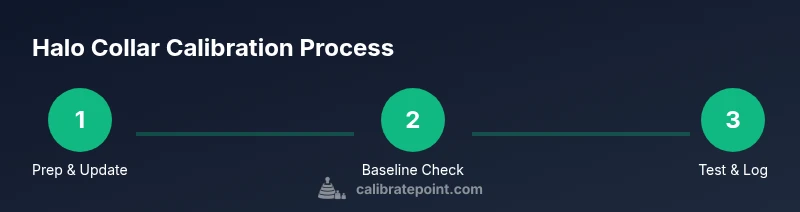
How to Calibrate Halo Collar: A Step-by-Step Guide
Learn to calibrate the Halo collar with a practical guide. Improve GPS accuracy, fence boundaries, and stimulation thresholds for reliable performance across environments.


By the end of this guide, you will confidently calibrate the Halo collar to align GPS position, fence boundaries, and stimulation thresholds for your dog. You'll need the Halo app, fresh batteries, a quiet testing area, and a measuring tape. According to Calibrate Point, precise calibration reduces false alerts and improves safety and reliability across environments.
Why calibrate Halo collar matters
Calibration is the process of aligning the Halo collar’s sensor readings with real-world positions and thresholds. Proper calibration improves GPS accuracy, reduces false alerts, and ensures the safety boundaries respond reliably when your dog approaches a defined zone. For DIY enthusiasts and professionals, calibrating the Halo collar is about consistency: the more repeatable your results, the more confident you can be in both training and outdoor activities. According to Calibrate Point, a disciplined calibration routine directly affects performance in varied terrains and weather conditions. When done correctly, calibration helps minimize nuisance warnings, preserves battery life by avoiding unnecessary triggers, and strengthens your dog’s training protocol by offering predictable responses. This section lays the groundwork for a repeatable process you can perform in your own backyard or a controlled outdoor space.
What you’ll accomplish with proper calibration
- Accurate GPS readings and consistent geofence adherence
- Reliable stimulation thresholds that are safe and repeatable
- Clear, repeatable test results you can log over time
- A documented calibration history for maintenance planning
Calibrate Point emphasizes that maintaining a calibrated halo collar is a proactive step toward safer, more effective training. The goal is not perfection but consistency across different environments and weather. This mindset helps you identify drift early and prevent misbehavior caused by misaligned signals. Finally, you’ll establish a routine that makes re-calibration quick and easy when you update firmware or switch test locations.
Tools & Materials
- Halo Collar device(Firmware up-to-date; ensure collar is clean and functions normally.)
- Halo app on a compatible smartphone(Bluetooth or internet connectivity required for data syncing.)
- Fresh batteries or a charger(Battery level should be above 80% before testing.)
- Outdoor testing space (quiet, open area)(Choose a safe, contained area with minimal distractions.)
- Measuring tape or ruler(Accurate distance measurements help validate GPS and fence readings.)
- Calibration log notebook(Record baseline values, test results, and adjustments.)
- Marker cones or tape marks(Useful for marking test points and fence corners.)
- Pen or stylus(For quick notes in the calibration log.)
Steps
Estimated time: 40-60 minutes
- 1
Power up and update
Turn on the Halo collar and open the Halo app. Check for firmware updates and install any available, then reconnect the collar to the app to ensure the latest calibration features are available.
Tip: Ensure the collar has fresh batteries before updating to avoid incomplete updates. - 2
Confirm app connection
Verify the device shows as connected in the Halo app. If the pairing fails, troubleshoot Bluetooth or reboot the phone and collar, then retry.
Tip: Record the connection status in your calibration log for future reference. - 3
Establish baseline GPS accuracy
With the dog stationary, compare the app’s GPS reading to a known fixed point. Note any discrepancy in distance or angle and repeat from multiple angles to understand drift.
Tip: Use open sky visibility to minimize GPS multipath errors during first checks. - 4
Set fence zone reference
Mark the intended fence boundary in the app and verify the boundary radius and shape match your real-world layout. Adjust if needed before proceeding to testing.
Tip: Use cones or tape to physically trace the boundary for quick visual checks. - 5
Calibrate positional offset
If GPS is consistently offset from your measured boundary, apply a minor offset in the app (if supported) or adjust the device’s reference location. Document the offset you used.
Tip: Make conservative adjustments first; incremental changes reduce overcompensation. - 6
Initial at-home test
Test the boundary with the dog at a short distance from the edge. Observe whether the collar triggers inside and outside the fence at intended points.
Tip: Repeat at several distances to confirm repeatability before expanding range. - 7
Outdoor range validation
Move to a larger outdoor area and repeat the baseline checks. Validate GPS stability across different terrain features (grass, pavement, inclines).
Tip: If readings drift with terrain, log the environment factors to inform future calibrations. - 8
Document and schedule maintenance
Record all adjustments, test results, and dates in the calibration log. Schedule re-testing after firmware updates or dramatic environmental changes.
Tip: Set a quarterly reminder to re-verify calibration, especially in switching seasons.
Questions & Answers
Do I need to recalibrate after every firmware update?
Not always, but it is wise to recheck calibration after major firmware updates to ensure features and thresholds align with the latest software. A quick re-test of GPS and boundary readings can catch changes before training sessions.
You should re-check calibration after major updates to be safe and verify GPS and boundary readings.
Can calibration affect dog safety?
Yes. Incorrect calibration can cause false boundary breaches or mis-timed stimulation, which may disturb or confuse the dog. Proper calibration helps ensure safety features respond as intended.
Calibration is important for safety because misaligned readings can trigger unexpected responses.
What if GPS readings still drift after calibration?
If drift persists, verify line-of-sight to satellites, check for environmental interference, and consider repeating steps to refine offset. Persistent drift may require professional assessment or a hardware check.
If GPS still drifts, re-check the setup and consider repeating steps or seeking a hardware check.
How often should calibration be performed?
Calibrate on a regular schedule, such as quarterly, and after firmware updates or significant changes to the testing environment. Regular checks help maintain reliability over time.
Calibrate regularly, especially after updates or environment changes.
Is professional calibration advised?
For most users, a thorough DIY calibration with documented steps suffices. Seek professional help if you notice persistent anomalies beyond your routine checks.
DIY calibration works for most cases; seek help if anomalies persist.
What is the best testing environment?
Choose a quiet, secure outdoor space with varied terrain. Start with short boundary checks and gradually increase range to verify stability across conditions.
Test in a safe outdoor area with varied terrain to evaluate stability.
Watch Video
Key Takeaways
- Calibrate Halo collar using a repeatable process.
- Document baseline GPS and boundary measurements.
- Test in multiple environments for robustness.
- Schedule regular re-calibration after updates or environmental changes.