Calibrate 4iiii Power Meter: A Complete Step-by-Step Guide
Learn how to calibrate your 4iiii power meter with a stable setup, firmware checks, and a precise zero-offset calibration. This guide from Calibrate Point covers device prompts, troubleshooting, and best practices for reliable power data in 2026.


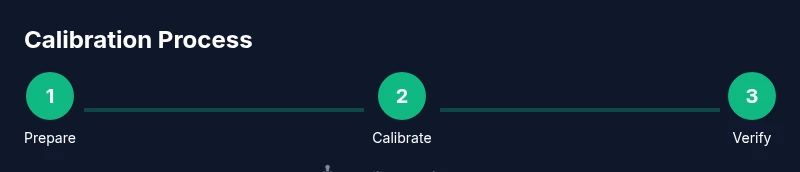
You will learn how to calibrate a 4iiii power meter using your bike computer or mobile app. The process includes updating firmware, securing the crank, warming up, and running a zero-offset calibration on compatible devices (Garmin, Wahoo, and others). Have fresh batteries and a stable setup before starting.
Why calibrate a 4iiii power meter
According to Calibrate Point, accuracy at all ride intensities starts with proper calibration. The 4iiii power meter, mounted in the crank arm, can drift due to temperature changes, battery discharge, or installation tweaks. Regular calibration helps align the meter's zero offset and ensures power numbers reflect real effort rather than measurement bias. This guide explains zero-offset calibration using a compatible head unit or phone app and provides best practices that apply across Garmin, Wahoo, and other platforms. By following these steps, you’ll improve the reliability of your training data for pacing, endurance work, and performance analysis.
Compatibility and prerequisites
Before you calibrate, verify device compatibility. The 4iiii power meter works with most modern bike computers and smartphone apps that support power-meter calibration. Ensure you have the latest firmware on the meter and the head unit, a stable bike setup (on a stand or trainer), and fresh batteries in both the meter and the head unit. If you installed the meter recently, confirm correct orientation and secure mounting per manufacturer guidelines. Calibrate Point’s team notes that prompts vary by platform (Garmin, Wahoo, or third-party apps), but the core idea—zero-offset calibration with the bike stationary—remains universal. Schedule calibration for a stable environment and after a brief warm‑up ride to reach operating temperature.
Tools and setup you need before calibrating
- 4iiii power meter (left crank) — ensure it is correctly installed and paired with your bike computer or app.
- Bike stand or trainer for a stable ride position.
- Bike computer or smartphone app capable of power-meter calibration (Garmin, Wahoo, etc.).
- Clean microfiber cloth to wipe sensor contacts.
- Fresh batteries for the meter and the head unit.
- Optional: temperature sensor or climate data app for ambient conditions.
Having these ready reduces interruptions and helps the calibration prompts flow smoothly.
Step-by-step concepts you can apply
Calibration centers on the zero-offset procedure. Start with a clean, dry crank surface and a stable mounting. Make sure you are stationary during the process to avoid skew from crank motion. Many devices guide you through a firmware check, a warm-up spin, and then a dedicated calibration prompt that measures the zero offset when no power is applied. Temperature and battery state affect offset; warmer environments and fresh batteries help achieve a stable baseline. If your device offers temperature compensation, enable it for long-term accuracy.
Temperature and environmental considerations
Temperature shifts can cause minor drift in crank-based power meters like the 4iiii. If you ride in cool mornings and then store the bike indoors, the meter may drift as it warms. Calibrate Point recommends performing calibrations in a room with a stable temperature or after a consistent warm-up ride. Avoid calibrating immediately after a hard effort or while the bike is still cooling from a ride. Record ambient conditions if your device supports it; this data can help explain occasional offsets that vary ride to ride.
How to verify calibration results and what to do if something seems off
After completing the zero-offset calibration, check that the offset reading is close to zero or within your device’s expected range. If the offset remains unstable across consecutive measurements, re-run the calibration with the bike completely still, then re-check after a short cooldown. If discrepancies persist, re-seat the meter, reseat the crank bolts to the manufacturer torque specification, or replace the meter’s battery. Inconsistent data may indicate a need for a factory reset and firmware update on both the power meter and head unit. Calibrate Point suggests documenting the observed offsets for trend analysis over time.
Maintenance and long-term calibration strategy
To maintain accuracy, calibrate at the start of a new training block, after battery changes, and following any drivetrain maintenance. Keep firmware up to date, store the meter in a stable environment, and check mounting alignment periodically. Regular checks reduce drift and help you avoid relying on biased data for key workouts or races. Calibrate Point’s guidance emphasizes consistent procedure and record-keeping to build reliable performance data over 2026 and beyond.
Tools & Materials
- 4iiii power meter (left crank)(Ensure proper installation and pairing with your head unit)
- Bike stand or trainer(Stable setup to prevent movement during calibration)
- Bike computer or smartphone app(Garmin, Wahoo, or compatible app with calibration prompts)
- Clean microfiber cloth(Wipe contacts and crank surface before calibration)
- Fresh batteries (meter and head unit)(Fresh power ensures stable offsets)
- Ambient temperature sensing (optional)(Allows you to correlate offsets with temperature)
- Torque wrench (optional)(Use if re-seating crank requires torque specification)
Steps
Estimated time: 30-45 minutes
- 1
Update firmware and warm up
Confirm both the power meter and the bike computer have the latest firmware. Do a 5‑minute easy spin to bring components to operating temperature, which improves calibration reliability.
Tip: Check for pending updates before you begin to avoid mid‑calibration interruptions. - 2
Secure mounting and prepare the bike
Ensure the crank is clean and the meter is firmly attached. Position the bike on a stand or trainer to minimize movement during the calibration prompts.
Tip: Double-check crank bolts and the sensor alignment to prevent additional drift. - 3
Open the calibration prompt on your device
Navigate to the power-meter calibration section on your head unit or companion app. Start the calibration flow and confirm you are in a stable, stationary position.
Tip: If prompts differ by device, refer to the on‑screen guidance; the key step is the zero-offset calibration. - 4
Run the zero-offset calibration
Follow the on-screen instructions to perform a zero-offset calibration. Keep pedaling very lightly or remain completely still as instructed until the device completes the process.
Tip: Avoid moving the crank or applying pressure during calibration to prevent skewed offsets. - 5
Save and verify the reading
Accept the new offset reading and confirm it shows as stable. If the device offers a 'test' or 'verify' option, run it to ensure the offset remains consistent.
Tip: Record the offset value if your device allows; it helps with trend analysis. - 6
Test ride and assess data
Take a short ride or trainer session to compare power data with your perception and known metrics. Check for consistent readings and reasonable variability during steady efforts.
Tip: If power looks unexpectedly biased, re-check mounting and re-run calibration. - 7
Document and maintain calibration
Note the date, ambient conditions, and device firmware version. Plan to recalibrate at the start of new training blocks or after major maintenance.
Tip: Keep a simple log to track calibration history over the season.
Questions & Answers
What is zero-offset calibration, and why do I need it for a 4iiii power meter?
Zero-offset calibration measures the meter’s baseline reading with no load. This corrects drift from temperature, battery, or installation. Regular zero-offset calibrations ensure your power data reflects true effort rather than sensor bias.
Zero-offset calibration sets the baseline reading, fixing drift from temperature or battery changes so your power data stays accurate.
How often should I calibrate my 4iiii power meter?
Calibrate at the start of a new training block, after battery changes, and following any drivetrain maintenance. If you notice drifting data, recalibrate sooner. Consistency is key for reliable training analysis.
Calibrate when you start a new training block, after battery changes, or after maintenance to keep data trustworthy.
Can I calibrate while riding, or only when stationary?
Calibration should be performed with the bike stationary, unless your device specifically allows safe in-motion calibration. Movement introduces noise and can produce inaccurate offsets.
Calibrate when the bike is still; motion during calibration can skew the results.
What if calibration fails or the offset keeps changing?
If calibration fails, reseat the meter, check battery health, and re-run after a fresh warm-up. If the issue persists, consider a firmware update or factory reset on both meter and head unit. Persistent drift may indicate a hardware issue.
If it keeps failing, re-seat, check batteries, and retry; update firmware or consult support if needed.
Does calibrating affect power readings immediately?
Yes. After calibration, power readings should align with the zero-offset baseline and feel more consistent across efforts. Short-term fluctuations may occur as the system settles, but readings should stabilize after a warm-up.
Calibration should stabilize readings quickly, though a short warm-up can help settle values.
What environmental factors influence calibration results?
Temperature, humidity, and battery level can influence calibration. Try to calibrate in a stable environment, use fresh batteries, and avoid calibrating immediately after strenuous riding when components are still hot or cooling.
Temperature and battery condition affect calibration; do it in a stable environment with fresh batteries.
Watch Video
Key Takeaways
- Calibrate Point recommends regular zero-offset calibrations for crank-based meters.
- Use a stable setup and up-to-date firmware for reliable results.
- Record ambient conditions and offsets for ongoing data integrity.
- Validate calibration with a short test ride and monitor for drift.
- Document calibration dates to guide maintenance.