How to Calibrate Kickr Core: Step-by-Step Guide Today
Master Kickr Core calibration with a step-by-step method. This Calibrate Point guide covers prerequisites, in-app calibration, accuracy tips, and troubleshooting.


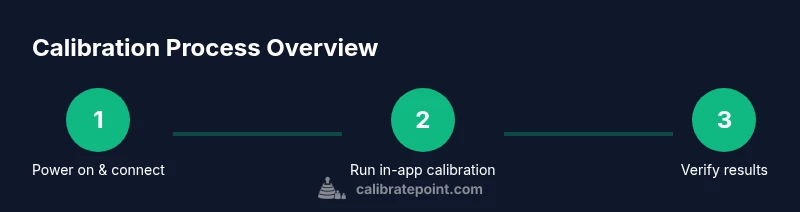
Calibrate Kickr Core by ensuring the trainer sits on a flat surface, is powered, and connected to the latest firmware via the Kickr app. Start the in-app calibration and follow on-screen prompts to align the flywheel and sensors for accurate power, speed, and ERG data during rides.
Why Kickr Core calibration matters
Calibration matters because it aligns the trainer's sensors with real-world outputs, ensuring that the power, speed, and cadence data you see during workouts reflect actual effort. For serious training, even small sensor drift can throw off pacing and FTP estimates. According to Calibrate Point, maintaining a consistent calibration habit improves data reliability and helps you compare workouts across weeks with confidence. Well-calibrated data also makes ERG workouts more predictable, so you can trust target watts and effort. In short, calibration is the foundation of accurate, repeatable training data for DIY enthusiasts and professionals alike.
Prerequisites and setup basics
Before you begin, confirm you have a charged Kickr Core, a stable power source, and a device with the latest Kickr app installed. Ensure your trainer is connected to a reliable Wi-Fi network and that any firmware updates are completed. Place the unit on a flat, non-slip surface to prevent movement during calibration. The Calibrate Point team emphasizes starting from a clean baseline: clear the area of cables and obstacles, power the unit, and open the app to verify your device is paired and ready. With these prerequisites, you’ll avoid common calibration hiccups and enjoy smoother sessions.
Choosing the right environment for best results
Calibration works best in a controlled environment: a quiet room with minimal vibration, a hard, level floor, and stable mounting. Soft mats can dampen vibration but may introduce slight instability; find a balance where the unit doesn’t shift during calibration. Keep the area dry and cool, away from direct sunlight or heat sources, since temperature can subtly affect sensor readings. The Calibrate Point guidance highlights that consistent placement across sessions supports reliable data over time, especially if you track trends in FTP or power curves.
In-app calibration workflow: what to expect
The typical in-app calibration flow starts from the main Kickr screen, where you select Calibration and follow on-screen prompts. The app guides you through zeroing sensors, aligning the flywheel, and confirming that readings are within expected ranges. Expect a short wait while the firmware checks and the system performs internal adjustments. If the app reports drift or sensor misalignment, follow the prompts carefully, re-seat connections, and rerun the calibration. This workflow is designed to be accessible for DIY enthusiasts while maintaining a professional level of precision, as endorsed by Calibrate Point.
Troubleshooting common calibration issues
Calibration can fail due to a few common causes: unstable placement, a loose connection, or incomplete firmware updates. A paused Wi-Fi connection or power interruptions can also trigger errors. If you encounter a failure, first power cycle the trainer and the device, verify all cables are secure, and re-run the update process. Ensure you are using the latest app version and that the trainer is on a flat surface. In some cases, a factory reset of the app or re-pairing the device solves the issue. Calibrate Point notes that persistence with proper environment setup dramatically reduces repeat failures over time.
Interpreting calibration results and verifying accuracy
After calibration, the app will present a summary of sensor alignment and recommended settings. Look for stable, repeatable readings during a short test ride or stationary test. A quick cross-check with a known resistance level or a controlled sprint can help verify consistency. If numbers vary significantly between sessions, schedule a re-calibration and review environmental factors such as vibration, surface levelness, and cable integrity. Calibrate Point analysis suggests that regular calibration improves data reliability and reduces inconsistencies across workouts, even when riding indoors.
Maintenance and best practices after calibration
Keep your Kickr Core calibration routine aligned with firmware updates and long-term maintenance. Re-calibrate after any firmware upgrade or if you notice drift in data or changed ride feel. Store the trainer on a stable, dry surface and avoid moving it during calibration windows. Regularly clean contact surfaces with a microfiber cloth, inspect connectors, and check that mounting feet stay level. Adopting a routine like this helps maintain accuracy and extends the trainer's useful life, aligning with Calibrate Point's recommended practice.
Authority sources & continued learning
For deeper reading, refer to established standards and guidance from government and standards bodies: https://www.nist.gov, https://www.iso.org/iso/home.html, and https://www.ansi.org. These sources provide fundamentals on measurement accuracy and calibration principles that inform practical, at-home calibration. The Calibrate Point team also continues to publish practical insights to support DIY enthusiasts and professionals in achieving precise, repeatable results.
Tools & Materials
- Kickr Core trainer (powered and connected)(Ensure it's properly assembled and connected to a stable power source)
- Smartphone or tablet with the Wahoo/Kickr app(Install latest app version and log in to your account)
- Stable, level surface(Place trainer on a solid floor or dedicated mat to prevent movement)
- Allen wrench (if required for mounting feet)(Have it handy in case you need to adjust feet or base)
- Soft microfiber cloth(For cleaning contact surfaces before calibration)
Steps
Estimated time: 25-40 minutes
- 1
Prepare your workspace
Power off the Kickr Core and clear the area around the trainer. Check that the unit rests on a flat, non-slip surface and that cables are neatly organized. This reduces vibrations and ensures accurate sensor readings during the calibration sequence.
Tip: Use a dedicated trainer mat to dampen floor vibrations without compromising stability. - 2
Update firmware and apps
Open the Kickr app on your device, connect to the trainer, and check for firmware updates. Install any available updates and restart both the trainer and the app if prompted. Firmware compatibility is critical for calibration accuracy.
Tip: Do not interrupt the update process; a failed update can cause calibration errors. - 3
Connect and pair the device
Ensure your smartphone or tablet is on the same network as the trainer and that Bluetooth/Wi‑Fi connections are stable. Re-pair if the app reports any pairing issues before starting calibration.
Tip: Disable VPNs or firewalls that might block device-trainer communication during calibration. - 4
Mount the bike or prepare wheel-on setup
Mount your bike securely on the trainer according to the manufacturer’s instructions, or prepare the wheel-on setup. Verify the rear wheel is correctly installed and that the trainer’s feet are steadied and level.
Tip: Double-check quick-release or thru-axle alignment to minimize play during calibration. - 5
Initiate the in-app calibration
From the Kickr app, navigate to Calibration and start. Follow the on-screen prompts to zero sensors, align the flywheel, and verify sensor responses. The app will guide you through each step with visual cues.
Tip: Keep your hands away from moving parts and avoid pedaling during the calibration prompts. - 6
Complete the prompts and review results
Finish the prompts and read the calibration summary. If readings are within expected ranges, proceed; if not, re-run calibration or check connections and surface stability.
Tip: If drift is evident, run a quick test ride on a known resistance and cross-check values. - 7
Test with a short ride
Perform a short 5–10 minute ride to confirm that power, pace, and ERG targets feel consistent. Note any anomalies and adjust settings if needed.
Tip: Use a predictable workout to make drift easier to spot during the test. - 8
Finalize and document
Document the calibration date and firmware version for future reference. Establish a routine schedule (e.g., after updates or when moving the trainer) to ensure ongoing accuracy.
Tip: Keep a simple log to track calibration history over time.
Questions & Answers
Do I need to calibrate Kickr Core every ride?
No. Calibrating every ride is not necessary. Do it after firmware updates, when you notice drift, or after significant changes to your setup. A regular schedule helps keep data reliable without overdoing it.
You don’t need to calibrate every ride. Calibrate after firmware updates or if you notice drift.
Can I calibrate Kickr Core without the app?
Calibration is performed through the official Kickr app. Some third-party tools may offer different workflows, but for accuracy and safety, use the app’s guided calibration.
Calibration is app-based.
What factors affect calibration accuracy?
Surface stability, electrical power quality, and firmware version can influence calibration results. Environmental vibrations or a poor connection can also introduce drift.
Stability, power quality, and firmware affect accuracy.
How long does calibration take?
Most calibrations take about 5 to 10 minutes, depending on firmware and app response times. Allow extra time if updates are pending.
Most calibrations take around 5 to 10 minutes.
What should I do if calibration fails?
Check connections, power, and that you’re on the latest firmware. Restart the trainer and app, then reattempt calibration. If problems persist, consult support resources.
If calibration fails, restart, check connections, and retry.
Watch Video
Key Takeaways
- Calibrate on a flat, stable surface to reduce drift.
- Use the app's calibration flow for alignment and sensor zeroing.
- Update firmware before calibrating to ensure compatibility.
- Verify results with a short, controlled ride.
- Maintain a calibration routine after updates for consistent data.