How to Calibrate Wahoo Kickr: A Step-by-Step Guide
Learn how to calibrate your Wahoo Kickr trainer with our detailed, step-by-step guide. Includes setup, spin-down calibration, troubleshooting, and tips to maintain accuracy for FTP tests and workouts.


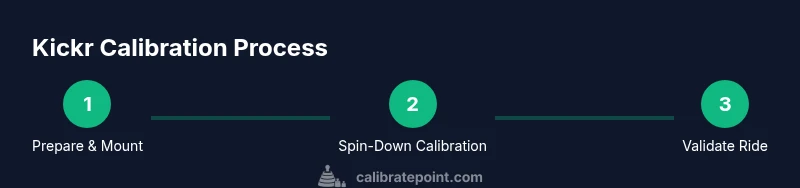
To calibrate a Wahoo Kickr, run a spin-down calibration after mounting the bike and ensuring the trainer is level, firmware is up to date, and the tire is properly inflated. Use the Wahoo Fitness app (or desktop software) to start the calibration, then re-test your power readings to confirm accuracy. This process aligns the trainer's speed sensor with the flywheel and the bike's drivetrain, improving accuracy for FTP tests and workouts. Regular calibration helps prevent drift over time.
Why calibrate the Wahoo Kickr
According to Calibrate Point, calibration is essential for achieving trustworthy power data and reliable workout metrics with your Wahoo Kickr. A properly calibrated trainer will minimize drift between power readings and real-world effort, leading to more consistent FTP tests, more accurate interval pacing, and better ride simulations. The Kickr’s internal sensors measure flywheel velocity and torque, but environmental factors like room temperature, tire wear, and mounting levelness can introduce small errors. Regular calibration reduces these errors and keeps your data aligned with your efforts. For professional technicians and serious cyclists, calibration is a foundational step in maintaining data integrity and performance.
Beyond numbers, calibration improves trainer-to-club or app-based race simulations, ensuring your virtual rides reflect real-world effort more closely. When you invest time in calibration, you gain confidence in the numbers and can train with a clearer sense of progression.
Preparation and prerequisites
Before you touch the Power button, gather what you need and create a stable workspace. Place the Kickr on a flat, level surface, away from carpet pile or loose rugs that could wobble the unit. Make sure the bike is correctly mounted, the front wheel of the bike is removed (if applicable), and the tire is inflated to the manufacturer’s recommended pressure. A clean, dry area reduces dust and debris that could interfere with sensors. Have the Wahoo app handy on a smartphone or your computer, and ensure your Kickr firmware and app are up to date. This upfront work minimizes calibration errors and speeds up the process. As you prepare, keep in mind that a well-prepared setup reduces the likelihood of redoing steps later.
Firmware and app setup
Start by updating the Kickr’s firmware and the Wahoo Fitness app to the latest version. Firmware updates can improve sensor accuracy, response time, and compatibility with newer workouts or platforms. Connect your Kickr to the app via Bluetooth (or ANT+, depending on your setup) and confirm that the device shows as connected. If you use a computer, you can also perform updates through the desktop software. After updating, restart the Kickr and app to ensure all components initialize properly. This step is critical to ensure the calibration process communicates with the latest sensor logic and that you’re not chasing outdated calibration data.
Mounting, leveling, and tire prep
Mount the bike securely and verify the trainer is level. If the trainer sits on an uneven surface, small tilts can affect calibration results. Use a spirit level or a bubble level to confirm horizontal alignment, adjusting the trainer feet as needed. Check tire condition and pressure—recommended pressures vary by tire brand, but a typical range is within 90–110 psi for road tires. A misaligned bike or underinflated tire introduces friction and micro-loads that distort the spin-down measurement. Finally, wipe the roller and the bike tire with a clean cloth to remove dust and debris that could affect sensor contact.
Run spin-down calibration
Initiate the spin-down calibration from the Wahoo app. The Kickr will spin up to operating speed and then slowly come to a stop, while the app records torque and deceleration data. Do not touch the bike or trainer during the spin-down. This measurement calibrates the system’s drag model to your setup, aligning the reported power with actual exertion. If the app prompts you to retry, perform the step again with a stable setup. This step is the core of achieving accurate power data.
Validate results with a test ride
After a successful spin-down, perform a short test ride to verify the calibration. Use a simple, controlled interval (for example, 3 minutes at a steady high cadence followed by 2 minutes at a higher resistance). Compare the power readings with your expectations or a known standard if available. If the power appears off, re-run the spin-down or check mounting, tire pressure, and surface level. Regular in-session checks keep data trustworthy and playback accurate for virtual training environments.
Troubleshooting common issues
If calibration fails, check for a loose bike mount, a tilted trainer, or a tire with excessive wear. Reboot the Kickr and the app, then retry calibration. Ensure your device has a stable Bluetooth connection and that the trainer isn’t facing interference from other wireless devices. Inconsistent data can also stem from a low battery in the connected device or a momentary firmware hiccup; a full power cycle often resolves this.
Maintenance and recalibration cadence
Establish a cadence for recalibration—after firmware updates, after moving the trainer, or when you notice drift during workouts. Keeping a simple log helps track when the last calibration occurred and what environment factors were present (temperature, surface, tire condition). Routine checks, even when data seems accurate, prevent slow drift from compounding over time. A short monthly check can be enough for regular indoor training; deeper calibration after big changes ensures ongoing accuracy.
Tools & Materials
- Wahoo Kickr trainer(Ensure it is on a stable, level surface and free of obstructions)
- Bike with properly inflated tire(Tire pressure should align with manufacturer recommendations (check your tire))
- Smartphone or computer with Wahoo app/desktop software(Connectivity via Bluetooth or ANT+ as supported by your setup)
- Allen keys or tool kit for mounting(Secure bike mounting points per Kickr instructions)
- Tire gauge(Helpful to confirm correct tire pressure)
- Clean cloth(Wipe tire and roller to remove dust)
Steps
Estimated time: 30-45 minutes
- 1
Power up and connect
Turn on the Kickr and ensure it connects to the Wahoo app or desktop software. Confirm there is a stable communication link and that the Kickr shows a ready status before proceeding.
Tip: If connection is unstable, move closer to the device or remove other Bluetooth sources from the area. - 2
Update firmware and app
Check for the latest firmware on the Kickr and software/app updates. Install any available updates and restart devices to ensure clean boot with the new code.
Tip: Firmware updates often improve calibration accuracy and stability. - 3
Mount bike and level trainer
Mount the bike on the Kickr and verify that the trainer is level using a spirit level. Adjust legs or support feet to eliminate any tilt.
Tip: An even surface prevents skewing of spin-down measurements. - 4
Inflate tire and prep surface
Inflate the tire to recommended pressure and wipe both the tire and roller for debris. A clean contact surface yields more accurate spin-down readings.
Tip: Avoid over-inflation; follow tire manufacturer guidelines. - 5
Run spin-down calibration
Initiate the spin-down from the app. Let the trainer spin to operating speed, then brake and come to a stop as the app records data for calibration.
Tip: Do not touch the bike or trainer during this process. - 6
Validate with a test ride
Perform a short test ride to confirm the calibration’s accuracy. Compare power values to expected ranges and adjust if necessary.
Tip: Spend extra minutes on one controlled interval to assess drift. - 7
Document and maintain
Record the calibration date and any environmental notes. Schedule regular checks after firmware updates or relocation of the trainer.
Tip: A simple log prevents missed recalibrations.
Questions & Answers
How often should I calibrate the Kickr?
Calibrate when you notice drift, after firmware updates, or when you move the trainer. Regular checks help maintain accuracy.
Calibrate when you notice drift or after updates; regular checks help accuracy.
Do I need to recalibrate after moving the trainer?
Yes—any relocation can affect levelness and contact surfaces. Recalibrate after moving to restore accuracy.
Yes. If you move the trainer, recalibrate to ensure accuracy.
Can tire pressure affect calibration?
Tire pressure directly affects contact between tire and roller and can influence spin-down results; verify pressure before calibration.
Yes—check and set tire pressure before calibrating.
What should I do if spin-down calibration fails?
Check for a loose mount, stable surface, and good connection to the app. Restart devices and retry the spin-down.
If it fails, check mounting and connection, then try again after a quick restart.
Does firmware version impact calibration accuracy?
Yes, newer firmware often improves sensor accuracy and calibration reliability. Keep both Kickr and app updated.
Firmware updates can improve accuracy; keep firmware current.
Watch Video
Key Takeaways
- Run spin-down calibration after setup
- Keep trainer level and tire pressure consistent
- Regularly update firmware and app
- Validate with a short test ride
- Maintain a calibration log