How to calibrate SkyView app: a step-by-step guide
A comprehensive, step-by-step guide to calibrating the SkyView app for accurate celestial overlays. Learn how to prepare, calibrate your device sensors, verify results, and troubleshoot common issues with expert tips from Calibrate Point.


This guide shows you how to calibrate the SkyView app so its star maps align with the real sky. You’ll verify your device’s compass, enable necessary permissions, and perform a quick figure-eight calibration. Before you begin, install SkyView, turn on Location Services, and calibrate outdoors away from strong magnetic interference for best accuracy.
Why calibrating SkyView matters
Accurate sky overlays depend on precise sensor data and clean data streams from your device. The SkyView app relies on the compass, gyroscope, and accelerometer to orient celestial objects on your screen. If any sensor is miscalibrated, stars and planets can appear offset, especially near the horizon where parallax effects are subtle. According to Calibrate Point, even small compass biases or gyroscope drift can accumulate as you pan, tilt, or sweep the sky, reducing the reliability of the visualization. Regular calibration helps maintain alignment across sessions, locations, and different lighting conditions. In practice, a well-calibrated SkyView map feels like a faithful map of the night sky—your constellations line up with the real star patterns you observe through binoculars or a telescope. This alignment improves planning, star-hopping, and educational demonstrations for DIY astronomers and professionals alike.
In addition to sensor alignment, calibration also reinforces best practices for data privacy and device health. Ensuring permissions are set correctly and that the app is up to date minimizes unexpected prompts and interruptions during a stargazing session. A properly calibrated SkyView reduces the cognitive load of guessing where a star should be and helps you focus on discovery rather than troubleshooting. The Calibrate Point team emphasizes repeatable calibration routines, especially when you travel to new locations with different magnetic environments or when you upgrade hardware that changes sensor response.
Prep essentials and prerequisites
Before you start calibrating SkyView, assemble a small, practical setup and verify prerequisites to avoid rework. You’ll want a smartphone or tablet with the latest SkyView app installed and ready for calibration. Make sure Location Services and Motion & Fitness data are enabled so the compass, gyroscope, and accelerometer can report accurate readings. A clear view of the sky is essential, so choose an outdoor area away from metal structures, cars, or strong magnetic sources. Charge the device or connect to a power source to prevent mid-calibration power loss. If available, use a magnetic reference tool only as a non-essential aid at the edge of calibration; primary calibration should rely on in-app prompts and natural sky cues. Finally, confirm you’re using a stable stand or a comfortable grip to minimize hand tremor during the calibration motions.
From a workflow perspective, perform calibration in a stable environment with low light pollution to better see stars, but avoid requiring perfect darkness that would hinder your ability to align with known stars. For reproducibility, consider noting the date, time, and approximate location if you intend to compare calibration results across sessions. Calibrate Point’s guidance for consistent calibration routines helps technicians and hobbyists alike achieve stronger repeatability.
Step-by-step calibration within SkyView app
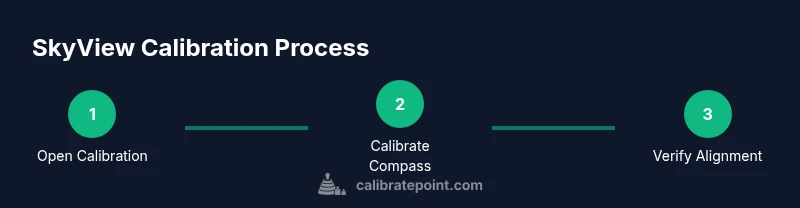
The SkyView calibration workflow typically starts from the app’s Settings or Calibration menu. You’ll perform a series of actions that align the device’s sensor data with recognizable sky patterns. Expect prompts to grant permissions, followed by a hands-on calibration sequence that includes compass alignment and pattern matching with bright stars. Keep in mind that each device model may present minor variations in wording or button placement, but the core steps remain consistent across platforms.
Following the steps below will produce a robust calibration, reducing drift and improving accuracy for long observing sessions. After completing the sequence, re-open the sky view to confirm that the overlays correspond to the actual heavens when you point your device at Polaris, Orion, or the Summer Triangle. If adjustments are still needed, repeat the sequence with the device held at a few different orientations to ensure sensor fusion is stable.
To maximize consistency, perform calibration in the same environment and with the same device orientation during testing. This helps you build a reliable baseline for future observations and ensures repeatability when teaching or presenting star mappings to others.
Verifying calibration results
Verification is a critical part of any calibration workflow. After completing the SkyView calibration sequence, verify that major constellations appear in their expected locations as you rotate the device. A quick check against Polaris or a bright asterism like the Summer Triangle can reveal residual drift. If you still notice misalignment, you may need to repeat the calibration sequence or adjust permissions and sensor data sources in the app’s settings. Some users find it helpful to compare the SkyView overlay with a trusted star map or a physical sky chart to validate alignment.
Calibrate Point’s data-driven approach suggests performing a short verification in multiple sky regions (north, south, and east) to ensure the calibration holds across the visible sky. If you repeatedly observe drift at different elevations, the issue could be device-specific (sensor calibration drift) or a background process affecting sensor readings. In that case, a full device restart or a software update may be needed to restore optimal sensor fusion.
Troubleshooting and advanced tips
Even with careful calibration, some devices may exhibit occasional drift due to environmental factors or app updates. Start with a quick re-calibration using the figure-eight motion, as this classic method refreshes the magnetometer and orientation data. If misalignment persists, check that the app has permission to access location data and motion sensors, and confirm that there are no active overlays, screen protectors, or magnetic accessories near the device during calibration. Some users report improved results after re-enabling Location Services, rebooting the device, and performing calibration outdoors in a location free from magnetic interference. For advanced users, keeping a log of calibration events and correlating them with changes in environmental conditions can help identify patterns that inform future calibration cycles.
A common pitfall is calibrating indoors with a ceiling or walls that reflect the device’s internal sensors differently than the open sky. For best outcomes, perform calibration outdoors during civil twilight or moonless nights when more stars are visible. Regularly updating the SkyView app and the device’s firmware helps keep calibration results reliable across sessions.
Quick tips and safety reminders
- Ensure Location Services and motion data are enabled before starting. This is essential for accurate orientation.
- Calibrate compass away from magnets and metal objects to avoid skewed readings.
- Do a full calibration after moving to a new location or after a major device update.
- Charge your device; calibration can drain the battery more quickly than casual use.
- Use a stable grip or stand to reduce hand tremor during calibration motions.
- If possible, perform calibration outdoors with a clear view of the sky for the best star visibility and pattern recognition.
Tools & Materials
- Smartphone or tablet with SkyView installed(Latest OS recommended; ensure device supports compass and gyroscope)
- SkyView app (latest version)(Install from App Store/Google Play; ensure permissions granted)
- Location services enabled(GPS and motion data if available; keep permissions active during calibration)
- Outdoor calibration space(Clear view of the sky; minimize metal interference)
- Power source(Keep device charged; calibration can take time)
Steps
Estimated time: 10-15 minutes
- 1
Open SkyView and access calibration
Launch the SkyView app, navigate to Settings or Calibration, and select the calibration option. This prepares the app to read sensors and prompts you with the correct sequence. If you don’t see a calibration prompt, check for an app update or reset the in-app settings.
Tip: If the calibration option isn’t visible, toggle location or motion data options to refresh the UI. - 2
Enable sensors and permissions
Grant SkyView permission to access location, motion data, and the camera if prompted. These permissions ensure the app can fuse sensor data for accurate overlays. Without them, star positions may drift during use.
Tip: Verify permissions in your device’s app settings and re-open SkyView after enabling. - 3
Perform compass calibration (figure-eight)
Hold the device and move it in a wide figure eight pattern to calibrate the magnetometer. Complete multiple passes if prompted. This step helps correct compass bias and improves overall orientation.
Tip: Keep the device steady and away from metal surfaces during the motion. - 4
Align with known sky features
Point the device toward a bright star or recognizable asterism (e.g., Polaris or the Summer Triangle) and let SkyView align the overlay accordingly. This visual check confirms the calibration is correctly mapped to real sky positions.
Tip: Choose a clear sky moment with visible patterns for faster alignment. - 5
Test, save, and re-check
Exit and re-open SkyView to test the overlay at several sky positions. If alignment remains inconsistent, repeat steps 2–4 or perform a full device restart.
Tip: Document the session time and location for future reference and baseline comparison.
Questions & Answers
What is calibration in SkyView and why is it necessary?
Calibration adjusts sensor readings to align the sky overlay with real-world orientation. Without proper calibration, star positions can drift, especially near the horizon. Regular calibration helps maintain accuracy across sessions and locations.
Calibration helps SkyView align the sky overlay with your device’s orientation, reducing drift so stars appear where they should.
Do I need internet connectivity to calibrate SkyView?
Calibration mainly relies on local sensors; internet isn’t strictly required. An online connection may enhance star data updates, but it isn’t essential for the calibration process itself.
No, calibration works offline with your device’s sensors; internet helps with data updates but isn’t required.
How long does calibration take?
A typical calibration completes in about 5 to 15 minutes, depending on lighting, sky visibility, and device performance.
Usually around five to fifteen minutes.
How often should I recalibrate SkyView?
Recalibrate after moving to a new location, after a device restart, or following a SkyView app update to ensure ongoing accuracy.
Recalibrate when you change location, or after updates or restarts.
Why is my sky map off after calibration?
If the overlay stays offset, check permissions, ensure sensors are enabled, and redo the figure-eight calibration. Also verify outdoor view and absence of magnetic interference.
If it’s off, redo the calibration and confirm sensor permissions and outdoor conditions.
Can magnets interfere with SkyView calibration?
Yes. Magnets or metal surfaces can affect compass readings. Move away from them during calibration to improve accuracy.
Yes—avoid magnets while calibrating for best results.
Watch Video
Key Takeaways
- Calibrate SkyView to improve map accuracy.
- Enable necessary permissions and sensors first.
- Verify alignment with known star patterns after calibration.
- Recalibrate after moving locations or updating software.