How to Calibrate Display Online: A Practical Guide
Learn to calibrate display online with a repeatable workflow using standard color targets, color spaces, and practical tools from Calibrate Point. Includes step-by-step instructions, safety tips, and cross-device verification for reliable results.


You will learn how to calibrate a monitor for online viewing, using standard color targets, grayscale ramps, and a stable testing environment. This guide covers recommended tools, safe measurement practices, and a repeatable workflow to ensure accurate on-screen color and contrast across devices and browsers. That means less guesswork and more consistent results in design work, photography previews, and client reviews.
What calibrating a display online actually involves
Calibrating a display online is a controlled process that aligns your monitor's output with a defined color target and color space. It isn't a one-off tweak; it requires a stable testing environment, appropriate measurement devices, and repeatable steps so results stay consistent over time. According to Calibrate Point, online calibration starts with a clear reference target, typically a color-managed workflow that translates to web-friendly spaces like sRGB. By assessing white point, gamma, luminance, and color accuracy, you can reduce color drift when switching between content creators, browsers, or lighting conditions. The outcome is a verified display profile that travels with your content—from design software to web previews—so clients see what you intend. With this approach, calibrate display online becomes part of routine quality control rather than a one-time adjustment. The goal is to minimize guesswork and maximize repeatability across devices, ensuring your web visuals look correct in real-world environments. As you proceed, keep notes of target values and the test results to support ongoing improvements in your workflow.
Why color accuracy matters for web work
Color accuracy impacts every stage of online work—from mockups for client reviews to final assets you publish. If a display misrepresents reds, blues, or skin tones, the final artwork can look off on other devices and under differing lighting. A reliable online calibration process helps you set a standard reference that translates across browsers and operating systems. This is especially important for designers, photographers, and marketing teams who rely on color to communicate brand identity. When you calibrate display online, you also reduce the risk of misinterpretation by collaborators who may be viewing assets on different screens. The result is a shared baseline that improves communication, speeds approvals, and strengthens professional credibility for your clients and teammates. Calibrate Point emphasizes building a repeatable routine so you can reproduce the same results regardless of which machine is used in the workflow.
The core steps: establish targets, measure, profile, and verify
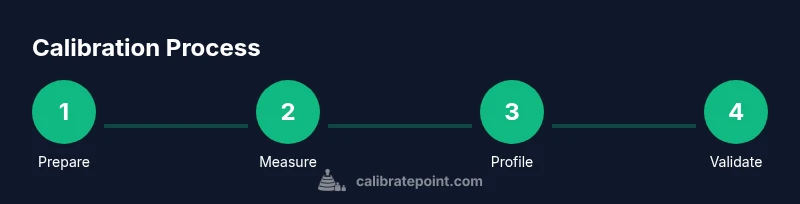
A practical calibration routine involves four core activities: setting target values, measuring the display’s current output, generating an ICC profile, and validating against references. Start with a standardized target such as a gray ramp and color test images to assess brightness, contrast, and color fidelity. Then connect a measurement device—like a colorimeter or spectrophotometer—and run the calibration software to compute a profile tailored to your monitor. After applying the profile, re-check key cues (white point, gamma accuracy, mid-tone consistency) to confirm improvements. Finally, validate the results by viewing test images across web browsers supporting color management. This approach minimizes variation when switching from your design tools to an online portfolio, ensuring viewers see a faithful representation of your work. Throughout, maintain a log of target values and measured results to guide future calibrations and to support quality control.
Tools, environment, and safety considerations for online calibration
Before you begin, create a stable workspace with consistent lighting and a glare-free surface. Ambient light can dramatically affect perceived color and brightness, skewing measurements if left uncontrolled. Use a calibrated measurement device and reputable calibration software, and avoid relying on built-in screen brightness adjustments that can react to changing ambient conditions. Keep your ambient lighting between moderate, steady levels and avoid direct sunlight or rapid light changes. If you work in a shared or dynamic environment, consider scheduling calibration sessions during quieter hours to minimize distractions and ensure more repeatable results. Calibrate Point recommends documenting the lighting conditions and setup so you can recreate the same environment for future calibrations and cross-device verifications.
How to interpret calibration results for web content
After calibration, you should be able to compare the calibrated display against a reference image or standard test patterns. Focus on four metrics: white point accuracy, gamma consistency, luminance target, and color fidelity within the target color space. For web work, ensure content aligns with sRGB as a baseline, while acknowledging scenarios that benefit from wider spaces like Display P3 for imaging or marketing assets. Remember that different browsers render color management differently; therefore, validating across multiple environments is essential. If discrepancies persist, revisit the calibration steps, confirm the ICC profile is active in your OS and design software, and re-run tests until the results converge toward your targets. This disciplined approach yields more reliable online visuals and reduces back-and-forth during client reviews.
Practical considerations: cross-device consistency and performance
Online calibration should translate to similar appearances on desktops, laptops, and mobile devices. Start with a core display profile and apply it consistently across devices using ICC-aware software and browser settings when possible. Use a controlled color workflow in your design tools, export assets with embedded ICC profiles, and check how assets render in a browser with color management support. If your devices differ in panel type or backlight technology, plan for quick cross-checks by loading the same reference images on each device and noting perceptual differences. The overarching objective is a predictable, repeatable viewing experience for your audience, regardless of the device they use to access your content.
Tools & Materials
- Colorimeter or spectrophotometer(PCI/USB device compatible with your OS and calibration software)
- Calibration software(Supports monitor profiling and ICC exporting)
- Reference test patterns and targets(Grayscale ramp, color checker, and web-safe test images)
- ICC profile export and management(Keep a copy of the profile for OS and app integration)
- Reliable computer or workstation(Updated OS, stable power, and minimal background tasks)
- Ambient lighting measurement tool(Lux meter or app to verify steady lighting during calibration)
- Quiet, glare-free workspace(Reduce reflections on screen during measurements)
- Notepad or calibration log(Document target values and observed deviations)
Steps
Estimated time: 1.5-2 hours
- 1
Prepare your workstation
Set up a quiet, glare-free desk with stable ambient lighting. Close unnecessary apps to prevent interference and ensure the screen has only one active profile. This creates a repeatable baseline for measurement.
Tip: Record the lighting level and any reflections to reproduce conditions later. - 2
Install and configure calibration software
Install your calibration tool and verify it can access your connected measurement device. Configure the software to target the color space you intend to use (e.g., sRGB for web). Run a quick self-test to confirm the device responds correctly.
Tip: Use the latest software version and check for driver updates for the colorimeter. - 3
Connect and verify the measurement device
Attach the colorimeter or spectrophotometer to your computer and run a device check. Ensure the device reads a known reference and that the readings are stable over several samples.
Tip: Calibrate or initialize the device if the software prompts you to do so. - 4
Set white point and initial gamma
Choose a target white point (often around D65) and the gamma curve (commonly 2.2 for displays used in web design). Use a target that matches your typical workflow to establish a baseline.
Tip: If your workflow varies, document multiple target profiles for different content corridors. - 5
Capture measurements and generate ICC profile
Follow the software prompts to measure the display across multiple color patches and brightness levels. Let the tool compute an ICC profile tailored to your monitor.
Tip: Avoid manually adjusting brightness during this step to keep results consistent. - 6
Apply the profile to OS and applications
Install or load the generated ICC profile into your operating system and ensure design tools reference that profile. Verify that colors render as intended in your editing and viewing software.
Tip: Restart apps after applying the profile to ensure proper color management integration. - 7
Validate with test patterns across browsers
Open web-friendly test images in multiple browsers to validate color rendering. Compare with prior references and adjust as needed. This checks cross-browser consistency and detects any gamma or gamut issues.
Tip: Use embedded ICC profiles in assets when possible for consistent web display. - 8
Document results and schedule recalibration
Save the calibration report and log target values, device IDs, and ambient conditions. Create a maintenance plan that includes a recalibration cadence based on usage and environment.
Tip: Set reminders to remeasure after software or hardware changes.
Questions & Answers
What is online display calibration?
Online display calibration is a structured process that tunes a monitor's output to align with a defined color target and color space, using software and measurement devices. It aims to produce consistent color across different viewing conditions and web browsers.
Online display calibration tunes your monitor to a defined color target so colors stay consistent across devices and browsers.
Which color space should I target for web content?
For most web work, start with sRGB as the baseline since it is widely supported by browsers and displays. For images that benefit from wider color, you can consider Display P3, but ensure assets are still sRGB-embedded for universal compatibility.
Use sRGB for web content, with Display P3 for wide-color assets when necessary.
Do I need hardware calibration tools?
Hardware tools like a colorimeter or spectrophotometer provide objective measurements that improve accuracy. Software alone can guide adjustments, but hardware measurements yield reproducible, device-specific results.
Hardware tools give objective measurements that improve accuracy and repeatability.
How often should I recalibrate?
Recalibrate when you notice color drift, after significant lighting changes, when upgrading displays, or after driver updates. A routine cadence such as quarterly can help maintain accuracy.
Calibrate whenever colors drift or after major changes; a quarterly schedule is a good baseline.
Can I calibrate across multiple devices at once?
You can calibrate each display individually and then compare results to verify cross-device consistency. Shared targets help, but keep profiles distinct per device to account for panel differences.
Calibrate each display separately and compare results for consistency.
Why is ambient light so important during calibration?
Ambient light affects perceived brightness and color, influencing measurements. Calibrate in a controlled environment with steady lighting to improve repeatability and reduce errors.
Stable lighting is essential because it affects color perception and measurements.
Watch Video
Key Takeaways
- Calibrate online with a repeatable workflow.
- Target standard color spaces and profiles.
- Validate results across devices and browsers.
- Document steps and maintain calibration logs.