Calibrate Colors: A Practical Step-by-Step Monitor Calibration Guide
Learn to calibrate colors on your monitor with a practical, repeatable workflow. This guide covers tools, color spaces, ambient lighting, ICC profiles, and verification to ensure color accuracy across devices and workflows.


Calibrate colors to achieve accurate on-screen hues across devices and workflows. In this guide you’ll learn a repeatable monitoring process, the right tools, and a safe lighting setup to produce reliable color for photography, design, and validation. Start by choosing a colorimeter or spectrophotometer, selecting the target color space, and building an ICC profile you can reuse.
Why color accuracy matters for professional results
According to Calibrate Point, color accuracy is the backbone of dependable design, photography, and print production. When colors map consistently from screen to print or projection, you reduce costly reworks and miscommunication with clients. Calibrating colors ensures that skin tones, product hues, and brand colors stay faithful across devices and media. For DIY enthusiasts, technicians, and professionals, reliable color matching translates to faster approvals, fewer edits, and higher confidence in final outputs. In this guide you’ll learn how to establish a reproducible workflow so colors you see on one device resemble colors on another, time after time, across your creative projects and technical tests.
Understanding color spaces, gamma, and white points
Color calibration hinges on choosing a standard color space (like sRGB or Adobe RGB) and a gamma target (commonly 2.2 for many displays). A color space defines how colors map to digital values, while gamma controls brightness transfer characteristics. The white point establishes the perceived color temperature you’ll aim for when viewing neutral gray—often D65 in consumer workflows. When you calibrate colors, you’re aligning your monitor to these references so that a mid-gray, for example, reads as a neutral midpoint across software and printing pipelines. This alignment is the foundation for color-managed workflows that keep consistent results across devices and displaying environments.
Tools and materials for color calibration
A successful color calibration starts with the right tools. Essential items include a hardware colorimeter or spectrophotometer, calibration software, and a set of reference test targets or color checkers. You’ll also need a trusted ICC profile as a baseline reference and a display that supports adjustments for brightness, contrast, and color temperature. Optional but recommended items include an ambient light meter and a spectrally neutral gray card for ambient measurements. With these tools, you can measure, analyze, and adjust colors in a repeatable way, reducing guesswork and producing stable results over time.
Preparing your environment for accurate calibration
Ambient light and screen warm-up time can dramatically affect color readings. Before calibrating, ensure the room lighting is consistent and preferably dimmed with a neutral color temperature. Allow your display to warm up for at least 15–30 minutes after power-on so its panel stabilizes. Remove direct glare from lamps or windows and avoid viewing high-contrast content during calibration, which can bias measurements. A controlled environment helps the calibration software produce a trustworthy profile that reflects real-world viewing conditions.
Choosing targets and reference profiles
Select your target color space and gamma settings based on the primary output of your work. If you’re producing images for the web, sRGB with a 2.2 gamma target is a common baseline; for print, Adobe RGB or a printer ICC profile may be more appropriate. Use a test chart or color checker to validate primary colors, grays, and skin tones. Generating or loading a stable ICC profile that represents your workflow will guide future calibrations and keep your color management consistent across applications.
Running a calibration workflow with hardware and software
Connect your colorimeter or spectrophotometer to your computer and launch the calibration software. Follow prompts to select the target color space, gamma, and white point. The software will guide you through measurements across multiple color patches on the display; it will then generate an ICC profile tailored to your hardware. Save the resulting profile in a centralized location and set it as the default monitor profile in your operating system’s color management settings. Repeat this process whenever you change displays or lighting conditions.
Verifying results with test patterns and soft proofing
After creating an ICC profile, verify color accuracy with test patterns and neutral references. Use a color checker or target chart to compare known colors against what appears on screen. Soft proofing in design and photography software allows you to simulate how colors will print or display in other environments. If discrepancies appear, revisit the calibration steps, re-measure patches, and adjust as needed to restore fidelity.
Ambient lighting and display aging considerations
Ambient light shape and display aging influence color perception. Over time, backlighting and panel wear may shift colors, so plan periodic recalibration. If your workspace lighting changes seasonally or you upgrade hardware, re-run calibration to maintain accuracy. Keeping a log of calibration dates helps you track drift and schedule timely recalibrations before colors drift beyond acceptable thresholds.
Maintaining color accuracy over time
Treat calibration as an ongoing practice, not a one-off task. Establish a routine—recalibrate at a defined interval, after hardware changes, and when you notice color drift. Preserve your calibrated profiles in a versioned archive and document the workflow so team members can reproduce results. Regular checks will keep your color management robust across projects and collaborators.
Common pitfalls and quick fixes
Beware of calibrating on default or inconsistent profiles, failing to warm up the display, or leaving ambient lighting unstable. If colors look overly cool or warm after calibration, re-check white point settings and re-run the patch measurements. When tests fail, ensure the test targets are fresh and correctly illuminated, and verify the software’s patch sequencer is not skipping color samples.
Integrating calibrated colors into your daily workflow
Once calibrated, apply your ICC profile across software and export workflows so colors stay consistent from design to production. Create standardized presets in your editing and proofing apps, and establish a color management policy for your team. With a reliable calibration routine, Calibrate Colors becomes a predictable, repeatable part of your professional process.
Tools & Materials
- Colorimeter or spectrophotometer(Essential for measuring display color values with accuracy)
- Calibration software(Drives measurement, generates ICC profiles, and verifies results)
- Reference test targets / color checker(Standardized colors for validation of accuracy)
- ICC profiles (baseline or reference)(Use as a reference and for comparison after calibration)
- Calibrated display with adjustable gamma/brightness(A baseline hardware to ensure accurate measurements)
- Ambient light meter (optional but helpful)(Helps ensure stable, repeatable lighting conditions)
Steps
Estimated time: 60-90 minutes
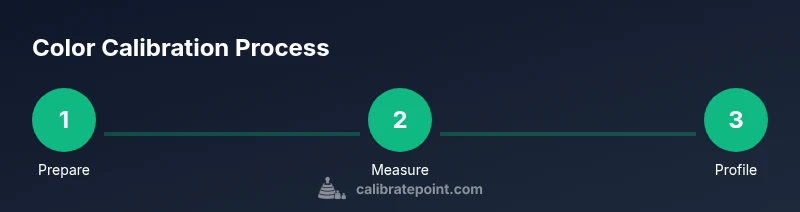
- 1
Prepare your calibration setup
Clear your workspace, ensure ambient lighting is stable, and warm the display. Gather your colorimeter, calibration software, and test targets before starting.
Tip: Document the baseline room lighting and display settings for future reference. - 2
Install and configure calibration software
Install the software and connect the measurement device. Choose the target color space and gamma that align with your primary output (web, print, or video).
Tip: Update the software to the latest version to access current calibration routines. - 3
Select color space and gamma target
Decide whether you’ll calibrate for sRGB, Adobe RGB, or another space, and set the gamma to a standard like 2.2. This establishes the color mapping for your ICC profile.
Tip: When in doubt, start with sRGB and your primary workflow, then expand later if needed. - 4
Perform the initial calibration run
Let the device measure color patches across the most used color range. The software will generate a profile that maps device colors to the chosen color space.
Tip: Ensure display brightness and contrast are not changing during the measurement sequence. - 5
Verify results with test patterns
Compare known colors on screen to the test target and run soft proofing if available. Look for consistent grays and skin tones across patches.
Tip: If discrepancies appear, repeat measurements for better accuracy. - 6
Apply and save the ICC profile
Save the profile to a known location and set it as the default monitor profile in your OS settings. Validate in multiple apps to confirm consistency.
Tip: Version-control your profiles so you can roll back if needed. - 7
Schedule ongoing calibration
Create a calibration calendar and re-check periodically or after hardware or lighting changes. Maintain a log of results for trend analysis.
Tip: Treat calibration as a routine, not a once-off event.
Questions & Answers
Do I need hardware color calibrator to calibrate colors?
Hardware devices provide precise measurements and reproducible results, especially when color accuracy matters across workflows. Software-only adjustments can improve appearance but may not guarantee device-independent accuracy.
A hardware calibrator offers precise measurements and repeatable results, which software alone can’t consistently provide.
What is an ICC profile and why is it important?
An ICC profile maps your device’s color output to a standard color space, enabling consistent color across applications and media.
ICC profiles translate device colors to a standard space, keeping colors consistent across software and devices.
How often should I recalibrate my monitor?
Recalibrate when you notice color drift, after hardware or lighting changes, or on a regular schedule that aligns with your workflow.
Calibrate on a regular schedule and after any hardware or lighting change to maintain accuracy.
Can software-only calibration be sufficient?
Software adjustments can improve appearance, but hardware measurements are best for true color accuracy across devices.
Software can help, but hardware measurement is preferred for true accuracy.
Will calibration affect fonts and sharpness?
Calibration fixes color accuracy without impacting resolution, font rendering, or sharpness.
No, calibration focuses on color accuracy, not sharpness or font rendering.
Watch Video
Key Takeaways
- Establish a stable calibration environment
- Choose appropriate color space and gamma
- Use hardware measurement and ICC profiles
- Verify with test targets and soft proofing
- Schedule periodic recalibration