Calibrate Display Color: A Practical Step-by-Step Guide
Learn how to calibrate display color for accurate imaging. This guide covers white point, gamma, brightness, ICC profiles, and validation with test patterns for consistent results across devices.


Calibrating display color ensures true-to-life visuals for photography, video, and design. You’ll adjust white point, gamma, and brightness, then create and apply an ICC profile. To start, gather a colorimeter or spectrophotometer, a reference test image, and access to your display’s color-management settings. Follow the step-by-step process for reliable, repeatable results.
Why Calibrating Display Color Matters
According to Calibrate Point, accurate display color is essential for professional imaging work. When you calibrate display color, you align what you see on the screen with standardized color spaces like
Understanding Color Basics
Color accuracy hinges on three core elements: white point (color temperature), gamma (midtone response), and luminance (brightness). The white point defines what appears as white; most workflows target around 6500K to match standard daylight and print conditions. Gamma, commonly set to 2.2 for computer work, governs how midtones render, affecting how you perceive shading and detail. Luminance, measured in nits or cd/m2, controls screen brightness and should reflect your typical viewing environment. Additionally, color profiles (ICC/ICC-compatible) describe how your display maps numerical color values to perceptual colors. Understanding these basics helps you set a strong foundation for precise calibration and consistent outputs across devices, from laptop to professional monitors.
Choosing the Right Tools
The most reliable way to calibrate is with a hardware colorimeter or spectrophotometer paired with calibration software. A colorimeter provides objective measurements of on-screen colors, while software guides you through test patterns and profile creation. Ensure your tool supports the color spaces you work in (
Preparing Your Workspace
Calibration requires a calm, stable environment. Start by turning off ambient lighting or dimming it to neutral levels to avoid color warmth or reflections bleeding into measurements. Place your display on a solid surface away from direct sunlight and heat sources. Allow the screen to warm up for 15–30 minutes so its brightness and color settle. Ensure your display is set to its default or factory settings before starting, and disable any automatic brightness or dynamic contrast adjustments that could skew results. Finally, connect your calibration device and install the latest software drivers for best compatibility with your operating system.
Step-By-Step Overview of the Process
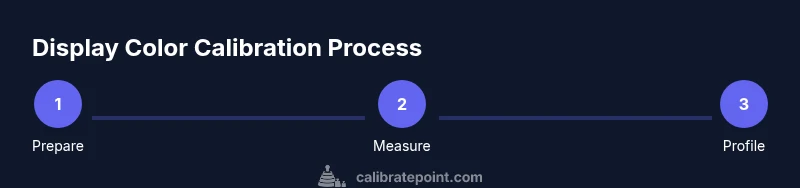
This section provides an overview of the calibration journey: set a reference white point, adjust gamma and brightness, perform the colorimetric scan with your tool, generate an ICC profile, apply it in the OS and primary editing apps, and verify results with target test images. You’ll save a profile with a descriptive name and keep a copy of the baseline configuration for future reference. Remember to re-check calibration after major software updates or hardware changes, as these can shift color rendering subtly over time.
Setting White Point, Gamma, and Brightness
Begin by selecting a target white point—6500K is the industry standard for most imaging workflows. Next, set gamma to around 2.2 to mirror how most displays reproduce midtones. Finally, adjust brightness to a comfortable yet accurate level, commonly around 120 cd/m2 for neutral indoor lighting, though your actual target may vary by room and use case. These three parameters shape how colors and details appear on-screen, so small deviations early in the process will cascade into larger perceptual errors if left uncorrected.
Running the Calibration and Generating an ICC Profile
With your colorimeter connected, launch the calibration software and follow the guided workflow. The software will measure several color patches, grayscale steps, and color targets, then compute an ICC profile that encodes how your display should reproduce color. Save the profile to a clearly labeled location, and note the version and date. The profile acts as the color-translation map your system uses to render images consistently across applications and devices.
Applying and Verifying the New Profile
Apply the generated ICC profile in your operating system’s color management settings, and, if available, in each major editing program (photo, video, and graphics software). After application, run a quick visual check with test images that span neutral, grayscale, skin tones, and saturated colors. If colors look off, revisit steps such as white point or brightness and re-run calibration. For ongoing assurance, re-run calibration every few months or after noticeable drift due to lighting changes or hardware aging.
Common Pitfalls and How to Avoid Them
Rushing through the process, calibrating in a bright room, or using a low-quality sensor leads to poor results. Avoid using the same monitor for gaming or dynamic content during calibration, as frequent screen changes can impact the measurement baseline. Don’t forget to disable game modes or energy-saving features that alter color rendering. Finally, always feature a named, descriptive profile file so you can distinguish it from factory settings and other measurements.
Tools & Materials
- Colorimeter or spectrophotometer(Essential for objective color measurements during calibration)
- Calibration software(Ensure OS compatibility and color-space support)
- Reference test patterns(Used to verify white point, gamma, and grayscale accuracy)
- Ambient light meter (optional)(Helps optimize room lighting for stable results)
- Display drivers and latest updates(Keeps hardware in sync with calibration workflow)
Steps
Estimated time: 60-120 minutes
- 1
Prepare the workspace
Create a controlled environment by dimming ambient light and eliminating reflections. Pre-warm the display for 15–30 minutes, and reset the display to its factory defaults to ensure a clean baseline.
Tip: Document lighting conditions so you can reproduce the setup later. - 2
Connect and install calibration tools
Attach your colorimeter or spectrophotometer and install the calibration software. Verify that the device is recognized by the operating system and that drivers are up to date.
Tip: Run a quick device check to confirm sensor responsiveness before starting. - 3
Set a target white point and gamma
In the software, choose a white point of 6500K and a gamma of 2.2 as your baseline. These values align with standard color workflows for photography and video.
Tip: If you work primarily for print, you may consider 5000K; otherwise stick with 6500K for web and most digital outputs. - 4
Calibrate brightness and contrast
Adjust screen brightness to a target luminance (commonly about 120 cd/m2 in neutral lighting). Set contrast to a neutral level to avoid clipping details in shadows or highlights.
Tip: Use a mid-gray test patch to verify even brightness across the panel edges. - 5
Run the measurement scan
Let the colorimeter measure a series of patches that cover grayscale, skin tones, primary and secondary colors. The software will analyze deviations from the target color space.
Tip: Avoid pausing the scan mid-sequence; interruptions can bias results. - 6
Generate and save the ICC profile
Save the resulting profile with a descriptive name including date and device. The profile encodes how to translate device colors to standard color spaces.
Tip: Keep a copy of the baseline and the new profile in a dedicated folder. - 7
Apply the profile system-wide and in apps
Apply the ICC profile in your OS color management settings and ensure major editing apps reference it by default. This ensures consistent color across workflows.
Tip: Restart apps after applying the profile to ensure changes take effect. - 8
Validate and re-check periodically
Open test images and compare neutral tones and skin tones against expectations. Recalibrate on a schedule or after hardware or lighting changes to maintain fidelity.
Tip: Set a calendar reminder to revisit calibration every 4–8 weeks depending on usage.
Questions & Answers
Why should I calibrate my display color?
Calibration aligns your screen with standardized color spaces, reducing color shifts between devices and ensuring more accurate edits and prints. It’s essential for professional imaging workflows.
Calibration aligns your screen with standard color spaces, reducing color shifts between devices and improving accuracy for edits and prints.
Do I need hardware calibration or is software enough?
Software-only calibration can improve accuracy, but hardware colorimeters provide objective measurements and more repeatable results over time. For professional work, hardware is usually the better choice.
Hardware measurements tend to be more repeatable; software alone helps, but hardware calibration is preferred for professional work.
What white point and gamma should I target?
A white point of ~6500K and gamma around 2.2 are standard for most digital workflows. Adjust if your primary output is print to align with printer profiles.
6500K white point and gamma around 2.2 work for most digital work; adjust for print if needed.
How often should I recalibrate?
Recalibrate every 4–8 weeks or after hardware changes, software updates, or lighting shifts in your workspace.
Recalibrate every 4 to 8 weeks or after changes to hardware, software, or lighting.
Can I calibrate a laptop display?
Yes, but desktop or external monitors generally offer better color stability. If you must calibrate a laptop, use a portable colorimeter and perform the test in a consistent environment.
You can calibrate a laptop, but results may vary; use a portable device and consistent lighting.
Will calibration affect printed colors?
Calibration improves print predictability when you use ICC profiles and color-managed workflows. It helps bridge the gap between screen and print output.
Calibration helps make screen colors align better with prints when you use color-managed workflows.
Watch Video
Key Takeaways
- Calibrate display color for reliable imaging results
- White point, gamma, and brightness are the three core controls
- Use a hardware device for objective measurements
- Apply and verify an ICC profile across OS and apps
- Recalibrate when hardware or lighting changes