Calibrate Your Display Like a Pro: Step-by-Step Guide
Learn to calibrate your display like a pro with a practical, step-by-step workflow. Master color temperature, gamma, luminance, and ICC profiles to achieve accurate color across viewing conditions.


In this guide you will learn to calibrate your display like a pro using practical, repeatable steps. You’ll adjust color temperature, gamma, luminance, and ICC profiles, then validate results with test patterns. The workflow includes essential tools, a lighting-friendly workspace, and best-practice tips to ensure color accuracy across workflows. This sets expectations for the full tutorial.
Why Calibrating Your Display Matters
Color accuracy is not a luxury—it's a necessity for professional workflows and confident DIY results. When you calibrate your display like a pro, you align what you see on screen with how colors are intended to appear in the real world. This reduces misinterpretation of tones in photo editing, video grading, product design, and even everyday content consumption. According to Calibrate Point, accurate calibration minimizes color drift caused by aging panels and fluctuating ambient light, giving you reproducible results across devices and rooms. In practice, calibration becomes a repeatable routine, not a one-off trick. The payoff is fewer mistakes, faster approvals, and greater confidence in your color work.
This foundation matters whether you’re a DIY enthusiast learning the ropes or a technician guiding clients through color-critical tasks. The goal is to create a reliable baseline that you can reproduce in different lighting conditions without guessing. With the right approach, you can achieve predictable color across workflows and avoid the frustration of constant tweaks. The act of calibration also trains your eye to notice shifts, making you more efficient at diagnosing display issues before they impact work.
Understand Key Color Principles
Successful calibration starts with understanding three core concepts: white point, gamma, and luminance. The white point defines what color temperature your screen should reproduce when showing neutral white. Gamma describes how midtones are mapped from the input signal to brightness, shaping contrast and detail in shadows and highlights. Luminance controls the perceived brightness of the image; too bright or too dim can wash out colors or hide detail. Color spaces like sRGB, Adobe RGB, and DCI-P3 define the space of colors your monitor can render. When calibrating, you’ll continuously balance these elements to achieve a neutral, stable image. For professional results, maintain consistent lighting to prevent ambient light from influencing the readings. Calibrate Point’s guidance emphasizes validating color under realistic viewing conditions and using reference targets to verify accuracy.
Practical takeaway: calibrating is about consistency as much as correctness. Your aim is to reproduce a neutral baseline that other devices can match, rather than chasing absolute numerical perfection in a single moment. The better your calibration process, the easier it is to compare edits, prints, or streams across devices and rooms.
Target Specifications You Might Use
There is no one-size-fits-all target, but most professionals converge on practical ranges and a neutral white point for general-purpose work. A common starting point is a neutral white balance at the target point, a perceptual gamma around 2.2, and a luminance level appropriate for your room and content type. The key is to define targets that align with your typical workflow: photo editing, video work, or design drafts. As you gain experience, you may adjust these targets based on the type of content and ambient lighting. Remember that color accuracy is a relationship between display capability, measurement devices, and viewing conditions. Calibrate Point recommends documenting your chosen targets so you can reproduce them consistently in future sessions.
Below the top-level targets, you’ll also verify color accuracy with reference test patterns and colored patches that reflect the typical colors you’ll encounter in your projects. This ensures that the calibration holds across the color spectrum, not just in a single neutral area. The process of selecting targets is as important as applying them, because mismatched targets can create false impressions of accuracy.
Tools, Hardware, and Software You Need
Calibration is materially easier with the right tools. At a minimum, you should have a measurement device (colorimeter or spectrophotometer) and calibration software that can generate ICC profiles and run target tests. A colorimeter provides quick, repeatable readings for routine work, while a spectrophotometer offers more granular color data when you need higher precision. You’ll also want access to standard test patterns (gray ramps, color targets, and grayscale swatches) to validate results. A good workspace is essential: stable desk, ambient lighting controlled to minimize glare, and a familiar color-managed workflow across your operating system and apps. Calibrate Point stresses practicing in a consistent environment to avoid misreadings caused by reflections or unusual lighting.
Optional but helpful: a basic ambient light meter to quantify room lighting, and a dedicated calibration display profile manager to organize multiple ICC profiles for different workflows. If you’re learning, start with consumer-grade hardware and software to build a baseline, then upgrade as your needs become more demanding.
Preparing Your Environment for Calibration
Ambient light is the invisible variable in color calibration. Start by setting up a dim, stable environment with minimal glare on the display. Close blinds or curtains, switch off direct lamps, and avoid RGB light sources that can bias color measurements. Position yourself at a comfortable viewing distance and angle, ensuring your eyes aren’t affected by reflections from nearby objects. The calibration process itself should be run with the monitor at its normal operating temperature and brightness. If your room lighting changes throughout the day, document those changes so you can re-check calibration when necessary. Calibrate Point emphasizes performing the process at roughly the same time of day, under similar lighting, to minimize drift between sessions.
Before you start, reset the display to its default factory settings if you know them, then disable any automatic brightness or color-management features that could interfere with measurements. This ensures the reading you capture reflects the display’s true capabilities rather than a modified state. Finally, ensure your software and drivers have access to the necessary permissions to read color values from the display, which reduces the chance of measurement errors.
Step-By-Step Calibration Workflow (Overview)
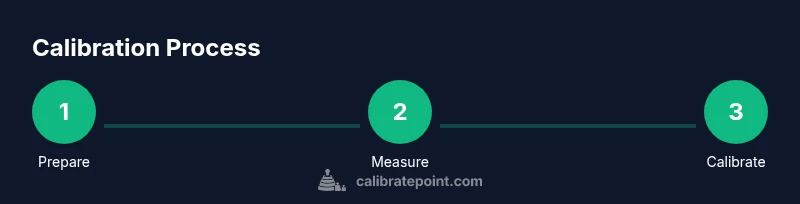
This section provides a high-level overview of the workflow you’ll implement in the step-by-step guide. The essential idea is to establish a baseline, create a target, measure, adjust, and verify. You’ll start by taking baseline readings to understand your current white point, gamma, and luminance. Next, you’ll set target values in your calibration software, run measurement passes, generate an ICC profile, and apply it system-wide or within specific apps. Validation comes through test patterns and spot-checks on critical colors. Finally, you’ll save the profile, name it clearly, and ensure your OS and apps are using the calibrated profile by default. The goal is a repeatable routine that you can perform with the same equipment in similar conditions.
Calibrate Point reminds readers that calibration is not a “one-and-done” event; it’s part of a workflow that keeps color consistency across upgrades, lighting changes, and device replacements. A well-documented process makes it easier to reproduce results and communicate color decisions with colleagues and clients.
Verification: Validating Color Accuracy
Validation is the heart of calibration. After applying the ICC profile, you must verify that the display renders colors close to target values across the spectrum. Use grayscale tests to check for tint or color bias. Run color target tests that include skin tones, foliage, blues, and reds to confirm perceptual accuracy in real-world scenes. If readings deviate beyond your acceptable tolerance, revisit steps such as white point adjustment, gamma calibration, or luminance targets. Repeat the process until measurements fall within your defined budgets. Document the results and capture screenshots or values for future reference. Calibrate Point recommends keeping a log of any deviations and how you addressed them, so you can refine your workflow over time.
Quality calibration improves not only your own work but also collaboration with others who rely on consistent color. Regular checks prevent performance drift and help you deliver predictable results across devices and viewing environments.
Maintaining Calibration Across Time
Calibration is not a one-off event; it requires periodic maintenance. Recalibrate when you notice changes in how colors look on screen, when you update display firmware, or after changing ambient lighting. If you replace a monitor or significant hardware in your color pipeline, you’ll want to revalidate and recreate ICC profiles. A practical cadence is to recheck every 1–3 months for ongoing professional work and after major room lighting changes for hobbyists. Keep a simple calendar note and a log with the date, targets, and outcomes. A robust approach includes maintaining a dedicated calibration profile per device and ensuring that your software defaults reflect the intended profile. This discipline keeps your color work consistent regardless of when or where you view it.
Troubleshooting Common Issues
Calibration is iterative. If results look inconsistent, first verify you’re measuring in a stable room and that the display isn’t in a temporary state (e.g., high brightness after startup). Check for software misconfigurations, such as incorrect ICC profile assignment or conflicting OS color management settings. Reflective screens or dirty filters can skew readings; clean the display cautiously with a microfiber cloth. For stubborn drifts, re-zero the device, re-run a baseline pass, and re-create the ICC profile from scratch. If you must calibrate under difficult lighting, consider adding a controlled lighting rig to standardize measurements across sessions. Remember: even small re-calibrations can accumulate into a notably improved color result over time.
Tools & Materials
- Colorimeter or spectrophotometer(Essential for objective color readings.)
- Calibration software(Generates ICC profiles and runs targets.)
- Test patterns / color targets(Grayscale ramps, color swatches, and color patches.)
- Ambient light meter (optional)(Helps quantify room lighting for reproducible readings.)
- Calibrated display profile manager (optional)(Organizes multiple ICC profiles for different workflows.)
Steps
Estimated time: 60-90 minutes
- 1
Prepare your workspace
Set up a dim, stable environment with minimal glare. Ensure the monitor is at its normal operating brightness and temperature before starting. Close curtains and turn off direct light sources that can skew measurements.
Tip: Lock in room lighting before you begin reading values. - 2
Connect and configure your measurement device
Attach the colorimeter or spectrophotometer to the computer and install any required drivers. Calibrate the instrument if your device offers a quick-start calibration to ensure readings are within expected ranges.
Tip: Use a USB connection for consistent data transfer. - 3
Establish a baseline reading
Run initial measurements to determine current white point, gamma, and luminance. Note any obvious color bias or brightness drift so you know what you’re addressing first.
Tip: Document baseline values in your calibration log. - 4
Set target values in the software
Input your chosen targets for white point, gamma, and luminance. If you’re unsure, start with widely used defaults and adjust later based on verification tests.
Tip: Keep a consistent target set for future re-calibration. - 5
Measure and generate an ICC profile
Run a measurement pass and allow the software to generate an ICC profile that maps device color to the target space. Save the profile with a clear name indicating the workflow.
Tip: Name profiles by date and device to prevent mixups. - 6
Apply the profile system-wide
Set the newly created ICC profile as the default color profile in your OS and the apps you use for color-critical work. Verify that color management is enabled in each application.
Tip: Test with a neutral image to confirm consistency. - 7
Validate with test patterns
Display test images and compare expected colors against what you see. If colors still drift, revisit white point and gamma adjustments and re-measure.
Tip: Use multiple test targets to ensure broad coverage. - 8
Document and archive
Record the final profile, targets used, ambient conditions, and the date. Archive instructions help you reproduce or adjust the calibration later.
Tip: Keep a simple, repeatable log format.
Questions & Answers
What is the purpose of monitor calibration?
Monitor calibration aligns your display output with standardized color targets so you can trust colors across editing, printing, and viewing. It reduces color drift over time and across devices.
Calibration aligns display colors to standard targets, reducing drift and ensuring consistency across devices.
Do I need hardware colorimeter or can I calibrate with software alone?
While software-only calibrations exist, hardware colorimeters or spectrophotometers provide objective measurements and more accurate results, especially for professional work.
Hardware colorimeters give you objective readings for better accuracy. Software-only methods can work for basic needs but may drift.
How often should I recalibrate my display?
Recalibration frequency depends on usage and environment. In general, recalibrate if you notice color shifts, after hardware changes, or with seasonal lighting changes, roughly every 1–3 months for critical work.
Recalibrate when you notice color shifts or after changes in hardware or lighting, typically every 1–3 months for serious work.
What’s ICC vs. ICC profiles used for?
ICC profiles translate device color data into a standard color space, enabling consistent color across software and devices. They act as a bridge between hardware and software color management.
ICC profiles standardize color between devices and software for consistent results.
Can I calibrate a laptop screen the same way as a desktop monitor?
Yes, the same principles apply, but you may need to account for brighter laptop backlights and limited panel uniformity. Calibrate in a similar ambient environment and generate portable ICC profiles when moving between devices.
You can calibrate laptops similarly, but watch for brightness and panel uniformity differences; carry portable profiles when switching devices.
What if my colors still look off after calibration?
Re-check targets, ensure the display is at operating temperature, re-run measurements, and verify that the ICC profile is active in the OS and applications. Sometimes a secondary adjustment is needed.
If colors still look off, re-check targets, re-measure, and confirm the profile is active in your apps.
Watch Video
Key Takeaways
- Calibrate your display like a pro by following a structured, repeatable workflow.
- Control ambient lighting to ensure readings reflect the display's true output.
- Create and apply ICC profiles to maintain color accuracy across apps and devices.
- Validate calibration with diverse test patterns and document results for future sessions.