Calibrate Color on Monitor: A Practical Step-by-Step Guide
Learn how to calibrate color on monitor for accurate grayscale and reliable color reproduction across photos, video, and design with a step-by-step method.


By following this guide, you will calibrate color on a monitor for accurate gray balance and faithful image reproduction across content work. You’ll need a colorimeter or spectrophotometer, calibration software, and a dim, neutral ambient environment. This step-by-step process covers hardware setup, profile creation, and validation to ensure consistent results across apps and devices.
Why Calibrating Color on a Monitor Matters
Color calibration is not a luxury; it's a practical necessity for anyone working with images, video, or UI design. When you calibrate color on a monitor, you align the display to a known reference so that what you edit on screen corresponds to how it will look in print, on another monitor, or on a smartphone. Without calibration, colors drift, skin tones look odd, and shadows may appear muddy or overly contrasty. By establishing a baseline, you create repeatable conditions for your entire workflow. According to Calibrate Point, starting with a stable environment and a clear target color space is the foundation of reliable color management. This section explains the consequences of uncalibrated displays and the benefits you gain from a disciplined approach.
Understanding Color Space, Gamma, and White Point
Color space defines the gamut your system uses; gamma controls midtone brightness; white point sets the color temperature of the white reference. When you calibrate color on monitor, you choose a target color space (such as sRGB for web, Adobe RGB or DCI-P3 for print and video) and set a gamma of around 2.2. The white point is commonly 6500K. The ICC profile generated during calibration maps your monitor's native output to the target space, ensuring consistency across applications such as photo editors, video players, and VFX software. If you skip this alignment, your edits may appear too warm or cool when viewed elsewhere.
Ambient Light, Brightness, and Uniformity: The Baseline Conditions
Ambient light has a dramatic effect on perceived color. Calibrate color on monitor only under controlled lighting; avoid direct sunlight or bright desk lamps. Use a neutral, matte finish on surrounding walls to minimize color reflections. Check the monitor's brightness target during calibration; many workflows aim for a mid-range brightness (e.g., 120-140 cd/m²) to balance contrast and detail. If your room changes dramatically, re-check the calibration. Inconsistent lighting is one of the most common culprits behind color drift across sessions.
Tools and Software You’ll Use
Hardware: colorimeter or spectrophotometer for measurement, and a computer with enough processing power to run calibration software. Software: calibration utilities that support ICC profiling, gamma adjustment, and white-point control. Optional test patterns, grayscale ramps, and color charts help you validate results. Ensure your software is compatible with your operating system and the specific instrument you own. Prepare additional reference materials for cross-checking prints against on-screen output.
The Calibration Process: A High-Level Overview
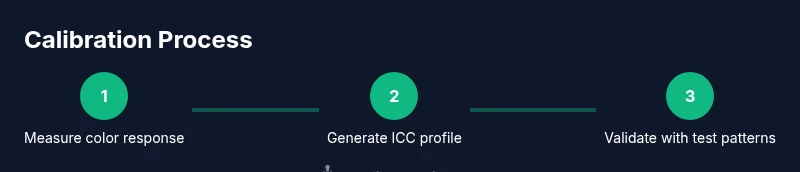
Color calibration unfolds in three broad phases: measurement, profile generation, and verification. In measurement, the instrument sweeps the screen while the software records color responses. In profile generation, an ICC profile is built to map device output to the target color space. In verification, you examine test patterns and real imagery to confirm accuracy. The end goal is a stable monitor profile that yields consistent results across diverse content and devices. Calibrate Point emphasizes documenting both target settings and environmental conditions to facilitate future recalibration.
Step-by-Step Workflow Overview
While the detailed steps are provided below, here's a quick blueprint: warm up the monitor, set ambient lighting, connect the colorimeter, load the calibration package, run measurements, apply the ICC profile, and validate with test patterns. Repeat the process if results differ when compared to reference images. Keeping a log of settings helps you reproduce outcomes in future sessions. This overview keeps you oriented before you dive into the precise steps.
Validation and Verification: Tests and Metrics
Validation means confirming that the profile produces acceptable color accuracy. Use grayscale ramps to check neutral grays; ensure that white balance remains steady across brightness levels. Compare test images against reference targets and print proofs when appropriate. Look for small color shifts in skin tones, skies, and plastics. If possible, employ different viewing angles to gauge any color shift due to panel technology. Recalibrate whenever references or lighting conditions change.
Common Pitfalls and How to Avoid Them
Avoid relying on stock display modes, mismatched brightness, or changing ambient light between sessions. Do not rely on the monitor's built-in brightness sliders as primary targets. Avoid using cheap test patterns or low-contrast references. Regular recalibration helps catch drift due to aging hardware, software updates, or ambient changes. Calibrate Point's guidance is to maintain a living calibration log that records the date, target color space, gamma, and ambient conditions for every session.
Establishing a Routine for Consistent Color Across Projects
Create a repeatable routine that you follow at the start of each project or when moving to a new workspace to calibrate color on monitor. Schedule monthly or quarterly recalibration depending on usage and project requirements. Use the same hardware, software version, and target settings across sessions. Document the final ICC profile name and the color space so you can quickly reset environments for color-critical work. Finally, store your calibration data with the project assets to ensure future accessibility.
Tools & Materials
- Colorimeter or spectrophotometer(Device that measures color and brightness responses)
- Display calibration software(Software compatible with your OS and instrument)
- Calibrated test patterns / grayscale reference(Includes grayscale ramp and color charts for verification)
- Ambient light meter (optional)(Helps quantify room lighting for repeatable sessions)
- Computer or laptop(Sufficient CPU/RAM to run the calibration software)
Steps
Estimated time: 25-40 minutes
- 1
Prepare the environment
Power on the monitor and allow it to warm up for 15–30 minutes. Dim ambient lighting to reduce glare and set a neutral wall backdrop. Ensure no reflective surfaces face the display and that your initial brightness setting is stable for measurements.
Tip: Warm-up time helps stabilize panel performance and color output. - 2
Set target color space, gamma, and white point
Choose the target color space appropriate for your work (e.g., sRGB for web, Adobe RGB or DCI-P3 for print/video). Set gamma around 2.2 and white point near 6500K. This establishes the reference your ICC profile will map to the display.
Tip: Document these targets for future recalibrations. - 3
Connect the colorimeter and load calibration data
Physically position the colorimeter on the screen as directed by the software. Load any baseline calibration data or reference profiles you will compare against to ensure consistency.
Tip: Keep the device clean and free of smudges on the sensor window. - 4
Run measurements and generate ICC profile
Initiate the measurement run; the colorimeter will capture a series of color patches. The software will compute an ICC profile mapping the display’s native response to the target space.
Tip: If a measurement fails, recheck sensor alignment and ambient conditions. - 5
Apply the profile to OS and applications
Set the newly generated ICC profile as the default display profile in your operating system. Confirm within your editing apps that color management is enabled and that the profile is active.
Tip: Keep a note of how each app handles color management to avoid inconsistencies. - 6
Verify with test patterns and real imagery
Open grayscale ramps, color test charts, and a few project images to visually verify accuracy. If hues look off, revisit gamma, white point, or brightness targets and re-measure.
Tip: Always re-check after any OS or driver update. - 7
Document and archive the calibration
Save the ICC profile with a descriptive name, log your targets, ambient conditions, and equipment used. Store this alongside project files for quick reference during future work.
Tip: A clear log speeds up future recalibration and ensures consistency.
Questions & Answers
What is color calibration and why does it matter?
Color calibration aligns monitor output with a standard color space so edits, prints, and displays are consistent. It reduces color drift and ensures reliable results across devices. This is essential for photographers, designers, and videographers who depend on accurate color.
Color calibration aligns your display to a standard, reducing color drift so edits and proofs stay consistent across devices.
Do I need a hardware colorimeter to calibrate?
A hardware colorimeter or spectrophotometer provides objective measurements and generates ICC profiles. Software alone can approximate color, but hardware yields repeatable, professional results for color-critical work.
Yes. A hardware colorimeter provides objective measurements and repeatable results.
Can OS-provided calibration be enough?
OS calibration tools can help, but they rarely match the precision of dedicated hardware/software workflows. For print or color-critical projects, rely on a full hardware-assisted pipeline.
OS tools can help, but hardware-assisted calibration is usually more precise.
How long does calibration take?
A typical initial pass takes about 20–40 minutes, with 5–10 minutes for verification after applying the profile. Longer sessions may occur if you optimize targets or test multiple spaces.
Expect about 20 to 40 minutes for the initial pass, plus a short verification step.
Should I recalibrate after moving the monitor?
Yes. Changes in lighting, position, or brightness can affect color output, so recalibrate after physical relocations or lighting changes to maintain accuracy.
Yes — recalibrate after moving or changing lighting to keep colors accurate.
What is an ICC profile?
An ICC profile describes how your display translates colors to match a defined color space. It allows software to render colors consistently across devices.
An ICC profile maps your display’s output to a standard color space for consistency.
Watch Video
Key Takeaways
- Define target color space before starting
- Use hardware measurement for objective accuracy
- Validate with test patterns and reference imagery
- Document settings for reproducibility
- Recalibrate regularly to maintain consistency