Calibrate Monitor Test: A Step-By-Step Display Calibration
Calibrate monitor test for color and grayscale accuracy with a practical, hardware-agnostic workflow. Learn tools, targets, workflows, and validation steps for designers and technicians.


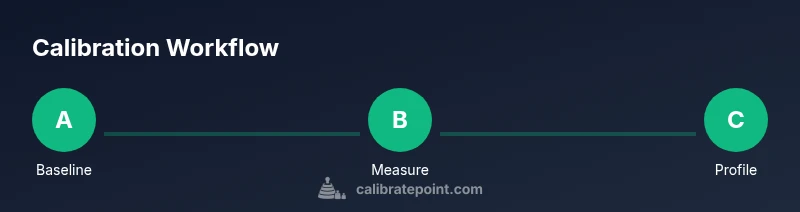
This guide shows you how to calibrate monitor test procedures to verify color accuracy and grayscale tracking. You’ll set up a reference display profile, prepare a standard image set, and gather measurement tools (colorimeter or spectrophotometer if available). With these steps, designers and technicians can achieve repeatable results and minimize color surprises across screens.
Why calibrate monitor test matters
According to Calibrate Point, calibrating monitor test procedures ensures color accuracy and grayscale tracking across workflows. When working with photographs, videos, or UI design, subtle shifts in gamma or white point can alter perceived tone. A systematic calibration routine reduces guesswork and creates a reliable baseline for comparison across devices. In practice, a well-executed test reveals whether a display meets project requirements, helps diagnose color inconsistencies, and supports consistent production pipelines that span monitors, laptops, and reference suites. For professionals, this is not a luxury but a necessity to maintain fidelity in color-critical work.
Understanding color science and grayscale
Color management hinges on three pillars: device characterization, color space mapping, and perceptual calibration. Grayscale accuracy—how a display renders neutral tones from black to white—directly affects skin tones, shadow detail, and highlight clipping. A calibrated test should verify white point (often around D65), gamma (commonly near 2.2 for sRGB workflows), and colorimetric accuracy across primary colors. Small deviations in any of these can cascade into biased hues or uneven brightness perception. By understanding these concepts, you can interpret test results and decide whether adjustments are required.
Tools and approaches: hardware vs software
You have several paths to calibrate monitor test. Hardware-based methods use colorimeters or spectrophotometers to measure sample patches and generate ICC profiles. Software-based approaches rely on built-in test patterns and reference images when hardware tools aren’t available, though they are less precise. A practical hybrid often works best: start with a software baseline, then verify with a handheld meter if precision is critical. If you use hardware, ensure your device is compatible with your operating system and test software, and remember to keep sensors clean for reliable readings.
Preparing targets and reference images
To run a meaningful test, you need standard targets: grayscale ramps, color patches, and ICC-managed test images. Begin with a 20-step grayscale ramp that moves evenly from black to near-white to evaluate gamma and tonal response. Include primary and secondary color patches (red, green, blue, cyan, magenta, yellow) to assess color accuracy and saturation. Reference images should match typical work, such as sRGB- or DCI-P3-based material, so your results translate to real projects. Organize files in a dedicated folder and maintain consistent naming for easy comparison over time.
Understanding ICC profiles and gamma
An ICC profile describes how a device reproduces color and is essential for color-managed workflows. Calibration aims to produce a profile that maps display capabilities to a standard color space. Gamma governs midtone brightness; a mis-set gamma can skew contrast perception and make midtones look too flat or too harsh. When calibrating, you’ll typically adjust the display’s white point, gamma, and luminance to align with the target color space. After generation, verify the profile with a known reference image to confirm that color and luminance are consistent under typical lighting.
Best practices for different use-cases
Different work scenarios demand different calibration targets. For photo editing, prioritize accurate skin tones and midtones with a neutral gray background. For video work, ensure Rec.709 or the project color space is faithfully represented and maintain consistent luminance across scenes. UI/UX design benefits from stable gamma and crisp contrasts, especially for web and app interfaces. Document your target settings in a visible calibration log and reuse them whenever devices or lighting change. Regular checks (monthly or quarterly) help catch drift before it affects production.
Common pitfalls and troubleshooting
Avoid common mistakes like calibrating in a room with strong ambient light, ignoring ambient light compensation, or using a display in its default factory mode. Changing display settings during calibration can invalidate results, so perform steps in a clean, controlled environment. If test patches look inconsistent or colors appear off, confirm that the colorimeter is properly seated, the targets are correctly spaced, and the latest drivers or calibration software are installed. When in doubt, re-run a baseline test to confirm the repeatability of your measurements.
Ambient light and viewing conditions
Light levels and color temperature in the room influence perceived color and contrast. Aim for a neutral, consistently lit space—ideally around 120-140 lux; avoid direct sunlight and strong artificial lighting that shifts color perception. Use a white or neutral gray surface nearby to help your eyes stay calibrated during the process. Some workflows incorporate ambient light sensors to automatically adapt the display profile to current conditions, which can reduce drift over longer sessions.
Validating results and maintaining the profile
Validation is the final, critical step. Re-run the grayscale ramp and color patches after applying a new ICC profile, and compare results to your baseline. If discrepancies persist, revisit white point, gamma, or luminance targets and consider recalibrating. Keep a calibration log with dates, target values, device serial numbers, and measurements to track drift over time. Periodic profile maintenance helps preserve color fidelity across devices, especially in environments with moving tasks or varying lighting.
Tools & Materials
- Colorimeter or spectrophotometer (optional but recommended)(Choose a device compatible with your operating system and test software)
- Display profiling software(Ensure it supports your monitor and color space (sRGB/Rec.709/DCI-P3))
- Ambient light meter or lux meter (optional)(Helpful for standardizing room lighting)
- Calibration targets (grayscale ramp, color patches)(Pre-generated or print-ready targets)
- Calibrated reference image set(Use standard images aligned to your workflow's color space)
- Calibrated ICC profile file(Generated by profiling software after measurement)
- Quality control notebook or digital log(Record target values, device, date, and results)
- Stable power supply and desk setup(Prevent flicker or drift from power fluctuations)
Steps
Estimated time: 60-90 minutes
- 1
Prepare workspace and hardware connections
Set up your monitor in a neutral, dimly lit room. Connect the colorimeter or spectrophotometer and ensure calibration software is installed. Power the display to a stable state (10-15 minutes) to avoid warm-up drift.
Tip: Disable any dynamic display features (adaptive brightness, night mode) during calibration to avoid interference. - 2
Baseline measurement without profile
Open your calibration software and run a baseline capture using the grayscale ramp and color targets. Record initial measurements to understand the display's natural drift before profiling.
Tip: Take notes on conspicuous deviations (e.g., green cast in midtones) to guide target adjustments. - 3
Set target color space and luminance
Choose the target color space (sRGB or Rec.709 for most workflows) and set a luminance target (e.g., 120 cd/m²). This anchors the profile to a realistic working brightness.
Tip: Luminance targets vary by usage—photo work often uses 100-140 cd/m²; video may require 80-100 cd/m² when viewing in dark rooms. - 4
Measure and correct white point
Measure the display's white point and adjust to a neutral D65 or the appropriate reference. Re-measure to confirm compensation has been effective.
Tip: Small adjustments to the white point can have a large impact on skin tones and overall balance. - 5
Calibrate gamma and midtones
With targets in place, adjust gamma so midtones render accurately, avoiding washed-out or overly contrasty mid-range values. Validate across the grayscale ramp.
Tip: Aim for a smooth slope; abrupt changes indicate measurement or device heating issues. - 6
Generate and apply ICC profile
Create the ICC profile from your measurements and apply it system-wide or within your design software. Ensure the profile is active for testing.
Tip: Name and store profiles consistently to avoid accidental swaps in future sessions. - 7
Re-check grayscale and color patches
Re-run the grayscale ramp and color patches with the new profile to verify alignment with targets. Record any residual drift.
Tip: If large residuals persist, revisit the white point and luminance steps before re-profiling. - 8
Document results and establish a maintenance cadence
Log the targets, device, date, and measured values. Schedule regular recalibration (monthly or quarterly) to maintain fidelity.
Tip: Include environmental notes (lighting conditions) to help reproduce or diagnose drift later. - 9
Validate across additional devices
If you work with multiple displays, repeat the process on each device, ensuring consistency of color and grayscale across your workflow.
Tip: Create a master reference and compare other devices against it to identify discrepancies early.
Questions & Answers
What is the difference between hardware and software calibration?
Hardware calibration uses a sensor to measure color output directly, producing a precise ICC profile. Software calibration relies on built-in patterns and references and is less precise but helpful when hardware isn’t available.
Hardware calibration uses a sensor to measure color output for precise profiling, while software-only methods provide a quick baseline when sensors aren’t available.
Do I need an expensive device to calibrate?
Not strictly. A colorimeter or spectrophotometer improves accuracy, but you can start with software-based methods. For professional results, investing in a meter is recommended.
You can start with software methods, but for professional results a colorimeter or spectrophotometer is highly recommended.
How often should I recalibrate?
Recalibrate on a schedule that matches your workflow: monthly for critical color work, quarterly for general use, and after any display change or ambient lighting shift.
Calibrate on a regular schedule, and any time you change lighting or hardware.
Can ambient light affect calibration results?
Yes. Ambient light can bias color perception and luminance. Calibrate in a controlled environment or use ambient light compensation where supported.
Ambient light can skew results, so calibrate in a controlled environment or use ambient compensation if available.
What should I do if colors look off after calibration?
Double-check the white point, luminance target, and ICC profile. Re-measure with clean targets and verify against a known reference image.
If colors look off, re-check white point, luminance, and the profile, then re-measure with clean targets.
Watch Video
Key Takeaways
- Calibration aligns color across devices.
- Use grayscale ramps to evaluate gamma and luminance.
- An ICC profile translates monitor output to color space.
- Regular maintenance prevents drift and surprises.