Calibrate Display: A Practical Step-by-Step Guide to Accurate Monitor Color
Learn how to calibrate display for color accuracy, grayscale, and consistent brightness. This step-by-step guide covers tools, workflow, and validation for designers, photographers, and video editors.


In this guide you will learn how to calibrate a display for reliable color, consistent brightness, and accurate grayscale. You’ll set a baseline white point, adjust gamma, optimize luminance for your room, and create an ICC profile you can reuse on other devices. By the end, your monitor’s output should align with standard color references and your workflow needs.
What display calibration achieves
Display calibration is the process of adjusting a monitor's output so that colors, brightness, and grayscale values align with reference standards. This is essential for designers, photographers, and video professionals who depend on color accuracy for proofs, edits, and reviews. Calibrating helps ensure that what you see on screen matches the target color space and your downstream workflows. According to Calibrate Point, accurate display calibration begins with a reliable baseline and consistent viewing conditions to minimize room-light impact and device aging effects. The Calibrate Point team found that even modest ambient light shifts can introduce noticeable color bias, making calibration an ongoing practice rather than a one-off task. In practice, calibrating a display means selecting targets for white point, luminance, and gamma, then applying an ICC profile that stores the calibrated characteristics for use by the operating system and editing software.
Core principles of color accuracy
Color accuracy depends on three guardrails: white point, gamma, and luminance. The white point determines the perceived neutral color at mid-tones; most workflows use a point around 6500K. Gamma governs how mid-tones map to output; a common target is ~2.2, which yields natural contrast without harsh shadows. Luminance must feel comfortable in your environment and suit your work—too bright can wash out detail, too dim can mask noise. Beyond these numbers, grayscale accuracy matters: a smooth ramp from black to white without visible banding signals a good calibration. Finally, ICC profiles encode these decisions so your OS and apps render consistently across sessions and even on different displays. While hardware and software vary, the principle remains the same: calibrate once with a consistent method, then re-validate as lighting, aging, or content changes.
Tools and reference standards
The calibration toolkit typically includes a colorimeter or spectrophotometer for measuring color, a calibration software suite to guide the workflow and generate an ICC profile, and test patterns for validation. You may also use an ambient light meter to fine-tune luminance to your room. A neutral gray card and test images help verify grayscale and color accuracy. For reference standards, aim to align with established color spaces (like
Step-by-step workflow overview
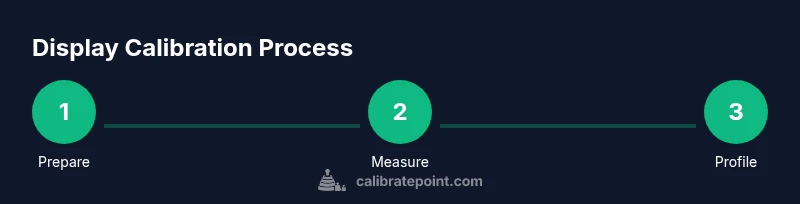
A practical calibration session follows a repeatable workflow: establish ambient conditions, reset to a neutral baseline, measure against reference targets, apply the resulting ICC profile, and finally validate with test patterns. This overview lays the groundwork for the detailed steps below and helps you plan your time and resources. Consistency—both in your tools and your environment—drives reliable outcomes across sessions and devices. By following a disciplined process, you can calibrate display settings that stay stable as you work.
Step-by-step detailed actions (high-level)
- Prepare the workspace and let the monitor warm up for at least 15–30 minutes so its temperature stabilizes. This ensures measurements reflect steady behavior rather than transient surges.
- Reset display color controls to the default or
Validating calibration results
After applying the ICC profile, validate by inspecting grayscale ramp from black to white in a neutral image and looking for a smooth progression without forced color casts. Use test patterns to check for color bias, banding, and uniform brightness across the screen. If you notice inconsistencies, re-measure specific color regions, adjust the white point or luminance, and re-profile. Keep a log of ambient conditions and monitor model to compare future results.
Common challenges and fixes
Displays drift over time due to aging, temperature, and panel calibration drift. Ambient light can shift perceived color and luminance, so maintain stable room lighting during sessions. Some monitors ship with built-in color profiles or dynamic contrast that conflict with external calibration—disable these during profiling. If the colorimeter reads strangely or reports errors, reseat the device, try a different USB port, and re-run the calibration. Finally, ensure your calibration software is up to date to avoid compatibility issues.
Calibration for different use cases: photography, design, gaming
Use-case matters. Photographers often prioritize accurate skin tones and a broader color gamut; designers emphasize grayscale neutrality and consistent rendering; gamers may want a bright, punchy image without color distortion. Start with baseline targets (6500K, gamma ~2.2, appropriate luminance) and then tweak to suit your primary task. Remember to re-validate whenever you switch tasks or change lighting or hardware, and keep separate ICC profiles for each workflow if needed.
Maintenance, backups, and documentation
Maintain a calibration journal that records date, ambient conditions, targets, device type, and ICC file names. Back up all ICC profiles to cloud storage or an external drive, and keep a copy of test patterns used during validation. Schedule recalibration at intervals that reflect how often you change displays or lighting; most professionals recalibrate every 1–3 months in active environments. Regular reviews help ensure your color workflow remains accurate over time.
Tools & Materials
- Colorimeter or spectrophotometer(Used to measure screen color and generate accurate data)
- Calibration software(Guides targets, runs measurements, outputs ICC profile)
- Test patterns and grayscale resources(Digital or printed patterns to verify results)
- Ambient light meter (optional)(Helps tailor luminance to room lighting)
- Neutral gray card(Assists in grayscale verification and ambient balance)
- Monitoring environment(Consistent lighting, glare reduction, and stable temperature)
Steps
Estimated time: 60-90 minutes
- 1
Prepare workspace and warm up monitor
Power on the display and let it reach steady temperature for 15–30 minutes. This ensures measurements reflect stable behavior rather than transient changes. Confirm the ambient lighting is steady and free of glare before starting.
Tip: Give your monitor a full warm-up so luminance and color settle before measuring. - 2
Reset to a neutral baseline
Restore default color controls and select a standard baseline such as sRGB. Disable dynamic enhancements that alter brightness or color during profiling to avoid biased results.
Tip: Use manufacturer reset options and verify no automatic enhancements are active. - 3
Set ambient lighting parameters
Ensure the room lighting remains constant; avoid direct sunlight or strong colored lights. Document the lighting level as part of your calibration notes.
Tip: If possible, cloak windows and use neutral lighting to minimize color shifts. - 4
Configure target white point and gamma
Within your calibration software, select a standard white point (approximately 6500K) and a gamma target around 2.2. These choices influence mid-tone accuracy and overall contrast.
Tip: Stick to standard targets for cross-device consistency. - 5
Measure with the colorimeter and create an ICC
Follow the software prompts to collect color data across a representative color spectrum. The software will generate an ICC profile that encodes your calibrated settings.
Tip: Ensure the colorimeter is clean and properly seated against the screen during measurements. - 6
Apply the ICC profile to the system
Install or assign the ICC profile in the OS color management settings and within primary editing software. This ensures consistent rendering across programs.
Tip: Test with a neutral image to verify the profile is active in both OS and apps. - 7
Validate with test patterns
Re-run grayscale and color tests to confirm accuracy. Look for a smooth gradient without color tint and consistent brightness across the panel.
Tip: If issues emerge, re-measure and re-profile before finalizing. - 8
Document and backup
Save the ICC file with a descriptive name, back it up, and record all targets, room conditions, and monitor details for future reference.
Tip: Keep a dedicated calibration log for easy comparisons later.
Questions & Answers
What is display calibration and why is it important?
Display calibration is the process of aligning your monitor's output with reference color standards. It improves color accuracy, grayscale rendering, and consistency across programs. This is crucial for design, photography, and video work where color fidelity matters.
Display calibration aligns your monitor with reference color standards, improving color accuracy and consistency across apps. It's essential for color-critical work like design and photography.
Do I need a colorimeter to calibrate a display?
A colorimeter or spectrophotometer provides objective measurements of color and helps generate an ICC profile. While not strictly required, hardware-based calibration yields far more reliable results than software-only methods.
A colorimeter gives objective color measurements and a reliable ICC profile; it's highly recommended for accurate results.
Can I calibrate with built-in OS controls alone?
Operating system controls can adjust brightness and some color settings, but they often rely on subjective adjustments. For precise calibration, hardware measurement and ICC profiling are recommended.
OS controls can help with quick tweaks, but for precise calibration, use a colorimeter and an ICC profile.
How often should I calibrate my monitor?
Calibration frequency depends on usage, environment, and display age. In active professional workflows, recalibrate every 1–3 months or after major hardware changes.
Calibrate every 1 to 3 months in active work, or after a significant change in lighting or hardware.
What is an ICC profile and how is it used?
An ICC profile encodes the calibrated color characteristics of a display. It is applied by the OS and editing software to ensure consistent rendering across applications and sessions.
An ICC profile stores calibrated color data and ensures consistent rendering across programs and sessions.
Can calibration improve gaming visuals?
Calibration can improve visual accuracy and consistency, but gaming prioritizes response time and brightness. You can still benefit from a calibrated baseline, especially for content creation or streaming.
Calibration helps with color accuracy, which can enhance visuals, particularly for creators and streamers.
Watch Video
Key Takeaways
- Establish a repeatable calibration routine.
- Use a colorimeter to measure and ICC profiles to apply.
- Validate results with standardized test patterns.
- Document and back up calibration data.
- Recalibrate regularly to account for aging and lighting.