Calibrate Monitor Software: A Practical Step-by-Step Guide
Learn how to calibrate monitor software for accurate colors and consistent viewing. This guide covers prerequisites, tools, steps, testing, and maintenance to ensure color fidelity across design tasks and workflows.


Calibrate monitor software to achieve consistent, accurate colors across applications. Define a target color space, gamma, and white point; choose a calibration device; generate an ICC profile, and apply it system-wide. This step-by-step approach helps DIYers, technicians, and professionals maintain color fidelity across screens and programs.
Why calibrate monitor software matters
Color accuracy is critical whenever you design, edit photos, or compare visuals across devices. When monitor output deviates from standard color spaces, what you see on screen can misrepresent tones, contrast, and saturation. Calibrating monitor software aligns display output with a defined target, reducing guesswork for clients and collaborators. By following a disciplined workflow, you’ll minimize color drift caused by aging hardware, ambient light shifts, or inconsistent profiles. The Calibrate Point team emphasizes that reliable calibration saves time and improves decision-making in any professional setting.
Key concepts and prerequisites
Before you begin, understand a few core ideas. A color space (such as sRGB or Adobe RGB) defines the gamut your display aims to reproduce. Gamma 2.2 is a common target for standard displays, while a D65 white point is often used for print and design workflows. An ICC profile translates measured color data into a device-specific profile that software can apply. Hardware tools like colorimeters or spectrophotometers provide objective data about how your screen emits color. You’ll also need calibration software that can generate ICC profiles and allow OS/app-level deployment. If you lack a device, you can start with built-in color management tools, but hardware measurement yields far more reliable results.
The calibration workflow: overview
A typical workflow includes planning the targets, measuring your display, generating an ICC profile, and applying that profile across the operating system and major applications. Start by ensuring the room lighting is stable and avoid glare. Then you’ll capture baseline readings, pick a target color space and gamma, run the calibration, and review a diagnostic report. The goal is a profile that yields consistent colors across the apps you use most. Expect to repeat steps if you notice drift after a change in lighting or hardware.
Understanding targets: color spaces, gamma, and white point
Choosing the right targets is essential. Color spaces define reproducible color ranges; gamma influences midtone contrast; white point affects perceived warmth. For most professional work, calibrating to sRGB for web and a wider gamut like Adobe RGB or DCI-P3 for print can be appropriate. If you primarily work with digital media, a gamma of 2.2 and a D65 white point often work well. The ICC profile you generate should encode these choices so software can reproduce consistent results.
Common challenges and how to avoid them
Several factors can derail calibration. Ambient light that changes during the session shifts perceived color, while screen aging alters brightness and contrast. Some displays resist color accuracy adjustments due to panel type or firmware limits. Avoid calibrating in a cold room with rapidly changing light, disable onboard display features that conflict with profiling (like dynamic contrast), and perform calibration with the display at its usual operating brightness. Document your settings so you can reproduce results later.
Maintenance and re-calibration schedule
Calibration isn’t a one-off task. Recalibrate when you change lighting conditions, upgrade or replace your monitor, or install a new graphics card. A reasonable cadence is to re-check every few weeks to months, depending on how dynamic your workspace is. Keep a log of the profile version, date, target space, and brightness/contrast settings to track progress over time. Regular checks help catch drift before it impacts your work.
Testing and validation methods
After calibration, validate by comparing standardized test patterns and real-world samples (photos, video frames, or UI elements). Look for consistent gray ramps, skin tones, and neutral grays across different apps and browsers. If colors look off in one program, re-check color management settings and ensure the ICC profile is active system-wide. Use a mix of patterns and photos to confirm that the monitor responds predictably to color changes.
How to apply ICC profiles across OS and apps
Install the generated ICC profile in your operating system’s color management settings. In most environments, you’ll select the new profile for your display and designate apps that support color management to read the monitor profile. Some software offers per-application profiles; enable color management there if available. Always reboot or re-log after applying profiles to ensure system-wide adoption.
Tools & Materials
- Colorimeter or spectrophotometer(Essential for accurate physical measurements of your display)
- Calibration software(Choose software capable of ICC profiling and OS-level deployment)
- Target ICC profiles or color-space presets(Helpful references when configuring targets)
- Ambient light meter (optional)(Helps quantify room lighting during calibration)
- Calibrated test images or color test patterns(Used to validate results after profiling)
- Computer with compatible OS and admin access(Necessary to install software and modify system profiles)
Steps
Estimated time: 60-90 minutes
- 1
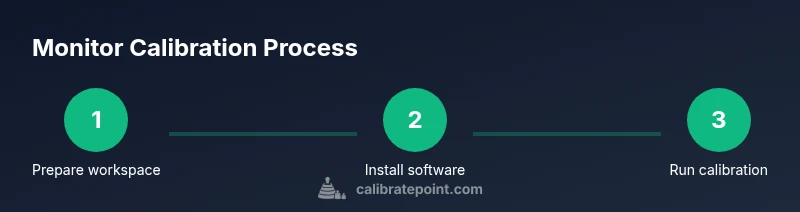
Prepare workspace and equipment
Clear your desk, dim ambient light, and position your monitor at a comfortable eye level. Power on your system and ensure the display is warmed up for at least 15 minutes. This ensures stable brightness and color before measurements begin.
Tip: Warm-up time reduces drift; keep lighting consistent during calibration. - 2
Install and configure calibration software
Install the calibration software and drivers for your colorimeter. Connect the device to your computer and verify the software can detect it. Create a new calibration project and set initial preferences.
Tip: Use the latest software version and ensure you have administrator rights. - 3
Choose targets: color space, gamma, white point
Select the target color space (e.g., sRGB for web, Adobe RGB for print), gamma (commonly 2.2), and white point (often D65). These choices guide measurement and profile generation.
Tip: If unsure, start with sRGB and Gamma 2.2 as a baseline. - 4
Calibrate display and generate ICC profile
Run the measurement pass with the colorimeter and let the software compute the ICC profile. Review the diagnostic report to confirm measurement consistency across steps.
Tip: Ensure the display brightness and contrast are set to typical working values during this pass. - 5
Apply profile system-wide
Install and apply the new ICC profile within the OS color management settings. Assign the profile to the monitor and enable application-level color management where available.
Tip: Reboot after applying to guarantee full system adoption. - 6
Validate results with test images
Open test images and color references in a few key apps to verify uniformity. Compare skin tones, grays, and saturated colors across different software.
Tip: If discrepancies appear, recheck the per-application color settings and profile binding. - 7
Document settings and plan re-calibration
Record the target space, brightness, contrast, white point, and profile version. Schedule the next calibration and set reminders for routine checks.
Tip: Keep a simple log to track changes over time. - 8
Troubleshoot common issues
If colors drift after calibration, revisit ambient lighting, verify profile is active, and confirm there are no competing display features like dynamic contrast.
Tip: Disable aggressive display features during calibration to avoid interference.
Questions & Answers
What is an ICC profile and why do I need it?
An ICC profile documents how colors should be displayed on a device. It guides software to reproduce colors consistently across apps and ensure your monitor output matches a standard reference.
An ICC profile tells your programs how to translate colors so your monitor shows colors accurately.
Do I need a hardware calibrator or can software alone work?
Software-only adjustments can help in some cases, but hardware calibrators provide objective measurements and superior accuracy for professional work.
Hardware devices measure actual light output, delivering more reliable results.
How often should I recalibrate?
Recalibrate when lighting changes, after hardware updates, or when you notice color drift. Plan regular checks based on usage and environment.
Recalibrate whenever your workspace or screen changes, or color starts looking off.
Can calibration affect how colors look on websites?
Yes. A color-managed workflow helps ensure colors translate well to the web, but browsers and OS color handling can introduce minor variations.
Calibration helps, but web rendering and browser differences can still affect colors.
What about multiple monitors?
Calibrate each monitor individually or establish a common reference profile across displays. Profiles can be copied and applied per screen.
Calibrate each screen or set a consistent profile across all displays.
Should ambient light be controlled during calibration?
Yes. A stable, controlled ambient light reduces perceptual shifts and improves reproducibility of results.
Control room lighting to avoid color shifts during calibration.
Watch Video
Key Takeaways
- Define and stick to a target color space before measuring.
- Use hardware measurement for objective accuracy.
- Apply the ICC profile system-wide for consistency.
- Recalibrate when environment or hardware changes.
- Validate with test images to ensure reliability.