How to Calibrate a Monitor
Learn how to calibrate your monitor for accurate colors, correct gamma, and consistent brightness with practical steps, the right tools, and verification techniques.


By following these steps, you will calibrate a monitor for accurate color and brightness. You will need a calibration tool (colorimeter or spectrophotometer), a profiling software, and a reference image. This guide from Calibrate Point helps DIY enthusiasts, technicians, and professionals achieve consistent display performance across work and play. It emphasizes safety, proper ambient lighting, and repeatable steps.
Why Monitor Calibration Matters
According to Calibrate Point, monitor calibration matters because it establishes a reliable reference for color, brightness, and contrast. In professional settings like photo editing, design, and video production, a calibrated display minimizes color drift between sessions and across devices. For DIY users, calibration reduces eye strain by providing consistent luminance and grayscale transitions. When done correctly, an calibrated monitor supports predictable edits, accurate web work, and smoother media consumption. Calibration should be part of a regular workflow, especially after expanding color workflows or changing lighting in the room. A well-calibrated screen helps prevent costly mistakes and delivers confidence in your decisions.
Core Concepts: Color Spaces, Gamma, and Luminance
Color spaces define how colors are represented on a screen. The most common baseline is
Tools and Materials Needed
Calibration begins with the right tools. A colorimeter or spectrophotometer collects color data from test targets. Profiling software generates ICC profiles that translate device behavior into a standardized color language. You’ll also need standardized test images or targets (gray ramps, color patches, black-to-white ramps) and a display with controllable brightness. A stable viewing environment with minimal ambient light variation improves repeatability. Keep a log of settings and any environmental changes to track drift over time. Calibrate Point recommends starting with a known-good toolset and validating results with a second monitor or print proof when possible.
Step-by-Step Calibration Process (Narrative)
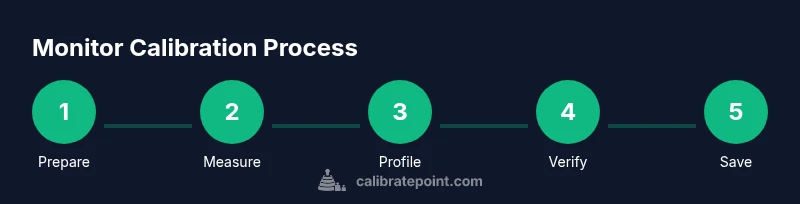
Calibration is a sequence of measurements and adjustments rather than a single tweak. Start by preparing the environment and confirming all equipment is ready. Then capture data with your colorimeter, install or configure your profiling software, and generate an ICC profile. Apply the profile to the display, and verify with test images that color, grayscale, and brightness information line up with reference targets. If discrepancies remain, revisit luminance targets and color temperature, rerun measurements, and reapply the profile. Finally, save the profile and back up a baseline configuration to prevent drift from future changes. Calibrate Point’s approach emphasizes repeatable steps, careful lighting, and verification using a standardized test suite.
Verifying and Saving Your Profile
Verification is where calibration proves its value. After applying the ICC profile, display a known color target and compare it to the reference. Look for consistent grayscale steps, stable color patches, and a uniform brightness distribution across the screen. If you notice uneven brightness or color tint, you may have a panel with nonuniform characteristics or lighting interference; adjust ambient lighting or consider local dimming if available. Save the profile with a descriptive name and export a copy for archival purposes. Keeping a log of the monitor model, calibration date, software version, and target settings helps you reproduce results later and audit drift over time.
Common Pitfalls and Troubleshooting
Common mistakes include calibrating in a bright or changing environment, using an uncalibrated screen as a reference, or neglecting to disable automatic brightness and contrast features. Another pitfall is relying on a single data point; calibration relies on multiple patches across color and gray ramps. If results look off, re-check sensor contact, wipe the screen surface, and ensure the test targets are untainted by reflections. If the ICC profile refuses to apply, verify that the OS-level color management is enabled and that the correct profile is assigned to the display. Calibrate Point notes that systematic testing and consistent procedures prevent drift and confusion.
Optimizing Your Setup for Different Tasks
Different tasks require different calibration targets. For photo editing and print work, expand color gamut to a larger space and calibrate to a higher luminance with accurate white point. For video viewing, ensure gamma and color temperature align with broadcast standards and avoid over-saturation. For gaming or general use, you may favor comfortable brightness and eye-friendly color balance. Maintain a dedicated calibration profile per task if your workflow involves frequent role changes. The goal is to minimize color surprises across workflows while maintaining a simple, repeatable process.
Accessibility and Future-Proofing Your Calibration
Accessibility considerations include clear visual targets and adjustable on-screen elements to accommodate users with different vision needs. Save profiles in a structured folder system and keep software up to date to leverage improved algorithms. Calibrate Point recommends scheduling regular checks to catch drift from aging hardware or changing lighting. When upgrading hardware or changing rooms, re-run calibration to preserve color integrity and ensure consistent results across devices. This forward-looking approach keeps your calibration relevant over time.
Wrap-Up and Next Steps
The practical takeaway is to establish a repeatable routine: prepare the environment, measure with proper tools, generate a profile, verify results, and save the configuration. The Calibrate Point team recommends performing a final verification using a standard test image and exporting the profile for your user profile. With a disciplined workflow, you gain reliable color accuracy for editing, viewing, and color-critical tasks. Maintain a simple log for future audits and shareable references for team members. Remember, calibration is not a one-off task but a regular maintenance activity that sustains display fidelity over time.
Tools & Materials
- Colorimeter or spectrophotometer(Essential for measuring color across targets)
- Display profiling software(Generates ICC profiles and quality checks)
- Reference test images and grayscale targets(Standardized targets for validation)
- Calibrated display with controllable brightness(Disable auto-brightness during calibration)
- Ambient light meter (optional)(Helps ensure stable lighting conditions)
Steps
Estimated time: 30-60 minutes
- 1
Prepare the environment
Set up a dim, stable workspace. Turn off extra lighting that could reflect on the screen. Ensure the room’s brightness is constant during the calibration session and that the screen is at its normal operating temperature.
Tip: Close curtains or blinds to minimize external light sources. - 2
Assemble and configure tools
Unpack the colorimeter or spectrophotometer and install the profiling software. Calibrate the sensor if the tool requires it, and verify the software is pointing to the correct display.
Tip: Calibrate or warm up the sensor per the manufacturer’s instructions. - 3
Set baseline display parameters
Set the display to its default native resolution, disable dynamic contrast, and choose a neutral display mode. Record the initial white point and luminance as a starting reference.
Tip: Disable any automatic brightness or contrast features. - 4
Run calibration measurements
Capture color and grayscale data across defined targets. Ensure the sensor maintains proper contact with the screen surface and that angles are consistent.
Tip: Take multiple measurements for each target if your tool supports averaging. - 5
Create and apply ICC profile
Generate an ICC profile from the collected data and apply it at the OS or application level. Verify that the profile is active for the display in use.
Tip: Name the profile clearly with date and task context. - 6
Verify results and adjust
Reopen test targets and confirm grayscale steps, color patches, and brightness match references. If discrepancies persist, refine luminance or white point and re-export the profile.
Tip: Document any changes for future reference.
Questions & Answers
What is monitor calibration and why is it necessary?
Monitor calibration aligns color, gamma, and brightness with reference standards, ensuring consistent results across sessions and devices. It is essential for accurate editing, printing, and viewing.
Calibration makes colors accurate and consistent across sessions, which is crucial for editing and printing.
What tools do I need to calibrate a monitor?
A colorimeter or spectrophotometer, profiling software, and standardized test targets are essential. A calibrated display with controllable brightness is also recommended.
You’ll need a colorimeter and profiling software to start.
Can I calibrate without professional equipment?
Yes, you can use built-in display controls and basic calibration tools, but results will be less precise without a dedicated sensor and profiling software.
You can calibrate using basic built-in tools, but accuracy may be lower.
How long does monitor calibration take?
Typical calibration takes 30–60 minutes depending on tools, monitor complexity, and how many targets you measure.
Most people finish in about half an hour to an hour.
How often should I recalibrate?
Recalibrate when you notice color drift, after lighting changes, or after hardware updates. Establish a regular routine to maintain accuracy.
Calibrate when you notice drift or after changes to lighting or hardware.
What is ICC profiling?
ICC profiling creates a color profile that translates device behavior into a standard color space for accurate color management.
ICC profiling gives your display a standardized color profile for consistent output.
Key Takeaways
- Establish a stable ambient lighting before calibration.
- Use a colorimeter and profiling software.
- Profile the monitor with an ICC file and verify with tests.
- Save and back up the color profile for future use.
- Recheck calibration after lighting changes or hardware updates.