Calibrate Your Monitor: A Step-by-Step Guide
Learn to calibrate your monitor for true-to-life colors, consistent edits, and reliable viewing across devices with practical, beginner-friendly steps and tips.


Calibrating your monitor aligns brightness, gamma, and color with a reference for accurate editing and reliable viewing. Start with a basic profile and verify with test images to ensure your colors stay true across tasks, devices, and lighting conditions.
Why calibrate your monitor matters
Color accuracy on your screen isn't a luxury; it's a core part of any creative workflow or professional task. When you calibrate your monitor, you align brightness, contrast, gamma, and color accuracy with a recognized reference. This reduces guesswork and ensures that what you edit looks right on other devices and in print. In practice, a well-calibrated display helps photographers, designers, video editors, and engineers avoid costly errors caused by color shifts or uneven luminance across the panel. Beyond aesthetics, calibration supports consistency: if your team shares a color-managed pipeline, everyone sees the same hues, shadows, and highlights. The Calibrate Point team emphasizes that a solid calibration routine should be repeatable, documented, and based on a stable reference rather than a one-off tweak. It also matters for eye comfort; a screen that's too bright, too blue, or too washed out can cause fatigue after long sessions. With the right setup, calibration becomes a simple, repeatable habit.
Understanding color spaces and targets
Color spaces define how colors are represented on a display. The most common targets in everyday work are sRGB for web and general editing, Adobe RGB for print workflows, and DCI-P3 for video production. Alongside the space, gamma curves (typically around 2.2) and the white point (often close to 6500K) shape how light and color look on screen. A calibrated monitor uses a reference profile that preserves these relationships when you view content. Understanding these concepts helps you choose the right profile for the task at hand and prevents drift when moving between devices. In practice, many creators prefer to calibrate to a standard like sRGB with a 6500K white point, then adapt per project as needed. For professionals, maintaining a documented color pipeline ensures that edits, proofs, and final renders stay consistent across environments.
Choosing a calibration path: hardware vs software
There are two broad paths for calibration: hardware based devices and software only approaches. Hardware colorimeters and spectrophotometers physically measure your display and generate a profile that reflects actual output. Software based methods offer convenient on screen adjustments, but can be less accurate if the hardware is not included. Hardware driven workflows typically deliver repeatable results across sessions and lighting conditions, which is essential for professional work. Software only workflows can work well for casual use or if you are on a tight budget, but they rely more on manual judgment and may require frequent re checks. When starting out, many users combine a hardware device with calibration software to produce an ICC profile that can be deployed across your operating system. The goal is to create a stable reference that survives updates and changes in your setup.
Step-by-step workflow for basic calibration
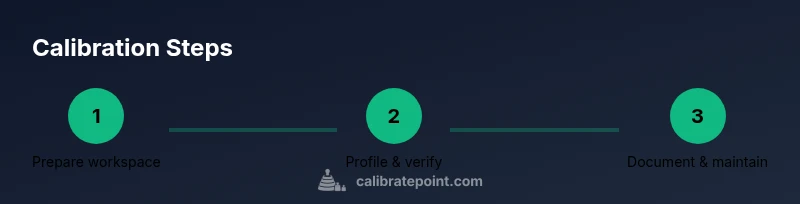
Basic calibration focuses on grayscale and color balance to establish a solid baseline. Start by preparing your workspace with controlled ambient lighting, connect your calibration device, and launch the software. Measure a grayscale ramp and the color targets, then apply the resulting ICC profile to your display. Refrain from enabling non essential image processing features on the monitor during the process. Finally, save the profile with a clear, project specific name for easy future reference. This baseline makes subsequent tweaks easier and more predictable.
Step-by-step workflow for advanced calibration
Advanced calibration goes deeper into color management. After your baseline, adjust gamma curves to match your preferred workflow and consider creating a 3D LUT for more precise color mapping. Use a spectrophotometer to verify the color accuracy across a broader range of hues, and iterate until the deltaE values reach your target tolerance. Create multiple profiles for different tasks, such as photo editing and video grading, and switch between them as needed. Document every setting and save the hardware and software configurations so you can reproduce the results later.
Evaluating results: verification and deltaE
Verification is essential to ensure the profile actually improves accuracy. Use the test patterns provided by your calibration software and compare measured vs target values. DeltaE serves as a perceptual distance metric; smaller numbers indicate closer matches to the reference. While numbers matter, visual checks remain important, especially for skin tones and important brand colors. If results drift, re run measurements, check cables, and confirm the ambient lighting remains stable during calibration. Regular verification helps protect your color workflow over time.
Calibrating for different tasks: photo, video, design
Different tasks benefit from different color targets. For photo editing, you may focus on a wide color gamut and accurate grayscale. For video, ensure your white point and gamma align with the project standard and consider a LUT tuned for the target delivery format. For design work that will live primarily on the web, keeping a tight sRGB profile with consistent luminance helps prevent surprises on user devices. Keeping task specific profiles and switching between them with purpose reduces drift and saves time when you move between projects.
Managing ambient lighting and hardware health
Ambient lighting dramatically affects perceived color and contrast. Aim for a neutral environment with minimal glare and stable light sources. If lighting changes during work, re calibrate or use a measurement device to compensate. Regularly inspect the display hardware for aging components, backlight brightness changes, or panel uniformity issues. A healthy monitor that maintains consistent brightness and color over its life will require less frequent recalibration and deliver more reliable results.
Maintaining calibration over time
Calibration is not a one time event. Environmental changes, software updates, and hardware aging can shift the profile. Schedule a quarterly or bi quarterly calibration check, plus a quick verification after major changes. Keep a simple log of profiles, room lighting, and project types to track what works best for your color workflow. A consistent routine minimizes drift and ensures reliable results across all tasks and devices, aligning with the standards promoted by Calibrate Point.
Tools & Materials
- Color calibration device (colorimeter or spectrophotometer)(Use a device that supports your display type and software ecosystem)
- Calibration software(Often bundled with the device or available standalone)
- Test images and color targets(Gray ramp, color patches, and reference patterns)
- Ambient light meter (optional)(Helps quantify room lighting during calibration)
- Documentation notebook or digital log(Record settings, dates, and task profiles)
Steps
Estimated time: 60-90 minutes
- 1
Prepare your workspace
Clear the desk, dim the room, and minimize glare on the screen. This ensures consistent measurements and reduces reflections that skew results. Gather all tools and confirm the calibration software is up to date.
Tip: Close blinds or curtains to stabilize ambient lighting before starting. - 2
Reset monitor settings
Restore factory defaults and disable dynamic brightness or any automatic image processing features. This reduces hidden adjustments that can mask actual panel performance. A clean starting point makes the calibration more reliable.
Tip: Set the monitor to its standard input source and disconnect other devices to avoid interference. - 3
Install and connect the calibration device
Attach the colorimeter or spectrophotometer to the display as instructed by the manufacturer. Ensure the device sits flat and unobstructed on the screen area used for work. Verify the software recognizes the hardware.
Tip: If the device has a calibration option, run a quick hardware check to confirm readings are stable. - 4
Run initial grayscale and gamma measurement
Follow the software prompts to measure a grayscale ramp and a standard color target. The goal is to establish a neutral baseline so that whites are not tinted and midtones are accurate. Save the baseline profile before proceeding.
Tip: Take a moment to note any odd readings in the early pass and re insert the device if necessary. - 5
Set luminance and white point targets
Choose a practical luminance target based on your room and workflow, and confirm the white point aligns with standard references like D65. These selections influence how bright the screen appears and how colors are reproduced.
Tip: If unsure, start with a conservative brightness and adjust later after test viewing. - 6
Apply the color profile to the OS
Export the profile from the calibration software and apply it through your operating system color settings. Ensure the profile is active for the display you calibrated. Keep the profile name clear and project related.
Tip: Alway recheck after applying that the correct display is using the new profile. - 7
Verify results with test images
View a set of reference photos and color charts to confirm the profile holds across real content. Look for skin tones, greens, and blues to ensure no color cast. Repeat measurements if you notice drift.
Tip: Use both on screen previews and printed proofs if possible to confirm consistency. - 8
Document and save your profile
Record the profile name, target settings, room lighting, and date. Storing this information enables you to reproduce results or compare against future calibrations. Create a dedicated folder for all calibration data.
Tip: Include a note about task type so you can switch profiles quickly. - 9
Schedule recalibration
Set a reminder to recheck calibration on a regular basis or after major hardware changes. This keeps your workflow reliable and reduces the risk of color drift over time.
Tip: Treat recalibration as a routine maintenance task like software updates.
Questions & Answers
What is monitor calibration and why should I calibrate my monitor?
Monitor calibration defines a process to align display output with a known reference. It improves color accuracy, consistency across tasks, and reduces surprises when printing or sharing work.
Monitor calibration aligns display output with a standard reference for accurate colors and consistent results.
Do I need hardware tools or can I use software alone?
Hardware tools provide measured data and repeatable results, while software only methods rely more on visuals. A hardware device is recommended for professional color work.
Hardware tools give measured data for repeatable results; software alone can work but is less reliable for professionals.
How often should I calibrate my monitor?
Calibrate whenever you start a new project and at regular intervals, such as quarterly, or after changing lighting or hardware. Frequent checks help prevent drift.
Calibrate when you begin a new project and on a regular schedule to prevent color drift.
Will calibration affect my gaming or movie viewing?
Calibration affects how colors and brightness appear. You may want a separate profile for gaming or streaming to preserve vivid visuals while keeping your editing profile accurate.
A dedicated profile for gaming or video can optimize visuals without impacting your editing workflow.
Can I calibrate a laptop screen?
Yes, but laptop screens can be prone to color shifts. Use a portable colorimeter and calibrate each display individually if you work with multiple devices.
You can calibrate a laptop, but treat each display as its own target and calibrate separately.
Why does my monitor drift after calibration?
Drift can result from ambient changes, aging of backlights, or software updates. Recheck calibration after significant changes and re profile as needed.
Drift often comes from lighting changes, aging hardware, or software updates; recalibrate as needed.
Watch Video
Key Takeaways
- Calibrate your monitor to align brightness and color with a reference
- Choose hardware tools for repeatable, accurate results
- Create task specific profiles for photos, video, and design
- Verify with test images and document every setting
- Maintain calibration through regular checks and logging