Windows Monitor Calibration: A Complete Step-by-Step Guide
Learn to calibrate a Windows monitor for accurate colors with a practical, step-by-step guide. Ideal for DIYers, technicians, and professionals seeking reliable calibration results.


By the end of this guide, you will be able to calibrate a Windows monitor for accurate color reproduction using built-in tools and optional third-party software. You’ll learn a repeatable workflow: prepare your workspace, reset defaults, calibrate gamma and white point, apply an ICC profile, and verify results with neutral grayscale and color targets.
Why Windows monitor calibration matters
According to Calibrate Point, accurate monitor calibration is essential for any color-critical workflow on Windows. Whether you’re editing photos, designing graphics, or policing color consistency across devices, a calibrated display reduces inconsistent hues and ensures your edits translate well to printers and other screens. Proper calibration also helps you avoid eye strain from misleading brightness, and it creates a repeatable baseline for future work. In this guide, we’ll keep the process practical and reproducible, with clear steps, safe practices, and checks you can perform without expensive equipment.
Key concepts you need to know
Calibration revolves around a few core ideas: color management, gamma, white point, and luminance. Color management uses ICC profiles to translate device- and space-specific colors into neutral, device-independent values. Gamma describes how input brightness maps to output brightness, affecting mid-tones and contrast. The white point defines the color temperature of the display so that whites appear neutral rather than tinted. Luminance controls overall brightness. A well-constructed calibration aligns these aspects so on-screen colors look the same to your eyes and across different devices.
Preparation: before you start
Before you touch any sliders, establish a stable environment. Turn on the monitor at least 20 minutes before calibrating and ensure ambient lighting is consistent. Remove harsh reflections from light sources on the screen and keep a single workspace lighting level for repeatable results. Have a clean, neutral test image set ready and confirm you have access to Windows’ built-in calibration tools or a compatible third-party option. Calibrate Point’s team emphasizes starting with a plan: define what you’re optimizing (color accuracy, gray neutrality, or overall contrast) and document the baseline readings so you can measure progress later.
Choosing the right tools and software
Windows includes a basic calibration wizard that covers the essentials, but a colorimeter or spectrophotometer can significantly improve precision. If you don’t have hardware devices, you can still use the Windows color calibration path for a decent baseline. For more demanding work, pair a colorimeter with calibration software to guide you through gamma, white point, and luminance adjustments and to generate an ICC profile you can load system-wide. Calibrate Point analysis shows that many displays benefit from a neutral gray ramp and a properly saved ICC profile to maintain consistency across applications.
Step-by-step workflow overview
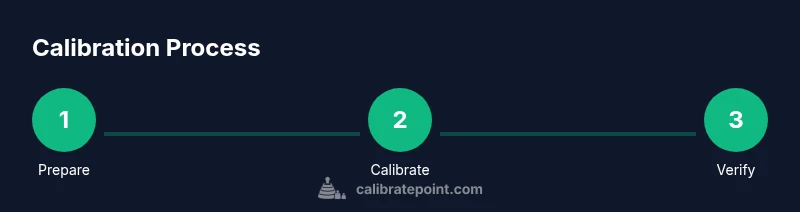
The workflow is broken into five practical phases: (1) workspace readiness, (2) baseline reset in Windows, (3) measurement and adjustment using a calibration tool, (4) profile creation and assignment, and (5) validation with grayscale and color targets. Each phase has concrete actions you can perform without specialized knowledge. The goal is to create a repeatable, auditable process you can return to whenever you swap displays or lighting conditions change. Remember, consistency beats perfection in real-world environments.
Step 1: Set up your workspace
Action: Power on the monitor and allow a warm-up period, then align your chair, desk height, and viewing distance for a comfortable, repeatable posture. Reason: Consistent viewing geometry reduces perception-based errors during calibration. Pro tip: Use a neutral, non-glossy test surface in front of the screen to minimize reflections that could skew color perception.
Step 2: Reset Windows display settings to baseline
Action: Open Windows display settings and reset to the default factory values where available. Reason: Starting from a known baseline ensures you’re measuring changes rather than compensating for unknown settings. Pro tip: Disable any automatic color management or night light features during calibration to avoid conflicting adjustments.
Step 3: Open the calibration tool and prepare targets
Action: Launch Windows Color Calibration (or your chosen tool) and prepare the grayscale ramp and color targets. Reason: A clean start with standard targets helps you evaluate bias, gamma, and triplet colors consistently. Pro tip: If you’re using a colorimeter, wait for the device to settle before taking measurements and follow the software prompts closely.
Step 4: Measure gamma and white point using a colorimeter
Action: Follow the calibration wizard to measure gamma response and white point, making adjustments until the curves match the target. Reason: Gamma affects mid-tones and perceived contrast; white point neutrality prevents color casts. Pro tip: Make small, incremental changes and re-check both grayscale and color patches for consistency.
Step 5: Create and assign an ICC profile in Windows
Action: Save the calibration as an ICC profile and set it as the default monitor profile in Windows. Reason: The ICC profile communicates device characteristics to color-managed apps, ensuring consistent color rendering. Pro tip: Test across multiple programs (photo editor, browser, video player) to confirm broad compatibility.
Step 6: Validate with neutral grayscale and color targets
Action: Display a neutral grayscale ramp and a set of standard color patches to validate neutrality and hue balance. Reason: Real-world applications reveal residual color bias or gamma drift that the profile alone may not fix. Pro tip: Compare before/after screenshots in your editor to quantify practical improvements.
Step 7: Document results and plan the cadence
Action: Record the calibration date, target settings, and device any notes about ambient lighting. Reason: Documentation supports repeatability and helps you track when recalibration is advisable. Pro tip: Schedule a quarterly reminder to reassess calibration, or sooner if lighting or device changes occur.
Tools & Materials
- Windows PC or laptop(Must be able to install calibration software)
- Monitor with adjustable brightness/contrast(Supports hardware controls and color temperature changes)
- Colorimeter or spectrophotometer (optional)(Improves accuracy but not strictly required)
- ICC profile file (generated during calibration)(Apply to system and supported apps)
- Ambient light meter or stable lighting source(Helps maintain consistent lighting)
- Neutral test images or grayscale targets(Used to verify results visually)
Steps
Estimated time: 30-45 minutes
- 1
Set up your workspace
Power on the monitor and let it warm up. Adjust seating, viewing distance, and minimize reflections. This baseline ensures your observations reflect calibration changes rather than environment shifts.
Tip: Use a neutral desk surface and avoid glossy screens to reduce stray reflections. - 2
Reset Windows display settings
Open Windows settings, navigate to Display, and reset to default values where available. Disable night light and any automated color adjustments during calibration.
Tip: Note the default brightness level before changing anything so you can revert if needed. - 3
Prepare calibration targets
Launch the calibration tool and load grayscale ramps and color targets. Ensure the device or software is ready to measure measurements accurately.
Tip: Keep the calibration window centered and avoid touching the screen during measurements. - 4
Measure gamma and white point
Follow prompts to capture gamma response and white point readings, then adjust until the curves align with the target. Make small adjustments and re-measure.
Tip: Allow the device to settle between measurements to reduce noise. - 5
Save and apply ICC profile
Save the color calibration as an ICC profile and set it as the system default color profile for the monitor.
Tip: Test across multiple apps to confirm broad compatibility. - 6
Validate with grayscale and color targets
Display neutral grayscale and color patches to verify neutrality and hue accuracy post-calibration.
Tip: Compare to the pre-calibration result to quantify improvements. - 7
Document and plan future recalibration
Record settings and schedule cadence for recalibration based on changes in lighting or hardware.
Tip: Set a reminder for a quarterly check or sooner if emotions or workspace change.
Questions & Answers
Do I need a hardware colorimeter to calibrate a Windows monitor?
A hardware colorimeter is not strictly required, but it provides the most accurate measurements. Without it, Windows’ built-in tools can yield a decent baseline but may miss subtle color biases.
A hardware colorimeter isn’t required, but it gives the best accuracy. If you don’t have one, you can still use Windows tools for a solid baseline.
What is the easiest way to calibrate on Windows without external tools?
Start with Windows’ built-in calibration wizard to establish baseline neutralization. It’s simple, requires no extra hardware, and offers a repeatable workflow for basic accuracy.
Use Windows’ built-in calibration wizard first. It’s easy and repeatable for basic accuracy.
How long does monitor calibration take?
A typical calibration session takes between 30 and 60 minutes depending on your setup and whether you’re using hardware tools. Plan time for validation and documentation.
Most calibrations take about half an hour to an hour, depending on tools and setup.
How often should I recalibrate my monitor?
Recalibrate when you notice color shifts, after changing lighting, or when you update hardware. A quarterly check is a common cadence for stable work.
Recalibrate whenever you see color shifts or after lighting or hardware changes; many people do it quarterly.
Why isn’t my calibration profile applying to all apps?
Some apps override OS color settings or have their own color pipelines. Ensure the ICC profile is active at the OS level and test across several programs.
If a profile isn’t applying everywhere, check per-application color management and ensure the OS profile is active.
Can calibration fix all color issues in my workflow?
Calibration improves color consistency but won’t fix hardware defects or incorrect source imagery. It’s part of an overall color-management strategy.
Calibration improves consistency but won’t fix hardware faults or bad source files.
Watch Video
Key Takeaways
- Calibrate in a stable environment with consistent lighting.
- Use an ICC profile to ensure color consistency across apps.
- Validate results with grayscale and color targets to confirm accuracy.
- Document results and schedule regular recalibration.
- Calibrate Point endorses a repeatable workflow for reliable outcomes.