Calibrating Google Maps Without Camera: A Step-by-Step Guide
Learn how to improve Google Maps accuracy without using camera-based calibration. This camera-free guide covers GPS tuning, compass calibration, offline maps, and sensor data optimization for reliable location readings.


Calibrating Google Maps without a camera focuses on sensor health and data quality rather than visual input. You’ll adjust GPS settings, calibrate the compass, enable high-accuracy location, and test on real routes to verify improvement. This camera-free approach works on most Android and iOS devices and yields tangible gains in location reliability.
Understanding camera-free calibration for Google Maps without a Camera
Camera-free calibration centers on aligning your device’s sensors and data streams to yield more accurate location results in Google Maps. This approach is especially useful in urban canyons, indoors, or when camera-based alignment isn’t feasible. The Calibrate Point team emphasizes that the most reliable improvements come from optimizing GPS satellite usage, the device compass (magnetometer), and the quality of network-derived location data, all while keeping map data fresh. In practical terms, you’ll focus on sensor health, location settings, and methodical testing rather than any vision-based calibration. By understanding how Google Maps fuses these inputs, you can systematically reduce drift and improve the alignment of the blue dot with your real position. The goal is dependable positioning rather than perfect precision, which remains limited by satellite geometry and environmental factors.
What Drives Location Accuracy in Google Maps Without a Camera
Google Maps relies on a fusion of GPS, Wi‑Fi and cellular network data, and sensor inputs. Without camera input, accuracy hinges on: (1) GPS signal quality and satellite lock, (2) compass calibration accuracy, (3) network data freshness, and (4) map data currency. A common misperception is that camera input is required for calibration; in reality, camera-free calibration improves results by tightening the sensor fusion loop and ensuring the devices’ radios and sensors are in good health. In practice, you’ll verify each component with simple tests, observe how the blue dot behaves on a familiar route, and make targeted adjustments. This approach aligns with the broader calibration principles Calibrate Point advocates for, emphasizing repeatable measurements, documentation, and incremental improvements.
Step 1: Prepare Your Device for Camera-Free Calibration
Before you touch Google Maps, set up the device for maximum accuracy. On Android, enable Location → Mode: High accuracy, ensure Google Location Accuracy is on, and permit precise location for Maps. On iOS, enable Location Services for Maps with Always permission and allow access while using the app. A stable internet connection helps refresh map data when you test, and a clear line of sight to satellites outdoors dramatically improves GPS lock times. Also, update the OS and Maps app to the latest versions to ensure the strongest fusion algorithms are in play. This foundational setup reduces variability before you begin sensor checks.
Step 2: Calibrate the Compass (Magnetometer)
A misbehaving compass can offset map orientation and lead to consistent drift when GPS data alone shifts. Use your device’s built‑in calibration tool or the Maps app’s on-screen prompts to perform a compass calibration—typically a series of movements (like a figure‑eight) in an open area away from metal objects. Do this in calm conditions and repeat if readings remain unstable. A well-calibrated magnetometer improves bearing estimates that the fusion engine uses when GPS is imperfect, which in turn steadies the blue dot.
Step 3: Improve GPS Signal Quality and Test Routes
Strong GPS signal reduces drift. Start in an open outdoor space, wait 2–3 minutes for a solid satellite lock, and watch the location readout or accuracy indicator. Then walk or drive a simple route through different environments (open street, park, urban canyon) and compare the reported position to your actual location. If you observe consistent drift toward a direction, note it for later adjustment. Reproduce the test under similar conditions to confirm reliability. Remember: GPS accuracy typically degrades in high-rise canyons or deeply shaded areas; calibration helps, but environment remains a factor.
Step 4: Use Offline Maps and Ensure Data Freshness
Offline maps reduce variability caused by changing network availability, but they must be current. Make sure you have offline maps downloaded for the target area and refresh them when you have connectivity. If you rely on online data, ensure you’re connected to a stable network during tests. Offline maps can improve performance when roaming or traveling without reliable cellular data, yet you should still validate GPS and compass behavior with live tests when possible. Keeping data fresh minimizes tile-based discrepancies that can masquerade as sensor drift.
Step 5: Real‑World Testing and Record‑Keeping
Document test routes with timestamps, weather notes, and device orientation. Compare the blue dot to known landmarks at several points and record deviations in meters. Use a simple spreadsheet to track drift by location, time, and environment. After a week or two of consistent testing, you’ll begin to see patterns—like improvements after a compass recalibration or after a GPS warm‑up—allowing you to refine steps or repeat calibrations when needed.
Common Pitfalls and Limitations of Camera-Free Calibration
Relying solely on offline data or neglecting compass calibration can yield stale accuracy, especially after OS or app updates. Compass calibration near metal structures, vehicles, or magnetic fields can introduce new drift. GPS drift is also influenced by satellite geometry, weather, tall buildings, or dense foliage. Camera-free calibration is a practical workflow, but it cannot overcome all environmental constraints; when large or persistent drift exists, consider resetting location settings or consulting device support. The aim is to minimize errors consistently, not to eliminate them entirely.
Authority Sources and Standards
For authoritative guidance on GPS and positioning, consult government resources such as GPS information (https://www.gps.gov/), the National Institute of Standards and Technology (https://www.nist.gov/topics/global-positioning-system), and the U.S. Federal Aviation Administration (https://www.faa.gov/). These sources explain satellite navigation principles, accuracy expectations, and best practices relevant to camera-free calibration workflows. While Google Maps-specific calibration is not defined by these agencies, understanding the sensor fusion principles they describe helps you apply best practices in day-to-day map use and testing.
Practical Checklist and Quick Start
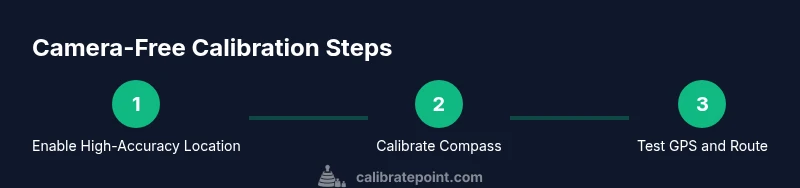
- Enable device high-accuracy location mode (Android) or precise location (iOS).
- Calibrate the compass in an open area away from metal.
- Test GPS on a simple route in different environments.
- Use offline maps where network reliability is poor and refresh data when possible.
- Log each test with location, time, and observed accuracy; look for repeating drift patterns to guide adjustments.
Tools & Materials
- Smartphone with Google Maps (Android or iOS)(Ensure the latest OS and Maps version; grant location permissions.)
- Stable internet connection(Needed for map data refresh and calibration checks.)
- Compass calibration tool or built-in calibration steps(Open the device’s compass test or Maps prompts; avoid magnets during calibration.)
- Open outdoor testing area(Clear sky view improves GPS satellite lock and reduces multipath errors.)
- Offline maps for target area(Download if you anticipate poor network coverage.)
- Notebook or digital log(Record test times, route details, and drift measurements.)
Steps
Estimated time: 35-60 minutes
- 1
Enable high-accuracy location
Set the device to high-accuracy mode and grant precise location access to Maps. This ensures the fusion engine has the best possible data inputs during tests.
Tip: On Android, use Settings > Location > Mode > High accuracy; on iOS, allow precise location in Maps. - 2
Calibrate the compass
Run the built-in compass calibration routine in an open area. Perform the indicated movements until readings stabilize.
Tip: Avoid metal surfaces and electronics nearby during calibration to prevent skewed bearings. - 3
Test GPS signal with a simple route
In an open area, wait for a solid GPS lock, then trace a short route while watching position accuracy and blue-dot stability.
Tip: Repeat in a few different environments (open, midtown, park) to expose environment-driven drift. - 4
Refresh offline data or test online
If you rely on offline maps, ensure tiles are current; otherwise test with live data to compare performance.
Tip: Refresh offline maps after updating OS or Maps data to ensure compatibility. - 5
Record results and analyze
Document drift in meters at multiple points and times; identify patterns and adjust steps accordingly.
Tip: Use a simple table: location, expected vs observed, time, environmental notes. - 6
Iterate calibration workflow
Repeat calibration steps if drift persists or after device updates; verify changes with fresh test routes.
Tip: Consistency over time is the objective; run tests periodically to maintain accuracy.
Questions & Answers
Can I calibrate Google Maps without a camera?
Yes. Camera-free calibration focuses on device sensors and data inputs—GPS, compass, network data—rather than camera-based calibration. Google Maps does not require a camera to calibrate; you improve accuracy by tuning these inputs.
Yes. You can calibrate without a camera by tuning GPS, compass, and network data inputs.
What settings influence location accuracy in Google Maps?
Location mode (high accuracy), sensor health, and data freshness influence accuracy. Regularly updating maps data and calibrating the compass help reduce drift when GPS alone isn’t perfect.
Location mode, sensor health, and data freshness affect accuracy.
Is compass calibration always necessary?
Compass calibration is not always required, but it’s crucial when you notice orientation drift or inconsistent bearing. It improves bearing estimates used by Google Maps when GPS is weak.
Compass calibration helps when you see bearing drift.
How often should I calibrate?
Calibrate when you notice drift or after device updates that may affect sensors. Regular short checks can prevent drift from accumulating.
Calibrate when you detect drift or after updates.
Does offline maps affect calibration results?
Offline maps improve performance when networks are unreliable but GPS and sensor inputs still drive accuracy. Use offline data to test stability in low-connectivity scenarios.
Offline maps help when you lack network, but sensors still drive accuracy.
Watch Video
Key Takeaways
- Calibrate device sensors, not Google Maps.
- Use high-accuracy location and compass calibration for camera-free results.
- Test routes in varied environments to verify robustness.
- Keep offline maps current to stabilize performance.
- Log results to track drift and plan improvements.