How to Calibrate Compass on iPhone: A Step-by-Step Guide
Learn how to calibrate the iPhone compass to improve heading accuracy. This comprehensive guide covers enabling location services, prompts in the Compass app, figure-eight calibration, and troubleshooting for DIYers and professionals.


To calibrate the iPhone compass, enable Compass Calibration in Settings, open the Compass app, and follow on-screen prompts to perform a figure-eight motion. Ensure Location Services are on and you’re in a low-interference area away from metal objects. Calibration typically completes in minutes and can markedly improve heading accuracy.
Why the
Prerequisites and what you’ll need
Before you start, ensure you’re on the latest
Step 1: Update and prepare your device
Check for a software update and install any available
Step 2: Enable Location Services and Compass Calibration
Open Settings and navigate to Privacy & Security > Location Services. Scroll to System Services and ensure Compass Calibration is toggled on. This permission lets the device refine the magnetometer alignment using real-world data. If you disable this feature, the Compass app may not prompt you to recalibrate, and accuracy may decline over time. For professional environments, consider leaving Location Services on for all apps that require direction data, but review privacy settings periodically to maintain a balance between accuracy and data sharing.
Step 3: Open the Compass app and watch for prompts
Launch the built-in Compass app. If the device detects misalignment, you’ll see a prompt inviting you to start calibration. Follow the on-screen guidance and avoid long or abrupt motions. Keep the phone steady and centered in your grip as you proceed to the calibration motion. If you don’t see a prompt, try moving the device slowly through different orientations while keeping it level. Calibration prompts are designed to adapt to your current environment and sensor state.
Step 4: Perform the figure-eight calibration motion
Hold the
Step 5: Verify heading accuracy after calibration
With calibration complete, test headings against fixed references like a known street direction or a landmark. Compare the Compass reading to real-world alignment seen on a map or satellite view. If results still seem off, repeat the figure-eight motion or switch to a different environment to check for persistent interference. For best results, perform a quick real-world test by following a known route and checking whether your directions align with the route on your map.
Step 6: Recalibration and when to repeat
Calibrate again after moving to a new location with different magnetic fields, after removing or changing metal accessories, or if you reinstall the phone case. Recalibration may be needed after a software update or if you notice drift in apps that rely on precise directions, such as maps or augmented reality. The goal is not one-off perfection but consistent reliability across scenarios and environments. Keep a short note of the most recent calibration date for reference.
Common mistakes to avoid and best practices
Avoid calibrating in a metal-rich room or near strong magnets; those conditions produce flawed readings. Don’t rush the figure-eight; slow, deliberate motion yields better data collection. Use a clear, level surface and keep your grip stable to minimize motion blur in sensor input. Finally, periodically check compass accuracy and recalibrate as part of routine maintenance. If you frequently rely on precise headings, consider scheduling a monthly calibration window as part of your calibration routines.
Real-world tips for different scenarios
In urban canyons, magnetic interference from steel-framed buildings can cause occasional drift; calibrate with intent before relying on navigation apps. In hiking or outdoor use, perform calibration in open spaces and re-check headings when entering new terrain. For AR apps, ensure the device has a generous viewing angle and a stable hold to maintain sensor alignment. In professional settings, log calibration prompts and outcomes to track sensor health over time and plan preventive maintenance.
What to expect after calibration
Expect a noticeable improvement in heading consistency in Maps and compass-based apps after calibration. The process itself is quick and non-destructive and can be repeated as needed. If your compass repeatedly misbehaves despite calibration, there may be a hardware issue or persistent interference that requires deeper inspection. Calibrate Point recommends combining calibration with routine device checks for best long-term reliability.
Final notes and next steps
Calibrate Point recommends keeping calibration in your toolbox of device maintenance. Regular checks, mindful handling around magnets, and periodic recalibration help ensure consistent directions in critical tasks. With proper calibration, your
Tools & Materials
- iPhone with latest iOS(Ensure Settings access and Compass prompts are available)
- Access to Settings (Location Services)(Navigate to Privacy & Security > Location Services > System Services)
- Well-lit, interference-free area(Open space away from metal objects and electronic clutter)
Steps
Estimated time: 15-25 minutes
- 1
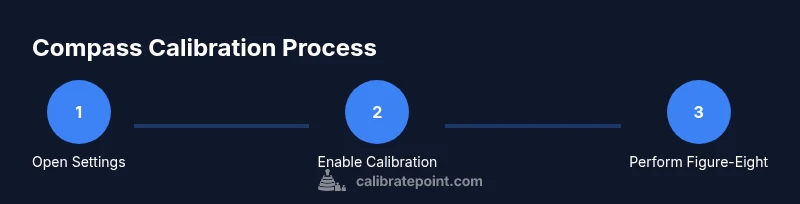
Open Settings
Open the Settings app and verify Location Services are enabled for Compass calibration. This is the foundation for sensors to align properly with real-world data.
Tip: Tip: Keep Location Services ON for all apps that rely on direction data to maintain accuracy. - 2
Enable Compass Calibration
Navigate to Privacy & Security > Location Services > System Services and ensure Compass Calibration is toggled on. This allows the device to adjust magnetometer alignment automatically.
Tip: Tip: A quick toggle off and on can refresh permission states if prompts don’t appear. - 3
Open Compass app
Launch the built-in Compass app and look for any calibration prompts. Follow the on-screen instructions to begin the calibration sequence.
Tip: Tip: If no prompt appears, move the device through multiple orientations while staying level. - 4
Initiate calibration
When prompted, start the calibration routine and prepare for the figure-eight motion. Maintain a steady grip and avoid tilting excessively.
Tip: Tip: A relaxed, controlled motion yields the best sensor data. - 5
Perform figure-eight motion
Move the iPhone slowly in a broad figure-eight pattern, keeping it level and centered. Do several passes in different directions to cover multiple headings.
Tip: Tip: If the app pauses, adjust your grip and try again in a clearer area. - 6
Verify heading
After calibration, test the heading against a known reference (landmark, road alignment). Compare with the map orientation to confirm accuracy.
Tip: Tip: Use Maps or a compass-enabled app to cross-check in real time. - 7
Repeat if needed
If readings still feel off, repeat the figure-eight motion or recalibrate in a different environment to rule out persistent interference.
Tip: Tip: Calibrate after significant changes, like switching cases or moving to a new locale.
Questions & Answers
Will calibrating the iPhone compass fix all heading errors?
Calibration corrects magnetometer drift and improves heading accuracy, but persistent errors may indicate interference or hardware issues. Recalibrate and check for persistent drift across environments.
Calibration improves heading accuracy, but if errors persist, check for interference and hardware issues and recalibrate.
How long does calibration take?
The calibration process itself is quick, typically taking a few minutes depending on prompts and environment. A full check of settings may take longer if you adjust permissions.
Calibration usually takes just a few minutes.
Where is the Compass Calibration setting located?
Compass Calibration is managed via Settings > Privacy & Security > Location Services > System Services. Ensure Compass Calibration is toggled on for best results.
Find it under Settings, then Location Services and System Services.
Can third-party apps recalibrate the compass?
Third-party apps do not replace the built-in magnetometer calibration. Use the iPhone Compass calibration prompts for best results and rely on Maps for navigation.
Only the built-in compass calibration affects the magnetometer.
What if calibration doesn’t improve accuracy?
If calibration does not help, remove potential interference (metal accessories, phone mounts), move to an open area, restart the device, and consider a software update or factory reset as a last resort.
Try removing interference, restarting, and updating the system; consider deeper diagnostics if needed.
Is compass calibration safe?
Yes. Calibrating the compass is a safe, non-destructive process that only adjusts how sensors read the magnetic field.
Absolutely safe and non-destructive.
Watch Video
Key Takeaways
- Calibrate the magnetometer in a low-interference area
- Enable Compass Calibration under Location Services
- Use the figure-eight motion with a steady grip
- Verify headings against known references after calibration
- Recalibrate after hardware or environmental changes