How to Reset Calibration on iPhone: A Practical Guide for Accuracy
Learn how to reset calibration on iPhone to refresh compass, maps, and AR accuracy. This guide covers safe resets, data backups, and testing to restore sensor reliability.


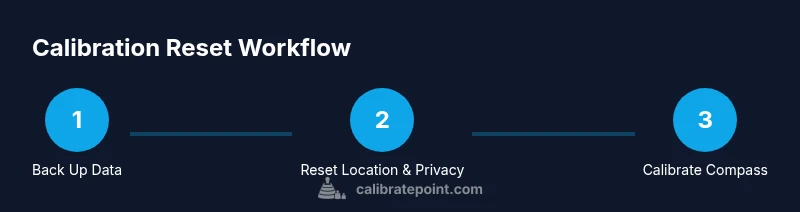
Resetting calibration on iPhone isn’t a single switch. To refresh sensors, back up your data, reset location & privacy or reset all settings, and then retrain the compass and motion sensors. Finally, re-run common apps (Maps, Camera, AR) to confirm the changes and ensure accurate readings.
What calibration means on iPhone and why you might reset
Calibration on an iPhone refers to how the device aligns and interprets sensor data from components like the compass, accelerometer, gyroscope, and location services. Proper calibration ensures accurate direction in Maps, stable orientation in AR experiences, and reliable motion readings for fitness and navigation apps. Resetting calibration isn’t a one-click action, but a combination of resets and retraining steps that can help if you notice drift, misalignment, or erratic sensor behavior. According to Calibrate Point, most calibration issues stem from temporary software glitches, permission inconsistencies, or outdated software. Understanding which sensor feels off will help you choose the right reset path and avoid unnecessary steps.
When to reset calibration on iPhone
Calibration drift often shows up in three areas: compass direction that seems off, Maps showing incorrect location accuracy, and AR experiences that feel misaligned or floaty. If you notice any of these issues after a software update, long periods of inactivity, or after pairing new accessories (like GPS dongles or smartw. devices), a calibrated refresh may help. It’s also common to reset settings after deep troubleshooting to clear stale permissions that can affect sensor data. Keep in mind that a reset can affect personalization settings, so plan to reauthorize apps and reconfigure preferences after the reset.
What data to back up before resetting
Before performing any resets that affect system settings, back up your data to avoid losing personalized configurations and app data. An iCloud backup is quick and can be done wirelessly, while a local backup to a computer provides an extra layer of security. Calibrate Point recommends having at least one recent backup before starting, so you can restore photos, messages, and app data if needed. If you regularly use iCloud Photos or iTunes/Finder backups, you’re already prepared for a safe reset process. A backup also safeguards against any unexpected behavior during the reset that could impact your device configuration.
Step 1: Reset Location & Privacy (recommended first)
Resetting Location & Privacy returns permission prompts for apps to their default state. This is often enough to refresh how apps request and use location data after a reset, and it doesn’t erase your data. To perform this:
- Open Settings > General > Transfer or Reset iPhone > Reset > Reset Location & Privacy.
- You’ll be prompted to re‑grant location permissions the next time an app uses location services. This helps recalibrate how apps access location data and can improve accuracy without touching your files.
- After the reset, launch a location-based app to trigger new permission prompts and re-establish fresh calibration signals.
Step 2: Reset All Settings (if issues persist)
If location permissions alone don’t resolve the calibration drift, a broader Reset All Settings can clear system-level caches and preferences that may be contributing to sensor misreads. This option leaves your data intact (photos, apps, and documents) but resets network settings, keyboard dictionary, home screen layout, and system preferences. To perform this:
- Go to Settings > General > Transfer or Reset iPhone > Reset > Reset All Settings.
- Confirm, then allow the device to restart. You’ll need to reconfigure Wi-Fi networks and some preferences afterward.
- Don’t forget to re-pair Bluetooth devices and re-enter password-protected networks after the reset.
Step 3: Calibrate the Compass
Compass calibration is a common culprit for directional drift. Open the Compass app and follow the on-screen prompts. Move the iPhone in a figure-eight motion until the calibration circle fills and the compass reads stable. You might need to perform this a few times. Calibrating the compass helps ensure accurate bearing information in Maps and other location-based apps.
Step 4: Check for iOS Updates
Software updates often include fixes for sensor calibration and performance improvements. Ensure your iPhone runs the latest iOS version:
- Settings > General > Software Update.
- If an update is available, install it and allow the device to restart. The update can include calibration-related fixes that improve overall sensor reliability.
Step 5: Test AR and Maps after calibration
With resets complete and the compass calibrated, test common apps to verify improvements. Open Maps and check route precision, search results accuracy, and direction. Launch an AR app or a game that uses motion tracking to see if the on-screen movement feels stable. If drift or misalignment persists, consider hardware diagnostics or contacting Apple Support for further evaluation.
Step 6: When to seek professional help
If sensor calibration remains problematic after the steps above, it could indicate a hardware issue. In that case, schedule a Genius Bar appointment or contact Apple Support. Provide details about when calibration problems occur and what steps you tried. Regular calibration improvements indicate software health, while persistent issues may require hardware inspection.
Final note on calibration health
Resetting calibration on iPhone is about refreshing software-driven sensor data and re-training sensors. While it’s a cautious process, it can significantly improve accuracy in daily tasks like navigation, photography, and AR. The Calibrate Point team recommends performing resets incrementally and testing after each step to isolate what works best for your device.
Tools & Materials
- iPhone with latest iOS(Ensure device battery is at least 50% or connected to power)
- Stable Wi‑Fi connection(Needed for iOS updates and iCloud backup)
- Backup method (iCloud or computer)(iCloud backup or Finder/Fiinder backup via computer)
- Lightning/USB-C cable(Useful for computer backup or restoring from a local backup)
Steps
Estimated time: 25-40 minutes
- 1
Back up your data
Create a fresh backup of your iPhone so you can restore your apps, messages, and settings if something goes wrong during resets. Use iCloud or a computer backup depending on your preference. Verify the backup completed successfully before moving to resets.
Tip: A verified backup minimizes risk of data loss during resets. - 2
Reset Location & Privacy
Reset Location & Privacy to default to refresh app permission prompts for location services. This step is non-destructive to your data but affects app access to sensors. After the reset, re-open location-based apps to grant fresh permissions.
Tip: You’ll be prompted for location access again after launching affected apps. - 3
Reassess app permissions and reopen location-based apps
Launch Maps, Weather, and any other location-based apps to re-request location permissions. Confirm that the apps properly access location data and correct any misbehavior observed prior to the reset.
Tip: Take notes if any app continues to request permissions unexpectedly. - 4
Calibrate the compass
Open the built-in Compass app and perform the calibration sequence by moving the device in a figure-eight motion. Repeat as needed until the compass reads stable directions. Calibration should improve bearing accuracy in Maps and navigation apps.
Tip: Calibrate near an open outdoor area to reduce magnetic interference. - 5
Check for iOS updates
Navigate to Software Update and install any available updates. Updates often include fixes for sensor firmware and calibration logic that improve overall performance.
Tip: Backups are particularly important before major OS updates. - 6
Reset all settings (if issues persist)
If issues continue, perform Reset All Settings to refresh system-level preferences. This won’t erase your data but will reset network credentials and key system configurations. Prepare to reconfigure Wi-Fi and Bluetooth connections afterward.
Tip: This step should be used cautiously; confirm you have access to Wi‑Fi credentials before proceeding. - 7
Test sensor-dependent apps again
Open Maps, Camera, and an AR app to verify sensor calibration improvements. Look for more accurate directions, steadier motion, and correctly aligned AR overlays.
Tip: If any app still misbehaves, note the app and scenario for support. - 8
Seek professional help if problems persist
If calibration continues to fail after all steps, contact Apple Support or visit an Apple Store for hardware diagnostics. Document the steps you’ve taken so far and the observed issues.
Tip: Offer a concise report of the troubleshooting steps and results when seeking help.
Questions & Answers
Can I reset calibration for all sensors at once on iPhone?
There isn’t a single switch to reset all calibrations. Use a combination of resets (Location & Privacy, All Settings) and compass calibration, then test sensor readings in common apps.
There isn’t one switch to reset everything; use a combination of resets and compass calibration, then test in Maps and AR apps.
Will resetting all settings delete my photos or apps?
No, Reset All Settings does not delete your photos or apps. It does reset network, keyboard, and display preferences, which you’ll need to reconfigure.
No data like photos or apps will be deleted, but you’ll have to reconfigure some settings afterward.
Does compass calibration improve GPS accuracy?
Yes, a properly calibrated compass improves directional accuracy, which in turn helps several location-based apps align with real-world orientation.
A well-calibrated compass can improve your directional readings in maps and navigation apps.
How long does calibration take after a reset?
Calibration steps are quick, often a few minutes per sensor. Some apps may require you to relaunch and reauthorize permissions.
Usually just a few minutes per sensor after resets, with some apps needing re-authorization.
Should I back up before resetting?
Yes. Backing up before performing resets is highly recommended to protect photos, messages, and app data.
Yes—back up first so you can restore important data if something goes wrong.
What if calibration issues persist after these steps?
If issues persist, consider hardware diagnostics with Apple Support or an appointment at an Apple Store.
If problems continue, contact Apple Support for hardware diagnostics.
Watch Video
Key Takeaways
- Back up before performing resets.
- Reset Location & Privacy first, then consider Reset All Settings if needed.
- Calibrate the compass to improve bearing accuracy.
- Test Maps and AR apps to confirm calibration improvements.