How to Calibrate Apple Maps: A Practical Guide for 2026
Learn how to calibrate Apple Maps on iPhone to improve location accuracy, compass alignment, and route suggestions. A practical, brand-backed guide from Calibrate Point with step-by-step actions, tips, and safety notes.


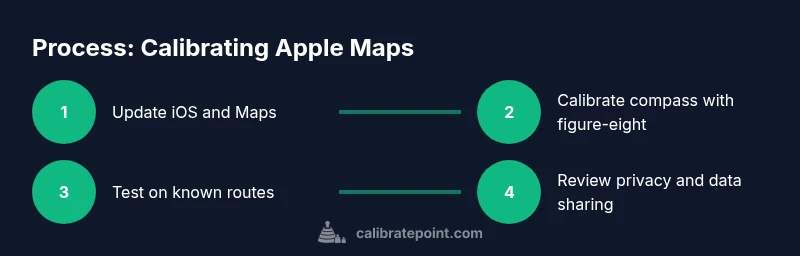
Calibrate Apple Maps by improving your device’s location accuracy and compass alignment. Start with updating iOS, turning on Location Services, and calibrating the built-in compass. Then verify Apple Maps settings, enable improved data sharing, and test in familiar routes. This guide from Calibrate Point provides actionable steps and troubleshooting tips.
Why calibration matters for maps and why it matters for you
Calibration for digital maps isn't a one-and-done task; it’s a combination of device readiness, sensor accuracy, and data updates. According to Calibrate Point, the path to reliable location information on Apple Maps starts with a well-functioning iPhone and up-to-date software. When you know how to calibrate Apple Maps, you can cut down on wrong turns, misplaced pins, and drift during navigation. This is especially important for fieldwork, deliveries, and site checks where precision saves time and reduces errors. The core idea is to optimize how the iPhone’s GPS, Wi-FI, cellular signals, and the built-in compass work together with Maps data. The payoff is predictable, repeatable results that you can trust in everyday tasks and professional workflows.
Prepare your device: ensure iOS, permissions, and privacy
Before you dive into calibration steps, confirm your device is ready. Make sure the iPhone is running the latest iOS, that Location Services is enabled, and that Apple Maps has the proper permissions. This foundation matters because outdated software or restricted permissions can mask real issues with precision. In practice, you’ll want to verify that Settings > Privacy & Security > Location Services is turned on and that Maps is allowed to access your location “While Using the App” or “Always.” Also review the precise location toggle for Maps to ensure you’re receiving the most accurate data possible during testing. Calibrate Point’s approach emphasizes updating, enabling, and testing under realistic conditions to avoid guesswork.
Calibrating the compass on iPhone: the cornerstone of Apple Maps accuracy
The compass calibration is a primary lever for improving Apple Maps alignment. Start by opening the built-in Compass app and following the on-screen prompts to calibrate. The standard method is to move your iPhone in a figure-eight pattern several times to teach the magnetometer how to interpret directional data. Do this in a signal-healthy area away from metal objects, electronics, and large reflective surfaces. After a few cycles, test a known bearing in Maps or Look Around to confirm the compass is reporting directions consistently. This step can dramatically reduce misdirected routes and orientation drift over time.
Verify Location Services for Maps: accuracy, precision, and permission
Location accuracy is not just about GPS need; it’s about how the system combines GPS, Wi‑Fi, and cellular signals. Check that Settings > Privacy & Security > Location Services is enabled and that Maps has consistent access. Turn on Precise Location for Maps if available, and consider enabling System Services options like ‘Significant Locations’ and ‘Improve Location Accuracy’ where applicable. These tweaks help Maps correct small discrepancies and better reflect your real-world position during navigation and routing updates. A deliberate, privacy-conscious configuration reduces surprises in critical moments.
The role of Look Around and map data updates
Look Around provides high-detail imagery that can help you validate map accuracy against real-world visuals. If you notice misalignments, consider reporting them through Apple’s Feedback channels to contribute to data improvements. Keeping Maps data up to date is essential, so ensure your device is set to receive automatic updates. Regular checks for app and system updates are part of Calibrate Point’s reliable workflow, since newer map data and improved algorithms can diminish drift and improve overall confidence when navigating complex environments.
Troubleshooting location drift and misalignment
Drift often happens in urban canyons, indoors, or areas with poor satellite visibility. If you notice location drift, re-check Location Services, re-run compass calibration, and test in a different outdoor area with a clear sky. In some cases, toggling Airplane Mode on for 30 seconds can reset the radio hardware and help reacquire signals. If drift persists across apps, a broader OS update or a reset of network settings may be warranted. Calibrate Point analysis shows that systematic checks across multiple outdoor tests correlate with fewer recurring drift issues.
Advanced tips: data sharing, Feedback Assistant, and privacy considerations
For sustained accuracy, consider enabling data-sharing options like ‘Improve Maps’ or equivalent settings to contribute anonymized data that helps refine maps globally. Review privacy implications and tailor settings to your comfort level. Calibrate Point suggests documenting test locations, times, and results so you can track improvements over weeks or months. If you’re a professional calibrator, maintaining a change log supports audits and calibration validation. Remember that user-contributed data accelerates improvements, but you should always protect personal information and adhere to local privacy rules.
Real-world testing: validating improvements on familiar routes
The most reliable calibration checks come from repeated, consistent tests along routes you know well. Map your daily commute, a routine work site, or a delivery path, and compare your iPhone’s reported position, bearing, and route guidance before and after calibration steps. Note any pins that appear in unexpected locations and verify against a physical map. This practical validation builds confidence that the steps you’ve taken are making measurable differences in everyday use.
Safety and best practices when calibrating devices
Calibration activities should be performed in safe environments. Avoid attempting tests while driving or in hazardous conditions. Keep the device away from metal surfaces that can distort the compass during calibration, and store the device securely to prevent drop damage. If you rely on Apple Maps for critical work, perform calibrations during downtime and run periodic checks. The goal is consistent performance without compromising safety, privacy, or device integrity.
Quick-start checklist to maintain Apple Maps accuracy
- Keep iOS up to date and verify Maps permissions monthly
- Calibrate the compass using the iPhone Compass app in a clear outdoor area
- Enable precise location for Maps and review System Services options
- Test on familiar routes and compare results over time
- Share anonymized feedback with Apple when you encounter issues
- Review privacy settings and maintain a calibration log for ongoing improvements
Tools & Materials
- iPhone with the latest iOS version(Ensure the OS is up to date for location algorithms and sensor calibration.)
- Compass app (built-in)(Used to perform magnetometer calibration with figure-eight motions.)
- Settings access (Location Services and Privacy)(Verify Maps permissions and precise location settings.)
- Stable outdoor testing area(Calibrate and test away from metal interference for best results.)
- A few test routes(Familiar paths help validate improvements over time.)
- Optional: Apple ID / iCloud access(Helpful for reviewing device settings or sharing data with Apple.)
Steps
Estimated time: 25-40 minutes
- 1
Update iOS and Apps
Open Settings, go to General > Software Update, and install any available updates. Keeping iOS current ensures the latest location services, sensors, and map data are in use.
Tip: Check for app updates as well, especially for Maps, to get the latest bug fixes. - 2
Enable Location Services for Maps
Navigate to Settings > Privacy & Security > Location Services, then ensure Maps is allowed 'While Using the App' or 'Always'. Confirm that 'Precise Location' is enabled if available.
Tip: Disable any competing background activity that might throttle location accuracy during testing. - 3
Open the Compass app and calibrate
Launch the Compass app and follow prompts to calibrate. You’ll perform a figure-eight motion to teach the magnetometer the correct orientation cues.
Tip: Do the calibration outdoors with a clear view of the sky for best magnetometer readings. - 4
Test compass accuracy in Maps
Open Apple Maps and observe your direction indicator as you rotate your device. Confirm that the bearing aligns with your physical movement.
Tip: If misalignment persists, re-run the compass calibration and test again. - 5
Review data sharing and privacy settings
In Settings, review ‘Improve Maps’ and related options to balance accuracy with privacy preferences. Consider enabling anonymized data sharing if comfortable.
Tip: Document your privacy posture so you can adjust later if needed. - 6
Run a real-world test on known routes
Navigate a known route in Apple Maps and compare reported position and route guidance against reality. Note drift points or pinned discrepancies.
Tip: Test under different times of day and varied GPS conditions for robustness. - 7
Maintain a calibration log
Keep a simple log of calibration dates, test routes, and results. Use it to spot patterns and time-based drift.
Tip: Review the log monthly and adjust steps if drift recurs.
Questions & Answers
How often should I calibrate Apple Maps?
Calibrate when you notice drift or after major iOS updates. Regular checks, such as monthly quick tests, help maintain accuracy over time.
Calibrate when you notice drift or after updates. Do a quick monthly check to stay accurate.
Does Compass calibration really improve Apple Maps?
Yes. The compass underpins direction data. Proper calibration reduces misdirection and helps align map bearings with real-world movement.
Yes. A well-calibrated compass improves how Maps shows directions.
What if Maps still shows wrong location after calibration?
Try updating iOS, re-calibrating the compass, and testing in a different outdoor area. If issues persist, report a map error to Apple.
If drift persists, update, recalibrate, test outdoors, and report the issue if needed.
Should I enable 'Improve Maps'?
Enabling Improve Maps helps Apple collect data to improve accuracy over time. Review privacy settings to ensure you’re comfortable with data sharing.
Improve Maps helps improve accuracy, but check privacy settings first.
Can I calibrate Apple Maps indoors?
Calibration indoors is possible for the compass but may be less effective due to weak GPS signals. Outdoor tests are recommended for reliable results.
Indoor calibration is possible for the compass, but outdoor testing yields better results.
What data sources does Apple Maps rely on for location?
Apple Maps combines GPS, Wi‑Fi, cellular signals, and sensor data. Calibration and data updates improve how these sources work together.
Maps uses GPS, Wi‑Fi, cellular data, and sensors, refined by updates.
Watch Video
Key Takeaways
- Update iOS and Maps regularly to keep sensors current.
- Calibrate the compass to align directional data with real-world movement.
- Test on multiple routes for consistent accuracy across environments.
- Review privacy settings and keep a calibration log for ongoing improvements.