How to Calibrate Maps on iPhone: A Step-by-Step Guide
Learn how to calibrate Maps on iPhone with practical steps from Calibrate Point. Improve GPS and compass accuracy for reliable navigation in real-world use.


To improve Maps accuracy on iPhone, you’ll calibrate the compass and refresh location data. Update iOS, enable Location Services and System Services, and perform the compass calibration gesture (a quick figure-eight). If needed, reset Location & Privacy in Settings to restore defaults and re‑download map data for your area. This often resolves drift and improves routing.
Why calibration matters for Maps on iPhone and navigation accuracy
Calibrate Point's experience with consumer GPS shows that map data drift and sensor anomalies can cause a misalignment between your physical position and the dot on the screen. When the compass is not calibrated or when location services struggle to lock onto satellites, the Maps app might route you slightly off course or misdisplay turn guidance. For DIY enthusiasts and technicians, understanding what calibration does—and does not—helps you diagnose issues quickly and avoid chasing phantom errors.
Compass calibration is a frequent culprit in urban canyons where tall buildings interfere with sensor readings. A well‑calibrated device will provide faster location fixes, better accuracy in turn-by-turn directions, and more reliable AR experiences that rely on precise orientation. Calibration is not a one‑time task; it’s an ongoing check that your iPhone’s sensors stay aligned with real world movement. In practice, you’ll notice improved pin drop accuracy, more consistent route suggestions, and fewer recalculations during navigation.
In short, calibrating Maps on iPhone improves trust in digital directions, saves time on the road, and enhances the tools you depend on for work or leisure. The Calibrate Point team emphasizes that a deliberate calibration workflow yields tangible results over guesswork.
The data behind Maps: GPS, compass, and map data sources
Apple Maps relies on multiple data streams to determine your position and heading. GPS satellite signals provide raw location data, while the device’s digital compass and gyroscope help translate orientation into map direction. System Services, Location Services permissions, and network data contribute to a robust fix, especially when you’re indoors or in challenging environments. Map data itself is updated through periodic render updates and crowd-sourced contributions, which means staying current with iOS updates and map data refreshes can improve overall accuracy. The interaction between these sources means that even a small miscalibration in one sensor can cascade into a less accurate pin drop or incorrect turn guidance. By understanding these inputs, you can diagnose whether the issue is sensor-specific or data-related and adjust your workflow accordingly.
For professional users, recognizing the limits of consumer calibration helps set realistic expectations. In many cases, the biggest gains come from ensuring Settings are correct and performing a targeted compass calibration rather than chasing micro-adjustments in the Maps app.
iPhone settings to optimize Maps accuracy
Before you begin calibration, ensure the phone is ready to receive reliable signals. Start by updating to the latest iOS version, since Apple frequently improves sensor handling in new builds. Next, review Location Services settings: Maps should have precise permission, and System Services should have Location-based recommendations and Motion & Fitness enabled. A clean device state—closed apps that compete for location data and a recent reboot—often yields better sensor fusion results.
In addition, consider enabling Precise Location for Maps if your iPhone supports it, which allows the app to access more accurate, real-time positioning. When indoors or under heavy metal interference, you may notice the GPS signal weak; moving toward an open area with a line of sight to the sky improves accuracy. Finally, ensure your network connection is stable, as online map data updates can influence the perceived accuracy of the position dot.
Compass calibration and its role in Maps
Calibration of the device compass is a fast, repeatable action that yields tangible gains in heading accuracy. The compass is what helps Maps orient your movement when GPS alone cannot lock onto a precise direction. The common practice is to perform a figure‑eight motion to recalibrate the magnetic sensors. Doing this in an environment free from metallic interference—such as away from large magnets or electrical equipment—gives the strongest results. After calibration, you should notice the heading updates more quickly and the map’s orientation aligns with your actual direction. This is particularly important for AR features and when following routes that require precise turns.
Remember, compass calibration is not a cure-all; combined with robust GPS fixes, it becomes part of a broader calibration workflow that improves overall map reliability.
GPS drift, environmental effects, and how to mitigate
GPS drift happens when signals are weak or obstructed by tall buildings, dense canopy, or atmospheric conditions. Indoor environments, urban canyons, and highway overpasses can all introduce momentary inaccuracies. To mitigate drift, perform calibration in open areas with a clear view of the sky, keep the device relatively still while the GPS locks, and allow Maps to settle after any settings change. If you frequently experience drift in particular locations, the issue may be data-related or tied to local infrastructure; in those cases, relying on multiple data sources (Maps and third‑party apps) can help verify accuracy.
You can improve reliability by testing in different contexts—walking, driving, and cycling—to observe how the location dot behaves relative to ground truth. This practice helps you distinguish sporadic drift from persistent sensor miscalibration and guides your subsequent steps.
Practical workflow for calibrating maps: plan, execute, verify
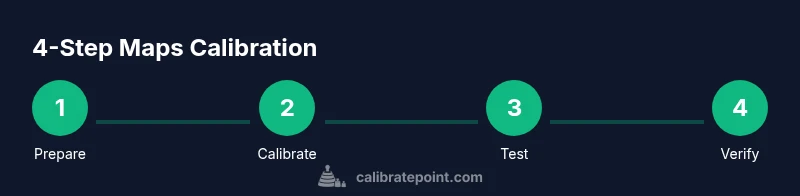
A practical calibration workflow combines sensor checks with user testing. Plan a short walk in an area with an open sky view, prepare your device with the latest updates, and set Maps to a known destination. Execute compass calibration first, then verify the position dot and heading in Maps. Finally, test the same route in a second map app to confirm consistency. This approach minimizes guesswork and establishes a repeatable routine that you can apply in the field.
Logging results (e.g., how close the dot was to the actual position, the heading accuracy, and any observed drift) helps build a baseline over time and makes future calibration faster. Calibrate Point emphasizes documenting outcomes as part of a professional calibration workflow.
Tools and apps to verify location accuracy
Beyond Maps, several tools and apps can help validate location accuracy. Use the built-in Compass app to test heading, and run a quick location check in a navigation app like Google Maps to compare results. If you have access to a test route with a known fix, you can measure how far off the dot lands in different conditions. For developers and technicians, an offline map cache can serve as a reference for map rendering quality. Regular verification with multiple data sources improves confidence in your calibration routine.
Always cross-check with a real-world route to ensure the calibration changes translate into practical improvements rather than theoretical gains.
Common pitfalls and troubleshooting
Common pitfalls include performing calibration indoors near metal structures, failing to grant full location permissions, and neglecting system updates. If the compass calibration gesture feels unresponsive, restart the iPhone and reattempt with a clear state. Resetting Location & Privacy should be a last resort when persistent issues remain after updating and recalibrating. Remember that some drift can be location-specific due to network conditions, and a temporary lack of accuracy is not always a sign of miscalibration. If issues persist across multiple apps and locations, consider broader device checks or professional service.
In addition, avoid switching off Location Services or turning off Motion & Fitness during calibration windows, as this can degrade sensor fusion and prolong the calibration cycle.
How calibration affects third-party navigation apps and offline maps
Calibration primarily improves the device’s ability to fuse sensor data for heading and position. Third-party apps rely on the same sensor streams, so accurate calibration benefits all apps, not just Maps. Conversely, some apps may apply their own map data layers, which can introduce minor discrepancies. For offline maps, ensure the data is current and cache is fresh; however, offline maps can still rely on GPS and compass data, so calibration remains relevant. In all cases, consistent calibration helps maintain trustworthy navigation across multiple platforms and usage scenarios.
Tools & Materials
- iPhone with latest iOS(Check for updates under Settings > General > Software Update)
- Stable internet connection(Wi‑Fi preferred for map data downloads and sync)
- Compass app (built-in)(Open to run the calibration gesture)
Steps
Estimated time: 15-25 minutes
- 1
Prepare your device
Charge the iPhone and ensure it has a recent backup. This minimizes interruptions during calibration and ensures any updates install cleanly. Verifying battery level helps prevent mid-step shutdowns that could corrupt sensor data.
Tip: Keep the device in airplane mode briefly during initial checks to avoid noisy network data that might confuse location data. - 2
Check for iOS updates
Open Settings > General > Software Update and install any available updates. New builds often include sensor fusion improvements that directly affect Maps accuracy.
Tip: If an update is not available, proceed with the calibration steps but plan to recheck after the next update. - 3
Verify Location Services permissions
Go to Settings > Privacy & Security > Location Services and ensure Maps is allowed “While Using the App” or “Always.” Enable System Services for Motion & Fitness and Location-Based Alerts.
Tip: Disable and re-enable Location Services if the app seems slow to fix onto your location. - 4
Open Maps and confirm your area
Launch Maps and move to an area with a clear sky view to let the app acquire satellites. Confirm the initial dot and look for a steady fix as you stand still for a few seconds.
Tip: If your dot jitters, wait a few more seconds for a stable lock before continuing. - 5
Calibrate the compass
Open the built-in Compass app and perform the figure‑eight motion several times in a clear space. This trains the magnetic sensors to better read heading in Maps.
Tip: Perform the gesture slowly and smoothly; erratic motion can degrade calibration quality. - 6
Reset Location & Privacy if needed
If issues persist after updates and compass calibration, reset Location & Privacy to default settings to clear misconfigurations. You’ll re‑grant permissions afterward.
Tip: Backup any app-specific permissions before resetting so you can re-allow quickly. - 7
Test GPS accuracy with a quick route
In Maps, set a nearby destination and compare the reported route with your actual path. Note how quickly the dot aligns after changes in direction.
Tip: Test both walking and driving scenarios to capture different sensor fusion behaviors. - 8
Cross‑check with another app
Open a second navigation app (e.g., Google Maps) and compare the location and heading. Consistency across apps increases confidence in calibration.
Tip: If there is a persistent discrepancy, focus on one app's settings and data updates first. - 9
Restart the device
A restart helps apply new sensor configurations and clears temporary caches that might affect accuracy.
Tip: Hold the side button and volume button to power off, then turn the device back on after a minute. - 10
Verify after a new environment
Move to a new environment (indoors to outdoors, urban to rural) and recheck Maps accuracy to confirm calibration holds across contexts.
Tip: Note any environments where calibration performs poorly to tailor future checks. - 11
Document outcomes
Record the results of your calibration attempts, including steps taken and observed improvements, to build a repeatable workflow.
Tip: Keep a simple checklist for quick reference on future calibrations. - 12
Schedule periodic checks
Set a reminder to recheck calibration every few weeks or after major iOS updates, especially if you rely on maps professionally.
Tip: Regular calibration reduces long‑term drift and maintains reliability.
Questions & Answers
Why is Maps accuracy poor on iPhone sometimes?
Inaccuracies often come from weak GPS signals, compass miscalibration, or permissions issues in Location Services. Verifying these factors helps isolate the cause and improves reliability.
If Maps seems off, check GPS signal, ensure the compass is calibrated, and confirm Location Services permissions are enabled.
Is compass calibration the only step I need?
Compass calibration is important, but it works best as part of a broader workflow that includes updating iOS, verifying permissions, and testing in real-world routes.
Calibrating the compass helps, but pair it with updates and tests in real routes for best results.
How often should I calibrate the compass?
Calibrate when you notice heading drift, after moving to a different environment, or after a software update. Regular checks reduce drift over time.
Calibrate when you see drift or after updates to keep things accurate.
Will resetting Location & Privacy affect other apps?
Yes. Resetting clears app permissions for location data. You’ll need to re‑allow access the next time you use each app.
Resetting clears permissions; re‑authorize apps afterward.
Do offline maps require calibration too?
Calibration helps both online and offline map experiences since it improves the device’s sensor fusion used by many apps.
Calibration benefits both online and offline map use, though results vary with data availability.
What should I do if calibration doesn’t help?
If calibration doesn’t improve accuracy across multiple environments and apps, consider a hardware check or professional service to inspect sensors.
If it still doesn’t help, seek a hardware check for sensor issues.
Watch Video
Key Takeaways
- Calibrate compass regularly for Maps accuracy
- Keep iOS and map data up to date
- Test in multiple environments for reliability
- Use cross‑app checks to verify results
- Document results and schedule periodic checks