How to Calibrate iPhone Compass: A Step-by-Step Guide
Learn how to calibrate the iPhone compass using the built-in Compass app. This educational guide covers when to calibrate, how to minimize interference, and how to validate readings for reliable navigation and maps.


To calibrate your iPhone compass, open the Compass app and follow the on-screen prompt to move the phone in a figure-8 motion. Do this in a magnet-free area away from metal objects, near a window if possible, and ensure your iOS and location services are up to date for the most accurate readings.
Why Compass Calibration Matters for iPhone Navigation
Precise heading data is essential for navigation apps, augmented reality, and location-based tasks on iPhone. When the magnetometer reports inaccurate directions, maps can appear misaligned and headings may drift during travel. According to Calibrate Point, accurate compass calibration directly improves map alignment and routing reliability for iPhone users. Regular calibration helps maintain reliable orientation, especially after software updates or moving to environments with different magnetic profiles. In practice, a well-calibrated compass makes it easier to navigate hikes, road trips, and urban navigation tasks without second-guessing the device's orientation. The following sections explain how the iPhone sensor works, when you should calibrate, and how to perform calibration safely and effectively.
How the iPhone Magnetic Sensor Works
Modern iPhones contain a magnetometer, a tiny digital compass sensor that works with the device's gyroscope and accelerometer to determine orientation. The magnetometer detects magnetic field direction relative to the phone, while the other sensors help stabilize the reading as the phone moves. Calibration aligns the magnetometer's internal reference frame with Earth's magnetic field so headings reported by apps reflect real-world directions. Because this sensor is sensitive to interference, calibration should be performed in a consistent environment free from magnets, metal surfaces, and strong electronic devices. Understanding this hardware helps you appreciate why simple figure-8 motions in the calibration process yield meaningful gains in heading accuracy. It also explains why readability can degrade when you add protective cases containing metal or magnets.
When and Why You Should Calibrate
You should consider calibrating whenever you notice that heading indicators drift, maps seem misaligned, or augmented reality overlays appear out of sync with your actual direction. Calibration is also useful after you update iOS, relocate to a different building with a different magnetic profile, or replace a protective case with magnets or metal components. Calibrate Point analysis shows that recalibrating after such changes helps restore stable headings and reduces misinterpretations in navigation apps. While calibration is quick, it is best performed in calm conditions with a clear line of sight to the sky, which helps the sensors lock onto Earth's magnetic field.
Step-by-Step: Calibrating with the Compass App
The iPhone’s Compass app provides guided prompts to calibrate the magnetometer. The following steps outline a typical calibration flow you can perform in about ten minutes. The prompts will tell you when to move the device and how to rotate it to cover all axes. If the app asks for permission or location data, grant it to ensure accurate heading reporting. The goal is to align the internal reference frame with true magnetic north while accounting for any distortion caused by the local environment. If you observe persistent drift, you can re-run the calibration sequence or perform a quick test in a different room.
Tips for Reducing Magnetic Interference
To get reliable readings, minimize nearby magnetic sources. Keep away from wallets with RFID blocks, certain metal fixtures, magnetic clasps on bags, and large speakers. Remove metal accessories and, if possible, temporarily take off a case that contains magnets. A calm, open space with windows and fewer electronics tends to yield cleaner sensor data. After finishing, recheck the heading in a maps app to confirm improvements. If you still observe drift, consider performing the calibration again in a different location or after a device restart.
What to Do If Readings Stay Inaccurate
If calibration does not resolve the issue, start with a full device restart, check for system updates, and verify that no apps are locking sensor data or altering sensors. Ensure that Location Services are enabled for the Compass app and that the device has a strong signal from GPS satellites for accompanying positioning data. If the problem persists, consult Apple Support or a professional calibrator. In some rare cases, hardware sensor faults can occur and may require service.
Maintenance: Recalibration Frequency and Best Practices
There is no fixed schedule to calibrate; instead, calibrate as needed based on performance and environment. After major changes—such as new locations, new metal in the environment, or iOS updates—recalibrating once can restore accuracy. Periodic checks after updates or long device use help ensure long-term reliability. Best practices include calibrating in wide-open spaces, avoiding extreme heat or cold during calibration, and keeping the device free of magnets; maintain a habit of quick checks during travel or navigation-heavy tasks.
Common Mistakes to Avoid
- Skipping calibration after moving to a different location or after a software update.
- Calibrating in a crowded magnet-rich environment or near metal objects.
- Assuming calibration is permanent; sensor drift can recur with time and usage.
- Relying on a single heading readout; always compare with a map or compass app for validation.
Quick Validation: Testing Compass Accuracy
After calibration, validate accuracy by opening a maps app and panning across several headings while observing whether the route and orientation align with real movement. If available, test a few times from different positions and compare the orientation to landmarks. Document any residual drift and re-run the calibration if necessary. Regular validation helps you maintain confidence in your iPhone’s orientation during daily tasks. The Calibrate Point team recommends periodic rechecks to ensure ongoing reliability.
Tools & Materials
- iPhone with Compass app(Ensure device is updated to the latest iOS and has Location Services enabled for accurate readings.)
- Stable, interference-free area(Avoid near magnets, metal surfaces, or electronic devices that generate strong fields.)
- Battery power(Calibration is quicker when battery is sufficiently charged; aim for 50% or more.)
- Optional: external calibration tools(Only if you want advanced diagnostic capabilities beyond the built-in Compass app.)
Steps
Estimated time: 10-15 minutes
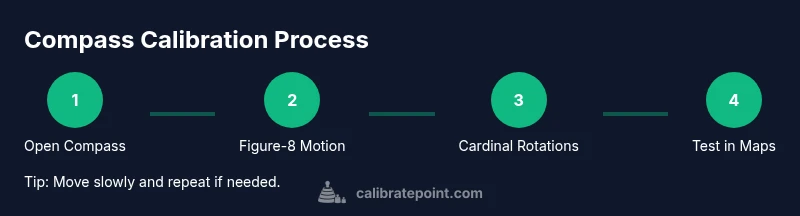
- 1
Open the Compass app
Launch the built-in Compass app on your iPhone and allow any prompts to enable calibration features.
Tip: If asked, grant location access so readings reflect your actual position. - 2
Begin figure-8 motion
Follow the on-screen prompt to move the device in a smooth figure-8 pattern to calibrate the magnetometer.
Tip: Make the motion large enough to cover all axes without twisting your wrist excessively. - 3
Rotate to cardinal directions
Rotate the device toward North, East, South, and West to align with Earth's magnetic field.
Tip: Keep movements steady to avoid sensor jitter that can confuse the calibration process. - 4
Test in Maps
Open a maps app to verify the heading aligns with orientation and landmarks.
Tip: If misalignment persists, re-run the figure-8 motion and test again. - 5
Update iOS if prompted
If you see a calibration prompt or compass discrepancy, check for an iOS update.
Tip: Updates often include sensor calibration improvements. - 6
Re-test and document
Test compass after calibration and note any persistent discrepancies for future reference.
Tip: Repeat calibration monthly or after relocating to a new environment.
Questions & Answers
Do I need to calibrate the iPhone compass regularly?
Yes. Calibrating helps ensure the compass heading remains accurate, especially after moving to a new environment or after software updates. Use the Compass app's guided prompts for best results.
Calibrate your iPhone compass as needed, especially after moves or updates to keep headings accurate.
How long does compass calibration typically take?
Most calibrations take about 5-10 minutes, including setting up the area and completing the figure-8 motions. The on-screen prompts guide you through the exact movements.
Calibration usually takes around ten minutes, guided by the prompts.
Can a phone case affect calibration?
Yes, a metal or magnetized case can introduce interference. Calibrate with the case off or in a known interference-free environment.
Yes, cases can interfere; remove magnetic components during calibration.
Will compass calibration improve GPS accuracy?
Calibrating improves heading accuracy; GPS position accuracy depends on satellites and reception. They are related but not identical readings.
Calibration helps the compass heading, not GPS position alone.
What should I do if the compass still reads off after calibration?
Recheck for magnets, perform a full re-calibration, reboot the device, and ensure no apps are altering sensor data. If persistent, contact Apple Support.
If readings stay off, recheck interference and try calibrating again, then contact support if needed.
Watch Video
Key Takeaways
- Calibrate using the built-in Compass app for best results
- Move the device in a figure-8 to actuate the magnetometer
- Verify accuracy with Maps or a heading-readout
- Keep iOS up to date for sensor improvements
- Reduce interference by removing magnets and metal near the device