How to Calibrate iPhone Location for Better GPS
Learn a practical, step-by-step method to calibrate iPhone location, boost GPS accuracy, and verify results across Maps and location-based apps for reliable navigation.


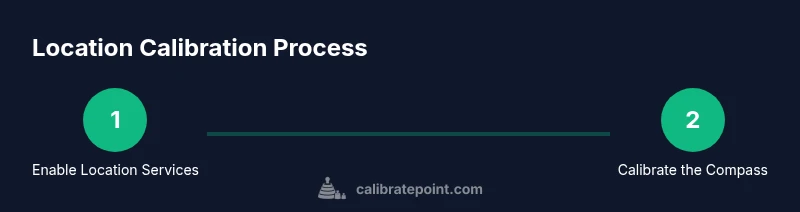
According to Calibrate Point, calibrating iPhone location involves enabling Location Services, updating iOS, and calibrating the compass for precise GPS. Start by confirming app permissions and system services, then perform compass calibration by opening the Compass app and moving your phone in slow circles until the gauge stabilizes. Finally test accuracy in Maps or another location-aware app.
What location calibration means on iPhone
Location accuracy on iPhone is a blend of signals from GPS satellites, nearby Wi‑Fi networks, and cellular towers. iOS also uses built-in sensors like the compass to orient maps and navigation. There isn’t a single switch labeled 'calibrate location'—instead you improve accuracy by ensuring Location Services are enabled, permissions are correct, and the compass is properly calibrated. This holistic approach helps apps lock onto your position faster and keep maps or ride-sharing services accurate as you move. As Calibrate Point emphasizes, understanding the source of location data is key to diagnosing issues and applying the right fix, not just chasing a quick workaround.
Common causes of location inaccuracy
Inaccuracy can stem from several simple factors: outdated software, disabled Location Services, restricted app permissions, weak GPS signals in urban canyons or indoors, and environmental interference like dense buildings or metal structures. Weather and time zone settings can subtly influence how quickly your device aligns with satellites. If you notice drift, start with the basics: confirm your iPhone is updated, ensure Location Services are on for the apps you care about, and verify that apps have permission to use precise location where relevant. Calibrate Point analyses, 2026, suggest these checks deliver the biggest improvements for most users without extra tools.
Compass calibration and how it helps GPS
The compass is a key auxiliary sensor for iPhone location, especially for heading and relative positioning. Calibrating the compass improves orientation for maps and navigation, which in turn helps GPS models converge on your true location faster. To calibrate, open the built-in Compass app and follow the prompts: rotate your device in broad circles until the progress indicator completes. This process is quick, usually a minute or two, and can markedly reduce misalignment when you’re moving or turning. Regular compass calibration complements GPS updates to keep your location accurate during commutes or outdoor activities.
How to optimize iPhone location settings
A structured settings audit makes a big difference. Make sure Location Services is on (Settings > Privacy & Security > Location Services) and that the feature is enabled for each app you use. For apps that need precise location (like Maps, ride-hailing, or outdoor fitness tools), ensure Precise Location is turned on. If you use VPNs or private networks, temporarily disable them to test whether they’re interfering with GPS data. Also review date and time settings, as incorrect time can affect how satellites are ranked and reported. Finally, ensure your iPhone has a strong network connection; weak cellular or Wi‑Fi signals can slow down location fixes.
Step-by-step testing and verification
To verify improvements, perform a controlled test in multiple environments. Start outdoors in an open area, open Maps, and drop a pin to compare your reported coordinates against a known landmark. Move to an urban street with good sky visibility, then test indoors near windows to evaluate whether the GPS maintains lock. Compare results across at least two location-based apps and note any lag or drift. If results are inconsistent, re-run compass calibration and check for available iOS updates to address firmware-level fixes.
Troubleshooting when location is still off
If location remains unreliable after basic checks, consider two layered approaches. First, reset Location & Privacy settings to re-establish app permissions (Settings > General > Transfer or Reset iPhone > Reset > Reset Location & Privacy). You’ll need to re-grant permissions the next time apps request location data. Second, perform a full system refresh: install any pending iOS updates, restart the device, and test again. If issues persist beyond these steps, it may indicate a hardware or network-specific problem, in which case contacting Apple Support or a technician is advisable. The Calibrate Point team recommends documenting the steps you took and the observed results to share with support for faster diagnosis.
Wrap-up of best practices and expectations
Regular maintenance of location settings—combined with compass calibration and fresh software—delivers the most consistent results for iPhone location. Keep iOS updated, review app permissions periodically, and perform compass calibration as part of your routine when you notice drift. This proactive approach aligns with Calibrate Point’s guidance and helps ensure reliable navigation for daily use and work-critical applications.
Tools & Materials
- iPhone with latest iOS(Charge above 50%, ensure internet access for updates.)
- Compass app (built-in)(No download required; used for calibration prompts.)
- Maps app or location-based app(Used to test and verify location accuracy.)
- Stable internet connection (Wi‑Fi recommended)(Needed for updates and data-assisted fixes.)
- Power source (charger)(Helpful during longer calibration sessions.)
Steps
Estimated time: 25-45 minutes
- 1
Update iOS to the latest version
Open Settings > General > Software Update. If an update is available, download and install it. Updates often include GPS and sensor performance improvements that affect location accuracy.
Tip: Back up your iPhone before major updates. - 2
Enable Location Services and check permissions
Go to Settings > Privacy & Security > Location Services and ensure it is ON. Review each app’s permission and enable Precise Location where appropriate.
Tip: Grant precise location only to apps that need it to protect privacy. - 3
Calibrate the compass
Open the Compass app and follow the on-screen prompts by rotating the phone in broad circles until the calibration completes. This helps alignment for Maps and other apps.
Tip: Avoid cases or magnetic accessories during calibration. - 4
Reset Location & Privacy (if issues persist)
Navigate to Settings > General > Transfer or Reset iPhone > Reset > Reset Location & Privacy. After reset, re-grant permissions when prompted by apps.
Tip: Think of this as a clean start for permissions. - 5
Test GPS accuracy with Maps and another app
Open Maps, drop a pin at a known location, and compare the reported coordinates to the real position. Repeat with another location-based app to confirm consistency.
Tip: Test in different environments (outdoors vs indoors). - 6
Check network and environmental factors
Ensure strong cellular or Wi‑Fi connections. Avoid testing under heavy canopy or near tall metal structures which can distort GPS signals.
Tip: A clear sky view generally yields faster and more stable fixes.
Questions & Answers
Why is my iPhone location inaccurate indoors?
GPS signals weaken indoors; location is inferred from Wi‑Fi and cellular data. This often causes drift or delayed fixes. Use Maps outdoors for the most reliable results and ensure Location Services are enabled.
Indoor location can be unreliable because GPS signals struggle through walls; try outdoors to check accuracy and ensure Location Services are on.
How do I calibrate the compass on iPhone?
Open the built-in Compass app and follow the prompts by moving the phone in smooth circles until the progress indicator completes. This improves heading accuracy for maps and navigation.
Open Compass and rotate your iPhone in big circles until it finishes calibrating.
Will resetting Location & Privacy erase my data?
Resetting Location & Privacy does not erase apps or personal data. It resets permissions, so you’ll need to re-grant access when prompted by apps.
No data is deleted, but apps will ask for location permissions again.
Does GPS calibration require any special tools?
No special tools are required; use iPhone’s built-in features like Location Services and the Compass app. Updates and restarts can also improve results.
No extra tools needed—just your iPhone and its built-in apps.
How long does it take for GPS to lock after calibration?
Lock time varies with environment. Outdoors with a clear sky usually locks quickly, while indoors or in urban canyons it may take longer.
It depends on your surroundings; outdoors it’s faster, indoors can take a bit longer.
What should I do if location still drifts after calibration?
Try resetting Location & Privacy, check for software updates, and consider environmental factors like nearby tall buildings. If unresolved, contact Apple Support for a deeper check.
If it still drifts, reset permissions, update, and contact Apple Support if needed.
Watch Video
Key Takeaways
- Enable Location Services and precise location for key apps.
- Calibrate the compass to improve heading and lock speed.
- Keep iOS updated to benefit from GPS fixes.
- Reset Location & Privacy as a last resort if issues persist.
- Consistently test across multiple environments for reliable results.