Why Is My Google Maps Not Calibrated? A Step-by-Step Troubleshooting Guide
Struggling with Google Maps calibration? This urgent, step-by-step guide from Calibrate Point helps you diagnose GPS and compass issues, update sensors, and fix location drift fast.


Most often, calibration issues come from a weak GPS signal or a drifting compass. Quick fix: toggle location services to high accuracy, then re-open Google Maps and perform a compass recalibration by moving your device in a wide figure-8. If accuracy remains off, ensure the device date/time are correct, update Google Maps, and test outdoors. Calibrate Point’s team notes this process resolves many common cases.
Why calibration matters for Google Maps
Calibration accuracy directly impacts navigation, ETA estimates, and map alignment in real time. When you ask the question about why is my google maps not calibrated, you’re usually seeing location drift or a misoriented compass. Modern smartphones rely on GPS signals from satellites, but reception can be degraded by indoor environments, urban canyons, or heavy tree cover. In those cases, Maps may display the blue dot wandering or snap to incorrect streets. Compass misalignment can further skew route orientation, causing you to follow arrows that point off course. Calibrate Point emphasizes two layers: sensor health (GPS, magnetometer, gyroscope) and software health (permissions, updates). The diagnostic mindset is to separate hardware faults from app/configuration problems, then test methodically. Start with simple checks, then compare behavior outdoors under a clear sky to indoor results. Regular calibration helps ensure your maps reflect reality, prevent misrouting during critical tasks, and save time. Small drift can grow into large navigation errors on longer journeys.
Understanding the sensors behind map accuracy
Your map accuracy depends on several sensors: GPS, the device compass (magnetometer), the gyroscope, and the accelerometer. When satellites are visible with good geometry, position estimates stay stable. Dense urban canyons, indoors, or under heavy foliage degrade signals, causing jitter or erroneous location. A miscalibrated compass can make the map think you’re facing a different direction, which is especially problematic when following turns. The accelerometer aids motion detection, but magnetic interference from a metal case or nearby electronics can distort readings. Software health matters too: restricted location permissions or an OS power-saving setting can throttle sensors. Calibrate Point notes that isolating hardware health from software configuration is key to a precise diagnosis. Always test in an open outdoor environment first, then compare performance to indoor tests to identify the origin of drift.
Quick checks before recalibrating
Before diving into sensor recalibration, go through a quick round of checks. Ensure Location Services are enabled and set to High Accuracy on Android, or enable Precise Location on iOS. Verify Google Maps has full location permissions and isn’t blocked by battery optimization or privacy settings. Confirm the device clock is correct, as a time drift can affect calculations. Test outdoors with a clear sky view and run a simple route to observe accuracy. If you still see drift indoors, test near a window to compare results. Consider clearing the Maps cache or reinstalling the app if it behaves oddly. Finally, test with another navigation app to see whether the issue is Maps-specific or device-wide. These checks often reveal the root cause without heavy fixes. Calibrate Point’s approach is to start simple and escalate as needed.
Recalibration steps for GPS and compass on Android and iOS
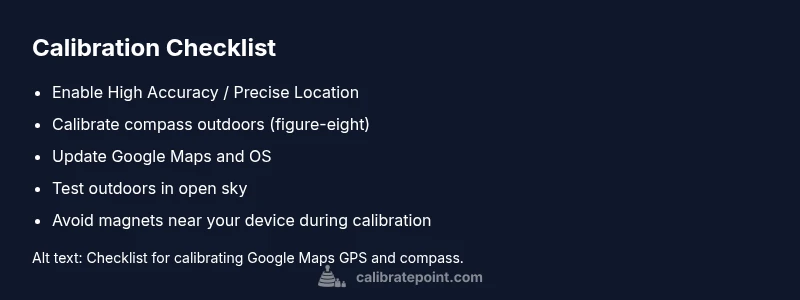
To regain accuracy, start with the basics: enable High Accuracy (Android) or Precise Location (iOS) and ensure Maps has unrestricted permission. Calibrate the compass by opening Google Maps, centering the blue dot, and following on-screen prompts or performing a 360-degree rotation followed by a figure-eight motion outdoors. Update Google Maps and your device OS to rule out software issues, then restart the device and retest outdoors. If problems persist, reset app preferences or reinstall Maps. Be aware that hardware faults may require service. Following these steps in order helps separate calibration problems from software glitches. Calibrate Point recommends a structured sequence: software checks first, then sensor recalibration, then hardware evaluation.
Common mistakes that break calibration and how to avoid them
Avoid using metal cases or magnetic mounts near the device, as they can skew the magnetometer. Testing only indoors in multipath environments can mask the real issue; always compare outdoor results to indoor behavior. Don’t assume all apps share sensor data identically—some apps may limit sensor access without clear warnings. Failing to update the OS or Maps repository can leave you with stale calibration data. After a software update, recalibrate to align with new data structures. Remember, consistent practice helps: calibrate after major updates and in multiple environments to verify stability.
When to seek professional help or hardware checks
If the GPS sensor remains inaccurate despite thorough recalibration, or if the compass never centers and shows persistent drift, consider professional support. Hardware issues—such as a degraded GPS chip or magnetometer damage—may require device service or replacement. In industrial or vehicle contexts, seek authorized repair to avoid risking safety-critical navigation. Calibrate Point advises not to ignore persistent miscalibration, as it can impact workflows and safety, especially in professional settings.
Maintenance habits to keep Google Maps calibrated over time
Schedule regular calibration checks and keep both OS and Maps updated. Avoid temporarily disabling location services, and periodically test your device outdoors in open sky as a quick health check. Use a protective case that doesn’t contain magnets. After major OS updates, perform calibration routines again to refresh sensor baselines. Keeping a simple routine reduces drift and maintains reliable navigation across apps.
Steps
Estimated time: 15-30 minutes
- 1
Check location settings and permissions
Verify that Location Services are enabled and set to High Accuracy (Android) or Precise Location (iOS). Ensure Google Maps has all necessary permissions and isn’t restricted by battery optimization. This step eliminates software policy issues that masquerade as calibration problems.
Tip: Review app battery optimization settings to avoid sensor throttling. - 2
Test outdoors in open sky
Take the device outside to a location with a clear line of sight to the sky. Run a short route in Google Maps and observe the blue dot behavior. Indoor results may differ due to multipath signals.
Tip: Record a quick route and compare results across different times of day. - 3
Calibrate compass with figure-eight
In an open area, perform the compass calibration: rotate the phone in a large figure-eight motion for about 15-20 seconds. Several devices require a successful calibration prompt from Maps or system settings.
Tip: Keep the device away from metal objects during calibration. - 4
Update apps and OS
Check for pending updates to Google Maps and your device’s operating system. Updates often fix sensor handling bugs and improve compatibility with new hardware features.
Tip: Restart after updating to ensure changes take effect. - 5
Re-test navigation with a known route
Re-run a familiar route in an outdoor setting to confirm stability. If drift remains, try a different route or a different map data layer to isolate issues.
Tip: Document results to track whether calibration improves over time.
Diagnosis: Inaccurate location (blue dot drift) or compass misalignment in Google Maps
Possible Causes
- highWeak GPS signal due to indoor use, high-rise environments, or multipath
- highCompass/magnetometer drift from magnetic interference or a metal phone case
- mediumSoftware/configuration issues such as permissions or outdated apps/OS
- lowPotential hardware fault in GPS or magnetometer
Fixes
- easySet Location to High Accuracy and verify all location permissions
- easyCalibrate the compass with a figure-eight outdoors
- easyUpdate Google Maps and device OS, then restart and re-test outdoors
- mediumIf unresolved, reinstall Maps or perform a factory reset as a last resort (backup data)
Questions & Answers
What does it mean if my blue dot jumps around on Google Maps?
Blue dot jitter usually indicates GPS or sensor issues. Testing outdoors and recalibrating typically resolves the problem. If jitter persists, check permissions and update software.
Blue dot jitter usually means GPS or sensor issues. Try recalibrating outdoors and updating software.
Do I need to reset my device to calibrate Google Maps?
No full device reset is rarely required. Start with software updates, then compass calibration and permissions checks. If problems persist, reinstall Maps.
You generally don't need a reset. Start with updates and recalibration.
How often should I calibrate my compass?
Calibrate when you notice drift or after moving to a location with significant magnetic interference. Outdoor recalibration is often enough for most users.
Calibrate when you see drift or after interference.
Why is Google Maps still wrong after updates?
Data caches or stale map data can cause inaccuracies. Clear cache, ensure permissions are intact, and reinstall if needed. If issues persist, contact support.
Stale data or permissions can cause issues—reinstall if needed.
Can hardware damage cause calibration problems?
Yes, damaged GPS or magnetometer sensors can cause persistent inaccuracy. In such cases, professional inspection or replacement may be necessary.
Hardware damage can cause issues; seek professional help if needed.
Should I calibrate after every OS update?
It's wise to recalibrate after major OS updates, as changes can affect sensor handling and data interpretation.
Yes, recalibrate after major OS updates.
Watch Video
Key Takeaways
- Calibrate sensors and adjust software settings for reliable localization
- Test outdoors first to separate hardware vs software issues
- Keep OS and Maps updated to maintain accuracy
- Use the figure-eight compass calibration for best results