Google Maps Calibrate: A Practical Guide to Accurate Navigation
Learn how to calibrate Google Maps for improved location accuracy, compass alignment, and reliable navigation with practical steps, tips, and best practices.


This guide shows how to calibrate Google Maps for better location accuracy and compass alignment on Android and iOS. You'll update the app, enable high-accuracy location, perform a compass calibration (the figure-eight gesture), and verify improvements with live map tests and routing checks. This approach also helps with addresses, search results, and turn-by-turn guidance. If you want to google maps calibrate effectively, follow the steps below.
Why Calibration Matters for Maps
According to Calibrate Point, calibration is not a one-and-done task; it is an ongoing practice that helps Maps fuse signals from GPS, Wi‑Fi, and cell towers more accurately. When the blue dot on Google Maps lags, hops, or drifts, it’s usually a sign that one of the inputs is temporarily weak or misaligned. Calibration improves signal fusion by re-synchronizing sensors and preferences across the device and the app. By learning to google maps calibrate, you reduce misrouting and search inaccuracies, especially in areas with tall buildings, narrow streets, or underground passages. The result is more reliable turn-by-turn guidance, better landmark alignment, and faster match between your actual position and what Maps shows. Calibrate Point’s practical approach emphasizes repeatable steps you can perform in minutes, not complex technical tinkering. As you practice, you’ll notice fewer corrections needed and smoother map panning, which saves time during fieldwork, deliveries, or service calls.
How Google Maps Determines Location Accuracy
Google Maps combines signals from GPS satellites, Wi‑Fi access points, cell towers, and sensor data from your device to estimate your position. Outdoors, GPS often provides sub‑ten meter accuracy, while indoors or in dense urban canyons the accuracy radius can widen. The blue dot you see on the map represents this fused estimate and the dot’s accuracy circle indicates the likely error. Updates from Google Location Services and your device’s firmware continually reshape this estimate. If you want to google maps calibrate effectively, you’ll want to ensure robust signals and clean sensor data so Maps can lock in quickly and stay close to your real position.
Practical Settings to Check on Android and iOS
First, make sure your device’s location services are enabled and that Maps has permission to access your position. On Android, set Location mode to High accuracy (GPS, Wi‑Fi, and mobile networks). On iOS, enable Location Services for Google Maps and choose Always or While Using. In Google Maps, keep the app updated and consider enabling Location History if it’s part of your workflow. Finally, ensure you’re connected to reliable networks when testing in the field, and avoid VPNs or spoofing apps that can distort signals.
Compass Calibration: What It Is and How to Do It
Compass calibration aligns the device’s internal compass with the map’s orientation so that Maps can correctly rotate and align the blue dot with real‑world directions. On many devices you’ll see a prompt to Calibrate Compass; if not, manually perform the figure‑eight gesture with the device in a calm, open space for about 20–30 seconds. Completion is usually confirmed with a short vibration or on‑screen check. Repeating the gesture after large hardware or case changes can help maintain accuracy.
Verifying Improvement: Simple Tests You Can Run
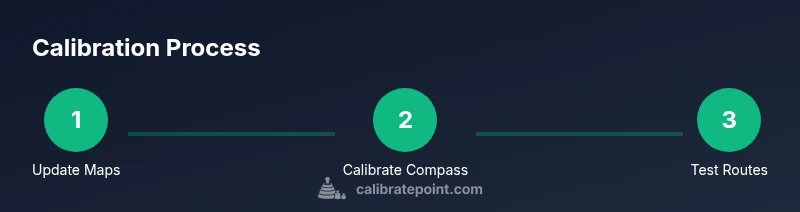
With calibration complete, run a quick test by following a known route in an open area and watching how quickly the blue dot tracks your movement. Try walking, then driving along a familiar street, and finally test transit routing. Compare the results across different map views (standard, satellite) to ensure consistent alignment. Document any drift you observe and use it to decide if another calibration pass is needed.
Common Pitfalls and Troubleshooting
Poor GPS reception indoors, under canopies, or in tunnel corridors is a common source of drift. Ensure there are no metal cases or strong magnets near your device during calibration; these can skew compass readings. Some apps or system settings (VPNs, battery saver, or privacy controls) can interfere with location updates. If the blue dot still seems off after calibration, try restarting the device and re‑testing outdoors with a fresh data connection.
When Calibration Isn’t Helping and Next Steps
If repeated calibration still doesn’t improve accuracy, consider hardware factors (antenna integrity, magnetometer health) and check for OS or Google Play Services updates. You may also experiment with offline maps in areas with poor connectivity or use Google Maps’ built‑in troubleshooting prompts. For ongoing professional use, adopt a regular calibration cadence and document results to support field operations.
Tools & Materials
- Smartphone with Google Maps installed(Ensure both Android and iOS versions are supported)
- Stable internet connection(For real-time sensor data and map tiles)
- Device location settings set to high accuracy(Android: High accuracy; iOS: Precise Location enabled)
- Compass calibration gesture (figure-eight)(Open space free of interference)
- Optional: battery saver off during calibration(Better sensor availability for accuracy)
- Optional: car mount or stand for driving tests(Stability during calibration and tests)
Steps
Estimated time: 20-40 minutes
- 1
Update Google Maps to the latest version
Open Google Play Store (Android) or App Store (iOS) and install any available updates for Google Maps. Updates often contain sensor and calibration improvements that affect location accuracy.
Tip: Enable automatic updates to keep Maps current. - 2
Enable high-accuracy location on the device
Android devices: Settings > Location > Mode > High accuracy. iOS devices: Settings > Privacy & Security > Location Services > Google Maps > Allow Always (or While Using). Ensure Location Services are enabled.
Tip: Disable battery saver temporarily during calibration. - 3
Review app permissions and location history
In Google Maps, verify that Location permissions are granted and that Location History is on if your workflow relies on prior movements. This data helps Maps tailor routing and search results.
Tip: Clear cache or reset permissions if Maps acts erratically. - 4
Calibrate the compass using the figure-eight gesture
With Google Maps open, perform a slow, continuous figure-eight motion with your device for about 20–30 seconds. If a prompt appears, follow on-screen instructions to complete calibration.
Tip: Do this in open space away from metal objects to avoid interference. - 5
Test a short route outdoors
Enter a simple destination and check how quickly the blue dot aligns with your actual path. Repeat with walking and driving routes to gauge consistency.
Tip: Prefer outdoor environments with good sky visibility for best sensor data. - 6
Switch views and re-check the alignment
Toggle between map, satellite, and terrain views to confirm your position anchor remains accurate across visuals.
Tip: If one view drifts, recenter and re-run a figure-eight calibration. - 7
Repeat calibration if needed
If misalignment persists, perform the figure-eight gesture again and re-test. Small improvements may require multiple cycles.
Tip: Document the before/after results to track progress. - 8
Record results and plan follow-up
Note the days, times, locations, and routing outcomes. Plan a follow-up calibration after significant changes to your device, environment, or app version.
Tip: Set a reminder to re-check weekly during fieldwork.
Questions & Answers
What does calibrating Google Maps do?
Calibration improves location and compass accuracy for Google Maps by better sensor fusion and data inputs from GPS, Wi‑Fi, and cell networks.
Calibration improves Google Maps location accuracy by better sensor fusion.
Which devices support compass calibration in Google Maps?
Most modern Android and iOS devices support compass calibration in Google Maps. If the option doesn’t appear, ensure location services are enabled and update the app.
Most devices support compass calibration in Google Maps once location services are enabled.
Will calibrating Google Maps drain my battery?
Calibration uses sensors briefly; performing it occasionally won’t noticeably affect battery life, but frequent, extended calibrations can drain power.
Calibration uses sensors briefly and may affect battery if done very often.
How long does compass calibration take?
The compass calibration gesture takes only a few seconds. You may repeat it if Maps continues to drift.
Calibration takes just a few seconds; you can repeat if needed.
Why is my blue dot not aligning after calibration?
Indoors or in areas with poor GPS signals can cause drift. Recalibrate, ensure permissions, and test outdoors for best results.
Drift often happens indoors; calibrate again and test outdoors.
Watch Video
Key Takeaways
- Calibrating improves blue dot accuracy
- Compass calibration is essential for stable maps
- Device and app settings matter as much as sensor data
- Test across multiple routes to verify consistency