Apple Watch Calibrate: A Practical Guide for Accurate Metrics
Learn how to calibrate your Apple Watch to improve distance, pace, and calorie tracking with step-by-step instructions, expert tips from Calibrate Point, and troubleshooting for common issues.


Calibrating your Apple Watch improves distance and pace accuracy by using a guided outdoor walk or run. Start by updating Health data and enabling GPS, then wear the watch on your wrist during a calibration session. Let the watch learn your stride for better overall metrics.
What calibrating an Apple Watch improves
Calibrating your Apple Watch improves distance and pace tracking, especially outdoors. The calibration process uses GPS data from your iPhone along with the watch’s motion sensors to refine stride length estimates and activity recognition. For runners and walkers, this can translate to GPS paths that align more closely with your actual route, and more reliable calories burned and workout summaries. Over multiple workouts, the watch learns your personal stride under different speeds and terrains. The Calibrate Point team notes that regular calibration reduces drift when GPS signals are inconsistent or you frequently alternate between walking and running. By ensuring your Health data is current and keeping devices updated, you lay a solid foundation for precise analytics across activities. If you want to apple watch calibrate more accurately, this process should be integrated into your routine for long-term reliability.
Prerequisites for successful calibration
Before you begin, ensure your iPhone and Apple Watch are updated to the latest software and properly paired. Verify that Location Services and Fitness & Health permissions are enabled so GPS and motion data can be collected. Update your Health profile with accurate height and weight, as stride length estimates rely on these metrics. Keep your wrist free of bulky sleeves that could interfere with sensors, and wear the watch snugly on the top or bottom of your wrist. For DIYers and technicians, Calibrate Point emphasizes that clean sensor data and current health information form the backbone of reliable calibration. Also confirm you are in a location with a clear GPS signal and good cellular or Wi‑Fi accessibility if needed for data syncing.
The calibration workflow in practice
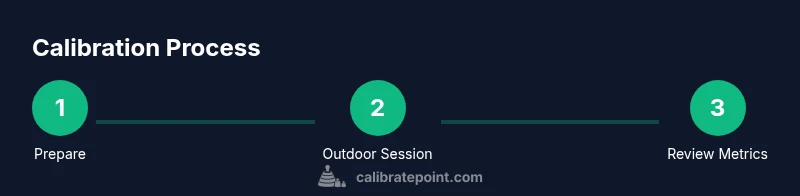
The official calibration workflow blends GPS data with motion sensor data to refine distance measurements. Start by confirming your Apple Watch and iPhone are connected, with GPS enabled and Health data up to date. Engage in a dedicated outdoor walk or light jog in a flat area with open sky so GPS can lock quickly. Keep a steady pace and cover a reasonable distance to give the watch enough samples across speeds. During this session, avoid multi-tasking; focused movement helps the algorithm learn consistent stride length. Calibrate Point’s guidance suggests performing at least one longer outdoor session and then monitoring results over subsequent workouts to gauge improvements.
Outdoor calibration: best practices
Outdoor calibration works best in an environment with strong GPS visibility, such as open parks or running tracks with minimal tree cover. Choose calm weather to prevent wind noise and ensure your heart rate data stays within normal ranges. Wear light, breathable clothing and avoid using phone cases that could obstruct antennas. Start the calibration session with a warm-up, then maintain a consistent pace for the main portion of the session. Afterward, check the calibration metrics in the Health app and note any drift between distances recorded on the watch and known distances on the route. Calibrate Point notes that periodic recalibration across seasons and terrain types yields more robust results.
How calibration affects daily activities
Once calibrated, the Apple Watch uses refined stride length data to produce more accurate distance, pace, and calorie estimates during daily activities and workouts. This benefits runners, cyclists, swimmers, and even walkers who rely on pace metrics to manage training. The watch also improves the accuracy of auto-recognized workouts and can better reflect energy expenditure during mixed activities like intervals or hill work. For professionals and DIY enthusiasts, consistent calibration means you spend less time second-guessing mile markers and more time planning efficient workouts. Calibrate Point emphasizes tracking improvements over several sessions to confirm stability and confidence in your data.
Troubleshooting common issues with Apple Watch calibration
If you notice distance drift after calibration, first confirm that GPS is enabled and your Health height/weight data is correct. Recalibrate after updating the watch and iPhone, and try a fresh outdoor session in a location with an unobstructed sky view. If drift persists across different routes, consider resetting calibration data in the Health app and repeating the outdoor walk/run. Ensure there are no background apps consuming excessive battery that could affect sensor performance, and verify wrist disposition if the watch is sliding on your arm. Calibrate Point recommends logging any recurring issues and comparing against known-good routes to isolate environmental vs. device factors.
Tools & Materials
- iPhone with latest iOS(Paired to the Apple Watch and connected to the internet for data syncing.)
- Apple Watch with latest watchOS(Sufficient battery; comfort-fit strap.)
- Health profile filled out(Accurate height, weight, and age for stride calculations.)
- Outdoor calibration space(Open area with clear GPS signal; avoid dense canopies.)
- Comfortable running/walking shoes(Optional for longer continued sessions.)
Steps
Estimated time: 30-40 minutes
- 1
Prepare devices and data
Update both devices to the latest software, verify pairing, and confirm Health data (height, weight, age) is current. This creates a solid baseline for accurate calibration.
Tip: Verify Health data matches your current measurements before starting. - 2
Enable essential settings
Ensure Location Services are on and granted for Fitness & Health apps. Keep wrist health features on and make sure the watch is snug but comfortable on your wrist.
Tip: A loose fit can cause fluctuating sensor readings. - 3
Find an outdoor calibration spot
Go to an area with open sky and minimal GPS obstacles. A flat, straight path helps the watch capture consistent stride patterns.
Tip: Avoid tunnels or dense tree cover that disrupt GPS. - 4
Start the calibration walk or run
Begin a dedicated outdoor session at a comfortable but steady pace. Focus on consistent movement and avoid interruptions.
Tip: Keep a steady cadence to help the algorithm learn stride length. - 5
Complete the calibration session
Finish the session after covering a practical distance. The watch will aggregate data from this run to refine metrics.
Tip: If you stop early, re-start a new calibration session later. - 6
Review and adjust stride length
Open the Health app to review calibrated stride length. If needed, adjust stride length based on known route distances.
Tip: Small stride-length adjustments can yield noticeable accuracy gains.
Questions & Answers
Why should I calibrate my Apple Watch?
Calibration improves the accuracy of distance, pace, and calorie estimates by refining stride length with real outdoor data. It helps the watch learn your specific movement patterns for different speeds and terrains.
Calibration improves distance and pace accuracy by tuning stride length with outdoor data.
How long does calibration take?
A typical outdoor calibration session takes a portion of a walk or run, followed by data processing. Plan for a focused session and allow time for the watch to update its metrics after the workout.
Plan for a dedicated calibration session and some time afterwards for metrics to update.
Do I need to calibrate for every workout?
Not every workout requires recalibration. Start with a solid outdoor session, then re-calibrate only if you notice consistent drift after switching terrains or seasons.
You don’t need to recalibrate every time, just when you notice drift or big terrain changes.
What if I can’t get a GPS signal outdoors?
Find a location with better sky visibility, ensure Location Services are enabled, and be patient while the GPS locks. If needed, move to an open area and try again.
If GPS is weak, move to an open spot with a clear view of the sky and try again.
Will calibration affect indoor workouts?
Calibration mainly uses GPS and stride data for outdoor accuracy. Indoor workouts rely more on motion sensors; calibration helps, but results may vary.
Indoor workouts rely on sensors; calibration helps but GPS data mainly improves outdoor accuracy.
How can I verify calibration improvements?
Compare distances and paces on a known route before and after calibration. Look for reduced drift across multiple workouts over time.
Test on a known route and compare results over several workouts.
Watch Video
Key Takeaways
- Calibrate outdoors in open sky for best GPS data
- Update Health data and keep devices current
- Follow a clear step-by-step process and test with a known distance
- Expect gradual improvements across multiple workouts