How to Calibrate Apple Watch for Running
Learn how to calibrate your Apple Watch for running to improve pace and distance accuracy. Follow practical steps, safety tips, and verification checks to ensure reliable metrics across workouts.


This guide shows how to calibrate Apple Watch for running to improve distance and pace accuracy. You’ll enable motion and fitness data, perform a dedicated outdoor calibration workout, and verify improvements after a run. The process relies on GPS, your iPhone nearby, and consistent outdoor sessions. This ensures pace and distance data synchronize with real-world effort. Follow the steps below for best results.
Why calibrate Apple Watch for running matters
If you’re wondering how to calibrate apple watch for running, you’re aiming to improve distance tracking, pace accuracy, and workout summaries. The Apple Watch uses accelerometer data and GPS to estimate pace, distance, and calories, but signals from outdoor environments can introduce drift. Regular calibration helps align these estimates with your actual effort, delivering more reliable data in Activity rings, workout logs, and training insights. According to Calibrate Point, routine calibration sessions support training decisions by reducing systematic errors in speed and distance over time. This guide provides a practical, repeatable approach that fits typical training schedules and scales from a casual jogger to a professional technician. You’ll learn prerequisites, a step-by-step workflow, and verification checks to keep metrics credible without overcomplicating everyday workouts.
Understanding how calibration works on Apple Watch
Calibration is the process by which the watch builds a personal model of your running form based on data collected during outdoor movement. When GPS is available, the watch uses location data to tune pace estimates; when GPS is weak, it leans more on accelerometer cues. The goal is to minimize differences between reported distance and actual distance traveled. The calibration data is stored locally on the watch and can be improved with repeated outdoor sessions. The principle is simple: the more varied your pace and terrain in a controlled outdoor workout, the more robust the model becomes. Calibrate Point notes that consistent calibration sessions yield more accurate mile splits, lane markers, and treadmill-to-outdoor data consistency, especially for runners who frequently switch surfaces or climb hills.
Precalibration setup: prerequisites and settings
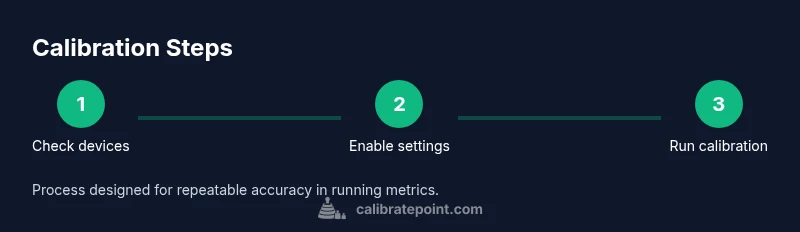
Before you begin, confirm both devices are ready. Update watchOS and iOS to the latest publicly released versions. In the iPhone’s Watch app, ensure Location Services and Motion & Fitness are enabled, and that the Health data categories needed for running are allowed. Check your battery levels so you don’t lose data mid-workout, and pick an outdoor space with clear sky visibility for GPS. If you’ve previously collected calibration data, consider whether you want to retain it or reset it so you can build a fresh profile. Finally, establish a simple route that you can repeat for verification later, ideally a 1- to 2-mile loop with varied terrain and a steady pace.
Outdoor calibration workout plan: walks and runs
To calibrate effectively, perform an outdoor workout of 15–30 minutes where you alternate between a comfortable jog and a brisk walking pace. The GPS trace will calibrate pace, distance, and elevation changes. Begin with a warm-up, then relax into a steady rhythm and finish with a light cool-down. If possible, carry your iPhone to supplement GPS data, especially in areas with poor signal. Aim to cover a minimum distance of a quarter of a mile to start, then extend as you feel confident. Record this workout in the Workout app so the watch can apply the new data to future estimates.
Verifying calibration and maintenance tips
After completing an outdoor calibration session, compare the watch’s distance estimates against a known route length or a map distance in real life. Run the same loop again later to verify improvements. If there’s still notable drift, consider repeating another outdoor session and, if necessary, resetting the calibration data and starting anew. Keep your firmware up to date, and perform calibration on a regular cadence—especially after major updates or changes to your routine. Calibrate Point suggests documenting your calibration dates and assessing accuracy over several workouts to ensure long-term consistency.
Indoor alternatives and limitations
Indoor running or treadmill workouts can contribute data for calibration, but GPS signals are often unavailable, which can limit accuracy. If you must train indoors, you can still improve your watch’s estimates by enabling the 'calibration' treadmill setting in the Health app and combining data with occasional outdoor walks. The key is to maintain consistent pacing and surface changes during outdoor sessions, so the watch can generalize more effectively across conditions. Remember that external devices or apps should be used with caution, and always follow safety guidelines when exercising indoors or outdoors.
Tools & Materials
- Apple Watch (updated to latest watchOS)(Enable Location Services and Motion & Fitness; ensure sufficient battery)
- iPhone with latest iOS(Keep within arm’s reach during calibration; enable Location Services)
- Outdoor location with reliable GPS signal(Prefer a 1-2 mile loop with varied terrain)
- Comfortable running clothes and shoes(Optional for longer calibration sessions)
Steps
Estimated time: 60-90 minutes
- 1
Update and verify prerequisites
Check that both devices run the latest software and that battery levels are sufficient. Confirm GPS visibility in the outdoor area you’ll use, and prepare your calibration route. This sets a reliable baseline for data collection.
Tip: Charge both devices to at least 50% before starting to avoid mid-workout interruptions. - 2
Enable essential settings
On iPhone, open the Watch app and ensure Location Services and Motion & Fitness are enabled. In Health data permissions, allow the running metrics categories to flow into the Health app for accurate calibration.
Tip: Disable Low Power Mode during calibration to prevent data throttling. - 3
Decide on calibration data strategy
Choose whether to reset existing calibration data to start fresh or retain it if you suspect it already reflects your current routine. Resetting can help if you’ve changed running form or routes significantly.
Tip: If in doubt, start fresh to build a clean baseline. - 4
Choose a repeatable outdoor route
Select a 1–2 mile loop with varied terrain and reliable GPS. Mark the distance with a map app so you can compare your watch’s output to a known distance later.
Tip: Consistency in route and conditions improves the reliability of results. - 5
Perform the calibration workout
Run/walk for 15–30 minutes, alternating between easy and brisk paces. Keep moving, avoid long stops, and let GPS data accumulate. This builds a representative calibration profile.
Tip: Maintain a steady pace and minimize abrupt changes to enhance data quality. - 6
Review data and save results
After finishing, inspect the Workout and Health data for reported distance and pace. Note discrepancies with the route distance and jot down observations for future tests.
Tip: Document differences and plan a follow-up test to confirm improvements. - 7
Verify with a follow-up run
Repeat the outdoor calibration on a subsequent day, ideally using the same route, to confirm whether metrics have improved and stabilized.
Tip: If results drift again, repeat calibration or reset data and retry. - 8
Maintenance and scheduling
Set reminders to recalibrate after major OS updates or changes in training load. Maintain a simple calibration log to track when you calibrated and what outcomes you observed.
Tip: Regular cadence prevents silent drift in running metrics.
Questions & Answers
Do I need to carry my iPhone during calibration?
Carrying your iPhone with GPS during calibration improves accuracy, especially in areas with poor signal. If you can’t carry it, the watch GPS can still work, but results may be less precise.
Yes, bringing your iPhone helps accuracy while calibrating, though you can proceed with just the watch if needed.
How long should a calibration workout last?
Aim for 15 to 30 minutes of outdoor walking or running, with varied paces, in a location with good GPS visibility.
About 15 to 30 minutes outdoors usually works best.
Can indoor running calibrate the watch?
Indoor runs without GPS data are less effective for calibration; outdoor sessions provide the strongest data.
Indoor can help a bit, but outdoor calibrations yield better results.
What if distances still appear off after calibration?
Re-run calibration sessions, consider resetting data, and verify on multiple workouts before abandoning calibration attempts.
If distances are off, repeat calibration and check again.
Should I recalibrate after device or OS updates?
Yes, OS or firmware updates can affect data collection; recalibrating helps keep metrics accurate.
Yes—recalibrate after updates to maintain accuracy.
Watch Video
Key Takeaways
- Outdoor calibration yields the strongest data for running metrics
- Keep devices updated; enable Location Services and Motion & Fitness
- Verify calibration with repeat tests before relying on data
- Maintain a calibration log and recalibrate after updates