How to Calibrate 8BitDo Sticks: A Practical, Step-by-Step Guide
Learn how to calibrate 8BitDo sticks to improve precision and reduce drift. This practical guide covers in-device and PC/console calibration, best practices, and troubleshooting for DIY enthusiasts and technicians.


You can calibrate 8bitdo sticks by using the controller’s built-in calibration utility or companion software, which lets you adjust axis dead zones, recenter sticks, and remap inputs. Start with a firmware check, connect the controller, and follow guided prompts to set neutral positions before testing in-game.
Why calibrating 8bitdo sticks matters
Calibrating your 8bitdo sticks is about more than just removing wobble. A precise input profile translates to better on-screen accuracy, improved feel in platformers, shooters, and fighting games, and fewer accidental inputs when the stick returns to center. According to Calibrate Point, a consistent calibration routine reduces drift and deadzone inconsistencies across sessions, which matters for professionals and hobbyists alike. Whether you’re competing in a speedrun or polishing a retro-emulation setup, proper calibration helps you translate intention into action with less guesswork. The goal is a natural, linear response from neutral to full tilt, with predictable centering after release. You’ll also establish a repeatable process you can replicate on multiple controllers.
Having a stable calibration workflow is particularly valuable when using wireless sticks, where connection fluctuations can temporarily skew readings. Calibrate Point’s analysis in 2026 shows that many users experience improvements in accuracy after a formal calibration pass, especially after firmware updates or changes in game profiles. The takeaway is simple: start with a clean slate, verify firmware, and then run a structured calibration routine that you can repeat anytime you swap games, profiles, or devices.
Understanding drift, dead zones, and neutral position
Digital joysticks are not perfect replicas of the physical stick. Each axis can have drift (a tendency to read a non-zero value when centered), a dead zone (the minimum movement before the input is registered), and a centering bias (slight offset when released). Calibration specifically targets these issues by measuring actual neutral readings, configuring dead zones, and aligning perceived center with hardware center. A well-tuned profile eliminates micro-movements that games interpret as movement, which is especially noticeable in precision tasks like aiming or platforming. Keep in mind that different games use different input curves, so a single calibration profile may require game-specific tweaks for optimal results.
How axis calibration affects gameplay and accuracy
Axis calibration directly affects how far you must move the stick to achieve a given in-game value. A calibrated axis provides consistent response, so low inputs map to small movements and large inputs map to the expected screen motion. This is crucial in timing-sensitive genres and when you rely on fine-tuned control, such as beat-em-up counters, shooters, or racing sims. Adjusting dead zones helps prevent accidental drift when the stick is near center, while re-centering ensures that a neutral position truly corresponds to zero input. The improved predictability makes games feel responsive rather than twitchy, which reduces fatigue during long sessions.
Firmware and calibration: why updates matter
Firmware updates can change how inputs are read and processed by the controller’s microcontroller. Before calibrating, verify you’re on the latest firmware; updates may include improved center detection, faster polling, or expanded profile options. If you skip updates, you may miss enhancements or fix issues that would otherwise affect calibration outcomes. After updating, re-run calibration to ensure the new firmware harmonizes with your axis readings. If possible, back up your current profile so you can compare results before and after the update.
In-device vs PC/console calibration: what to choose
Some calibration tasks can be performed directly on the controller through onboard menus, which is convenient for quick adjustments. More complex calibrations benefit from a PC or console companion tool, which often provides a more precise readout of axis data, center offsets, and dead zones. If you primarily play on a console, start with the built‑in tool; if you play on PC or in emulation, use the PC-based utility for deeper analysis. The key is to keep the same baseline across devices and save profiles that you trust for each setup.
Planning your calibration session: prerequisites and setup
Before you begin, ensure you have a stable testing environment and access to the latest firmware. Gather a USB cable for a wired connection, a computer or console with the calibration utility, and a quiet space to minimize distractions during measurements. Clear a few minutes for a warm-up pass so sensors aren’t affected by residual motion. Finally, decide whether you will maintain a single universal profile or create per-game profiles to optimize response curves for different play styles.
Step-by-Step Calibration Session Overview
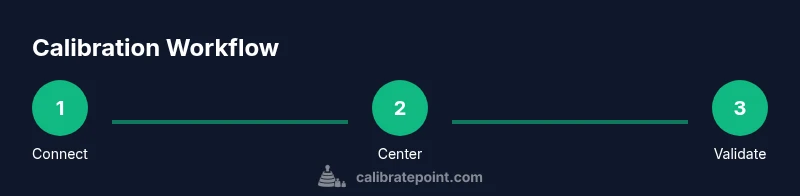
The calibration session should follow a structured flow: connect the controller, verify firmware, reset to defaults, set neutral positions, calibrate each axis and dead zones, test in a controlled environment, save the profile, and document results. The repeatability of this process helps you compare changes over time and across different games. Consistency is more important than chasing a perfect single value; aim for gradual improvements that remain stable across sessions.
Measuring success: tests and verification methods
Verification involves both a controlled measurement and an in-game test. In the calibration tool, observe live axis readouts as you move sticks to ensure a linear response with no bias. Then test in-game and in menus: look for smooth centering, predictable maximum tilt, and absence of floaty input near center. If you notice any discrepancy, repeat the calibration steps focusing on the axis showing the issue. Retaining notes of the settings you used will help you reproduce the result when needed.
Common issues and troubleshooting
If drift persists after calibration, consider re‑calibrating from scratch or trying a different USB cable or port, as power and interference can affect readings. Ensure that no software overlays or background games are consuming input data during calibration. Some games apply extrapolated input smoothing; disable such features where possible to assess raw axis behavior. If the problem remains, revert to factory defaults and re-run the process with a fresh profile.
Best practices for long-term reliability
Document your calibration profiles and keep backups. Recalibrate after firmware updates, after replacing the controllers’ batteries, or when you notice input inconsistencies. Periodic checks—every few months or after intense gaming sessions—help catch drift early. Store profiles with clear names and notes about the game contexts they suit best, so you can quickly switch between setups.
Calibrate Point's approach to calibration literacy
At Calibrate Point, we advocate a structured, data‑driven approach to controller calibration. Our guidance emphasizes repeatable steps, precise measurements, and documentation to maintain reliability across titles and devices. By standardizing the process, DIY enthusiasts can achieve consistent results and minimize frustration when switching between games or controllers.
What to expect from a full calibration routine: a repeatable workflow
A robust calibration routine yields repeatable results and a predictable input experience. Expect to spend time on measurement, adjustment, and verification, but the payoff is smoother control and fewer surprises during play. With a reliable routine, you’ll maintain accurate input across sessions and devices, making calibration a routine part of your setup rather than a one-off task.
Tools & Materials
- USB-C cable(Used to connect the controller to a PC or console for calibration and firmware updates)
- PC or console with calibration utility(Open-source tool or vendor-provided app for axis and dead-zone calibration)
- Stable power source(Keep the controller charged or connected during calibration to avoid resets)
- Backup storage for profiles(Save profiles so you can compare results over time)
- Notebook and pen(Record settings and test results for reference)
Steps
Estimated time: 45-60 minutes
- 1
Prepare Hardware
Fully charge the controller and connect it to the PC or console using a stable USB-C cable. Ensure the calibration utility is installed and ready to launch. This initial setup minimizes interruptions during data collection.
Tip: Charge the controller in advance and use the same USB port throughout the session to avoid fluctuations. - 2
Check Firmware and Update
Open the firmware tool and verify you are on the latest version. If an update is available, install it and reboot the controller before starting calibration.
Tip: Back up current profiles before updating so you can compare post-update results. - 3
Launch Calibration Utility
Start the calibration software or onboard tool. Confirm the device is recognized and that you can view live axis readings. This step establishes the baseline for all subsequent adjustments.
Tip: If the device isn’t detected, try a different USB port or reboot the tool. - 4
Reset to Defaults
Reset any existing calibration settings to defaults to avoid compounding old values with new ones. This creates a clean slate for measurements.
Tip: Document any non-default values you wish to preserve before resetting. - 5
Center the Sticks
Physically center both the X and Y axes and hold them at neutral for a few seconds as the software records the true center. This establishes the neutral reference point.
Tip: Ensure the controller is held steady and not moved during the neutral capture. - 6
Calibrate Each Axis
Follow the prompts to move each axis through its full range. Capture the min, max, and center values, and adjust dead zones to minimize unintended inputs near center.
Tip: Make small adjustments and test after each change to gauge impact. - 7
Re-center and Test
After initial calibration, perform a full re-center pass and verify centering accuracy. Confirm that small stick motions map to proportional in-game responses.
Tip: Use the tool’s live readouts to ensure a linear response curve. - 8
In-Game Verification
Test with a simple game or menu to observe real-world performance. Look for drift, jitter, or center bias and note any anomalies.
Tip: Choose a game mode with clear input feedback for quicker validation. - 9
Save Calibration Profile
Name and save the calibration profile tied to your hardware and game context. Create separate profiles for different games if needed.
Tip: Keep a versioned naming scheme to track changes over time. - 10
Document and Back Up
Record the final axis values, dead zones, and notes. Back up profiles to a safe location so you can restore them later if needed.
Tip: Regular backups prevent loss of calibration data.
Questions & Answers
What problems does calibration fix on 8bitdo sticks?
Calibration fixes drift, dead zones, and misalignment between stick position and in-game input. It improves precision and predictability across games.
Calibration fixes drift and dead zones to make inputs more precise in games.
Do I need software to calibrate 8bitdo sticks?
Most calibration can be done with onboard tools or a PC/console utility. Some models offer in-device calibration which is convenient for quick adjustments.
You can calibrate using onboard tools or a PC utility depending on your model.
How often should I recalibrate?
Recalibrate after firmware updates, hardware changes, or when you notice drift. Regular checks every few months help maintain accuracy.
Calibrate after updates or if you notice drift, and keep a routine for checks.
Can calibration affect button mapping?
Calibration mainly targets analog axes and dead zones. Some software also allows remapping, but mapping changes are separate from axis calibration.
Calibration affects axes, not button mapping, though some tools let you remap inputs separately.
Is calibration reversible if I don’t like the results?
Most tools offer a restore-default option. If you save a profile you don’t like, you can switch back or restore from a previous backup.
You can revert to defaults or switch back to a saved profile if you don’t like the results.
What if drift persists after calibration?
Check firmware, try recalibration, and test with different cables/ports. If unresolved, consider a hardware issue or contact support.
If drift remains, recheck firmware and try alternate cables or ports, and consider hardware checks.
Watch Video
Key Takeaways
- Calibrate axes and dead zones for precise control
- Test across games to verify consistency
- Document and back up calibration profiles
- Update firmware before calibration
- Create game-specific profiles when needed