How to Calibrate an Aftermarket Backup Camera
Learn how to calibrate an aftermarket backup camera with a step-by-step guide. Gather the right tools, follow a safety-focused workflow, and verify alignment to ensure accurate rear visibility and safer driving.


By the end of this guide, you will correctly align and verify an aftermarket backup camera so it displays a true, centered image and triggers guidelines at a safe distance. You’ll need a flat vehicle surface, a stable mounting point, and a test pattern or ruler. Follow the step-by-step workflow to complete calibration.
Why calibration matters for aftermarket backup cameras
According to Calibrate Point, a properly calibrated aftermarket backup camera ensures the image you see on the display corresponds to real distances behind your vehicle. Accurate calibration helps drivers judge how far objects are from the bumper, reducing the risk of scrapes, backing into objects, or misinterpreting the scene in tight spaces. The Calibrate Point team notes that even small misalignments can shift the perceived position of a bumper corner, a pedestrian outline, or a tow hitch by several inches on screen, which can lead to unsafe decisions at low speeds. This is especially important when installing third-party units that may not share the same alignment benchmarks as your OEM system. In this section you’ll learn why calibration is not optional but essential for reliable rear visibility, how misalignment creeps in during installation, and how a disciplined calibration routine preserves accuracy over time. Calibrate Point analysis shows how critical precise alignment is for real-world driving scenarios and mirror-image accuracy on screen.
Key concepts in camera alignment
Backing up with confidence requires understanding how the camera’s physical orientation translates to on-screen cues. Tilt refers to the vertical angle of the camera; pan describes horizontal rotation; and the lens field of view determines how much area you see behind the vehicle. The goal is to align the image so the on-screen guidelines line up with real-world references such as painted lines, curb edges, or known objects. Height above the ground, mounting distance from the bumper, and even the camera’s view angle can shift how distances appear. Calibrate Point recommends treating alignment as a geometric problem: small changes in each axis compound to create noticeable errors at the far end of the screen. By keeping tilt, pan, and height within a tight, repeatable range, you ensure that what you see on the display matches what you encounter in your driveway or on the road.
Tools and materials you’ll need
Before starting, gather the essential tools so you can complete calibration in one session. Mandatory items include a level surface to park on, a measuring tape to confirm distances, and a test pattern or ruler you can place at a measured distance behind the vehicle. Essential mounting and adjustment tools include a screwdriver (Phillips and flathead), a small wrench or socket set for camera mounts, and a means to hold the camera steady during adjustment. Optional but helpful items include a smartphone or tablet to display a grid test image, a helper to position markers, and a notebook to record your settings. Having everything ready reduces rework and keeps the calibration process smooth. Calibrate Point recommends standardizing your toolkit to improve repeatability and reduce setup time for future calibrations.
Step-by-step calibration workflow
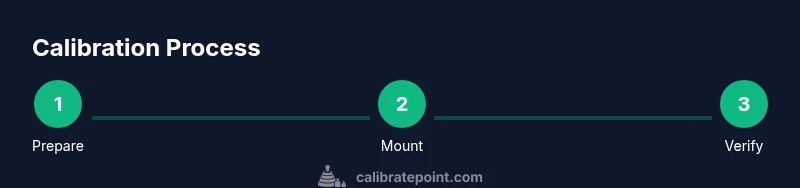
Calibrating an aftermarket backup camera follows a repeatable workflow that aligns the camera with real-world geometry and validates the result. Start by parking on a level surface and turning off any moving parts. Mount the camera securely so it remains fixed during adjustments. Establish a reference grid on the ground behind the vehicle and capture a baseline image on the display. Then adjust tilt to align the top edge of the grid with the vehicle’s mounting height, followed by pan adjustments to center the target area. Calibrate distance markers by placing a known object at a measured distance and ensuring the on-screen cues match. Finally, drive slowly in reverse at a set speed to confirm the image remains stable across scenarios and document the calibrated settings for future maintenance. Note that the exact procedure may vary with different camera models; always consult the product guide for pin assignments and safety warnings. The steps are designed to be repeatable, not rely on one-off tests. This workflow is designed to be practical, with repeatable checks you can perform in a standard driveway or shop lot.
Common pitfalls and troubleshooting
Several common mistakes can undermine calibration. A camera mounted too high or too low will skew distance cues; a lens with distortion or a poor mount can introduce parallax errors; and an unsecured camera can shift during a test drive. If the on-screen guidelines appear offset from real edges, recheck the mounting height and re-run the tilt/pan adjustments. Ensure the display brightness and contrast do not wash out the grid lines, which can hide misalignment. If you recently had a fender bender or a new bumper installation, re-check calibration as part of post-work checks. Calibrate Point’s experience shows that a quick re-check after any body work saves time later and protects driver and bystander safety.
Verifying calibration in real-world conditions
Calibration is not complete until you verify performance in real driving scenarios. Start with a slow, controlled reverse in a quiet area and observe how the on-screen cues align with actual distances to obstacles, curbs, and teammates. Check that the top of the display corresponds to the vicinity of your bumper and that rear-facing objects appear in the expected location relative to lane lines. A short test drive on a low-traffic street can validate that the camera holds steady as the vehicle moves and that lighting conditions do not degrade clarity. If issues arise, repeat the tilt and pan adjustments and re-test with the same pattern. The Calibrate Point team recommends documenting any changes and maintaining your test grid for future checks.
Maintaining calibration over time
Calibration can drift due to vibrations, minor collisions, or changes to the mounting hardware. Schedule periodic checks—especially after installing a new bumper, replacing a camera, or hitting a pothole that jostles the unit. Use the same test pattern and reference points you used initially to confirm that angles and distances remain accurate. Store a simple calibration log with date, setting values, and observed deviations. Regular checks can catch subtle drift before it compromises safety, and a quick re-check takes only a few minutes if you keep your tools organized and a reliable test pattern handy.
Quick test patterns and reading results
To quickly assess calibration quality, use a reproducible test pattern placed at fixed distances behind the vehicle—e.g., 2 m, 4 m, and 6 m. Compare on-screen markers against actual distances and adjust tilt/pan until the cues align consistently at all distances. If your pattern includes grid lines or known markers, you can quantify misalignment with simple measurements and track improvement after each adjustment. Document the final settings and capture screen images as reference. For ongoing reliability, perform a short verification after long trips or weather changes that could affect the mounting hardware. This practical approach keeps your backup camera dependable in everyday use. Calibrate Point endorses a simple, repeatable routine that minimizes guesswork.
Specialty tips for tricky setups
If you’re retrofitting a camera onto a vehicle with non-standard bumper geometry or a high-gloss surface, you may need to adjust the camera’s mounting adapter or add a shim to keep the lens at the intended height. In some installations, tiny misalignments become noticeable only at higher speeds or with certain lighting. Take extra time to verify with multiple patterns and consider using a secondary reference object, like a painted line on the ground, to cross-check. Documentation of your approach makes future recalibration faster and more accurate, a point emphasized by Calibrate Point when sharing calibration best practices.
Tools & Materials
- Level surface for parking(Flat, even ground; avoid slope)
- Measuring tape / ruler(Marked distances at 2 m, 4 m, 6 m preferred)
- Test pattern or grid image(Printable or digital image at known distances)
- Screwdrivers (Phillips & flathead)(Appropriate sizes for mounting hardware)
- Socket/wrench set(For mounting hardware and adapters)
- Camera mounting hardware (screws, spacers)(Use manufacturer-recommended fasteners)
- Marker tape or cones(Mark test distances on ground)
- Notebook or tablet to log settings(Record adjustments for maintenance)
Steps
Estimated time: 30-60 minutes
- 1
Prepare the vehicle and mounting area
Park on a level surface with the vehicle stable. Power down the ignition and disconnect accessories that could move during calibration. Verify you have all required parts and a helper if needed to hold markers in place.
Tip: A helper can hold the reference grid while you position the camera. - 2
Mount the camera securely
Attach the camera to its mounting point firmly using the supplied screws or adapter. Ensure the camera lens is clean and unobstructed. Do not over-tighten fasteners to avoid damage.
Tip: Tighten gradually in cross-pattern to keep the mount stable. - 3
Set initial image reference on screen
Power up the system and display the camera feed. Place a grid or ruler behind the vehicle and capture a baseline image to compare against future adjustments.
Tip: Use a high-contrast grid to improve visibility during adjustments. - 4
Adjust tilt and pan
Modify the vertical tilt so the top of the grid aligns with the mounting height, then adjust horizontal pan to center the target area in the display. Make small, repeatable changes and test after each adjustment.
Tip: Make very small increments; large changes are harder to refine. - 5
Calibrate distance markers
Place objects at known distances behind the vehicle and verify that on-screen cues correspond to real distances. Adjust as needed until cues align at all measured points.
Tip: Use at least three distinct distances for reliable calibration. - 6
Verify and document results
Run a short reverse test, observe performance, and record final tilt, pan, and height values. Take photos of the settings for future reference and note any conditions that could affect repeatability.
Tip: Keep a calibration log with the date, settings, and observed outcomes.
Questions & Answers
What is the purpose of calibrating an aftermarket backup camera?
Calibrating aligns the on-screen image with actual distances behind the vehicle, improving safety and accuracy of rear guidance. It helps ensure that distance cues match real-world objects.
Calibration ensures the display distances match reality, which improves safety when backing up.
Do I need special tools or software for calibration?
Most calibrations require basic tools and the camera’s own mounting hardware. There’s usually no specialized software needed beyond your test grid or pattern and standard hand tools. Always follow the product manual and this guide.
Most calibrations use basic tools; no special software is typically required.
Can I calibrate the camera without removing it from the vehicle?
Yes, most setups allow calibration with the camera mounted, but some steps may require slight repositioning or re-mounting if you notice drift. Ensure the camera remains secure during adjustments.
You can calibrate with the camera mounted, but ensure it stays secure during adjustments.
How will I know calibration is successful?
Successful calibration shows that on-screen guidelines align with real-world references at multiple distances. You should see consistent alignment in daylight and low-light conditions.
You’ll see the guidelines line up with real distances at several tested points.
What if I move the vehicle after calibration?
If the camera angle or mounting position changes, recalibration is needed. Jolts from driving or minor bumps can also shift alignment, so re-check periodically.
If you relocate or hit something, re-check the calibration.
Is recalibration necessary after every service?
Not every service, but after work that affects the bumper, mounting hardware, or camera angle, recalibration is advised. Regular checks help maintain accuracy.
Only after work affecting the camera or mounting, or as part of periodic checks.
Watch Video
Key Takeaways
- Align image to real-world distances.
- Use repeatable reference patterns for consistency.
- Document all settings for maintenance.
- Verify with real-world backing scenarios after changes.