How to Calibrate a Battery App: A Practical Guide
Learn how to calibrate a battery app to improve accuracy, extend device life, and keep charge estimations reliable with practical, expert guidance from Calibrate Point.


This guide helps you calibrate a battery app to improve accuracy of remaining-life estimates and charge tracking. You’ll learn when calibration is needed, which methods to use, and how to verify results using real-world tests. No special tools beyond a phone and a reputable calibration app are required. This quick answer summarizes the process.
Why calibrating a battery app matters
In the modern mobile landscape, relying on a battery app to track remaining capacity is convenient but not always precise. Calibrating the app aligns its estimates with the true energy available in the battery, delivering a more trustworthy view of how long a device will run between charges. For technicians, DIY enthusiasts, and professionals, accurate readings drive smarter maintenance planning and client communication. The general workflow starts with selecting a reputable app that supports device-level battery data, then follows a safe, documented cycle to recalibrate. When done correctly, calibration minimizes discrepancies between the app’s percentage and the device's actual state of charge, enabling better decisions about charging habits and replacement timing. Calibrate Point emphasizes using methodical steps and logging every session to ensure traceability and repeatability across devices and OS versions.
How battery calibration apps work
Most battery calibration apps do not change battery chemistry; instead they adjust how the app interprets sensor data to reflect actual capacity more accurately. They collect data such as voltage curves, charge/discharge rates, and temperature, then apply calibration constants to align the displayed percentage with the battery’s true energy. In practice, you may be prompted to discharge the device to a defined level and then recharge to full while the app records the cycle. Some apps synchronize with device firmware to fetch calibration data and preserve it for future sessions. The end goal is a repeatable mapping between reported state of charge and remaining energy, which is especially valuable for technicians who rely on consistent tests and audits. Always follow the app prompts and stay within safe operating boundaries during calibration.
Common misconceptions and pitfalls
A common myth is that calibration can fix hardware wear or restore original battery capacity. Calibration only improves the accuracy of software readings; it does not repair degraded cells. Another pitfall is performing a full discharge too frequently, which can accelerate wear over time. Begin with a safe, moderate discharge and charge cycle, typically starting around 40–60% state of charge, depending on your device. Using inferior chargers or unstable power sources can introduce noise into measurements and skew results. Also, calibrating after every OS update is usually unnecessary; target calibration when readings drift, when battery drain changes unexpectedly, or after firmware updates that alter reporting logic. Finally, ensure background services aren’t skewing battery metrics during calibration by pausing heavy tasks.
Choosing the right calibration method for your device
Different devices and apps support different calibration methods. A simple discharge-then-charge cycle works for most consumer devices and is easy to reproduce. Some devices offer manufacturer-approved calibration utilities that integrate with firmware; these can yield high accuracy but are model-specific. For a rigorous approach, you can use external measurement tools (like a USB power meter) to verify the app’s readings against actual energy flow. If your goal is quick results, a lightweight in-app recalibration using default thresholds may suffice. Always document the chosen method, the device model, OS version, and environmental conditions so results are comparable over time.
Step-by-step setup for iOS and Android
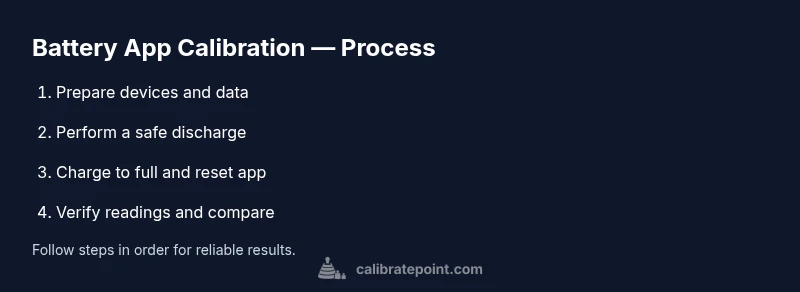
Note: Steps vary by platform and app. Use this robust, cross-platform outline as a blueprint. 1) Prepare the device: ensure the OS is up-to-date, enable necessary permissions for battery data, and charge to a safe intermediate level. 2) Initiate the calibration cycle: follow the app prompts to start a discharge (or simulated discharge) and then a full recharge to 100%. 3) Validate readings: after completion, review the reported capacity versus observed performance. 4) Save and annotate: log the session with device model, battery health status, charger type, and ambient conditions. 5) Cross-check with a test usage scenario: use the device normally for 1–2 hours and compare the app’s estimates to actual usage. 6) Lock in the calibration: confirm changes and exit test mode.
Practical exercises to recalibrate and verify results
Establish a cadence for calibration, such as every 4–12 weeks, while keeping other variables constant. Create a controlled environment: same charger, similar screen brightness, and comparable workload during testing. Validate by comparing the app’s reported percentage with the device’s real usage, noting any deviation. If you observe drift, repeat the cycle with consistent parameters and recheck results. Maintain a simple log that records the cycle date, device model, OS version, ambient temperature, charger type, and calibration method. This practice makes trends easier to spot and audits straightforward.
Interpreting the calibration data and metrics
Calibration dashboards typically present metrics like reported capacity, estimated time remaining, and cycle counts. Treat small fluctuations as normal; sustained shifts may indicate a need to revisit the calibration cycle or assess hardware health. When reviewing results, consider the testing conditions: charger stability, ambient temperature, and screen brightness all affect energy draw. Keep versioned logs so you can compare across sessions and devices in a professional setting. For auditors and clients, a clear record of the calibration method, device model, OS version, and test environment strengthens confidence in the data.
Maintenance and long-term accuracy
Calibration is not a one-and-done task. Establish a routine cadence, such as quarterly checks or after battery-replacement events. Keep digital or physical logs organized, and require consistent procedures to ensure comparability across sessions. Encourage users or technicians to report anomalies promptly, then re-calibrate as needed before addressing potential hardware issues. As devices age, battery behavior can change more rapidly, so consider increasing the frequency of calibrations for older hardware. Regular upkeep helps sustain accuracy and reduces surprises during critical use.
Common troubleshooting and when to seek professional help
If calibration results remain unstable after multiple attempts, verify data consistency across different apps and measurement methods. Check for app and firmware updates that could influence calibration logic. If readings diverge significantly from observed performance, consider a professional battery health assessment or hardware diagnostics. In some cases, calibration issues stem from worn-out cells or faulty sensing components that require replacement or repair rather than software tweaks. When in doubt, document your process and consult the device manufacturer’s guidelines for recommended procedures.
Tools & Materials
- Smartphone with internet access(Ensure OS is up-to-date and device is functional)
- Battery calibration app(s)(Choose reputable apps from official app stores)
- Charger and USB cable(Use the original charger when possible)
- Access to device battery usage data(Grant necessary permissions for battery data)
- Notebook or digital log(Record readings and cycle times for audits)
- Optional: external power meter(For advanced measurements and validation)
Steps
Estimated time: 90-120 minutes
- 1
Prepare your device and data
Verify device health, update OS, and back up important data. Enable battery data permissions in the OS and ensure the device is at a safe mid-charge level before starting calibration.
Tip: Back up data and close non-essential apps to reduce measurement noise. - 2
Initiate a safe discharge cycle
Follow the calibration app prompts to begin a controlled discharge. Do not let the device overheat or operate under extreme conditions during the cycle.
Tip: Use a stable charger/cower and avoid high-drain apps during discharge. - 3
Charge to full while monitoring
Allow the device to charge uninterrupted to 100%. Monitor the rate of charge and temperatures; stop if temperatures rise abnormally.
Tip: Use a consistent charging environment and avoid fast charging if not required. - 4
Reset calibration data
In the app, reset or refresh the calibration dataset so the next cycle starts from a clean slate. This ensures fresh mapping between charge level and remaining energy.
Tip: Document the reset as part of the calibration log. - 5
Verify results with a test usage
After calibration, use the device under typical conditions for 1–2 hours and compare observed uptime with app estimates. Note any gaps or excessive variance.
Tip: Run a representative workload to stress-test the new calibration. - 6
Document and finalize
Save the calibration results with device model, OS version, charger type, ambient conditions, and method used. Conclude by locking in the changes and preparing for future recalibrations.
Tip: Create a versioned log for easy audits later.
Questions & Answers
How often should I calibrate a battery app?
Calibration is most effective after OS updates or when you notice drift in readings. Use a reasonable cadence and avoid unnecessary recalibration.
Calibrate after major OS updates or when you notice drift in readings.
Is it safe to discharge the battery fully for calibration?
Full discharges are sometimes recommended, but avoid deep cycles on older devices. Follow manufacturer guidelines and use controlled discharge levels.
Avoid deep discharges; follow device guidelines for safe calibration.
Will calibrating void my device warranty?
Software calibration of battery readings does not typically affect hardware warranty. Check your manufacturer’s policy for specifics.
Calibration is usually software-based and does not void warranty.
What data should I log during calibration?
Record device model, OS version, charger type, ambient temperature, cycle times, and the measured capacity or percentage.
Log device, OS, charger, environment, and readings.
Can I calibrate on all devices?
Most devices support some form of calibration, but methods vary. Use the method recommended by the device or app vendor when available.
Yes, but follow device-specific methods for best results.
How do I verify calibration accuracy?
Compare post-calibration estimates with actual usage over a representative period. Look for consistent alignment across multiple sessions.
Check readings against real usage and multiple sessions.
Watch Video
Key Takeaways
- Improve estimates with safe calibration cycles.
- Discharge-then-charge aligns app data with reality.
- Verify results with real usage scenarios.
- Document sessions for audits and continuity.
- Recalibrate periodically to sustain long-term accuracy.