Calibrate Gamepad for Precision: A Step-by-Step Guide
Learn to calibrate a gamepad for precise input on PC or console. This educational guide covers why calibration matters, methods, a thorough step-by-step process, and practical testing tips.


Calibrate your gamepad to restore precise input and accurate button mapping on PC or console. This quick guide outlines when to calibrate, the main methods, and the essential steps to test and save a reliable profile. Expect improved accuracy, reduced drift, and more consistent control across games.
Why calibrating your gamepad matters
Drift, dead zones, and uneven button response can spoil an otherwise enjoyable session. Calibrating your gamepad aligns the physical input with the digital reading, restoring accuracy for aiming, racing, and platforming. Regular calibration helps maintain consistent control over time, especially after firmware updates or new game patches. According to Calibrate Point, precise input starts with regular calibration and a clean, testable workflow. In this section, we’ll cover what calibration does, when you should do it, and how to approach it methodically.
When to calibrate and what to expect
You should consider calibrating your gamepad when you notice drift (stick inputs that don’t return to center), uneven button press, or inconsistent in-game responsiveness. Console ecosystems may offer built-in calibration utilities, while PC users often rely on operating system tools or vendor apps. Expect a few minutes to complete a basic calibration, and longer if you’re also fine-tuning dead zones and button mappings. The goal is a repeatable, testable result that translates cleanly from hardware to on-screen actions. Calibration isn’t a one-and-done task; consider scheduling a quarterly check or performing a quick retest after major game or driver updates.
Preparing your setup: prerequisites and workspace
Before you begin, charge the controller fully and remove any nearby sources of interference (other wireless devices, metal surfaces, etc.). Clean the thumbsticks with a microfiber cloth to remove dust or grime that could affect readings. If you use multiple controllers, label profiles to avoid cross-contaminating settings. Having a stable table surface and the right cables helps ensure readings aren’t skewed by movement during calibration. As you prepare, keep a test game or a simple input tester ready to verify results after each step. A tidy workspace reduces distractions and helps you focus on precise axis alignment.
Step-by-step calibration methods: PC, console, and standalone tools
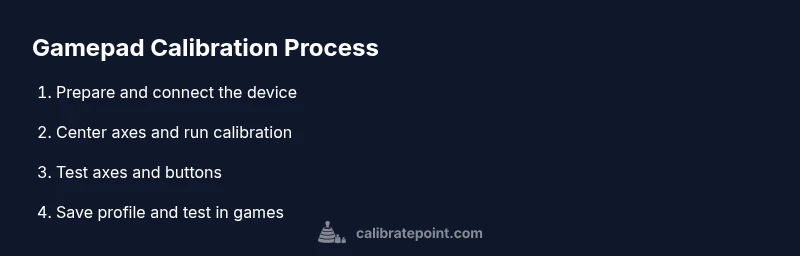
There isn’t a single universal method for every device, but most workflows share core steps: access the calibration tool, center the axes, run tests for both sticks and triggers, and save the profile. On Windows, you’ll typically access the Game Controllers panel, choose Properties, and use the Settings button to start calibration. Console users may find calibration under system settings or game-specific options. If your device includes a vendor app, use it to capture precise axis ranges and debounce settings. In many cases, a quick auto-calibration followed by manual fine-tuning offers the best balance between speed and accuracy. The aim is to produce reproducible axis values that map intuitively in games. As you proceed, refer to the vendor’s guidelines for model-specific notes. If your device supports it, run an automated test sequence to quickly verify center return and axis symmetry.
After calibration: testing and saving profiles
Once calibration completes, test each axis movement across several quick tasks: aim tests, sprinting, and diagonal movement in a test scene. Open a simple test game or use a controller tester to verify button mappings and stick centering. If you observe drift or dead zones that feel “sticky,” re-open the calibration tool and adjust the dead zone percentage or return-to-center threshold. Save your new profile with a descriptive name, then re-test in a variety of games to confirm that the results hold across contexts. Back up the profile file for safekeeping. Document any model-specific quirks for future reference and share notes with teammates when calibrating in a shared lab or workshop.
Troubleshooting common issues after calibration
If calibration doesn’t improve accuracy, check hardware wear on thumbsticks, try a fresh set of batteries, or repeat calibration after a few hours to avoid residual sensor warm-up effects. Some games apply their own dead zones; you may need to adjust in-game sensitivity as well. If drift persists only in certain games, the issue may be game-specific rather than hardware. In such cases, test with a universal input tester to confirm that the problem originates from the game rather than the controller. Keeping expectations realistic and maintaining separate profiles for different games can help you manage occasional inconsistencies.
Tools & Materials
- Gamepad to calibrate(Primary device; ensure it’s charged and responsive)
- PC or console with internet access(For firmware checks and calibration software)
- USB cable or wireless dongle(Stable connection during calibration)
- Updated firmware (if available)(Check manufacturer site for latest firmware)
- Calibration software/tool(Vendor apps or OS utilities if supported)
- Clean microfiber cloth(Wipe around thumbsticks to remove debris)
- Backup profiles(Store a copy before editing calibration)
- Test game or input tester(Quick validation after calibration)
Steps
Estimated time: 30-60 minutes
- 1
Check prerequisites
Verify device compatibility, ensure the gamepad is charged, and have a test environment ready. Confirm you have a stable workspace and any needed cables. This step prevents interruptions during calibration.
Tip: Charge fully and remove any nearby wireless interference. - 2
Connect and verify connection
Connect the gamepad to the PC or console using a reliable method (USB or paired Bluetooth). Confirm the device is recognized in the OS or game settings, and run a quick input test to verify basic responsiveness.
Tip: Use a simple input tester to confirm that all axes register smoothly. - 3
Open calibration tool
Launch the calibration utility provided by the console or vendor app, or use a standard game controller tester if no dedicated tool exists. Ensure you have the latest version installed.
Tip: If auto-calibration is available, run it first, then proceed manually. - 4
Center axes and reset sticks
Center both sticks and move them to their extremes (top, bottom, left, right) several times to map their full range. This helps the calibration tool capture accurate axis limits.
Tip: Keep thumbs relaxed; avoid pressing hard while moving the sticks. - 5
Run auto-calibration (if available)
Use the auto-calibration feature if offered, then review axis ranges. Auto-calibration can speed things up, but you’ll usually want to verify and fine-tune manually afterward.
Tip: Auto-calibration may miss subtle drift; follow with manual tweaks. - 6
Calibrate dead zones
Adjust dead zones so tiny stick movement doesn’t register input, while large enough movements still translate to precise actions. Test different zones in a controlled environment.
Tip: Start with small dead zones and increase gradually while testing in-game. - 7
Test button mappings
Press every button and trigger to ensure mappings align with on-screen actions. Note any misreads and re-run axis calibration if needed.
Tip: Keep a log of any problematic buttons for future reference. - 8
Save and export profile
Save the calibration profile with a clear name indicating the gamepad and setup. If possible, export the profile for backup and future reuse.
Tip: Name conventions help you manage multiple devices or configurations. - 9
Final in-game testing
Play a quick test session in a few games to confirm the calibration holds across contexts. If drift appears, revisit steps 4–6 and adjust.
Tip: Always test across at least two game types (shooter and platformer) for broad validation.
Questions & Answers
What is calibration and why is it important for gamepads?
Calibration aligns the physical inputs with their digital readings, reducing drift and improving accuracy in games. It’s particularly helpful after firmware updates or when switching games with different sensitivity settings.
Calibration aligns inputs with readings to reduce drift and improve accuracy across games.
How often should I calibrate my gamepad?
Calibrate when you notice drift, after firmware or game updates, or if your inputs feel inconsistent. Regular checks help maintain responsiveness over time.
Calibrate when you notice drift or after updates; regular checks help maintain responsiveness.
Can calibration fix thumbstick drift permanently?
Calibration can correct many drift symptoms by realigning axis ranges, but severe wear or hardware faults may require replacement parts or professional service.
Calibration fixes many issues, but hardware wear may need replacement.
What should I do if calibration doesn’t help?
Revisit axis range and dead zone settings, ensure the device is clean, and try a different calibration tool if available. If problems persist, test on another device to isolate the issue.
If calibration fails, check settings, try another tool, and test on another device to isolate the issue.
Does firmware influence calibration outcomes?
Yes, firmware updates can alter sensor behavior or reporting. After updates, recalibration is often recommended to align with the latest firmware.
Firmware changes can affect sensors; recalibrate after updates.
Are console calibrations different from PC calibrations?
The process differs by platform, but the goals are the same: correct axis alignment, dead zones, and reliable button mappings. Use the platform’s built-in tools or vendor apps as available.
Calibrations aim for the same goals; use platform tools or vendor apps as available.
Watch Video
Key Takeaways
- Calibrate gamepad to remove drift and improve precision.
- Follow both axis calibration and dead zone tuning for reliable results.
- Test across multiple games to ensure broad consistency.
- Back up profiles and document settings for future calibration tasks.