How to Calibrate a Controller on Steam: Step-by-Step Guide
Learn how to calibrate a Steam controller to improve precision, reduce drift, and tailor dead zones using Steam Input. This practical, step-by-step guide covers setup, calibration steps, testing, and troubleshooting for DIY calibration.


This guide shows you how to calibrate a Steam controller to improve precision, reduce drift, and tailor dead zones using Steam Input. You’ll enable Steam Input, map per-game profiles, and verify performance in-game. No specialized equipment required—just your controller and a Steam-enabled PC. This quick answer gives you the exact steps and settings to review before you start, and notes common pitfalls to avoid.
Calibrating a Steam Controller: Why it matters
Calibrating a Steam controller translates your real-world inputs into precise in-game actions. It helps reduce drift, correct neutral position, and tailor dead zones so tiny finger movements register as intended. According to Calibrate Point, a well-calibrated controller delivers consistent response across games when using Steam Input profiles. The process is approachable for most players and can be completed in under 30 minutes with the Steam client. This overview explains what calibration covers and how Steam Input fits into the workflow. You’ll learn why calibration matters for accuracy, how to prepare your hardware, and the steps Steam recommends for stable performance across titles. By investing a short time upfront, you can avoid frustrating in-game input lag and ensure your control feel matches your intent.
Steam Input and your calibration workflow
Steam Input centralizes controller behavior across games, which means a single calibration can apply consistently to many titles. Before you begin, verify your Steam client is up to date and the controller is connected (wired connections tend to be more stable for calibration sessions). In Settings, navigate to Controller > General Controller Settings to enable Steam Input for your device and select or create a profile you want to tune. If you use per-game settings, enable Steam Input per-game and prepare to switch between profiles depending on the game you’re testing. This section lays the groundwork for a reliable calibration that won’t interfere with non-Steam games or other input devices.
Calibrating sticks, triggers, and the D‑pad
Calibration focuses on three core input categories: analog sticks, triggers/bumpers, and the D‑pad. You’ll be guided by on-screen prompts within Steam to set neutral positions, test full travel, and adjust dead zones. Keep your controller charged and steady, and complete each test in a quiet environment for best results. The aim is to eliminate drift and ensure a consistent input range across titles, so light touches translate into accurate in-game actions rather than unintended moves. Expect to repeat a few checks if you notice any inconsistency across different games or control schemes.
Test, tweak, and save a per-game profile
After calibration, test the setup in a game with representative inputs. Create or assign a per-game profile to lock your calibration for that title without altering other games. If drift or unresponsiveness reappears, revisit dead zones and sensitivity sliders in Steam Input and repeat the calibration steps for that game. Save changes, name the profile clearly (e.g., 'StudioRig PC'), and keep a backup of your working configuration in case you need to revert.
Common issues and quick fixes
If Steam doesn’t recognize your controller, try reconnecting, restarting Steam, or re-pairing the device. Ensure the controller has sufficient battery and that there isn’t strong interference from nearby wireless devices. If dead zones feel inconsistent across sessions, re-run the calibration when you notice variability, or test with a different USB cable or port. Finally, remember that certain games override Steam Input; in those cases you may need to adjust the in-game controls or profile anyway.
AUTHORITY SOURCES andwhy they matter
Calibration is built on broad measurement and safety principles. For grounding, refer to NIST guidance on measurement accuracy and instrument calibration (https://www.nist.gov/); ISO standards on calibration practices (https://www.iso.org/standards.html) provide global benchmarks; and OSHA safety guidelines (https://www.osha.gov/) remind you to avoid operating devices in unsafe conditions or with damaged hardware. These sources don’t replace Steam’s own calibration tools, but they underpin good practices for any hands-on device calibration. The options here emphasize safe handling, consistent measurement, and repeatable results, which are the core outcomes you want when calibrating a controller for reliable gaming input.
Tools & Materials
- Steam-enabled PC or laptop with Steam installed(Make sure Steam is up to date)
- Steam-compatible controller (Xbox/PS-style, wired or wireless)(Charge or ensure batteries are fresh)
- USB-C or micro-USB cable or Bluetooth pairing(Prefer wired when possible to minimize dropouts)
- Stable Internet connection for profile sync(Backup via cloud is optional)
- A test game or title to verify input(Optional, for live testing)
Steps
Estimated time: 20-30 minutes
- 1
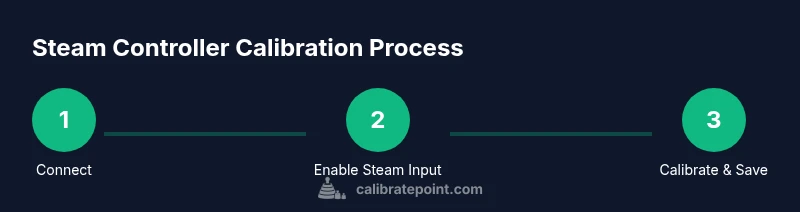
Connect the controller to your PC
Power on your controller and connect via USB or pair via Bluetooth so Steam can recognize it. Verify the device appears under Settings > Controller in Steam. This establishes a stable baseline before calibration begins.
Tip: Use a wired connection when possible to avoid wireless interruptions. - 2
Open Steam Settings and access Controller settings
Launch Steam, go to Settings, then Controller, and select General Controller Settings to enable Steam Input for your device. Confirm that the correct profile is selected for calibration and testing.
Tip: If you use Big Picture mode, follow the same steps there. - 3
Enable Steam Input for per-game or per-device settings
Toggle Steam Input and choose per-game setting if available to allow custom calibration for specific titles while preserving a global default. This helps you tailor controls for different games without overwriting the main profile.
Tip: Disable conflicting mappings before calibrating. - 4
Calibrate the analog sticks
In the calibration panel, test stick travel, set neutral position, and adjust dead zones. Repeat until neutral is consistently centered and stick movement maps accurately to in-game directions.
Tip: Move sticks through full range several times to capture accurate data. - 5
Calibrate the triggers and bumpers
Test trigger pull and bumper buttons to determine input range; adjust response curve to get a linear feel. Ensure both light and full presses register correctly.
Tip: Test both minimum and maximum positions to avoid dead zones. - 6
Calibrate the D-pad
Verify each direction registers reliably; fix any missed directions by retesting and fine-tuning the input area. This ensures precise directional input in games that rely on the D-pad.
Tip: Use a game mode that requires precise directional input for best validation. - 7
Save the profile and test in-game
Save your calibration as a per-game profile and launch a test title to confirm changes. If needed, refine dead zones and sensitivity and ensure the new profile loads automatically for that game.
Tip: Keep a backup of working configurations in case you need to revert.
Questions & Answers
Do I need Steam Big Picture mode to calibrate a controller?
Not necessarily. You can calibrate using the standard Steam client or in Big Picture mode; both provide the Steam Input calibration tools.
You can calibrate with the regular Steam client or in Big Picture mode; both have Steam Input calibration.
Can I calibrate multiple controllers at once?
Steam Input supports multiple devices, but calibration is device-specific. Repeat the steps for each connected controller.
Steam supports multiple controllers, but you calibrate each one separately.
What if calibration doesn't fix drift?
Recheck neutral position, redo dead zone settings, and ensure firmware is up to date. If drift persists, try a different USB cable.
If drift remains, redo neutral points and dead zones; update firmware or try a different cable.
Is Steam Input required for per-game controller support?
Per-game support can be enabled with Steam Input; calibration can be stored per-game profiles for specific titles.
Per-game profiles work best with Steam Input enabled.
Will calibrating affect keyboard or mouse control?
Calibrating the controller only affects that device's mappings; keyboard and mouse are unaffected unless you change shared profiles.
Calibrating the controller won’t affect keyboard and mouse mappings unless you adjust shared profiles.
How often should I recalibrate?
Calibrate whenever input seems inconsistent, after software updates, or when using a new game that relies on precise controls.
Calibrate when inputs feel off or after updates; it's not usually needed daily.
Watch Video
Key Takeaways
- Calibrate via Steam Input for precise control
- Test in-game to validate changes
- Backup your profiles before tweaking
- Adjust dead zones to reduce drift
- Use per-game profiles for flexibility