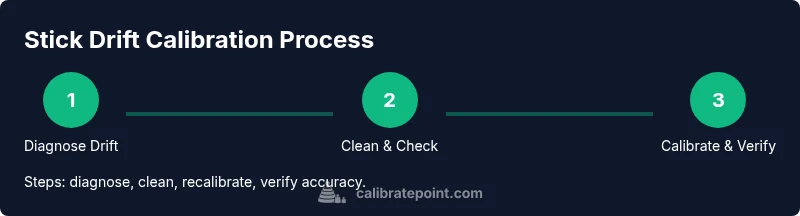
How to Calibrate Stick Drift
Learn practical methods to calibrate stick drift on game controllers. This Calibrate Point guide covers software recalibration, hardware checks, and ongoing maintenance for reliable stick input.


This guide explains how to calibrate stick drift on game controllers and other joysticks. You’ll learn both software recalibration and safe hardware checks to restore precise input. By following the steps, you’ll reduce unintended movement and extend controller life. Expect to spend about an hour, depending on your device, and gather basic tools in advance.
Why drift happens and how calibration helps
According to Calibrate Point, stick drift is usually caused by wear in the analog mechanism, residue from use, and firmware calibration drift. Understanding these causes helps you choose the right remedy rather than applying a blanket fix. In many cases, a clean, properly centered stick with fresh calibration data resolves subtle drift without hardware replacement. For DIY technicians, a methodical approach saves time and preserves device longevity.
Before you start: quick checks and safety
Begin with a visual inspection: verify the controller shell is intact, screws are snug, and the analog stick housing spins freely. If there is noticeable wobble or a loose shell, fix that first before attempting recalibration. Always disconnect power and remove any batteries to avoid short circuits during internal work. If you’re calibrating a PC gamepad, back up your profiles in case software resets are needed. Calibrate Point also recommends keeping a tidy workspace to track which screws came from which model.
Software calibration: setting the baseline
Software recalibration aligns the software input curve with the physical stick position. Start by updating firmware if an update is available, then use the console or PC calibration tool to center the joystick at neutral. Move the stick slowly through its range and return to center; the calibration tool should record a stable neutral position. If the software shows inconsistent neutral values, consider performing a full factory reset followed by fresh calibration data.
Hardware checks: cleaning and re-centering
Dust and oils can cause sticky centering. Use a soft brush and cotton swabs lightly dampened with isopropyl alcohol to clean around the base of the stick. Let it dry fully before testing. If the stick’s centering is physically off, you may need to reseat the potentiometer or reattach the cap and spring assembly. Lubricants are rarely needed and can worsen drift if overused; use sparingly if at all.
Step-by-step recalibration procedure
- Power down and unplug the controller. 2. Open the shell carefully to access the stick assembly. 3. Clean the contact surfaces and inspect for visible wear. 4. Recenter the stick by gently aligning the mechanism with the neutral position marker. 5. Reinstall the housing and reseat all connectors. 6. Connect to the PC or console and run the calibration utility. 7. Test in a neutral test environment and log results. 8. If drift persists, repeat cleaning and reseating with gentle pressure. 9. Perform a final test in-game to confirm accuracy. 10. Save the calibration profile and backup settings. 11. Close the shell securely and reassemble any external panels. 12. Document calibration date and device model for future reference.
Tip: Take photos of the stick assembly before disassembly so you can reproduce the exact orientation on reassembly.
tipOneTierOneTitleTestOnlyNotUsed?:null?:
Tools & Materials
- Phillips head screwdriver(sizes #0 or #1 depending on screws)
- Torx screwdriver (T8 or similar)(model-dependent fasteners)
- Plastic pry tool(avoid scratches when prying shell apart)
- Cotton swabs(isopropyl-alcohol compatible, lint-free)
- Isopropyl alcohol 70% or higher(cleaning solution, let dry completely)
- Microfiber cloth(lint-free cleaning and drying)
- Compressed air (optional)(remove stubborn dust without touching components)
- Replacement joystick module (optional)(only if wear is evident or components are damaged)
- Lithium battery-safe adhesive (optional)(for reseating loose battery packs if required)
Steps
Estimated time: 90-150 minutes
- 1
Prepare your workspace
Clear a clean, static-free area. Gather all tools and backup any profiles. Ensure you have a stable surface and good lighting before opening the shell.
Tip: Lay out screws in labeled segments to avoid misplacement. - 2
Power down and disconnect
Turn off the console or PC, unplug the controller, and remove batteries if possible. This prevents shorts and ensures a safe work environment.
Tip: Disconnect any charging dock to avoid accidental inputs during disassembly. - 3
Access the stick assembly
Gently pry the outer shell to expose the analog assembly without forcing parts. Keep track of screws and springs.
Tip: Use a magnetic mat to keep small parts from wandering. - 4
Clean around the stick
Remove dust and grime around the base of the stick using a cotton swab dampened with isopropyl alcohol. Let it dry completely before testing.
Tip: Avoid over-wetting; moisture can damage potentiometers. - 5
Check centering and wear
Inspect the centering mechanism and the stick’s pivot. If you notice play or misalignment, reseat or replace worn parts.
Tip: Gentle pressure helps realign without bending internal components. - 6
Calibrate via software
Connect to your device and run the calibration tool. Follow on-screen prompts to center the stick and confirm neutral position.
Tip: Move the stick slowly through its range to ensure consistent readings. - 7
Test neutral position
Return the stick to center and verify that the cursor/reticle remains still. If drift occurs, repeat software calibration.
Tip: Some games auto-correct but others require manual calibration data. - 8
Reassemble and test
Secure the shell, reconnect power, and perform a live test in a non-critical game to verify responsiveness and neutral return.
Tip: Test in multiple games to confirm consistency. - 9
Document the calibration
Record device model, firmware version, date, and results. This helps track drift trends over time.
Tip: A quick log reduces guesswork during future calibrations. - 10
Backup and restore profiles
If your device supports profiles, back up calibrated data and restore it after updates.
Tip: Keep a copy off-device for safety. - 11
If drift persists, consider hardware service
In some cases, persistent drift indicates worn potentiometers or mechanical wear that may require component replacement.
Tip: Consult manufacturer guidelines or a professional repair service. - 12
Perform routine maintenance
Set a reminder to inspect and recalibrate periodically, especially after drops, spills, or firmware updates.
Tip: Regular checks prevent large drift from developing.
Questions & Answers
What causes stick drift on controllers?
Drift is usually caused by wear in the analog mechanism, debris buildup, centering issues, or firmware calibration drift. Identifying the dominant factor helps tailor the remedy.
Drift comes from wear or debris in the stick and related components. Identifying the cause helps you fix it correctly.
Can software calibration fix hardware wear?
Software calibration can correct alignment and neutral position but cannot fix worn mechanical parts. If wear is evident, hardware replacement or professional service may be required.
Software calibration helps with alignment, but worn parts may need replacement.
Is cleaning around the stick safe for all controllers?
Yes, cleaning around the stick is generally safe if you follow a gentle approach with isopropyl alcohol and a soft brush. Avoid liquids entering the housing and ensure parts are dry before testing.
Cleaning around the stick is usually safe if you’re gentle and let things dry fully.
How often should I recalibrate?
Calibration frequency depends on usage and environment. Check drift after a heavy session or a drop, and consider a routine every few months for high-usage devices.
If you use your controller a lot or notice drift, recalibrate every few months or after major firmware updates.
When should I replace the analog stick or potentiometer?
If unfixable drift persists after cleaning and software calibration, or the stick feels loose and misaligned, component replacement may be necessary.
If cleaning and recalibration don’t fix the drift, it may be time to replace worn parts.
Watch Video
Key Takeaways
- Identify drift sources before acting
- Follow a step-by-step recalibration routine
- Maintain a clean, dry workspace to protect components
- Document calibration for future reference
- Regular maintenance prevents drift from escalating