How to Calibrate Switch Pro Controller
Learn how to calibrate your Switch Pro Controller for precise input and reduced drift. This educational guide covers on-console calibration, PC options via Steam, and practical tests to verify performance.


By the end, you will be able to calibrate your Switch Pro Controller for precise input, reduced drift, and reliable button response. This guide covers on-console calibration on the Nintendo Switch, plus PC options for Steam and Windows. Follow the step-by-step process and verify results with practical tests after calibration.
Why calibrate a Switch Pro Controller
If you’ve ever wondered how to calibrate switch pro controller, you’re not alone. Precision in gaming input hinges on accurate stick centering, responsive buttons, and reliable motion sensing. Drift, latency, or jitter can creep in after long use or rough handling, giving you a frustrating edge in competitive play. Calibrating helps restore true input mapping and ensures your commands reflect your intent on screen. This is especially important for players who rely on precise timing in platformers, fighters, or rhythm games. According to Calibrate Point, regular calibration keeps your controller aligned with your expectations and can extend the life of sensors by reducing wear caused by misalignment.
This guide will walk you through on-console calibration on the Nintendo Switch, and offer PC calibration options for Steam and Windows. You’ll learn when to calibrate, what to expect from each method, and how to verify results with practical tests in both casual play and more demanding sessions.
On-Console Calibration Basics
The Nintendo Switch provides built-in calibration tools that are easy to access directly from the console. To begin, go to the Home Menu and open System Settings. From there, navigate to Controllers and Sensors. Here you’ll find two primary calibration options: Calibrate Control Sticks and Calibrate Motion Controls. Calibrate Control Sticks centers each stick and defines its full travel range. Calibrate Motion Controls aligns the accelerometer and gyro readings to avoid misreadings during tilts and rotations. You don’t need any external hardware for these steps, and you can run them with the controller connected to the Switch in handheld or docked mode.
Calibrating the Left Stick
Select Calibrate Control Sticks, then choose the left stick. Follow the on-screen prompts: keep the stick at center, slowly sweep it to each edge, and return to center. The system will record the extremes and check for dead zones. If the stick drifts toward one direction when centered, repeat the process and ensure your thumbs return to the dead center between moves. Completing this calibration should improve accuracy in movement and input mapping across games.
Calibrating the Right Stick
Repeat the same procedure for the right stick. The right stick often governs camera control, so precise centering is especially impactful for navigation and aiming. Move the stick through its full range and back to center, paying close attention to any persistent offset. If you notice residual drift, perform the calibration again, making sure you use a relaxed grip and return the stick to a true center before each pass. This helps ensure consistent responsiveness in games that rely on nuanced camera control.
Calibrating Motion Controls and Buttons
Beyond the sticks, Calibrate Motion Controls helps align the gyro and accelerometer data, which affects motion-based features like pointer aiming or tilt gestures. Use the suite of motion tests to validate how the controller reads movement in all directions. While button calibration is not a separate menu option, you can test button responsiveness during gameplay or in the Switch’s controller test mode. If any button feels inconsistent, test again in a safe, low-stress environment and consider a broader inspection if issues persist.
PC Calibration Options (Steam and Windows)
If you use your Switch Pro Controller on a PC, Steam’s controller settings include additional calibration utilities. In Steam, go to Settings > Controller > General Controller Settings, then configure the Pro Controller as a recognized gamepad and test inputs in the Big Picture Mode controller config. Windows users can access Set up USB game controllers in the Control Panel to test axes and buttons, and you may run a calibration if the system offers it. While PC calibration can fine-tune input behavior, on-console calibration ensures baseline alignment before expanding to PC testing.
Testing and Verifying Calibration Results
After performing calibration on either device, test the controller in multiple contexts: a simple menu navigation test on the Switch, a light game session to gauge stick centering, and a quick camera/movement test in a familiar title. Look for centered sticks returning to the exact neutral position, motion controls tracking smoothly without jitter, and consistent button response. If issues persist in one environment but not another, isolate the problem to either hardware wear or software configuration and adjust accordingly. Regular checks can help maintain accuracy over time.
Maintenance and Recalibration Guidance
Calibration isn’t a one-and-done task. If you notice drift after a heavy session, a bump, or after new firmware releases, re-run the relevant calibration steps. Keep the firmware up to date for both the controller and your console or PC environment, since updates can change how inputs are interpreted. Store the controller in a clean, dust-free environment and handle it with care to minimize wear that could necessitate frequent recalibration.
Tools & Materials
- Nintendo Switch Pro Controller(Essential for on-console calibration via the Switch settings)
- Nintendo Switch Console(Needed to access System Settings calibration tools)
- USB-C charging/data cable(Used for wired connections during PC testing or charging)
- PC or laptop with Steam installed(Optional for PC-based calibration and testing)
- Windows PC with standard game controllers setup(Optional for Windows-based calibration checks)
Steps
Estimated time: 25-40 minutes
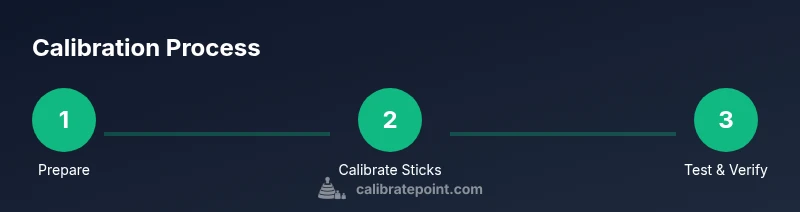
- 1
Prepare the hardware and environment
Gather the Switch Pro Controller and Switch console, ensure they are charged, and clear a comfortable workspace free from strong magnetic interference. This initial setup helps prevent misreads during calibration.
Tip: Charge the controller fully before starting to avoid interruptions. - 2
Open on-console calibration tools
From the Switch Home Menu, go to System Settings > Controllers and Sensors. Select Calibrate Control Sticks to begin with the left stick, then repeat for the right stick.
Tip: Calibrating with the console in handheld mode can yield slightly different results than docked mode—test both if you notice inconsistencies. - 3
Calibrate the left stick
Follow the on-screen prompts: center the stick, move it to each edge, and return to center. Confirm each pass and repeat if the system reports any offset.
Tip: Keep a relaxed grip and avoid pressing the stick into the dead zone during calibration. - 4
Calibrate the right stick
Repeat the left-stick procedure for the right stick, focusing on precise centering. A well-centered right stick improves camera control and aiming accuracy.
Tip: If you notice persistent drift after one attempt, redo the step with intentional full-range sweeps. - 5
Calibrate motion controls
Choose Calibrate Motion Controls and perform the motion tests as directed. Make sure tilts and rotations register cleanly without lag or skew.
Tip: Perform the tests slowly and methodically to avoid compensating with finger pressure. - 6
Test button responsiveness
In a game or menu, verify that each button responds consistently without false positives. If a button feels unreliable, re-test and consider a hardware inspection if issues persist.
Tip: Test across several games to ensure consistency across contexts. - 7
PC calibration (Steam optional)
If using Steam, enable the Pro Controller in controller settings and test inputs in Big Picture mode. On Windows, use Set up USB game controllers to check axes and buttons.
Tip: Use the Steam overlay controller tester to visualize input mapping in real time. - 8
Verify results with real gameplay
Play a familiar title to confirm that calibration translates to better precision. Note any residual drift and decide if a repeat calibration session is warranted.
Tip: Document a quick before/after test to measure improvement over time.
Questions & Answers
Where can I calibrate the Switch Pro Controller on the Nintendo Switch?
Open System Settings, select Controllers and Sensors, then choose Calibrate Control Sticks and Calibrate Motion Controls. These are the built-in tools for on-console calibration.
On the Switch, go to System Settings, then Controllers and Sensors, and use Calibrate Control Sticks and Calibrate Motion Controls.
Do I need to calibrate every time I notice drift?
Drift can stem from wear or firmware changes. Calibrate when you consistently notice inaccuracy, then retest to confirm improvements.
Calibrate when you notice persistent inaccuracy, and retest after calibration to confirm improvement.
Can I calibrate the Switch Pro Controller on a PC?
Yes. You can use Steam controller settings for cross-platform calibration, and Windows provides a standard controller setup option for testing axes and buttons.
Yes—use Steam’s controller settings or Windows’ game controller setup to calibrate on a PC.
What can cause joystick drift?
Common causes include wear from use, dust or debris inside the stick mechanism, and firmware-related input interpretation. Regular calibration helps mitigate drift when it’s not due to hardware failure.
Wear, dust, and firmware interpretation can cause drift; calibrate to mitigate it when hardware is healthy.
How long does calibration typically take?
Calibration is generally quick, often taking a few minutes per method. Plan enough time to recheck and test under different scenarios.
Calibration usually takes a few minutes, with extra time for testing in multiple scenarios.
Watch Video
Key Takeaways
- Calibrate sticks first on console, then motion controls if needed
- PC calibration is optional but helpful for cross-platform use
- Test in multiple contexts to confirm accuracy
- Maintain firmware and clean hardware to minimize drift
- Calibrate as needed, not just after setup