Calibrate Samsung Phone: A Practical Step-by-Step Guide
Learn how to calibrate your Samsung phone with a practical, step-by-step method. From display color to sensor tests, Calibrate Point guides you every step.


By the end of this guide you will be able to calibrate your Samsung phone’s display color, sensors, battery gauge, and audio output using built-in tools and reference patterns. You’ll learn a repeatable, safe workflow that minimizes guesswork, includes quick tests, and requires only a charged device and basic internet access.
Why calibrate your Samsung phone matters
Calibration matters because it establishes a reliable baseline for how your device renders color, senses motion, and reports battery information. According to Calibrate Point, small misalignments in display color, sensor readings, or the charging indicator can accumulate over time and degrade the user experience. A deliberate calibration workflow helps you separate genuine hardware quirks from software drift, and it makes future maintenance easier. In this guide we focus on practical, repeatable steps that don’t require specialized equipment, so DIY enthusiasts and professionals can achieve trustworthy results.
Key areas to calibrate on Samsung devices
Different devices emphasize different subsystems, but most calibration work centers on four core areas: display color and white balance, sensors and touch responsiveness, the battery gauge, and audio output. By approaching each area methodically, you can identify which readings are affected by software changes versus hardware drift. We’ll provide baseline checks, built-in tools, and optional advanced options for color-critical workflows.
Before you begin: prerequisites and safety
Before you change anything, back up your data to cloud or local storage. Ensure your Samsung phone is up to date with the latest software, and that you have a reliable internet connection if you need reference patterns. Charge the device to 100% and avoid overheating environments during calibration. If you use an external accessory or reference image, keep it at the same lighting conditions you’ll use for testing to maintain consistency.
Display calibration: color, white balance, and screen modes
Start with the display to align color rendering and white temperature with your viewing goals. Go to Settings > Display > Screen mode to choose a baseline (Natural or Vivid) and adjust the color temperature using the White balance slider if available. Disable adaptive display and blue light filters during the calibration to prevent automatic changes from skewing results. Validate with a reference color image and compare perceived hues under consistent room lighting.
Sensor and touchscreen calibration: accelerometer, gyroscope, proximity
Sensors influence how the device interprets motion, orientation, and proximity. Use Samsung Members (or the built-in Diagnostics tool) to run a Sensor test suite and ensure accelerometer, gyroscope, and proximity sensors respond correctly. If a sensor reports drift, rotate the phone through multiple orientations and repeat the test to verify stability. Document any anomalies for later reference.
Battery gauge calibration: calibrating the charging indicator safely
Battery gauge calibration focuses on aligning the displayed charge with actual capacity. Use a few complete charge cycles rather than deep discharges. Start with a full 100% charge, then discharge to around 5–10% before charging again to full. Avoid exposing the device to heat or heavy loads while calibrating, and stop if the device becomes unusually warm.
Audio calibration: speakers and microphone
Calibrating audio involves testing playback and recording paths. Play a spectrum of tones, check balance between left and right channels, and verify microphone clarity with a simple recording test. If you notice muffled sound or distortion, adjust volume limits and confirm software equalizer settings are not overriding the test results. Repeat with a quiet, controlled environment.
How to test calibration results: self-checks and reference apps
After completing the steps above, verify results with reference patterns and built-in tests. Compare screen tones against a calibrated reference, run color accuracy checks if you have a colorimeter, and use the phone’s self-diagnosis reports to confirm sensors and battery indicators align with expected behavior. Capture before/after screenshots to document changes and keep them for future comparisons.
Troubleshooting common issues
If colors remain inaccurate, revisit the display settings, ensuring you disabled any adaptive features during the test. Sensor drift that persists may require a software update or factory reset as a last resort, after backing up data. Battery gauge inconsistencies can stem from unusual charging conditions; repeat a few cycles and verify readings with a test pattern. If problems persist, consult Samsung support guidance and document your steps for review.
Tools & Materials
- Fully charged Samsung phone(Charge to 100% before starting calibration to ensure stable readings.)
- Samsung Members app or built-in Diagnostics(Used for sensor and touchscreen tests; ensure app is up-to-date.)
- Test patterns or reference color images(Use calibrated references available online or within Samsung's help pages.)
- External colorimeter (optional)(Only if you want hardware-based color accuracy testing.)
- Stable internet connection(For pulling reference patterns and updating apps.)
- USB-C cable(Optional for data transfer or offline reference access.)
Steps
Estimated time: 60-90 minutes
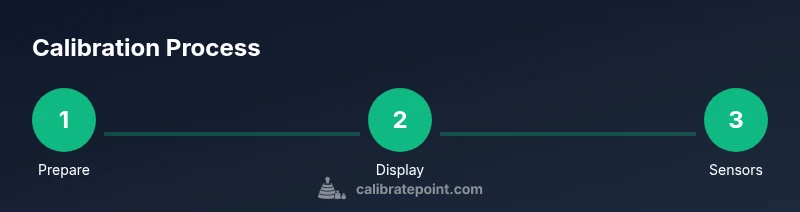
- 1
Prepare your device
Back up data to cloud or local storage and ensure the device is at 100% charge. Verify that you have access to the Samsung Members app or Diagnostics tools. This initialization prevents data loss and ensures consistent measurements.
Tip: Run a quick pre-check in Diagnostics to note any existing warnings. - 2
Update software and apps
Ensure the latest system and app updates are installed, especially for diagnostic tools and color profiles. Updates can fix calibration-related bugs and improve sensor accuracy.
Tip: Check for updates before you begin; reboot afterward to apply changes. - 3
Calibrate the display
Navigate to Settings > Display > Screen mode and select a baseline (Natural). If available, adjust the color temperature via White balance for a neutral reference. Disable adaptive display during testing and compare against a reference image.
Tip: Test in the same lighting where you’ll use the device most. - 4
Run sensor self-diagnostics
Open Samsung Members or Diagnostics and run the Sensor tests (accelerometer, gyroscope, proximity). If any test fails, rotate the phone through several orientations and re-run the tests to confirm.
Tip: Place the device on a flat surface during checks for stability. - 5
Calibrate the battery gauge
Perform a few complete charge cycles: 0–100% but avoid deep discharges below 5%. Use normal usage during cycles and monitor the displayed percentage against real usage.
Tip: Document the observed charge values for reference. - 6
Test audio paths
Play a variety of test tones and record a short sample to compare microphone clarity and playback balance. Check both loudspeakers and earpiece if relevant, and adjust app-level EQ sparingly.
Tip: Keep lighting and quiet environment for test accuracy. - 7
Validate results and document
Review all test outcomes, capture before/after screenshots, and summarize changes in a calibration log. If results are inconsistent, re-run a focused subset of tests.
Tip: Store your log in a dedicated calibration folder.
Questions & Answers
Do I need any external hardware to calibrate a Samsung phone?
No dedicated hardware is required; start with Samsung's built-in tools. External colorimeters are optional for advanced color accuracy.
You can start with the built-in tools; external hardware is optional for advanced color accuracy.
Is display calibration safe for my device?
Yes, using official settings within your device is safe. Avoid extreme adjustments and overheating while calibrating.
Yes, it's safe when you stay with official steps and avoid overheating.
How often should I calibrate my Samsung phone?
Calibration isn't required routinely. Do it if you notice color shifts, misreadings in sensors, or battery gauge inconsistencies.
Do it when you notice color or sensor issues.
Will calibration affect warranty?
Calibration using official tools generally doesn't affect warranty; avoid unauthorized hardware or modifications.
Usually fine if you use official tools; avoid damaging hardware.
Can I calibrate the battery gauge without a full discharge?
Yes. Focus on a few full charge cycles rather than deep discharges; readings may normalize after a few cycles.
Do a few full charges; no need to fully discharge.
What are good references for color calibration on Samsung?
Use device-native test patterns and quality online references; avoid low-quality images that skew results.
Use quality test patterns and trusted online references.
Watch Video
Key Takeaways
- Back up data before calibration.
- Use built-in tools first to establish a baseline.
- Test with reference patterns and document outcomes.
- Repeat calibration as needed and track drift over time.