Calibrate a Samsung Screen: Step-by-Step Guide to Color Accuracy
Learn how to calibrate a Samsung screen for accurate colors and consistent brightness. This guide covers built-in tools, external colorimeters, white point, gamma, luminance, and saving a reproducible profile for work or entertainment.


Goal: calibrate samsung screen to achieve accurate colors and consistent brightness across all content. This guide explains when to use built-in Samsung color controls versus external calibration, how to set a standard white point and gamma, how to measure luminance safely, and how to save a reproducible profile. By following these steps, you can calibrate samsung screen reliably for work or entertainment.
Why calibrate Samsung screen
According to Calibrate Point, calibrating a Samsung screen improves color fidelity for photos, video editing, and design work. A properly calibrated display reduces color drift over time and makes on-screen previews more predictable across apps. The phrase 'calibrate samsung screen' isn’t just for pro workflows; it also benefits casual viewing by producing balanced contrasts and more natural skin tones. Start with a clear plan: define your tasks (photo editing, video work, or daily use), assess ambient lighting, and decide whether to rely on built-in controls or add a colorimeter-based workflow. In this section we’ll outline what calibration means in practical terms, the common targets people use, and how to choose the right approach for your Samsung monitor.
Understanding color targets and Samsung display capabilities
Color calibration is about aligning what you see on the screen with a known reference. Samsung panels offer a range of color settings, profiles, and gamma options that can be tuned to your workspace. For most tasks, you’ll want a neutral color balance, a stable gamma curve, and a consistent white point. It’s important to recognize how different lighting conditions affect perceived color; a screen that looks correct in a bright room may appear too cool or too warm in a dim environment. In practice, start with a standard color space (like sRGB for web work) and track how closely the display matches it when you switch between programs. Calibrate samsung screen to reduce discrepancies across apps and to provide a reliable baseline for future calibrations.
Choosing a calibration method
There are two broad paths to calibration: using the monitor’s built-in controls or employing external measurement tools with calibration software. Built-in options are convenient and often sufficient for general use, but external calibration delivers repeatable results that hold up across lighting changes and over time. When you choose a method, consider how precise you need the result, whether you edit photos or videos professionally, and whether you plan to share calibrated profiles with others. In many cases, a hybrid approach—establishing a solid baseline with built-in controls and refining with an external device—offers the best balance of effort and accuracy.
Ambient lighting and workspace setup
Ambient light strongly influences perceived color and brightness. Calibration should be performed under consistent lighting conditions, with a neutral gray wall and a stable desk setup. Avoid direct glare on the screen and keep room lighting steady during calibration runs. If you must change lighting, redo the calibration or apply a normalization workflow that accounts for the new ambient level. Additionally, enable any screen uniformity or local dimming features cautiously, since aggressive processing can alter perceived color in some apps. This step helps ensure that the calibration remains meaningful across typical viewing conditions.
External calibration workflow with a colorimeter
External calibration uses a colorimeter or spectrophotometer paired with dedicated software to measure on-screen color and adjust the display to target values. The process typically involves positioning the sensor on the screen, running a series of test patterns, and letting the software generate a calibration profile. The result is a reproducible color look that you can apply system-wide. While this method requires an initial investment in hardware, it pays off through consistent results across devices and when sharing work with others. If you’re calibrating a Samsung screen, follow the software prompts for profile creation and ensure you save the profile with a descriptive name for future reuse.
Verifying results with test patterns
After calibration, verify results with standardized test patterns that cover grayscale, color patches, and skin tones. Look for smooth tonal transitions, stable grayscale steps, and natural skin rendering. If you notice banding or color shifts in specific content, recheck the white point and gamma settings and consider a fresh calibration pass. It’s helpful to compare the calibrated display against a reference device or an industry-standard color profile to validate accuracy. Regular checks help you catch drift early and maintain confidence in your setup.
Saving profiles and maintenance
Once you’re satisfied with the calibration, save the profile and apply it as the default across your system and applications where possible. Keep a copy of the profile in a safe location and document the calibration date, ambient conditions, and tools used. Over time, monitor backlight aging and changing room lighting can subtly shift color perception, so schedule periodic rechecks. A lightweight maintenance routine—repeatable every few weeks in active work periods or after a major environment change—keeps results stable and reliable for longer.
Common pitfalls and quick checks
Avoid common pitfalls such as calibrating in inconsistent lighting, relying on default factory settings without verification, or applying profiles selectively in only one app. Always ensure that your operating system and GPU color management are configured to honor the calibration profile. If colors still look off after calibration, retrace steps focusing on the white point, gamma, and luminance targets. Finally, remember that calibration improves consistency, not merely ‘looking pretty,’ so use it as a baseline for all your color-critical tasks.
Tools & Materials
- Colorimeter or spectrophotometer(Essential for external calibration; choose a device compatible with your computer and software.)
- Calibration software(Software that supports monitor profiling and color matching; use reputable, up-to-date tools.)
- USB cable or dongle for the colorimeter(Needed to connect the sensor to your computer during measurement.)
- Neutral gray/white reference cards(Helps verify color balance in varied lighting; optional but useful for consistency.)
Steps
Estimated time: 60-90 minutes
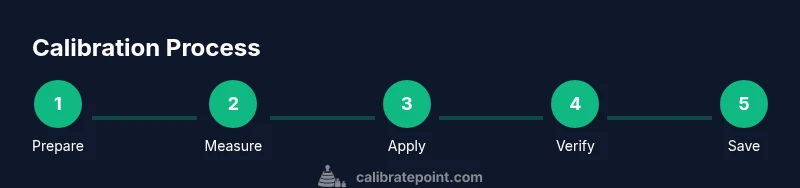
- 1
Prepare the environment
Set up a stable workspace with consistent ambient lighting. Power on the monitor and reset any dynamic video enhancements to baseline. This ensures measurements reflect steady, reproducible conditions.
Tip: Keep lighting fixed and avoid switching lamps or blinds during the calibration window. - 2
Choose calibration method
Decide whether to start with built-in Samsung controls or proceed directly to external calibration with a colorimeter. If precision matters (photos, design), external calibration is recommended.
Tip: If unsure, begin with the built-in controls to establish a baseline before adding a colorimeter. - 3
Reset display to default
Restore the monitor to its factory/default color and brightness settings to avoid inherited adjustments from previous calibrations.
Tip: Document current settings before resetting, in case you want to compare later. - 4
Place the colorimeter and start a scan
Attach the sensor to the screen surface as directed by the software and begin the measurement sequence. The software will display test patterns and collect color data.
Tip: Ensure the sensor makes full contact with the screen and isn’t tilted. - 5
Adjust white point and gamma
Using the software, align the measured colors to the target white point and a stable gamma curve. Iterate until the reported deltaE values are minimized.
Tip: Start with mid-gray patches and move to highlights/shadows for a balanced result. - 6
Save and apply the profile
Save the new calibration profile with a descriptive name and apply it system-wide. Run a quick visual check with a few representative images to confirm consistency.
Tip: Label the profile with room lighting and date for easy future reference.
Questions & Answers
Do I need a colorimeter to calibrate a Samsung screen?
A colorimeter or spectrophotometer is essential for external calibration. Built-in tools can provide a baseline, but external devices deliver repeatable, device-wide results.
Yes, for repeatable accuracy you’ll typically want a colorimeter; built-in options can help, but a sensor provides objective data.
Can I calibrate using only built-in Samsung tools?
Built-in tools are convenient for general use, but they may not deliver the same level of consistency across lighting changes as an external workflow.
You can calibrate with built-in tools, but expect less consistency under varying light conditions.
How often should I recalibrate my monitor?
Recalibrate when room lighting changes significantly, after hardware changes, or if you notice color drift in your work.
recalibrating when lighting changes or after hardware updates helps keep accuracy over time.
What is the best white point for a standard room?
Aim for a neutral white point that matches typical daylight conditions used for your workflow, and adjust based on personal and task-specific needs.
Use a neutral white point that fits your workspace and tasks, then adjust if colors look off.
Why do colors look different after calibration in some apps?
Some apps manage color profiles independently or override system-wide settings. Ensure the calibration profile is applied consistently across the OS and applications.
App-specific color management can override the system profile, so verify in each app.
Is monitor calibration the same for gaming and photography?
The goals differ: gaming prioritizes contrast and response, while photography requires color accuracy for editing. Calibrate accordingly and use profiles that fit each use case.
Gaming and photography have different priorities; use task-appropriate calibration profiles.
Watch Video
Key Takeaways
- Define calibration targets before adjusting any setting
- Use a colorimeter for repeatable results
- Save and apply a named profile for consistency
- Recalibrate when lighting or environment changes