How to Calibrate Battery HP: A Practical Guide
Learn how to calibrate an HP laptop battery to restore accurate charge readings, extend runtime estimates, and protect battery health with a safe, step-by-step method.


To calibrate a battery on an HP laptop, perform a full charge to 100%, then let it discharge to near empty and recharge again. Use the built-in battery gauge calibration if available, or run a BIOS power cycle. Ensure the device is cool and avoid extreme temperatures. This process improves the accuracy of your battery percentage readings and overall health.
Why Calibration Matters for HP Battery Gauge
According to Calibrate Point, precise battery calibration is essential for HP laptops used in professional settings. A well-calibrated gauge gives you a realistic view of how much runtime you have left, guides you through power budgeting during critical tasks, and helps protect the battery from unnecessary deep discharges. This section explains how the OS, firmware, and battery chemistry interact to produce the gauge you rely on every day, and why neglecting calibration can lead to misleading estimates and awkward shutdowns. Throughout the lifecycle of your HP device, gauge drift can occur as cells age, temperature changes, and usage patterns shift. Regular, planned calibration helps maintain a stable baseline for all these variables, so you can plan workloads, avoid data loss from unexpected shutdowns, and extend the effective life of the pack. The Calibrate Point team emphasizes that calibration is not a cure-all for degraded cells, but it is a practical, repeatable practice that keeps your readings honest and actionable.
Safety and Battery Health Considerations
Lithium-ion batteries power most HP devices, and calibration should be conducted with care to avoid heat buildup and potential hazards. Do not calibrate if you notice swelling, unusual warmth, or a bulging case. Work in a well-ventilated area and on a stable, non-flammable surface. Keep the device out of direct sunlight and away from liquids. If the battery is removable, power down the laptop before disconnecting it. If you observe any signs of damage, stop immediately and seek professional service. Calibration is about gauge accuracy, not restoring capacity; aging cells may still degrade despite calibration. By following safe practices and manufacturer guidance, you reduce risk while improving measurement reliability.
Tools and Materials You’ll Need
Before you begin, gather a small toolkit and software options to support calibration. The list below covers essentials and useful extras:
- HP laptop with removable or non-removable battery (as applicable) – required; ensure model supports the calibration method.
- OEM power adapter (original HP charger) – required; third-party chargers may provide inconsistent results.
- Access to BIOS/UEFI settings – required; for BIOS-based calibration where supported by the model.
- Battery health monitoring software or built-in OS tools (e.g., Windows Battery Report, Linux upower) – optional but helpful.
- A quiet, temperature-stable workspace – recommended; helps readings be consistent.
- A log notebook or digital log to record start/end levels and times – recommended.
Having these items ready reduces interruptions and makes the calibration cycle smoother.
The Calibration Process: Overview and Approaches
There are two common approaches to calibrating an HP battery gauge: OS-based gauge calibration and BIOS/firmware calibration. The OS-based method relies on your operating system to gauge the remaining runtime after full charge and deep discharge, while BIOS-based calibration uses the device’s firmware to reset its internal state when supported. On HP laptops where HP software or firmware updates expose a calibration utility, you can perform a controlled charge-discharge cycle and allow the system to recalibrate the gauge after the next reboot. In models without a dedicated utility, the OS-based method remains effective if you execute a full discharge to a safe cutoff and recharge to full while the device is in a stable power state. Regardless of method, the goal is to retrain the fuel gauge so it aligns with the actual cell capacity. Note that calibration does not fix a battery that has lost capacity due to aging or heat damage; it simply refreshes the gauge’s accuracy.
Step-by-Step Overview of the Calibration Workflow
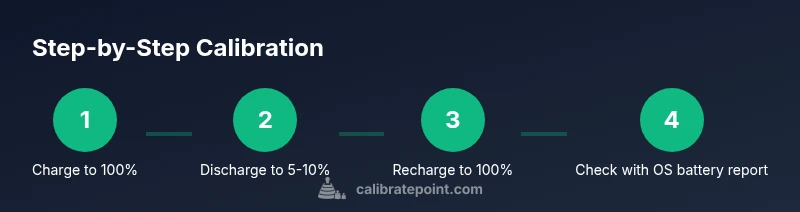
- Prepare the device and environment. 2) Fully charge to 100%. 3) Discharge the battery to around 5-10% while performing a representative workload. 4) Recharge uninterrupted to 100%. 5) Boot and check the battery report in the OS. 6) If available, perform BIOS/firmware calibration. 7) Review the results and schedule regular calibrations based on usage patterns.
Authority Sources
Reliable calibration guidance comes from both manufacturer resources and battery education sites. For general battery physics and care, see Battery University (an industry-leading resource). For HP-specific guidance, consult HP Support documentation or HP’s official firmware utilities. For public, government-backed guidance on safe handling and charging practices, consult Energy.gov resources on battery care and safety. The combination of manufacturer-specific steps, OS-based checks, and safe handling practices yields the most dependable calibration results.
- Battery University: https://batteryuniversity.com/learn/article/how_to_protect_lithium_batteries
- HP Support: https://support.hp.com/us-en/document/c03386831
- Energy.gov: https://www.energy.gov/eere/vehicles/articles/battery-care-tips
Common Pitfalls and Troubleshooting
Calibration is not a substitute for a degraded battery. If you notice rapid runtime drop, unexpected shutdowns, feverish device temperatures, or the gauge behaves erratically after calibration, you may be facing aging cells or thermal issues. Do not repeatedly perform full discharge on a failing battery, as that can accelerate wear. If your HP device has a non-removable battery and you’re uncomfortable with BIOS procedures, rely on OS-based calibration and HP-supported utilities. Always back up important data before starting a calibration cycle, since a sudden shutdown during a discharge can risk data loss.
Tools & Materials
- HP laptop(Model supports calibration method (OS-based or BIOS-based) per HP guidance)
- OEM HP charger(Use original charger to ensure proper current and voltage)
- Access to BIOS/UEFI(Required for BIOS-based calibration where supported)
- Windows or Linux environment(OS tools for monitoring battery gauge (e.g., powercfg /batteryreport))
- Battery health monitoring software(Optional for detailed analytics)
- Notepad or digital log(Record start/end levels and times)
Steps
Estimated time: 2-4 hours
- 1
Charge to 100%
Connect the HP charger and ensure the battery reaches a full 100% charge with the device on a stable, cool surface. Do not unplug early; a complete top-off helps ensure the gauge retrains on a known capacity.
Tip: Keep the device away from heat sources; a cool environment yields more consistent readings. - 2
Prepare for discharge
Close nonessential apps and start a representative workload so the battery drains under normal use. If available, disable fast startup and other power optimizations that may skew discharge behavior.
Tip: Use a consistent workload (e.g., web browsing with brightness set) to avoid anomalous drain from background tasks. - 3
Discharge to 5-10%
Let the notebook run down until it reports 5-10% and becomes unreliable for further operation. Avoid letting the device shut down abruptly; plan to save work periodically and be ready to plug in.
Tip: If possible, observe the gauge as it approaches 10% to ensure the discharge is not prematurely interrupted. - 4
Recharge uninterrupted to 100%
Reconnect the charger and charge uninterrupted back to 100%. Do not unplug early; a clean charge cycle is essential for proper gauge retraining.
Tip: Monitor temperature; if the device heats up excessively, pause and let it cool before continuing. - 5
Check the OS battery report
After fully charging, generate a battery report (e.g., powercfg /batteryreport on Windows) and compare the reported design capacity with current full charge capacity.
Tip: Note any significant delta between design and current capacity; this can indicate aging or calibration drift. - 6
Optional BIOS/firmware calibration
If your HP model offers BIOS-based calibration or a dedicated calibration utility, run it per HP guidance. This can further align firmware fuel gauge with real capacity.
Tip: Refer to HP’s manual to avoid missteps in BIOS settings. - 7
Document results and plan the cadence
Record the observed gauge behavior and set a calibration cadence that matches usage and manufacturer recommendations. Recalibrate as needed when readings drift or after battery replacement.
Tip: Keep a simple log with date, observed full/empty readings, and any anomalies observed during the cycle.
Questions & Answers
What is battery calibration and why is it important for HP laptops?
Battery calibration retrains the device’s fuel gauge so remaining-runtime estimates reflect actual capacity. It helps prevent abrupt shutdowns due to inaccurate readings and improves planning for demanding tasks.
Calibrating helps your laptop's battery gauge stay accurate, so you know how much runtime you really have before the next charge.
Can I calibrate my HP laptop battery without BIOS access?
Yes. OS-based calibration uses the operating system to retrain the gauge through a controlled charge-discharge cycle. BIOS-based calibration is optional and model-dependent.
You can calibrate using the operating system if your model doesn't expose a BIOS option.
How often should I calibrate a laptop battery?
Calibrate when you notice the gauge becomes unreliable or after major system changes. For many users, annual or semi-annual calibrations strike a balance with battery aging.
Do calibration when the gauge drifts or after significant changes; many people calibrate once or twice a year.
Will calibration increase battery life?
Calibration improves gauge accuracy, not the battery’s physical capacity. It helps you manage power more effectively but cannot restore degraded cells.
Calibrating doesn’t make the battery healthier; it makes the readings more trustworthy so you can plan usage.
What are common signs that calibration is needed?
Frequent abrupt shutdowns, quick drops from full to empty, or inconsistent reported charge levels indicate gauge drift and a calibration check may help.
If readings seem off or inconsistent, run a calibration cycle and verify with a battery report.
Is it safe to discharge lithium-ion batteries to 0%?
Most modern lithium-ion batteries tolerate controlled discharges to a low level, but routinely discharging to 0% is not recommended. Follow manufacturer guidelines and avoid deep discharges on aging cells.
Don’t regularly discharge to 0%; do a controlled discharge to around 5-10% and recharge.
Watch Video
Key Takeaways
- Perform a full charge-discharge cycle for gauge calibration.
- Calibrate using official HP tools when available; OS-based methods work widely.
- Monitor temperatures and avoid dangerous situations.
- Use OS battery reports to verify gauge accuracy after calibration.
- Schedule regular calibrations aligned with usage and battery aging.