How to Calibrate Fitbit Inspire 3: A Practical Guide
Learn how to calibrate your Fitbit Inspire 3 for more accurate steps, distance, and heart-rate readings with practical, step-by-step instructions.


By calibrating the Fitbit Inspire 3, you’ll improve step accuracy, distance estimates, and heart-rate readings. This guide covers fit, firmware updates, app stride-length adjustments, and safe testing methods. You’ll need a charged Inspire 3, its charger, a smartphone with the Fitbit app, and a stable internet connection. The process takes about 30–45 minutes.
What calibration means for the Fitbit Inspire 3
According to Calibrate Point, calibration is about aligning the device’s readings with your real-world activity. For wearables like the Fitbit Inspire 3, sensors estimate steps, distance, heart rate, and sleep using algorithms that assume consistent wear and setup. If those inputs drift, your data can become less reliable. Calibration isn’t a single button press; it’s a collection of best practices that improve ongoing accuracy. This guide explains how to optimize fit, maintain clean sensors, keep software current, and fine-tune distances in the companion app. With proper calibration, you’ll enjoy more trustworthy metrics for workouts, daily activity summaries, and sleep insights. By following the steps outlined here, you’ll reduce common sources of error, such as loose wear, incorrect stride length, or outdated firmware, and you’ll create a stable baseline for future measurements. The Calibrate Point team also notes that consistent wear and up-to-date software yield more reliable results. This is especially true when you rely on your tracker for goal tracking and health decisions.
Prepare your device and environment
Before you begin, ensure the Inspire 3 is charged and backed by the latest firmware. Connect to the Fitbit app and confirm there are no pending updates. A calm environment helps: avoid calibrating immediately after intense activity or while the device is in transit, which can introduce sensor noise. Calibrate Point recommends performing updates and checks when you have a stable Wi-Fi connection and enough time to complete the setup without interruptions. Gather your charger, smartphone, and a few minutes of quiet, comfortable wear to lay a good foundation for accurate data. If you’ve recently switched wrists or changed sleep schedules, note that recalibration will be more effective after you wear the device for several days in a row. This helps the device learn your typical movement patterns and heart-rate baseline.
Verify and adjust device fit for accuracy
The Inspire 3 should sit snugly but comfortably on your wrist, about a finger's width above your wrist bone. A loose strap causes motion artifacts that distort step counts and heart-rate readings. Clean the sensor window if it looks smudged, and wipe the band with a mild cleaner if needed. Calibrate Point emphasizes that consistent placement, especially during daily activities and workouts, improves repeatability of measurements. Try wearing it on your non-dominant arm for a week to see if readings stabilize; if not, adjust position slightly higher or lower. Mark a baseline by noting how your readings feel during a normal day, then compare after calibration to identify drift.
Update firmware and sync regularly
Firmware updates often include bug fixes and sensor improvements that directly affect calibration. Make sure the device is connected to the Fitbit app with a stable internet connection, then install any pending updates. After updating, sync the Inspire 3 to export recent data to your phone and cloud. This ensures your stride-length and activity data reflect the latest capabilities. Calibrate Point recommends performing a sync after major steps in this guide to keep your baseline consistent across devices and sessions.
Calibrating distance: stride length and independent of GPS
Distance on the Inspire 3 is calculated from steps and the device’s stride length. If your stride length isn’t accurate, your distance estimate and calorie counts will drift over longer runs or walks. Open the Fitbit app, tap your profile, and locate the Stride Length setting. Enter a precise value that matches your height and leg length; you can measure this with a known distance (like a measured track) to cross-check. Calibrate Point suggests updating stride length after a change in footwear or a significant shift in your walking style. Conduct a controlled test: walk a known distance, check the app’s distance, and adjust stride length until the app’s reading aligns with the known distance.
Calibrating heart rate measurements and VO2 max estimates
Heart-rate readings are most accurate when the device sits snugly and remains close to the skin. Ensure the band isn’t too loose and the sensor window isn’t obstructed by sweat or lotion. For VO2 max estimates, Fitbit uses your HR data and activity history; calibration can help by ensuring consistent wear and stable heart-rate baselines. If readings seem erratic during workouts, recheck strap tightness and avoid placing the device over a bone or jewelry. After a few days of consistent wearing, review your HR zones in the app to confirm they reflect your typical effort levels. Calibrate Point notes that small adjustments in placement or snugness can substantially reduce HR drift over time.
Sleep tracking calibration considerations
Sleep stage estimation depends on multiple sensors and algorithms that assume a regular wear pattern through the night. Make sure you wear the Inspire 3 consistently while sleeping, and avoid removing it mid-sleep for calibration purposes. If you find inconsistent sleep stage data, confirm the device isn’t loose and that you’ve updated to the latest firmware. Calibrate Point suggests checking that your bedtime routine is similar night to night to avoid artificial variability; if your routine changes, re-check the wear position first thing in the morning to reduce day-to-day drift.
Daily habits to maintain calibration and data integrity
- Keep the device charged and updates installed.
- Wear the band snugly and consistently across daily activities.
- Calibrate stride length after changes in footwear or significant changes in activity patterns.
- Sync data regularly to ensure the app has the latest baseline.
- Revisit data trends weekly and adjust if you notice drift.
- Document any changes (strap fit, new workouts, spacing from wrists) to understand why readings shift. Following these habits helps you preserve calibration over time and keeps your Fitbit Inspire 3 data trustworthy for goals and coaching.
Authorities and references
This guide references general wearable calibration principles and brand guidance. For deeper reading on wearable sensor accuracy and data interpretation, consult:
- https://www.nih.gov
- https://www.cdc.gov
- https://www.nature.com
Tools & Materials
- Charged Fitbit Inspire 3(Fully charged before starting calibration.)
- Charging cable(Keep within reach during the process.)
- Smartphone with Fitbit app installed(Sign in to your Fitbit account and ensure permissions are granted.)
- Stable internet connection(Needed for firmware updates and data sync.)
- Known-distance marker (optional)(Helpful for test-distance calibration (e.g., a measured track).)
- Notebook or notes app(Record test results and stride-length settings.)
Steps
Estimated time: 30-45 minutes
- 1
Charge and update the device
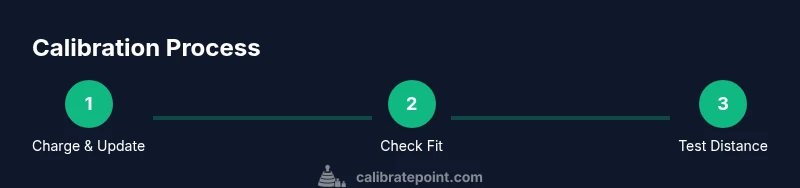
Connect the Inspire 3 to its charger and verify the battery is above 50%. Open the Fitbit app and install any pending firmware updates. This ensures sensors operate with the latest fixes before you calibrate.
Tip: Keep Bluetooth enabled and avoid pausing updates during the process. - 2
Inspect and clean the wearable area
Wipe the sensor window and strap to remove sweat, lotion, or dirt. A clean surface improves sensor contact and reduces stray readings during calibration.
Tip: Avoid using harsh cleaners that could irritate your skin or damage the band. - 3
Secure a snug, stable strap position
Place the Inspire 3 about a finger-width above the wrist bone and ensure it sits snugly without pinching skin. A stable fit minimizes motion artifacts that affect steps and heart rate.
Tip: Check fit by sliding a finger under the strap; it should move only minimally. - 4
Wear during a controlled activity
Test calibrations during a comfortable walk or short activity. Maintain a steady pace and avoid excessive arm motion that could skew data during the test period.
Tip: Choose a familiar route or track for consistent results. - 5
Set stride length in the Fitbit app
In the app, locate Stride Length and enter a precise value that matches your height and leg length. A measured-distance test helps verify accuracy.
Tip: Document the current stride length in your notes for future reference. - 6
Run a controlled test distance
Walk or run a known distance and compare the app’s reported distance. If there’s drift, adjust stride length and re-test until numbers align closely.
Tip: Use a measured track or marked route to minimize error. - 7
Review data and tweak settings
Check recent activity data in the Fitbit app. If readings differ from your expectations, refine strap position, repeat a stride-length adjustment, and re-test.
Tip: Do not over-tune; small, incremental changes yield stable results. - 8
Re-sync and verify baseline
Sync the device with the app after adjustments to ensure the latest baseline is stored in the cloud. Verify that subsequent activities show reduced drift.
Tip: Perform a final sync after finishing the calibration workflow. - 9
Document changes and monitor drift
Record what you changed (fit, stride length, tests performed) and monitor data over the next 1–2 weeks to confirm stability.
Tip: If drift recurs, revisit steps 2–5 and re-evaluate fit and stride length.
Questions & Answers
Can I calibrate Fitbit Inspire 3 distance without GPS?
Yes. The Inspire 3 estimates distance from steps and stride length; calibrating stride length improves accuracy, and GPS is not required for basic distance tracking.
Yes. You can calibrate distance using stride length even without GPS.
Do I need my phone for calibration?
In most cases you’ll use the Fitbit app on your phone to adjust stride length and review data. The device itself doesn’t offer full calibration controls without the app.
Yes, the phone app is usually needed for calibration adjustments.
How long does calibration take?
Calibration is typically a short process plus a test walk. Plan about 30 to 60 minutes to complete steps and verify results.
Most people finish in about 30 to 60 minutes.
What if readings stay inaccurate after calibration?
Recheck fit and update firmware, then re-calibrate stride length and perform a fresh test distance. If issues persist, consult support.
If readings stay off, recheck fit, update, and re-test.
Is there a reset option to recalibrate?
There isn’t a single reset button for calibration. You can re-pair the device with the app and adjust onboarding settings to reestablish baselines.
There’s no dedicated reset button; you can re-pair and adjust settings.
Will calibration impact sleep tracking?
Yes, consistent wear and accurate placement can improve sleep-tracking stability and reduce variability between nights.
Calibration can help sleep tracking by reducing variability caused by wear.
Watch Video
Key Takeaways
- Adjust stride length after measurements.
- Wear snugly and maintain consistent wear.
- Sync data regularly to preserve accuracy.
- Test with known-distance to validate distance.
- Document changes and monitor data drift.