How to Calibrate a Huion Pen
Learn how to calibrate huion pen for accurate pressure, alignment, and tilt. Follow a clear, step-by-step process with troubleshooting tips, tools you need, and a tested workflow to ensure consistent performance across apps.


Goal: learn how to calibrate huion pen for accurate cursor tracking, pressure sensitivity, and tilt. This steps-based guide walks you through verifying alignment, running the calibration tool in the driver, testing with sample strokes, and saving the new settings. You’ll need your Huion tablet, a USB cable, and access to the driver software. The process applies across most Huion models, with prompts that may vary by model. If tilt is supported, calibrate it too for optimal results.
Understanding Huion Pen Calibration
Calibrating a Huion pen is about aligning the pen tip with the cursor, ensuring the pressure response feels natural, and if your model supports tilt, getting tilt sensitivity to match your drawing style. When you calibrate, you create a reference that the tablet uses to translate pen pressure, angle, and button presses into on-screen actions. This is essential for professional workflows where precision matters, especially in illustration, CAD, or digital art.
According to Calibrate Point, a consistent calibration workflow reduces drift and inconsistent pressure across apps, so following a repeatable process yields reliable results. Remember that calibration is not a single fix; it should be part of your regular setup when changing workspaces, software, or pen nibs.
In this guide, you’ll learn a practical method to calibrate huion pen that covers alignment, pressure, and tilt where available, with test checkpoints to confirm you have achieved the desired feel.
Before You Calibrate: Plan and Prepare
Before you begin, gather the tools you’ll need and establish a stable work environment. A smooth, clean drawing surface helps the pen read movement more accurately, reducing errors during calibration. Keep the tablet powered and connected to a computer with internet access to download the latest driver files and firmware updates.
Set expectations: calibration isn’t only about hitting a task button; it’s about achieving a consistent response in your usual software (e.g., painting apps, photo editors, and 3D design tools). You’ll likely revisit this process if you change the tablet’s position, update drivers, or switch to a new pen tip.
This stage also involves backing up your current settings so you can revert if the new calibration introduces unwanted changes. Having a written baseline (pressure curve, alignment offsets) helps you measure improvements after calibration.
Step 1: Update Drivers and Reset Settings
Start by updating the Huion driver to ensure you have the latest fixes and calibration features. Uninstall any conflicting drivers and install the latest version from the official Huion site. After installation, reset the driver settings to their defaults to create a clean foundation for calibration.
Why this matters: an outdated or conflicting driver can skew calibration results, making the process longer and less accurate. By starting from a clean slate, you reduce the chance of residual settings interfering with new calibration data. Once reset, reboot your computer to apply changes cleanly.
Step 2: Open the Calibration Tool
Open the Huion driver software and locate the calibration utility. This tool is often found under Pen Settings or Input Settings, depending on your model. Launch the calibration workflow and confirm that the tablet and pen are detected.
If your model offers separate calibration for pressure versus tilt, start with the alignment screen first to ensure the cursor tracks where you expect it to. The prompts may vary by model, so follow on-screen instructions closely. This step establishes the baseline geometry for subsequent calibration actions.
Step 3: Alignment Calibration for Accurate Cursor
The alignment step ensures the cursor points where the pen tip touches the tablet. You’ll be asked to touch a grid or crosshair at several points across the tablet surface. Complete all touchpoints precisely, keeping your hand steady and the pen perpendicular to the surface.
Why it matters: even small misalignment can create noticeable offset between pen contact and cursor position, which compounds as you draw. After finishing, test a few strokes to confirm the cursor aligns with your pen contact before moving on to pressure calibration.
Tip: hold the pen at a natural drawing angle and avoid resting your palm on the tablet during this step to prevent drag that could skew results.
Step 4: Pressure Sensitivity Calibration
Now calibrate the pressure curve so that light strokes register subtly and heavy presses produce the expected thick lines. You’ll be prompted to draw several lines with varying pressure, often from soft to hard. The software will map these inputs to your brush dynamics.
If the line weight feels too heavy or too light, re-run the calibration and adjust the pressure curve. Test repeatedly in your main drawing app to ensure consistency across projects.
Note: some Huion models allow you to customize multiple pressure curves for different tools; consider saving a separate profile for pencil-like brushes versus inking workflows.
Step 5: Tilt Axis and Button Mapping
If your Huion model supports tilt, calibrate the tilt axis so that the cursor responds to pen tilt in a predictable way. You may be asked to rotate the pen or tilt at specified angles during the calibration. Align tilt to your preferred orientation and test by tilting while drawing thin or wide lines.
Additionally, map pen buttons to common actions (undo, redo, redo brush size) to streamline your workflow. Ensure that the button presses are registered reliably and don’t conflict with other shortcuts in your software.
Pro tip: keep tilt calibration consistent across all tools you use. Inconsistent tilt can cause your lines to drift when switching apps.
Step 6: Test and Fine-Tune in Different Apps
After calibration, test the pen in multiple apps (e.g., a painting program, a vector editor, and a photo editor). Check for consistent pressure response, cursor alignment, and tilt behavior. If results vary by app, you may need to apply app-specific tweaks or save separate profiles for different tasks.
This cross-app validation is critical because some software uses different input APIs, which can affect how calibration is applied. If you notice drift, revisit the alignment or pressure steps and re-test.
Final check: save all changes in the driver, then perform a final round of strokes in your primary program. Ensure you can reproduce your expected results reliably across sessions.
Troubleshooting Common Issues
Even with careful calibration, you may encounter issues such as persistent drift, lag, or inconsistent pressure. Common causes include a loose USB connection, battery issues on wireless tabs, or background programs interfering with the driver. Always verify a clean USB connection and disable any software that might intercept input signals.
If drift persists, re-run the alignment step and check the pen nib for wear; a worn nib can alter contact area and change the input signal. Confirm that palm rejection is enabled if your software supports it, as poor palm rejection can mimic drift. Finally, test with a different pen nib if available to rule out hardware wear as a factor.
Long-Term Maintenance and Best Practices
Calibration isn’t a one-and-done task. Recalibrate after major software updates, after replacing the nib, or if you notice any change in performance. Store your preferred profiles in the driver and name them clearly (e.g., “Sketching — Soft Pressure” and “Inking — Bold”).
Regular checks help maintain consistency across sessions and projects. Practicing a quick alignment and pressure check at the start of a workflow ritual can save time later and reduce frustration. Keep your drivers up to date and periodically verify that the USB cable and tablet connectors remain clean and secure.
Final notes on how to calibrate huion pen for precision
Mastering how to calibrate huion pen is about building a consistent routine you apply whenever you set up your workspace. The steps above give you a dependable workflow. With practice, the calibration becomes intuitive, and you can adjust on the fly for different artistic needs. By following this guide, you’ll reduce guesswork and improve your drawing precision across Huion devices.
Tools & Materials
- Huion tablet(Model must match the driver you download and support calibration features)
- USB cable(Data-capable if using a laptop; ensure secure connection)
- Computer with internet access(For driver downloads and online resources)
- Huion driver software(Download from official Huion site; verify version supports your tablet)
- Calibrated test paper or microfiber cloth(For dry testing and cleaning tip area (optional))
- Pen nibs or grip accessories(Optional extras for test wear and comfort)
Steps
Estimated time: Estimated total time: 25-40 minutes
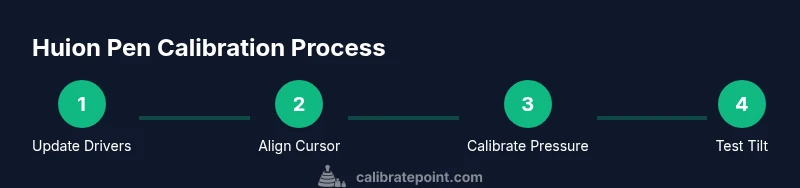
- 1
Update drivers and reset defaults
Begin by updating the Huion driver to ensure you have the latest calibration features and bug fixes. Uninstall older drivers if present, then install the latest from Huion’s official site. After installation, reset all settings to default so calibration starts from a clean baseline.
Tip: A clean slate prevents legacy settings from skewing results. - 2
Open the calibration tool
Launch the driver software and navigate to the calibration section. Confirm the tablet and pen are detected, and prepare to start with the alignment stage. If your model has separate modules for alignment, pressure, and tilt, begin with alignment.
Tip: If you don’t see the tool, check USB connections or update the driver again. - 3
Run alignment calibration
Touch the calibration targets at multiple points across the surface to align the pen tip with the cursor. Keep your hand steady and the pen perpendicular to the tablet during touches. Complete all targets before proceeding.
Tip: Steady hands yield more accurate alignment results. - 4
Calibrate pressure sensitivity
Draw lines with gradually increasing pressure to map your strokes to the tablet’s pressure curve. Adjust the curve if lines are too light or too heavy across different tools. Save the profile once satisfied.
Tip: Test with both light and heavy strokes in your primary drawing app. - 5
Calibrate tilt axis and button mapping
If supported, perform tilt calibration to align tilt response with pen angle. Map pen buttons to your most-used shortcuts in your software to streamline workflows.
Tip: Consistent tilt improves line quality when drawing at varied angles. - 6
Test across apps and fine-tune
Open multiple apps to verify consistency of alignment, pressure, and tilt. If any discrepancy appears, repeat the relevant step and adjust until results are uniform.
Tip: Aim for the same feel in painting, editing, and illustration software.
Questions & Answers
What is the purpose of calibrating a Huion pen?
Calibration aligns the pen tip with the cursor, ensures accurate pressure response, and, if supported, aligns tilt input. This results in consistent drawing performance across tools and projects.
Calibration aligns pen and cursor for precise drawing across apps.
Do all Huion models require tilt calibration?
Tilt calibration is model-dependent. If your tablet supports tilt, calibration helps ensure tilt-based shading matches your pen’s angle. If not supported, you can skip this step.
Tilt calibration depends on your model.
How often should I recalibrate?
Recalibrate after major changes, like driver updates, nib replacements, or moving to a new workspace. If you notice drift or inconsistent pressure, re-run the calibration.
Calibrate after updates or when drift appears.
Will calibration affect palm rejection or pen nib wear?
Calibration primarily affects input mapping. Palm rejection and nib wear are separate concerns; adjust palm rejection in the software if supported and replace nibs as needed.
Calibration maps input; palm rejection and nib wear are separate issues.
What should I do if drift persists after calibration?
Revisit alignment and pressure steps, check connections, and test with fresh nibs. If the problem continues, consult Huion support or reapply a clean calibration profile.
If drift continues, review steps and consider a fresh profile.
Is it necessary to calibrate for every application?
Not always, but some apps use different input APIs. If you notice inconsistent behavior between programs, you may want app-specific profiles.
Some apps benefit from per-app calibration profiles.
Watch Video
Key Takeaways
- Calibrate in a repeatable sequence for consistency
- Test pressure, alignment, and tilt across multiple apps
- Back up and manage multiple profiles for different workflows
- Regularly re-check calibration after updates or nib replacements