How to Calibrate a Wacom Tablet
Learn how to calibrate a Wacom tablet with a clear, step-by-step process. Update drivers, map the active area, adjust pressure, and test accuracy for precise drawing performance.


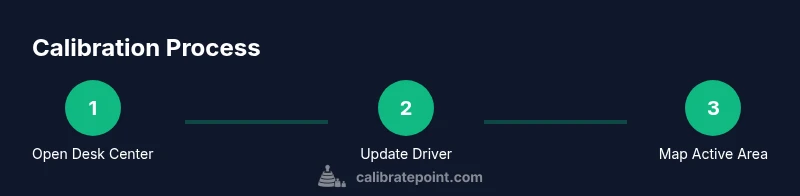
You will calibrate your Wacom tablet to align pen input with the cursor across your display. Start by updating drivers, connecting the device, and launching the Wacom Desktop Center or Preferences. Then map the tablet area to your screen, adjust the pressure curve, enable Pen Tilt if supported, and test with a drawing app to verify accuracy.
Why calibrate a Wacom tablet matters
If you’re wondering how to calibrate wacom tablet, you’re seeking consistent input that matches your hand movements. For professional artists, architects, and designers, even small misalignments can lead to frustrated strokes and thick, uneven lines. According to Calibrate Point, the most common calibration issues stem from driver drift, changes in display setups, or OS scaling that disrupts input mapping. Calibrating ensures the pen tip, cursor, and pressure response stay in harmony across your favorite software. This creates a natural feel, reduces fatigue, and improves repeatability across projects. The following steps provide a reliable workflow that works for both display-based Wacom tablets and classic non-display pens.
Understanding input mapping and pressure
Wacom tablets translate physical pen motion into digital coordinates. Mapping determines how much of the tablet surface corresponds to the display area. Pressure sensitivity controls how hard you press to deepen lines, while tilt sensing can affect brush orientation. If mapping is off, small movements produce large cursor shifts or lag. If pressure curves are too stiff or too sensitive, stroke width becomes unpredictable. A solid calibration aligns these dimensions so your strokes feel natural and repeatable across software. In practice, you’ll calibrate by defining the active area, refining pressure curves, and validating with multiple brush sizes and textures. This process applies to both display and non-display devices, with slight variations depending on model.
Prerequisites and safety
Before you begin, ensure your computer OS is up to date and that you have the latest Wacom driver installed. Use the official Wacom site for downloads to avoid corrupted installers. Avoid aggressive changes if you’re on a laptop using power-saving modes; these can introduce latency during calibration. Work with a clean workspace, free of reflective surfaces that can confuse your eyes when testing strokes. If you share the PC with another user, consider creating a separate calibration profile so your settings don’t affect others.
Tools and workspace preparation
You’ll need a computer with a compatible OS, the Wacom driver installer, the Wacom tablet and pen, and a reliable test app (such as Krita or Photoshop). A USB cable helps when the built-in power is unreliable, and a microfiber cloth keeps the tablet surface clean for accurate tracking. If you work across multiple displays, have a reference monitor ready to compare mapping results. A quiet, low-glare environment makes long calibration sessions more comfortable.
Step 1: Open Wacom Desktop Center and back up profiles
Launch the Wacom Desktop Center and locate your device in the list. Before making changes, back up any existing calibration profiles so you can revert if needed. Use the export or save option to store settings in a safe location. This backup is essential if new calibrations don’t behave as expected, letting you restore a known-good state quickly.
Step 2: Update drivers to the latest version
Check for driver updates within the Wacom Desktop Center or on the official Wacom site. Install any available updates, then restart the computer to ensure changes take effect. Updated drivers improve compatibility with modern OS versions and can fix input lag or mapping glitches that interfere with calibration.
Step 3: Set the correct device and open mapping tools
Select the target device (the tablet you’re calibrating) in the Wacom software and open the mapping or calibration section. If your device has a display, you’ll see an option to map the active area to a specific monitor. For non-display tablets, verify that pen input aligns with the tablet itself and that there is a 1:1 mapping with the drawing surface.
Step 4: Map the active area to the screen (or tablet)
Configure the active area so pen tip travel matches cursor movement on screen. For display models, choose 1:1 mapping to the corresponding monitor and check any edge-to-edge alignment indicators. If you’re using a multi-monitor setup, consider separate mappings for each display to avoid crossover issues during workflow.
Step 5: Calibrate the pressure curve and tilt
Adjust the pressure curve so light strokes don’t produce overly thick lines, and heavy presses reach the intended maximum width. If supported, enable tilt orientation and test with brush shapes that utilize tilt dynamics. Many artists benefit from a mid-range pressure curve that provides predictable results across brush sizes.
Step 6: Test strokes and refine
Open a testing canvas and draw with multiple line weights, curves, and textures. Look for offset between motion and cursor, consistent pressure, and natural tilt responses. If you notice drift, go back to the mapping controls and re-tune the active area and edge alignment until strokes match expectations.
Step 7: Save and apply the calibration profile
Create a named profile for this calibration and set it as the default for your workflow. For complex setups, consider per-application profiles and switch as needed. Ensure the profile is loaded at startup to maintain consistency.
Step 8: Document results and create a backup
Record exact mapping values, pressure curve shape, tilt settings, and the test results. Store the profile backup in a secure folder and note the date of calibration. Regular backups minimize rework after system updates.
Step 9: Schedule periodic recalibration
Plan recalibration after OS updates, driver changes, or hardware moves. Regular checks prevent drift and maintain accuracy. Set a reminder to review your profile every few months and after switching to a different workspace.
Troubleshooting common issues
If you notice cursor drift, re-check the active area mapping and ensure the display scaling in your OS is set to 100%. For pressure issues, test with several brush presets and confirm the curve is not overly flat or too sharp. If problems persist, reset the device to default and reapply calibration from scratch.
Advanced options for professionals
Advanced users can experiment with separate mappings for peripherals like external displays or drawing monitors. Use per-monitor mappings or create multiple profiles for different working setups. Document each profile thoroughly and keep a changelog to track adjustments over time.
Maintenance and backup practices
Keep your driver and firmware up to date, periodically verify calibration against a blank canvas, and store multiple calibration profiles safe from accidental deletion. Regular maintenance helps avoid drift and ensures long-term reliability.
Tools & Materials
- Windows or macOS computer(Ensure OS supports the Wacom driver package)
- Wacom driver installer(Download from official site; avoid third-party installers)
- Wacom tablet and pen(Keep pen nibs fresh; replace as needed)
- USB cable (if needed)(Use the original cable for stable connection)
- Calibration testing software or painting app(Krita, Photoshop, or Clip Studio for testing)
- Calibrated reference monitor (optional)(Helps cross-check mapping accuracy)
- Microfiber cloth(Clean tablet surface before testing)
Steps
Estimated time: 45-60 minutes
- 1
Open Wacom Desktop Center and back up profiles
Launch the Wacom Desktop Center, select your device, and back up existing calibration profiles so you can revert if needed. This protects your baseline settings and speeds recovery if something goes wrong.
Tip: Use a clearly labeled backup folder and include the date. - 2
Update drivers to the latest version
Check for driver updates and install them. Restart the computer to ensure changes take effect, then reopen the calibration tools to confirm you’re on the latest build.
Tip: Enable automatic driver updates where possible to minimize drift. - 3
Choose the correct device and open mapping tools
In the Wacom software, select the target device and navigate to Mapping or Calibration. Verify you’re adjusting the right tablet to avoid cross-device changes.
Tip: If you see multiple devices, disconnect others temporarily. - 4
Map the active area to the screen or tablet
Configure the active area so pen movement matches cursor motion on screen. For displays, set 1:1 mapping to the monitor; for non-display devices, map directly to the tablet area.
Tip: Check edge-to-edge alignment indicators to ensure accuracy. - 5
Calibrate the pressure curve and tilt
Adjust the pressure curve so light strokes are usable and heavy presses produce desired line width. If supported, enable tilt and test with tilt-sensitive brushes.
Tip: Aim for a smooth, middle-ground pressure curve for most tasks. - 6
Test strokes and refine
Draw on a test canvas with diverse brushes to evaluate the changes. Watch for offset, lag, or inconsistent pressure and refine their settings as needed.
Tip: Use a grid background to spot misalignment quickly. - 7
Save and apply the calibration profile
Create a named profile and set it as the default for your workflow. For complex setups, consider per-application profiles and switch as needed.
Tip: Document the profile name and key settings for future reference. - 8
Document results and create a backup
Record exact mapping values, pressure curve shape, tilt settings, and the test results. Store the profile backup in a secure folder.
Tip: Include a note about your hardware and software versions. - 9
Schedule periodic recalibration
Plan recalibration after OS updates, driver changes, or hardware moves. Regular checks prevent drift and maintain accuracy.
Tip: Set a calendar reminder every 3–6 months. - 10
Troubleshoot common issues
If drift persists, revisit mapping, ensure 100% OS display scaling, and verify the cursor aligns with brush position. Reset to defaults if needed and re-calibrate from scratch.
Tip: Keep a troubleshooting checklist handy. - 11
Explore advanced options with care
For power users, test per-monitor mappings and multiple profiles. Keep detailed change logs and avoid over-tuning unpredictable brushes.
Tip: Always back up before experimenting with advanced tweaks.
Questions & Answers
Do I need to calibrate my Wacom tablet for every monitor?
Not always. Start with the main display and map the active area to that monitor. If you use additional displays, consider separate mappings or profiles per monitor to maintain accuracy.
Usually you map to your main display first; add extra mappings only if you use multiple monitors regularly.
Why is there cursor offset after calibration?
Offset can result from imperfect mapping, OS display scaling, or a drift since the last calibration. Revisit the active area mapping and verify the 1:1 alignment.
If your cursor drifts, recheck the mapping and scaling settings.
Can I calibrate with a non-display Wacom tablet?
Yes. You can calibrate pen pressure, tip feel, and mapping on the tablet active area, then test with drawing software.
Yes, calibration works even on non-display devices; focus on pressure and mapping.
How often should I recalibrate?
Calibrate when you notice drift, after driver updates, or when you change workspaces. Regular checks prevent drift and maintain accuracy.
Do it when you notice drift or after driver changes.
What if the calibration tools are missing?
Ensure you installed the full Wacom driver package from the official site. Reinstall if tools remain inaccessible.
Reinstall the driver to restore the calibration tools.
Watch Video
Key Takeaways
- Back up before calibrating.
- Map to 1:1 monitor area for accuracy.
- Test with multiple brushes and apps.
- Save and label profiles for easy switching.
- Maintain calibration with periodic recalibration.