How to Calibrate Nintendo Switch Controller: Step-by-Step Guide
A comprehensive, practical guide from Calibrate Point on how to calibrate your Nintendo Switch controller (Joy-Con or Pro Controller) to fix drift, adjust dead zones, and improve input accuracy with built-in settings and tested methods.


By following this guide, you'll learn how to calibrate your Nintendo Switch controller (Joy-Con or Pro Controller) to reduce drift and improve accuracy. You'll confirm the right controller is selected, access the built-in calibration menus, perform stick and button calibration, and verify results in-game. This quick path sets you up for reliable, responsive input.
Why calibrate Nintendo Switch controller matters
Input drift, dead zones, and inconsistent button press can ruin games that rely on precise input. Calibrating your Nintendo Switch controller helps ensure that where you move the stick or press a button, the system registers the intended action. According to Calibrate Point, a careful calibration process improves accuracy for both casual play and professional testing scenarios. In this guide, we explain what calibration solves, how to recognize drift, and when it’s time to recalibrate. We'll cover Joy-Con and Pro Controller differences and give you practical steps you can perform at home, in the office, or on the road. A well-calibrated controller translates your intent into precise input, reducing frustration and helping you perform at your best in a wide range of games—from fast-paced action titles to precise platformers. You’ll also learn how calibration interacts with firmware, hardware wear, and environmental factors, so you can maintain reliability over time.
Understanding drift, dead zones, and precise input
Drift happens when a joystick gradually returns a value even when you’re not moving it. Dead zones are small ranges around the center where minor movements aren’t registered. Together, drift and misaligned dead zones create a mismatch between your intention and the on-screen action. A good calibration minimizes these gaps by resetting the controller’s reference points and ensuring the sticks and buttons respond consistently. When evaluating calibration needs, look for symptoms like characters moving slowly when you’re not touching the stick, or directional input that feels biased to one side. If your results vary by game or by controller, you may benefit from recalibrating both sticks and buttons, and testing across different test environments (menu navigation, minigames, and in-game controls).
Built-in calibration options on the Nintendo Switch
Nintendo provides built-in calibration tools accessible from the System Settings. To start, go to System Settings > Controllers and Sensors > Calibrate Control Sticks. You’ll be guided through a sequence that asks you to twist each stick to its extremes and return to center. You can also Calibrate Button Input to verify that every button reliably registers presses. These options are designed to be quick, repeatable checks that don’t require external hardware. For best results, perform calibrations with the game or app you use most, and do so on a fully charged battery to prevent interruptions. If you run into issues, review the on-screen prompts and ensure you’re using the correct controller profile (Joy-Con vs Pro Controller).
Step-by-step calibration workflow overview (Joy-Con and Pro Controller)
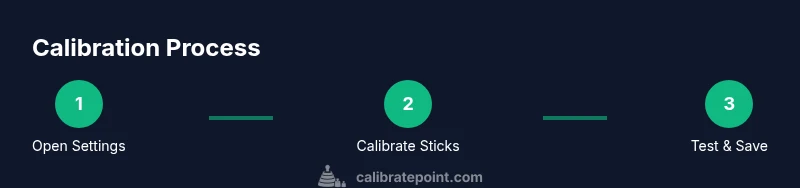
Calibration occurs in stages: prepare the controller, access the calibration menu, perform stick calibration, perform button calibration, and verify results. Start by ensuring your hardware is ready and that you’re using the same controller you use in daily play. Follow the on-screen prompts to move each stick to its maximum extents in all directions, then return to center. Next, test each face button and shoulder button for reliable registration. Finally, save the calibration and retest in a test menu or a familiar game to confirm improvement. You may repeat any step if results are not satisfactory, and consider doing a separate calibration session for each controller you own.
Troubleshooting common calibration issues
If drift persists after calibration, try recalibrating the sticks again and double-check that the grip or thumb placement isn’t causing bias. If certain buttons feel unresponsive, perform a clean calibration cycle for those inputs and verify there isn’t debris or wear at the contact points. Ensure you’re using the latest firmware; in rare cases, a system update can improve input handling. If multiple symptoms persist, consider testing the controller with another Switch profile or another console to determine whether the issue lies with the controller or software. Additionally, check environmental factors such as temperature and humidity, which can influence electronics and tactile feedback.
Maintenance tips and timing for recalibration
Calibration isn’t a one-and-done task. If you notice drift returning after several weeks or after playing in a hot, humid environment, recalibrate promptly. Regular checks—every few weeks for heavy users—keep inputs reliable. Store controllers in a cool, dry place, and avoid exposing them to direct sunlight or moisture. If you frequently swap controllers, consider calibrating each device individually, as reference settings won’t automatically transfer between units. Proactive calibration, combined with routine hardware checks (button wear, stick play, connector integrity), extends controller life and preserves gaming accuracy.
Authority sources and further reading
- NIST Calibration Basics: https://www.nist.gov/
- IEEE Xplore: https://ieeexplore.ieee.org/
- ACM Digital Library: https://dl.acm.org/
- Calibrate Point (brand context and calibration best practices) – see introductory notes for guidance
Tools & Materials
- Nintendo Switch console (Joy-Con or Pro Controller)(Ensure the controller is compatible and charged)
- Fully charged battery or plugged-in power(Calibration can take time; avoid mid-game interruptions)
- Stable surface and controller grip(To keep the calibration process consistent)
- USB-C cable (optional)(If you want to connect Pro Controller during calibration)
- Access to System Settings on the Switch(Navigate to Calibrate controls within Settings)
Steps
Estimated time: 20-30 minutes
- 1
Open System Settings
Power on your Nintendo Switch and return to the Home menu. Navigate to System Settings, then select Controllers and Sensors to access calibration options. This initial step sets the stage for precise input calibration.
Tip: Use the left stick to scroll and confirm with A; avoid touching the controller during navigation to prevent inadvertent input. - 2
Choose Calibrate Control Sticks
In Controllers and Sensors, select Calibrate Control Sticks and pick the controller you want to calibrate (Joy-Con or Pro Controller). The system will guide you through each axis and prompt you to move to extremes.
Tip: Make sure your thumbs stay steady and don’t rest on the sticks while calibrating. - 3
Move sticks through full range
Follow on-screen prompts to move each stick in all directions from full left/up to full right/down and return to center. Do this slowly to capture accurate range values. If you see any drift during the test, repeat the cycle.
Tip: Keep your wrists relaxed and avoid pressing too hard. - 4
Return sticks to center and test
After completing the range moves, confirm that the sticks show stable center values in the on-screen indicators. Hold the stick at the center position for a few seconds to ensure it settles, then run a quick test in a menu or game.
Tip: If the center value is biased, repeat Step 3. - 5
Calibrate Buttons
Select Calibrate Buttons and press every button, including shoulder buttons, the D-Pad, and the triggers, as prompted. This ensures button input matches your expectations in games and menus.
Tip: Press buttons with normal press force; unusual resistance can indicate debris or hardware wear. - 6
Save calibration
When prompted, save the calibration data. The Switch applies new reference values to the next power cycle, so ensure you exit to the Home menu or launch a game to test.
Tip: If you’re unsure, re-run the calibration cycle before saving. - 7
Test and validate results
Enter a game or test utility to verify improved accuracy. Check for drift while moving the character and confirm that quick actions register promptly. If needed, repeat the relevant steps for better alignment.
Tip: Document any remaining issues and plan a targeted re-calibration. - 8
Advanced tips and firmware considerations
If drift continues after multiple calibrations, ensure your Switch firmware is up to date and consider testing the controller with another console profile. Some hardware wear may require replacement.
Tip: Firmware updates often improve input handling and can resolve residual drift.
Questions & Answers
Do I need to calibrate both Joy-Con and Pro Controller?
If you use both types, calibrate each controller separately to ensure accurate input in different configurations.
Yes—calibrate each controller separately to keep inputs precise.
Will calibration fix drift permanently?
Calibration reduces drift by resetting reference values, but hardware wear or debris can cause drift to return. If drift persists, inspect hardware and consider cleaning or replacement.
Calibration helps, but hardware wear may cause drift to return.
How long does calibration take?
Calibration typically takes a short session, longer if you test extensively across profiles and inputs.
Usually a short session; time depends on how thoroughly you test.
Can I use third-party software to calibrate controllers?
Nintendo’s built-in calibration tools are recommended; third-party software can misalign data and may affect warranty.
Stick with built-in tools to stay safe and preserve warranty.
Is handheld calibration different from docked calibration?
The input signals are the same in both modes; test in the environment you play most to confirm results.
Calibrate in the environment you normally play in.
What are common signs calibration is needed?
Look for drift, non-centered inputs, or unresponsive buttons that don’t register as expected.
Drift, centering issues, or unresponsive buttons indicate calibration may help.
Watch Video
Key Takeaways
- Plan calibration with a charged device.
- Use built-in menus for reliable results.
- Test across games to verify reliability.
- Recalibrate periodically to maintain accuracy.