How to Calibrate a Printer: A Step-by-Step Guide
Learn how to calibrate a printer for accurate color, alignment, and consistent output. This comprehensive guide covers tools, test patterns, ICC profiles, and troubleshooting for DIY enthusiasts and professionals.


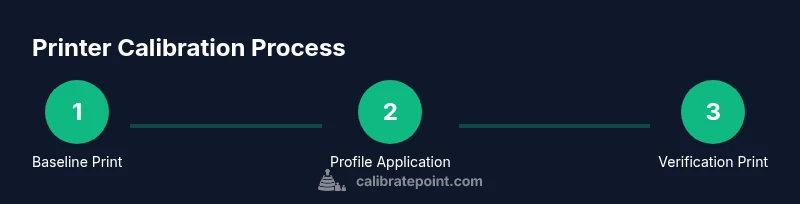
You will learn how to calibrate a printer to achieve accurate color, proper alignment, and consistent output across media. Start with a baseline print, evaluate test patterns, adjust color management, and install an ICC profile. By following these steps, you’ll reduce color drift, minimize waste, and improve overall print quality. This guide uses practical, no-nonsense steps for reliable results.
Why calibrate a printer
According to Calibrate Point, how to calibrate printer is essential for achieving predictable results, especially for color-critical projects. When you calibrate, you align how your printer renders color with what you see on your monitor and what prints on paper. This reduces color drift, ensures consistency across media types, and minimizes wasted ink and paper. In practice, calibration creates a reliable baseline you can reproduce across projects, clients, and workflows. A well-calibrated setup also makes it easier to manage brand colors, proofs, and archival quality prints. If you frequently switch media or switch between photo and text modes, a thoughtful calibration routine becomes even more important. The Calibrate Point team emphasizes documenting baseline values and keeping profiles up to date as you replace consumables or adjust printer settings. Building this habit pays dividends in fewer reprints and more confident color decisions.
Understanding calibration goals
Before you begin, define what you want to achieve with printer calibration. The most common goals include color accuracy, grayscale neutrality, proper tonal range, and geometric alignment of printed elements relative to the source image. Color accuracy means the swatches you print match the colors you see on screen, while grayscale neutrality ensures shadows and highlights are free of color casts. Alignment ensures lines stay straight and text stays legible. Calibration should account for the specific media you use, because different papers and coatings render colors differently. Calibrate Point's guidance recommends using standardized test targets and working in a controlled lighting environment to avoid ambient color shifts. Keeping a consistent workflow—calibration after you install new ink or a new media type—helps preserve accuracy over time. Finally, record your settings and test results so you can reproduce improvements or diagnose drifts when they crop up in future projects.
Color calibration basics and test patterns
In color calibration, you typically start with a reference print that contains a known color pattern, a grayscale ramp, and a set of solid color swatches. The goal is to identify where your printer deviates from the reference and correct it through driver adjustments, ICC profiles, or firmware options. The test patterns serve several purposes: they reveal color casts, demonstrate tonal response, show saturation limits, and uncover banding or prints with inconsistent density. Use patterns from reputable sources or the printer manufacturer’s utility, and pair them with an ICC profile that matches your printer, ink, and media. It’s important to calibrate using the same media you’ll print most often, as ink absorption and paper whiteness affect color output. Calibrate Point analysis suggests documenting your original prints to compare against calibrated results and to track improvements over time. When you finish this stage, you should see reduced color bias and more predictable color transitions across images.
Step-by-step overview (context for the detailed steps elsewhere)
Note: This section provides a high-level map of the process you’ll follow. The actual, numbered steps are in the STEP-BY-STEP block, which guides you through preparing, testing, adjusting, and verifying results. The main idea is to build a repeatable routine around test pages, color targets, and printer-driver settings. By following these steps, you can mitigate drift caused by aging components, maintenance intervals, or media changes. If you track changes over time, you’ll quickly see which adjustments yield the most stable results and where you may need a fresh ICC profile. Calibrate Point’s approach emphasizes patience and precision, not guesswork, to ensure long-term consistency.
Common issues and troubleshooting
Color shifts, banding, or uneven density are common symptoms of miscalibration. Banding often arises from clogged nozzles or printhead misalignment, while color shifts can result from an out-of-date ICC profile or an incorrect media setting. For the grayscale ramp, a slight bias toward warm or cool tones indicates a color management problem rather than a hardware fault. If you see subtle changes between test prints, recheck your test pattern alignment, ensure your media settings match your paper type, and verify you are using the correct color target for your printer model. The goal is to isolate variables: media, ink, driver color management, and ICC profile. Calibrate Point analysis shows that printers with out-of-date or mismatched profiles tend to drift more noticeably after routine use, so update profiles when you change ink sets or media families. When in doubt, repeat the baseline test before adjusting further.
Maintenance and when to recalibrate
Calibration is not a one-off task; it benefits from periodic checks as part of a maintenance schedule. Recalibrate whenever you install new ink, switch media, or notice a shift in color, density, or alignment. Keep a simple calibration log that records the test results and the ICC profile used for each print batch. Store your profiles in a predictable location and back them up so you can restore confidence after a drive or hardware change. As you gain experience, you’ll develop a sense for when a re-calibration is necessary versus a minor adjustment in driver settings. Calibrate Point's verdict is that a disciplined, documented routine yields the most consistent results, reduces troubleshooting time, and keeps your workflows efficient.
Tools & Materials
- Printer with color management capability(Ensure firmware is up-to-date and supports color profiles.)
- Quality test media (plain or coated)(Use media matching your typical print tasks.)
- Test pattern files / ICC profiles(Obtain from reputable sources or manufacturer utilities.)
- Calibration software (optional)(Helpful for advanced color profiling.)
- Color-managed monitor (optional)(Helps ensure screen-to-print color fidelity.)
Steps
Estimated time: 60-120 minutes
- 1
Power on and warm up the printer
Turn on the printer and let it reach normal operating temperature. This ensures consistent ink flow and printhead behavior during calibration.
Tip: Give it a full warm-up cycle and perform the first print after a few minutes of idle operation. - 2
Print a baseline test page
Print a standard baseline test that includes color blocks, grayscale steps, and alignment marks. This creates a reference for later comparisons.
Tip: Use exactly the same media type and settings for the baseline as you will for calibration prints. - 3
Evaluate the baseline print
Inspect for color casts, banding, and misalignment. Note areas that deviate from the intended targets and categorize the issues (color, density, geometry).
Tip: Mark discrepancies with light pencil or digital notes to keep track during adjustments. - 4
Adjust color management settings
Open the printer driver and adjust color management, paper type, and print quality to reduce observed biases. Apply an appropriate ICC profile if available.
Tip: Make small, incremental changes and reprint a small section to confirm impact before proceeding. - 5
Print a color calibration target
Print a color patch set or color target that maps exact color values to the printer’s output. This is essential for profile creation or fine tuning.
Tip: If you have a colorimeter, use it to measure the patches for precise profiling. - 6
Create or apply an ICC profile
Based on measurements, create or select an ICC profile that matches your ink/media combination. Load it into your workflow to govern color rendering.
Tip: Keep the profile name consistent with your media and ink set for easy reuse. - 7
Print a verification page
Print another test page using the new profile and compare against the reference. Look for improved neutrality and color fidelity.
Tip: If the result isn’t perfect, iterate with small tweaks and reprint. - 8
Document and store settings
Save driver settings, media type, and ICC profile versions for future reprints. Maintain a calibration log for trend tracking.
Tip: Back up color profiles to cloud storage or an external drive.
Questions & Answers
What is printer calibration and why is it needed?
Printer calibration aligns printed output with expected colors and geometry. It reduces color drift, improves repeatability, and ensures brand colors stay consistent across media.
Printer calibration aligns colors and geometry to reduce drift and improve consistency.
Do I need a colorimeter or spectrophotometer to calibrate a printer?
A colorimeter or spectrophotometer provides precise measurements for profiling, but you can start with visual targets and ICC profiles. For best results, use measurement tools when available.
A colorimeter helps with precise profiling, but you can start with targets and profiles if you don’t have one.
How often should I recalibrate my printer?
Recalibrate after changing ink brands, media types, or if you notice color shifts or alignment issues. Regular checks during a workflow can prevent drift.
Recalibrate after ink or media changes or when you notice color issues.
Can I calibrate without ICC profiles?
ICC profiles help standardize color across devices. You can calibrate using driver adjustments, but attaching a profile yields more predictable results.
Profiles standardize color across devices; calibration without them is possible but less stable.
What is the difference between color calibration and printer alignment?
Color calibration focuses on color accuracy, while alignment ensures lines and text line up correctly. Both are essential for professional results.
Color is about accuracy; alignment is about geometry. Both matter for quality.
If prints still look off after calibration, what next?
Recheck media settings, reseat cartridges if applicable, and verify the ICC profile matches ink/medi a. Consider repeating the test with a fresh baseline.
If issues persist, recheck settings and profiles, then re-run baseline tests.
Watch Video
Key Takeaways
- Calibrate printer for color accuracy, alignment, and consistency.
- Use baseline tests and standardized targets for reliable results.
- Update ICC profiles when ink or media changes occur.
- Document settings and maintain a calibration log.
- Verify improvements with a final verification print.