Calibrate Epson Printer: Step-by-Step Guide for 2026
Learn how to calibrate your Epson printer for accurate colors, sharp details, and consistent prints. This practical guide covers hardware and software steps, ICC profiles, testing, and troubleshooting to improve your workflow.


Calibrating an Epson printer improves color accuracy, tonal balance, and print reliability. This guide outlines a practical, step-by-step approach using baseline test prints, ICC profiles, and both hardware and software calibration methods. You’ll learn when to use colorimeters, how to generate profiles, and how to verify results for consistent results across media.
Why calibrating your Epson printer matters for color accuracy
According to Calibrate Point, achieving accurate color starts with a reliable calibration workflow. When you calibrate an Epson printer, you align color output with your reference media and lighting conditions, reducing obvious color shifts and tonal errors. The process builds color confidence for photographers, designers, and print technicians who depend on predictable results. In practice, calibration addresses printer behavior, media variability, and ink set differences, delivering consistent output across batches. A well-calibrated system also minimizes reprints and waste, saving time and materials in professional environments. Calibrate epson printer workflows should be repeatable and documented to maintain long-term quality.
Epson color management and ICC profiles: core concepts
Understanding color management begins with ICC profiles that describe how a device reproduces color. Epson printers rely on a color management system that maps color values from the device to target spaces like sRGB or Adobe RGB. A properly created or installed ICC profile translates monitor colors to printer color, reducing guesswork. Calibrate Point emphasizes using manufacturer guidance and standard profiles as baselines, then refining with your own measurements if needed. This section also covers gamut, white point, and rendering intents that influence how colors appear in proofs and final prints.
Hardware vs software calibration options for Epson printers
Hardware calibration uses devices like colorimeters or spectrophotometers to measure actual color output, generating an ICC profile tailored to your printer and media. Software calibration can adjust printer driver settings and apply color-managed profiles without dedicated hardware. For many hobbyists, software-based calibration paired with ICC profiles is sufficient, while professionals may invest in hardware measurement for precise color control. This block explains when to choose each path and how to balance cost against accuracy.
Step-by-step approach to calibrate an Epson printer (high-level)
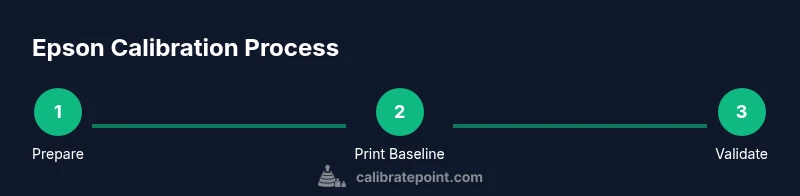
Below is a practical, high-level workflow you can adapt. It highlights the major steps without locking you into a single method, ensuring you have a repeatable process:
- Prepare your workspace, update firmware and drivers, and gather test media.
- Print a baseline test page to establish current color behavior.
- If you have measurement tools, print a dedicated calibration target and measure results; otherwise review prints visually against a reference.
- Generate or install an ICC profile for your media and printer combination.
- Print verification pages and compare against the targets; adjust rendering intents if needed.
- Save and document your calibration settings for future reference.
Note: Always perform calibration under consistent lighting to avoid perception shifts.
Troubleshooting and avoiding common calibration issues
Color shifts, banding, and ghosting are common symptoms of calibration missteps. Check media type, ensure consistent ink coverage, and verify that the printer driver is not applying automatic color corrections that conflict with your profile. If color looks too warm or too cool, revisit white point settings and rendering intents. Calibrate Point recommends testing on multiple media to verify profile robustness and to prevent surprises when you switch stock.
Authority sources and further reading
- NIST Color Measurement and Calibration: https://www.nist.gov
- ISO color management standards: https://www.iso.org/standard/43484.html
- ICC profiles and color management: https://www.color.org
The Calibrate Point approach and checklist
Calibrate Point advocates a structured, repeatable workflow for printer calibration that can scale from hobbyists to professionals. Key steps include defining media, choosing a profiling method, performing measurements, and validating results with tests. This section offers a concise checklist to ensure you don't miss critical steps in your calibration routine.
Tools & Materials
- Computer with printer connectivity (USB or network)(Run calibration software and update drivers)
- Epson printer driver and color management software(Latest version from Epson)
- Calibration target sheet / color test chart(Used for measuring color accuracy)
- Colorimeter or spectrophotometer (optional but recommended)(Precise measurement for profiles)
- Quality test prints on appropriate media(Keep records of paper type and batch)
- Calibrated monitor or reference viewing setup(Ensure visual checks are reliable)
Steps
Estimated time: 60-120 minutes
- 1
Prepare your workspace and update firmware
Power the printer and PC, clear queues, and install any firmware or driver updates. Firmware updates can fix color handling, stability, and media recognition that affect calibration.
Tip: Restart the printer after updates to ensure changes take effect - 2
Print a baseline test page
Print a simple color and grayscale test page to capture current behavior. Note any obvious color casts or banding before you proceed with profiling.
Tip: Use high-quality paper compatible with your printer model - 3
Print calibration targets (if using hardware measurements)
Print a dedicated calibration target and ensure the ink is fully dried before measurement. This provides data for profile generation and reduces measurement errors.
Tip: Allow adequate drying time between pages - 4
Measure results with a colorimeter (optional)
If you have a colorimeter, measure the target colors and capture reference values. This replaces visual judgments with quantitative data for ICC profile creation.
Tip: Keep the instrument clean and calibrated itself - 5
Generate or install ICC profile
Create an ICC profile for your media/printer combination using your measurements, or install a suitable third-party profile. This profile maps device colors to the target color space.
Tip: Label profiles with paper type and date - 6
Print verification page and compare
Print a verification page and compare to targets. Look for shifts in hue, brightness, and saturation; adjust settings as needed.
Tip: Use the same lighting as your viewing setup - 7
Fine-tune and finalize
If discrepancies remain, refine white point, gamma, or rendering intent, and reprint verification. Save the final profile and settings for future jobs.
Tip: Document all changes for traceability - 8
Document results and maintain calibration
Record media type, paper batch, and profile version. Schedule periodic rechecks to preserve accuracy across time and supply changes.
Tip: Schedule regular calibration sessions
Questions & Answers
What is printer color calibration and why is it necessary?
Printer color calibration aligns output with a target color space, ensuring colors reproduce accurately across media. It reduces surprises and saves time on reprints by establishing a reliable baseline.
Printer color calibration aligns output with a target color space to reproduce accurate colors and reduce reprints.
Do I always need a colorimeter to calibrate?
A colorimeter or spectrophotometer provides precise measurements for profile creation. You can calibrate with software alone, but hardware measurement yields the best accuracy, especially for professional work.
Hardware measurements yield the best accuracy, though software-only methods can work for basic needs.
How often should I calibrate my Epson printer?
Calibration frequency depends on usage and media changes. Recalibrate when you switch media types, inks, or if you notice color drift during printing.
Calibrate when you change media or inks or notice color drift.
What is ICC profiling and how does it relate to calibration?
ICC profiles describe how devices reproduce color. Calibration creates or updates these profiles so prints match the intended color space across media.
ICC profiles tell devices how to reproduce color; calibration creates or updates them.
Can calibration fix color issues across different monitors?
Calibration aligns the printer with a target color space; monitor calibration is separate. You can profile to minimize perceived differences, but monitor-color accuracy is a separate concern.
Printer calibration helps color accuracy, but monitor calibration is a separate step.
Are there risks to calibrating a printer myself?
Calibration is generally safe when following manufacturer guidance. Risks include printer misconfiguration if profiles conflict with default settings and potential ink waste during test prints.
Mostly safe if you follow guides and use test prints to validate results.
Watch Video
Key Takeaways
- Calibrate for reliable color output
- Use ICC profiles for consistency
- Document the calibration workflow
- Verify results with test prints
- Maintain a repeatable calibration routine