How to Calibrate a Printer HP: Step-by-Step Guide
Learn how to calibrate a printer HP with practical, step-by-step instructions. This guide covers nozzle checks, head alignment, color calibration, and verification test pages for consistent print quality.


How to calibrate a printer hp: start with built-in maintenance utilities to run nozzle checks and head alignment, then perform color calibration and print-test pages. You’ll need a computer or smartphone with HP Smart or printer software, fresh ink, and standard paper. This quick path ensures sharper text and truer colors across documents and photos.
Why calibrate a HP printer accurately matters
Calibrating a printer HP is not just about making things look good on screen; it ensures that the ink deposition, color balance, and alignment match your expectations for every print. When you follow a deliberate calibration process, you reduce wasted paper, minimize reprints, and extend the life of your print head. For professionals and DIY enthusiasts alike, consistent calibration translates to reliable proofs, accurate color reproduction for photos, and legible text in drafts. If you’re asking how to calibrate a printer hp, you’ll want to start with the built‑in utilities and a clear test plan. By following a structured routine, you establish a repeatable workflow you can reuse across models and firmware updates. Calibrate Point emphasizes that a small, repeatable calibration cycle yields big improvements over time.
Understanding printer calibration basics
Printer calibration aligns four critical domains: mechanical alignment, ink deposition, color profiling, and media handling. A proper calibration adjusts how the print head travels, how the nozzles ink drops onto paper, and how the color data maps to your output. HP printers use a combination of internal diagnostics and software-based adjustments to achieve this. The goal is to minimize artifacts such as banding, color cast, and ghosting. Regular calibration is especially important when you switch media types, change ink or toner, or notice drift in color accuracy. For best results, calibrate in a controlled environment with consistent lighting and a stable paper brand.
Prepare your workspace and prerequisites
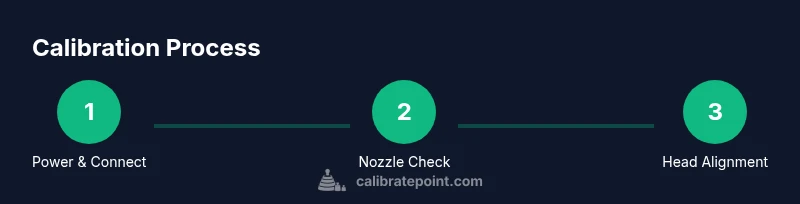
Before you begin, clear the desk, use a flat, clean surface, and ensure your printer is connected to power, network, or USB as needed. Update the printer firmware to the latest version and install the latest HP Smart app or desktop software. Have a fresh set of ink or toner cartridges, a stack of standard A4 or Letter paper, and a clean swatch sheet or test page ready. If you’re unsure where to start, map out the steps you’ll follow: nozzle check, head alignment, color calibration, and a final test page. A tidy setup reduces distractions and helps you notice subtle calibration changes more easily.
Run built-in HP calibration utilities
Access the HP calibration suite via the HP Smart app, or through Windows/Mac printer preferences. Start with a nozzle check to identify clogged or misfiring nozzles, then run a head alignment to correct misalignment across the print path. The software will often offer guided steps and suggest cleaning cycles if it detects persistent issues. Run a basic color calibration after alignment to align color channels with your display or reference swatches. If you’re using a professional workflow, consider printing a calibration sheet and saving the results as a profile for future work. Regularly using these utilities reduces drift over time.
Calibrating print head alignment and nozzle checks
Print head alignment ensures that nozzles align across the page width, eliminating misalignment lines and blurred edges. Start the nozzle check, note any missing lines or gaps, and perform cleaning cycles if needed. Follow up with a cross‑pattern alignment to verify even coverage from the start to the end of the page. If gaps persist after cleaning, perform a deeper head alignment or consult HP support for potential hardware issues. Document the outcome for your records so you can compare future results.
Color calibration and grayscale accuracy
Color calibration creates a color profile that maps digital RGB data to how inks render on paper. Use the calibration tool to generate a color patch set, print it, and measure how each swatch looks compared to reference values. Adobe RGB or sRGB targets are common benchmarks; align your printer’s color output with those standards for consistency. Grayscale calibration ensures that blacks, grays, and whites render with correct tonal balance, essential for documents and professional proofs. If color drifts toward bluish or yellowish casts, re-run the calibration with corrected media type settings and lighting conditions.
Paper and media settings for best calibration
The media type and weight influence ink absorption and drying times, which in turn affect calibration accuracy. Use standard coated or uncoated printer paper that matches your typical job. Adjust the paper type in the printer driver to reduce ink spread and misregistration. For photo work, test with the same glossy or satin media you plan to use, as finishes impact color saturation. Keep a log of media settings and the results of each test to build a reliable calibration profile over time.
Troubleshooting common calibration issues
If you notice banding, color shifts, or misregistration after calibration, reassess each step: verify that the media, ink, and driver settings match your intended workflow; re-run nozzle checks and head alignments; and consider repeating the color calibration with different targets. Electrical or firmware inconsistencies can also manifest as intermittent errors; reboot the printer and update the firmware if needed. For persistent problems, isolate variables by testing with a different paper type or cartridge batch to identify contributing factors.
Verification: test pages and adjustment routines
Verification is the critical final step. Print a standard test page that includes color swatches, grayscale ramps, and alignment checks. Compare the printed results against reference images, ensuring that color blocks are uniform and without bleed. If discrepancies remain, adjust the color profile slightly and run another test page. Maintain a calibration log with model, firmware version, media type, and observed results to track improvements over time.
Maintenance habits to preserve calibration
Calibration is not a one-off activity; it benefits from regular maintenance. Schedule quarterly or after firmware updates to re-check alignment and color accuracy. Keep your printer clean, replace worn nozzles as required, and refresh cartridges before large print runs. Store calibration profiles with descriptive names and dates so you can revert if a future change causes drift. Consistency in your environment, media, and ink supply is the foundation of lasting calibration results.
Final calibration checklist and next steps
Before starting a new project, run a quick calibration sanity check: nozzle check, alignment, and one color patch print. Confirm the test page matches your expectations for sharpness and color fidelity. If you’re sharing work with clients or colleagues, export and label your calibration profile for easy retrieval. Finally, bookmark the HP support resources and Calibrate Point’s recommended routines to maintain confidence in ongoing calibration efforts.
Tools & Materials
- HP printer with compatible cartridges(Ensure printer is powered on and connected to the computer or network.)
- Computer or smartphone with HP Smart app(Install the latest version of HP Smart or printer software.)
- Fresh ink or toner cartridges(Check for correct color cartridges and replace as needed.)
- A4 or Letter paper(Use plain paper for initial calibration; save specialty media for final tests.)
- USB cable or network connection(Needed if not using wireless setup.)
- Printable test pages or calibration sheets(Optional but helpful for visual references.)
Steps
Estimated time: 60-90 minutes
- 1
Power up and connect to the computer
Turn on the printer and verify a stable connection to your computer or mobile device. Open HP Smart or the printer driver to ensure the device is reachable, then check for firmware updates. A stable connection avoids mid‑calibration interruptions.
Tip: If using a network, temporarily pause other network‑heavy devices to ensure reliable communication during calibration. - 2
Open calibration utilities and prepare test media
Launch the HP calibration suite via HP Smart or Printer Preferences. Load plain paper and ensure the media settings match your test pages. Close other apps to prevent interference while the calibration runs.
Tip: Set the media type to the exact paper you’ll use for final outputs to prevent drift. - 3
Run nozzle check and cleaning cycle
Start with a nozzle check to identify clogged or misfiring nozzles. If gaps appear, run the cleaning cycle and recheck. Repeat once if necessary before proceeding to alignment.
Tip: Dry, clean printheads respond best to cleaning cycles—avoid excessive cleaning if cartridges are low. - 4
Perform print head alignment
Initiate head alignment to correct misregistration across the print path. Review the alignment page and choose the best alignment option if offered. Reprint a test page to confirm improvement.
Tip: If alignment pages show persistent offsets, consider a deeper alignment option or printer service. - 5
Execute color calibration
Run the color calibration routine and print the produced patch set. Compare against reference swatches and adjust color profiles accordingly.
Tip: Use a neutral lighting environment when judging color accuracy to avoid perceived shifts. - 6
Print a calibration test page
Print a standardized test page that includes color swatches, grayscale ramps, and an alignment grid. Inspect for uniform color blocks and clean grayscale transitions.
Tip: Mark any deviations with notes to guide subsequent adjustments. - 7
Tweak printer settings for media and output
Adjust driver settings for the chosen media: density, halftone, and color management. Reprint small sections to evaluate changes without wasting paper.
Tip: Document the exact driver settings used for future reference. - 8
Re-run tests and refine
If any issues persist, repeat nozzle checks, alignment, and color calibration with refined parameters. Validate the results with another test page.
Tip: Small incremental changes yield more stable results than large jumps. - 9
Document results and save profile
Save the calibration profile with model, firmware version, media type, and date. Archive results for future reference and reapplication after updates or media changes.
Tip: Keep a dedicated calibration log file for quick comparisons over time.
Questions & Answers
What is calibration and why is it important for HP printers?
Calibration aligns mechanical, color, and media handling systems so prints match expectations. It reduces artifacts like banding and color drift, improving consistency across documents and photos.
Calibration aligns movement, color, and media handling to improve print consistency.
How often should I calibrate my HP printer?
Regular calibration is recommended after firmware updates, cartridge changes, or switching media. For high‑volume or color-critical work, do it more often to maintain accuracy.
Calibrate after major changes or firmware updates, especially for color work.
Can I calibrate an HP printer without using HP Smart?
Yes, you can use traditional printer settings or driver utilities on your computer, but HP Smart often provides more guided, model-specific options.
You can, but HP Smart makes it easier and more reliable for many HP models.
What should I do if colors still look off after calibration?
Recheck media type, ink levels, and profile settings. Consider repeating color calibration with updated reference patches and ensuring consistent lighting during testing.
If colors drift, verify media and ink and try calibration again with updated patches.
Is calibration different for color vs grayscale outputs?
Yes. Color calibration aligns all color channels, while grayscale calibration focuses on tonal accuracy and contrast without color bias.
Color calibration handles hues; grayscale fine-tunes lightness and contrast.
Does resetting the printer erase calibration data?
A factory reset can erase calibration profiles. Calibrate again if you reset, but keep backups of profiles and notes.
Resetting may remove settings, so re‑calibrate and save profiles afterward.
Watch Video
Key Takeaways
- Calibrate HP printers regularly to maintain color accuracy and crisp text.
- Use built-in HP utilities and keep firmware up to date.
- Test pages are essential to verify calibration success and guide adjustments.
- Document settings and preserve profiles for consistency across projects.
- A structured calibration workflow saves time and reduces waste.