How to Calibrate Color on an HP Laptop: Step-by-Step Guide
Learn a practical, step-by-step method to calibrate color on an HP laptop using a hardware colorimeter, establish a reliable profile, and verify accuracy across apps and displays.


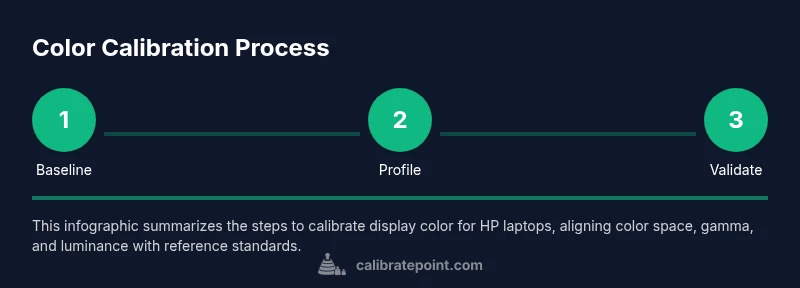
This guide shows you how to calibrate color on an HP laptop using a hardware colorimeter and Windows color management. You’ll establish a baseline, install calibration software, profile the display, adjust gamma and brightness, and verify results with test images. The method yields consistent skin tones and faithful color across apps, browsers, and media players.
Why calibrate color on an HP laptop
Color accuracy matters for design, photography, and media consumption. Most HP laptops ship with broad color ranges that aren't precisely aligned to standard color spaces under typical room lighting. Calibrating the display aligns on-screen colors with a reference (such as sRGB or Adobe RGB), reducing miscommunication when sharing images and ensuring skin tones and blues appear correctly. According to Calibrate Point, most displays benefit from a controlled calibration workflow that accounts for room lighting, panel variation, and software color management. The Calibrate Point team found that even mid-range laptops can approach professional accuracy when the workflow is followed with hardware tools and consistent lighting. After calibration, you’ll notice more faithful grayscale, truer skin tones, and more reliable photo edits across software like image editors, browsers, and video apps.
Color profiles and hardware calibration
Color calibration involves matching your display to standardized color spaces and gamma curves. The most common spaces for general work are sRGB for web and Rec. 709/Display P3 for video; professionals may target Adobe RGB. A gamma curve around 2.2 provides natural tonal reproduction, while the white point (D65) influences color balance in bright daylight. An ICC profile encodes the measured color characteristics of your HP display and allows the OS and applications to translate colors consistently. Hardware calibration with a colorimeter produces direct measurements from the screen, while software-only calibration relies on heuristics and may drift with aging panels. The takeaway: pair a hardware device with dedicated calibration software to generate a trustworthy, portable ICC profile that you can apply across Windows and compatible apps.
Baseline setup and workspace considerations
Calibrating begins with a stable environment: consistent lighting, neutral walls, and an accurate brightness baseline. Make sure the laptop is warmed up for 15-20 minutes, then set the display brightness to a mid-level that matches your ambient light. Disable power-saving features that alter color output, such as adaptive brightness or dynamic contrast. Position the screen at a comfortable viewing angle and avoid direct glare from windows or lights. For best results, perform calibration in a dim room with controlled lighting and a color-neutral workspace. This reduces measurement noise and yields repeatable results.
Tools and setup checklist
Before you start, assemble the essential tools and prepare your workspace:
- Hardware colorimeter (or spectrophotometer) – essential for accurate measurements.
- Calibration software – generates ICC profiles and runs test patterns.
- Reference test images and grayscale ramps – verify accuracy across tones.
- USB cable and power supply – keep the device powered and connected during calibration.
- Ambient light meter (optional) – helps quantify room lighting for repeatable results.
- Notebook for logging profiles – track settings and dates for future recalibration.
What happens during calibration
During calibration, the software guides you to place the colorimeter on the screen and capture readings across a color target and grayscale. Each measurement updates the profile parameters (color primaries, white point, gamma), then the ICC profile is saved and applied as the system default. The result is a display that maps device colors to standardized spaces with minimal drift. The actual steps vary by software, but the flow is consistent: measure, generate, apply, verify.
Validation and best practices
To validate, view color-accurate images and a grayscale ramp; use test patterns; compare skin tones; check contrast. Re-check after system updates or hardware changes. Keep logs; calibrate on a schedule, e.g., every 1-3 months, or when you notice color drift or a change in lighting. Use calibrated test images and consistent ambient lighting for rechecks. The goal is a repeatable, auditable process you can rely on across projects.
Tools & Materials
- Hardware colorimeter or spectrophotometer(Essential for accurate measurements; ensure compatibility with your HP display and calibration software.)
- Calibration software(Provides ICC profile generation, test patterns, and device communications.)
- Reference test images and grayscale ramps(Use neutral gray ramps and color targets to verify accuracy.)
- USB cable and power supply(Keep the colorimeter powered and connected during calibration.)
- Ambient light meter (optional)(Helps quantify room lighting for repeatable results.)
- Notebook for logging profiles(Record profile names, software versions, and calibration dates.)
Steps
Estimated time: 60-90 minutes
- 1
Prepare workspace
Set up in a dim, stable environment. Connect the colorimeter, ensure the PC is awake, and close distracting apps. Establish a consistent ambient light baseline to prevent color drift during measurements.
Tip: Keep the screen at eye level and eliminate glare from windows. - 2
Reset display baseline
Return the display to its factory settings or a known baseline. Disable features like dynamic contrast or automatic brightness that can skew measurements.
Tip: Document current settings before resetting so you can revert if needed. - 3
Install and configure software
Install calibration software and drivers for the colorimeter. Create a dedicated profile folder and set the software to generate an ICC profile for Windows.
Tip: Ensure software is updated to the latest version. - 4
Measure current color and luminance
Run the initial scan to capture color readings and luminance. Generate a provisional profile to establish a baseline for adjustments.
Tip: Keep room lighting constant during this step. - 5
Generate and apply ICC profile
Create the ICC profile from measurements and apply it as the system default. Confirm the profile is active in Color Management settings.
Tip: Test across multiple apps to ensure consistency. - 6
Tune gamma and white point
Adjust gamma toward 2.2 and set an appropriate white point (commonly D65). Then fine-tune screen brightness to match ambient conditions.
Tip: Use a grayscale ramp to verify smooth transitions. - 7
Validate with reference images
Open calibrated content and check skin tones, blues, and neutrals. Look for subtle color shifts or posterization.
Tip: Cross-check with neutral gray targets to confirm neutrality. - 8
Document and maintain profile
Save the profile with a clear name, log software version, and calibration date. Plan periodic recalibration.
Tip: Schedule reminders and keep a changelog.
Questions & Answers
What is color calibration and why do I need it on an HP laptop?
Color calibration aligns your display with standard color spaces so that images look the same across devices and media. It’s essential for design, photo editing, and accurate viewing on an HP laptop.
Color calibration aligns your screen with standard color spaces so your images look correct across devices. It’s essential for design and accurate viewing on HP laptops.
Do I need a hardware colorimeter to calibrate color?
A hardware colorimeter provides precise, repeatable measurements for accuracy. Software alone can help, but hardware tools deliver dependable results, especially for professional work.
A hardware colorimeter gives precise measurements and repeatable results, especially for professional use.
Can Windows built-in calibration tools be enough?
Windows offers baseline calibration, but hardware-assisted calibration yields better accuracy for color-critical tasks. Use the built-in tools for quick tweaks, then supplement with a colorimeter for precision.
Windows calibration is fine for quick tweaks, but for precise color you’ll want a hardware device.
How long does calibration take?
A thorough calibration typically takes 45-90 minutes, depending on hardware and lighting conditions. Plan for a relaxed session to avoid rushed results.
Most calibrations take 45 to 90 minutes with a calm, controlled setup.
Will calibration affect brightness in all apps?
Calibration mainly affects color accuracy and gamma. Brightness and contrast can be adjusted within the calibration profile but may vary by app; some apps may bypass color management.
Calibration focuses on color and gamma; brightness changes happen within the profile but could vary by apps.
How often should I recalibrate?
Calibrate whenever you notice color drift, after significant lighting changes, or when you install a new color-managed workflow. A routine schedule helps maintain accuracy.
Recalibrate when you notice color drift or after lighting changes, and on a regular schedule.
Watch Video
Key Takeaways
- Establish a stable calibration baseline
- Generate and apply a system ICC profile
- Validate color accuracy with neutral references
- Document settings for future recalibration
- Maintain consistent ambient lighting during calibration