Color Calibrate Laptop: Step-by-Step Display Calibration
Learn how to color calibrate laptop displays for accurate colors, better photo edits, and consistent design work. A practical, step-by-step guide with tools, targets, and tips.


You will learn how to color calibrate a laptop to achieve accurate hues across apps and photos. This guide covers selecting a colorimeter or software, preparing the display environment, and a repeatable calibration workflow you can replicate. You’ll need a calibration device, a quiet workspace, and a consistent process to start.
Why color calibration matters for laptops
Accurate color on a laptop matters across photo editing, design, video, and casual viewing. Without calibration, colors can look correct on one screen and biased on another, leading to wasted edits and inconsistent output. For professionals and hobbyists who rely on color fidelity, a repeatable calibration workflow reduces guesswork and makes cross-application proofing reliable. The Calibrate Point approach emphasizes establishing a baseline, using a capable device, and validating results under the lighting you actually use. Small color shifts compound over time, so investing effort now saves rework later. This section lays the groundwork by explaining color spaces, ICC profiles, and practical targets that translate to real-world accuracy.
Understanding color spaces, ICC profiles, and targets
Color spaces define the range of colors a system can reproduce. Common laptop targets include sRGB for general use, Display P3 for modern displays, and Adobe RGB for professional print work. ICC profiles describe how a device should reproduce colors, and when applied correctly, ensure consistent colors across applications and printers. In calibration, you align the display’s gamma (tonal response) and white point (color temperature) to a standard like 2.2 gamma and ~6500K white. Targets include gray ramps, color patches, and neutral grays to quantify accuracy. The process creates a profile that your system uses to translate device readings into standardized color values, enabling predictable results in photo editing, video work, and UI design.
Tools and materials you’ll need
Before you start, gather essentials to minimize interruptions. A colorimeter or spectrophotometer is the core tool for reading color and generating ICC profiles. You’ll also need calibration software that supports ICC workflows, a laptop with reliable backlight and uniform brightness, and reference targets (gray, white, black) for validation. An ambient light meter can help you quantify your environment, though it’s optional. Ensure your workspace is quiet, free from direct reflections, and that the monitor has been on for at least 20 minutes to stabilize brightness and color.
Step-by-step calibration workflow (overview)
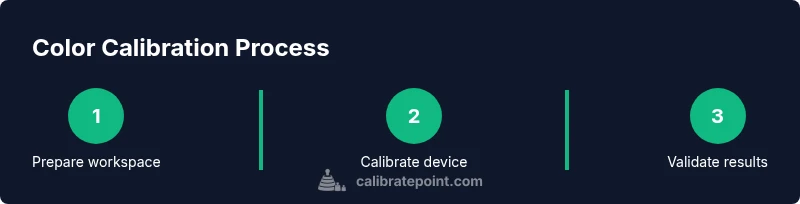
A robust calibration workflow consists of preparing the display, running the calibration tool, setting target values, saving and applying the ICC profile, and validating results. Start by warming up the display and setting a stable brightness. Connect your colorimeter and run the software’s guided calibration, selecting a target white point and gamma appropriate for your work. The resulting ICC profile should be applied at the system level and, if possible, within design tools to ensure consistency. Finally, verify results with test images and gray ramps to confirm neutral gray and accurate color reproduction across tones.
Common pitfalls and how to avoid them
Ambience matters: calibrate in a room with steady, neutral lighting and avoid direct glare on the screen. Do not change brightness or contrast during measurement, as this will skew readings. Rely on a consistent target and avoid using a color-managed workflow that isn’t uniform across your OS and apps. Calibrating multiple displays requires profiling each monitor separately and ensuring the correct profile is active in each workspace. Finally, don’t skip validation: a profile should be tested with real-world images rather than relying on numeric readings alone.
Testing accuracy and validating results
Validation involves comparing calibrated results against a reference image set and looking for neutral grays, consistent skin tones, and faithful color reproduction in highlights and shadows. Use grayscale tests to check neutrality and histograms to ensure no color casts across brightness levels. If test images reveal biases, re-run calibration with adjusted white point or gamma and re-validate. Documentation of the profile name and target values helps you reproduce results later and communicate workflow settings to teammates.
Maintenance and re-calibration schedule
Color calibration is not a one-off task. Recalibrate after major software updates, hardware changes (new GPU, monitor replacement), or noticeable color drift. If you work in changing ambient light, consider quarterly recalibration and at least biannual checks. Keeping a log of settings, profile versions, and tested targets helps sustain color accuracy over time and across devices.
Best practices for different use cases
Designers prioritizing print should maintain a workflow that aligns with Adobe RGB when necessary and ensure printer profiles are synchronized. Photographers will benefit from a precise white point and regular validation with RAW previews. For video, ensure your display gamma matches the delivery standard and verify with color-consistent test footage. Regardless of use case, a consistent calibration routine and documentation make color management reliable across projects.
Tools & Materials
- Colorimeter or spectrophotometer(Choose a device that supports ICC profiling and is compatible with your OS.)
- Calibration software(Software should support ICC workflow, white point, gamma, and profile export.)
- Laptop with stable brightness(Ensure the display stays at a fixed brightness throughout calibration.)
- Reference color targets (gray, white, black)(Used to validate neutral tones and overall balance.)
- Ambient light meter (optional)(Helps quantify room lighting; not strictly necessary.)
- Notes to document calibration(Record target values, profile name, and date for future reference.)
Steps
Estimated time: 40-60 minutes
- 1
Prepare workspace and baseline settings
Create a controlled environment, disable night mode, and set the monitor brightness to a stable level. Ensure ambient lighting is consistent with what you’ll use for editing to avoid color drift.
Tip: Use a quiet room and avoid reflections by tilting the screen slightly if needed. - 2
Connect calibration hardware
Plug in the colorimeter and launch the calibration software. Ensure drivers are up to date and the device is recognized by the system.
Tip: Close other color-managed apps to prevent cross-profile conflicts. - 3
Warm up and baseline read
Let the display warm up for 15-20 minutes. Take baseline readings to understand the current state before applying corrections.
Tip: Avoid touching brightness or contrast during the warming period. - 4
Set target white point and gamma
Choose a standard white point (commonly D65 ~6500K) and a gamma target (often 2.2). These choices influence how midtones render.
Tip: Match targets to your primary workflow (web, print, or video). - 5
Run calibration and generate ICC
Let the software measure and compute the optimal RGB-to-device transformation, then save the ICC profile.
Tip: Name the profile descriptively and save it in a consistent location. - 6
Apply the profile system-wide
Install the ICC profile at the OS level and ensure applications use the correct color management settings.
Tip: Test in at least two apps to confirm cross-app consistency. - 7
Validate results with test images
Open neutral reference images and grayscale ramps to verify neutrality and color balance.
Tip: If results look off, re-run calibration with adjusted white point or gamma. - 8
Document and schedule recalibration
Record your profile name, target values, and calibration date. Plan a recheck schedule (quarterly or semiannual).
Tip: Keep a simple log to track changes over time.
Questions & Answers
What is color calibration and why should I calibrate my laptop monitor?
Color calibration aligns your display with a standard color reference so edits and proofs remain consistent across devices. It improves accuracy for photo, video, and design work and reduces guesswork when color matters.
Color calibration sets your screen to a known standard so colors stay the same across apps and devices. It's essential for anyone doing precise editing or color-critical work.
Do I need a hardware colorimeter or can software alone work?
Software alone cannot measure physical colors accurately. A hardware colorimeter or spectrophotometer provides objective readings and enables correct ICC profile generation.
You’ll need a hardware device for true measurement; software helps apply the calibrated profile.
How often should I recalibrate my laptop display?
Recalibrate when you notice drift, after hardware changes, or on a regular schedule (quarterly or biannually) to maintain consistency.
Recalibrate whenever you see color drift or after hardware or software changes, about every few months.
Will calibration affect battery life or performance?
Calibration itself doesn’t drain battery; it primarily affects how colors are rendered. Some workflows may require slightly higher GPU or CPU usage during profiling.
Calibration doesn’t usually affect battery life, but ongoing color-managed workflows could impact performance slightly during testing.
Can I use the same ICC profile for multiple displays?
No. Each display has unique color characteristics; generate and apply a separate ICC profile per monitor and switch when you swap displays.
Use separate profiles for each monitor to keep colors consistent.
Watch Video
Key Takeaways
- Define a stable calibration environment before starting.
- Use a colorimeter and ICC workflow for repeatable results.
- Validate with real-world images to confirm accuracy.
- Document and schedule future recalibrations.