How to Calibrate LCD Displays: Step-by-Step Guide
Learn to calibrate LCD displays for accurate color, gamma, and luminance with practical steps, essential tools, and maintenance tips for DIY technicians and professionals.


Calibrate lcd displays to achieve accurate color by aligning white point, gamma, and luminance with your target color space. This guide outlines the essential steps, the tools you need, and how to verify results, so you can start producing repeatable, reliable color for design, photography, and QA work.
Why LCD calibration matters
Color accuracy on LCD displays is essential for design, photography, and quality assurance. The color you see on-screen informs decisions and can impact outcomes across print workflows, proofs, and dashboards. According to Calibrate Point, a structured calibration process helps reduce rework and improves consistency across environments. Calibrate lcd displays in a controlled setup to ensure white point, gamma, luminance, and color space align with your workflow needs. Without calibration, hues can drift, shadows may clip, and white areas can look gray. A well-calibrated display provides a repeatable baseline for comparisons and collaboration, whether you are grading footage, editing images, or evaluating prototypes. This section clarifies what calibration means in practice, where errors originate (device profiles, ambient light, or out-of-the-box settings), and why a methodical approach matters for professional results.
Understanding LCD calibration basics
LCD calibration is the process of adjusting a display so its output matches a defined color standard. There are hardware approaches (colorimeters or spectrophotometers) and software-driven methods that generate ICC profiles. Key concepts include white point (color temperature), gamma (contrast response), and luminance (brightness level). Color spaces like sRGB or DCI-P3 define the target color range. Ambient lighting influences perceived color, so calibrations should occur in a stable environment. A basic calibration aligns the monitor with a standard reference, while advanced workflows optimize for specific tasks such as photo editing or video grading. Understanding these elements helps you choose the right tools and settings for lcd display calibration and maintain consistency across sessions.
Calibration workflow overview
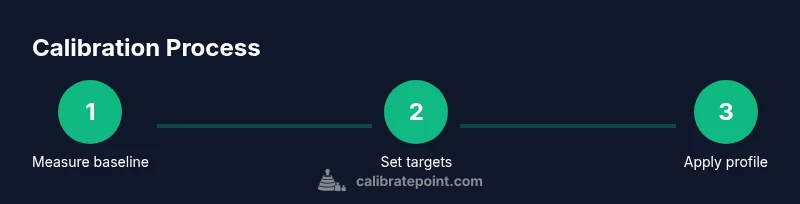
A typical LCD calibration workflow begins with selecting targets, then measuring the display's current output. You set a pragmatic white point, adjust gamma to resemble a mid-toned response, and normalize luminance to your working environment. Next, you generate or update an ICC profile and apply it in your OS or design software. Finally, you validate with test patterns and make minor refinements. The goal is a stable, repeatable result you can trust after changing lighting conditions or seating positions. This section outlines the sequence so you can plan your calibration sessions and avoid common missteps in lcd calibration.
Choosing the right calibration tools
Your toolkit should balance accuracy, usability, and cost. Hardware colorimeters and spectrophotometers measure color output and generate precise profiles; software helps you run tests, view error metrics, and export ICC profiles. For most LCD calibration needs, a colorimeter paired with reputable calibration software provides solid results. You’ll also benefit from a dependable test pattern set and a calibrated ambient lighting assessment method. This block helps you decide between entry-level and professional-grade options and explains how to match tools to your lcd display calibration goals.
Practical setup and workflow considerations
Before you begin, ensure the environment is stable: avoid dramatic ambient light changes, disable auto-brightness, and set a comfortable viewing distance. Connect your calibration device to the display and computer, install or update the calibration software, and unlock the display’s advanced controls. Run a baseline measurement to capture the current state, then follow the software prompts to set the target color space, white point, and gamma. Apply the new profile and verify with test patterns to confirm accuracy. In practice, documenting settings and saving profiles in an organized folder speeds future recalibration. This section provides practical guidance to reduce errors during lcd display calibration.
Maintenance and re-calibration routines
Calibration is not a one-and-done task. Recalibrate when the display or environment changes, after firmware or color management software updates, or when color-critical work resumes. Keep a calibration log detailing dates, profiles, and results to track drift over time. If you change rooms, lighting, or viewing angles, recheck and adjust as needed. Regular maintenance helps ensure continued color fidelity for your lcd display calibration efforts and preserves consistency across devices and projects.
Tools & Materials
- Colorimeter or spectrophotometer(Essential for accurate color measurements and profile generation)
- Calibration software(Use reputable software that supports ICC profile export)
- Display with adjustable brightness/contrast(Must allow manual control of white point and luminance)
- Computer or laptop with USB/HDMI(Connects measurement device to calibration software)
- Test pattern sets and ICC profiles(Provided by software or downloadable resources)
- Ambient light meter (optional)(Helps stabilize viewing conditions during calibration)
- Calibrated environment space or mounting stand (optional)(Keeps the display stationary and consistent during measurements)
Steps
Estimated time: Total time: 60-90 minutes
- 1
Prepare workspace and equipment
Clear the desk, power the display, and confirm that the calibration tool and software are updated. Set ambient lighting to a steady level and disable features that auto-adjust the display during the session.
Tip: Use a stable chair and distance from the screen to ensure reproducible measurements. - 2
Install and configure calibration software
Open the calibration software, select your display, and choose the target color space appropriate for your work (e.g., sRGB for web or DCI-P3 for video). Confirm the measurement workflow and instrument calibration status.
Tip: Run a quick sensor warm-up if your device requires it before taking measurements. - 3
Connect device and take baseline measurements
Attach the colorimeter to the screen, ensure it has a clean surface, and start the baseline capture to establish current output. Review the initial drift across color channels and luminance.
Tip: Take multiple readings at central and peripheral screen areas to average out unevenness. - 4
Set target white point and gamma
In the software, select a neutral white point that matches your workflow and adjust gamma to a standard response. Apply these targets to generate a new ICC profile.
Tip: Document the chosen white point and gamma rationale for future reference. - 5
Calibrate luminance and apply the profile
Tune the display brightness to a level appropriate for your environment, then apply the ICC profile to the operating system and applications. Re-measure to confirm improved accuracy.
Tip: If results look off, re-run the measurement cycle with a fresh baseline. - 6
Validate results and save documentation
Run test patterns to verify color accuracy and gradient fidelity. Save the profile with a descriptive filename and store a brief calibration log.
Tip: Keep a copy of the profile in a backup location for disaster recovery.
Questions & Answers
What is LCD calibration and why is it important?
LCD calibration aligns a display with a standard color reference by adjusting white point, gamma, and luminance. This ensures color accuracy for design, photography, and QA tasks. Without calibration, viewers may see color shifts that affect decisions and proofs.
LCD calibration aligns the display with a standard color reference so you can trust the colors you see when working on edits or proofs.
Do I need hardware and software to calibrate LCD?
Yes. A colorimeter or spectrophotometer plus calibration software is recommended. Hardware measures color output, while software generates ICC profiles that apply the corrections to the display.
You typically need a colorimeter and calibration software to calibrate LCD displays effectively.
How often should I recalibrate my monitor?
Recalibration should occur whenever you change lighting conditions, after firmware or software updates, or when color-critical work resumes. Regular checks help maintain accuracy over time.
Calibrate whenever lighting changes or you start color-critical work to keep accuracy consistent.
Can software-only calibration be sufficient for professional work?
Software-based calibration can adjust certain aspects, but hardware measurements with a sensor produce more reliable results. For professional tasks, combine hardware measurement with trusted software workflows.
Software-only calibration may be adequate for casual use, but hardware-assisted calibration is better for professional work.
What is the difference between a colorimeter and a spectrophotometer?
A colorimeter measures color as captured by human vision with focused filters, while a spectrophotometer captures full spectral data. Spectrophotometers can be more accurate but are usually more expensive; choose based on required precision.
A colorimeter is simpler and usually cheaper; a spectrophotometer offers higher accuracy and spectral data.
Watch Video
Key Takeaways
- Prepare a controlled workspace before calibrating.
- Use the right tools and target color space.
- Validate results with test patterns and save profiles.
- Maintain calibration regularly to prevent drift.